Configure Page Properties
Use the configure page properties in Oracle Visual Builder's business rules to manage visibility of tabs and tables on the object pages for items, workflows and manufacturers.
To hide tabs and tables, select the page with the same name as the object from the object page and configure the page properties. For example, for Items, select the Item page. The pages for each object have the same name as the corresponding object. You can similarly configure page properties for other objects.
- Navigate to the objects page.
-
Select the Edit Page in Visual Builder Studio task in the Settings and Actions menu.
-
Click the Configure Page Properties button in Business Rules.
- In the Page Properties page of the object, click the + Rule button to create a rule.
- In the Create Page Properties Rule, provide a Label, Id and Description and click Create. The new rule is created and is displayed in the Extension Rules region.
-
Select the rule, and define the conditions and actions based on your requirement. See the use cases for examples of the sample conditions and actions used to build rules.
- Preview and publish your changes.
Use Case: Hide tabs and tables for all Engineered Items
Here's how you define the conditions and actions for the rules:
- Condition:
- EngineeredItemFlag = true
- Actions:
- Hide tab:
- Associations Tab
- Hide tables:
- Cross Reference
- GTIN
- Spoke Systems
- Related Items
- Hide tab:
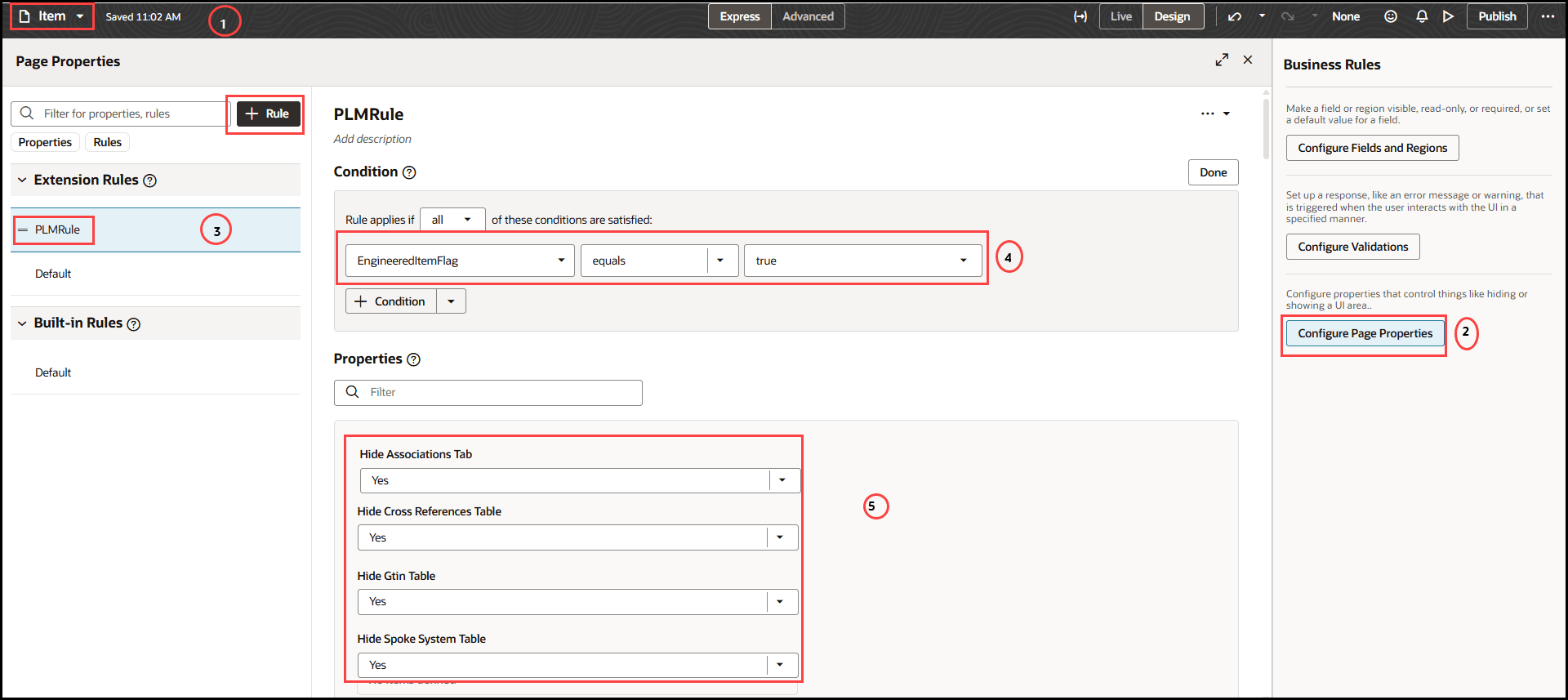
Use the page property constants provided in the Page Property Constants for Item table to hide or show tabs by setting values as Yes or No. By default, a tab is displayed when the page property constant is blank.
| Object | Page Property Constant |
| Item | Hide Variants Tab |
| Item | Hide Categories Tab |
| Item | Hide Relationship Tab |
| Item | Hide Change Tab |
| Item | Hide Quality Tab |
| Item | Hide Structures Tab |
| Item | Hide Attributes Tab |
| Item | Hide Associations Table |
| Item | Hide Supplier Association Tab |
| Item | Hide Attachments Table |
| Item | Hide Revision Attachments Table |
| Item | Hide Corrective Actions Table |
| Item | Hide Problem Report Table |
| Item | Hide Quality Actions Table |
| Item | Hide Cross References Table |
| Item | Hide GTIN Table |
| Item | Hide Links Table |
| Item | Hide Related Items Table |
| Item | Hide Spoke System Table |
| Item | Hide Trading Partner Items Table |
Let's look at the tables that you can hide conditionally as provided in the Tabs and Associated tables:
| Tab | Tables |
| Associations | |
| Attachments |
Item Attachments Item Revision Attachments |
| Categories | Item Category |
| Changes |
Change Orders Change Requests |
| Create Item |
Create Item Pop-up Create Item Primary Attributes |
| Quality |
Quality Issues Quality Actions Problem Reports Corrective Actions |
| Relationships |
GTIN Relationships New GTIN Relationship New GTIN Additional Attributes Existing GTIN Relationship Edit GTIN Relationship Edit GTIN Additional Attributes Trading partner item relationships New Trading partner item relationship Edit Trading partner item relationship Create Trading partner items additional attributes Edit Trading partner items additional attributes Create link Spoke System Relationships New spoke system item relationship Create Spoke System Additional Attributes Edit spoke system item relationship Edit Spoke System Additional Attributes Cross-references Relationships New cross-reference relationship Create Cross Reference Additional Attributes Edit cross-reference relationship Edit Cross Reference Additional Attributes Related Items Edit related item relationship Edit Related Item Additional Attributes New related item relationship Create Related Item Additional Attributes |
Use Case: Hide Tabs based on User Role for Workflows
- Condition:
- Role = Supplier Product Design Engineer
- Actions:
- Hide tabs:
- History
- Relationship
- Workflow and Tasks
- Hide tabs:
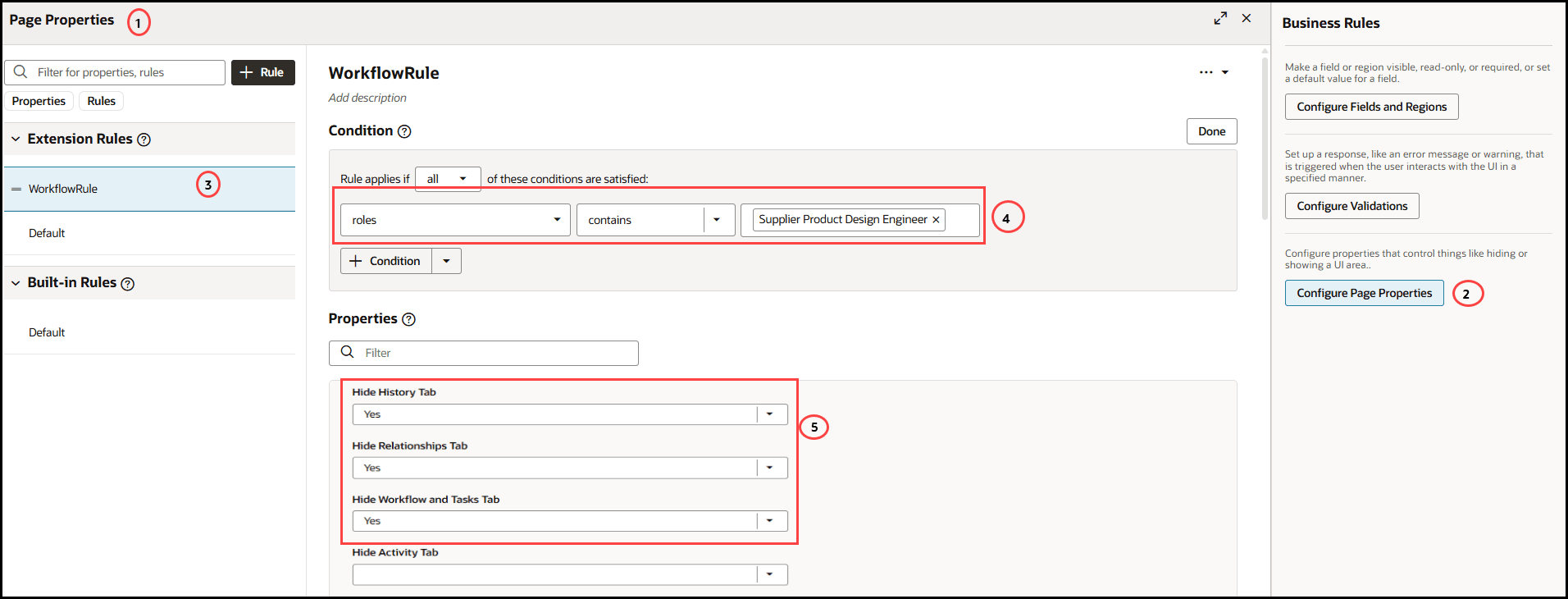
Here's a list of predefined page property constants that can be used to hide or remove tabs by setting values Yes or No. By default, a tab is displayed when the page property constant is blank.
| Object | Tabs or Subtabs |
| Workflow | Hide Affected Objects Tab |
| Workflow | Hide Attachment Tab |
| Workflow | Hide History Tab |
| Workflow | Hide Relationships Tab |
| Workflow | Hide Workflow and Tasks Tab |
| Workflow | Hide Activity Tab |
| Workflow | Hide Tasks Tab |
Hide Columns in Tables for Workflows
You can hide the columns within the tables for Workflows using Collection Rules. Use the page property constants hide the tab completely.
| Tabs | Tables |
| Affected Object | Line Attachments |
| Attachments | Workflow Attachments |
| Create Workflow |
Create Workflow Duplicate Workflow Additional Info |
| Relationships | Relationships |
| Workflow and Tasks |
Workflow Create Task Workflow Edit Task |
Use Case: Hide Tabs for Manufacturer
Here's how you define the conditions and actions for the rules for hiding tabs for manufacturers:
- Condition:
- Role = Supplier Manager
- Actions:
- Hide MPN tab = Yes
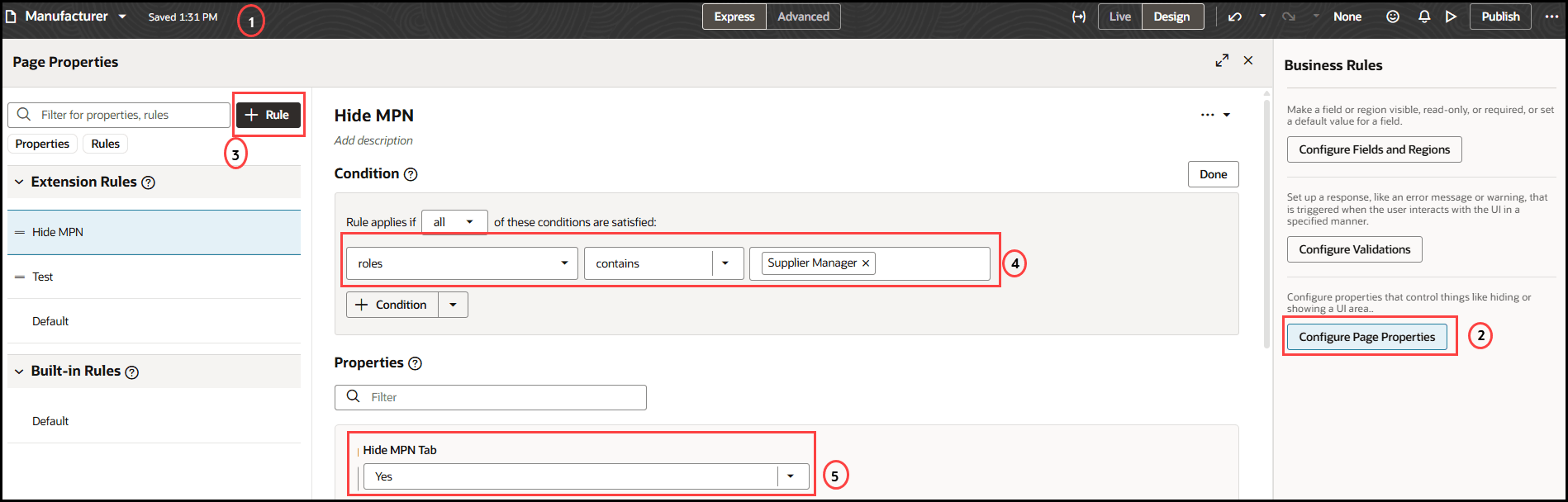
You can use the page property constants provided in the Page Property Constants for Manufacturer table to hide or show tabs by setting values Yes or No. By default, a tab is displayed when the page property constant is blank.
Let's look at the list of tabs that you can hide for Manufacturer using business rules.
| Object | Tabs |
| Manufacturer | Hide Attachments Tab |
| Manufacturer | Hide Details Tab |
| Manufacturer | Hide Locations Tab |
| Manufacturer | Hide MPN Tab |