Configure Attribute Display in Attribute Groups
Use Configure Fields and Regions in Business Rules to conditionally display or populate attribute values during view, edit, or create operations.
- Show or hide them
- Assign default values
- Mark it as read-only
- Make it mandatory
How to Hide an Attribute
You can hide or show an attribute or attributes on a page using Visual Builder Studio.
- Navigate to the page.
- Select the Edit Page in Visual Builder Studio task from the Settings and Actions menu.
- Select your project or create a new one. Ensure that you're in Express mode.
- Click the Configure Fields and Regions button in Business Rules.
- In the Fields and Regions area, click Regions and select the attribute group within which the field exists.
- In Extension Rules, click the plus (+) icon.
- In the Create Business Rule window, enter the rule details and click Create.
- In the rule window, select the attribute that you want to show or hide and click the Hidden column.
- Select Visible to show the attribute or
Hidden to hide the attribute.Note: See the Use Case section to see how to create rules, and hide attributes.
- Preview and publish your changes.
The following sections provide a few use cases that use the Configure Fields and Regions task in Visual Builder to configure attributes for various objects.
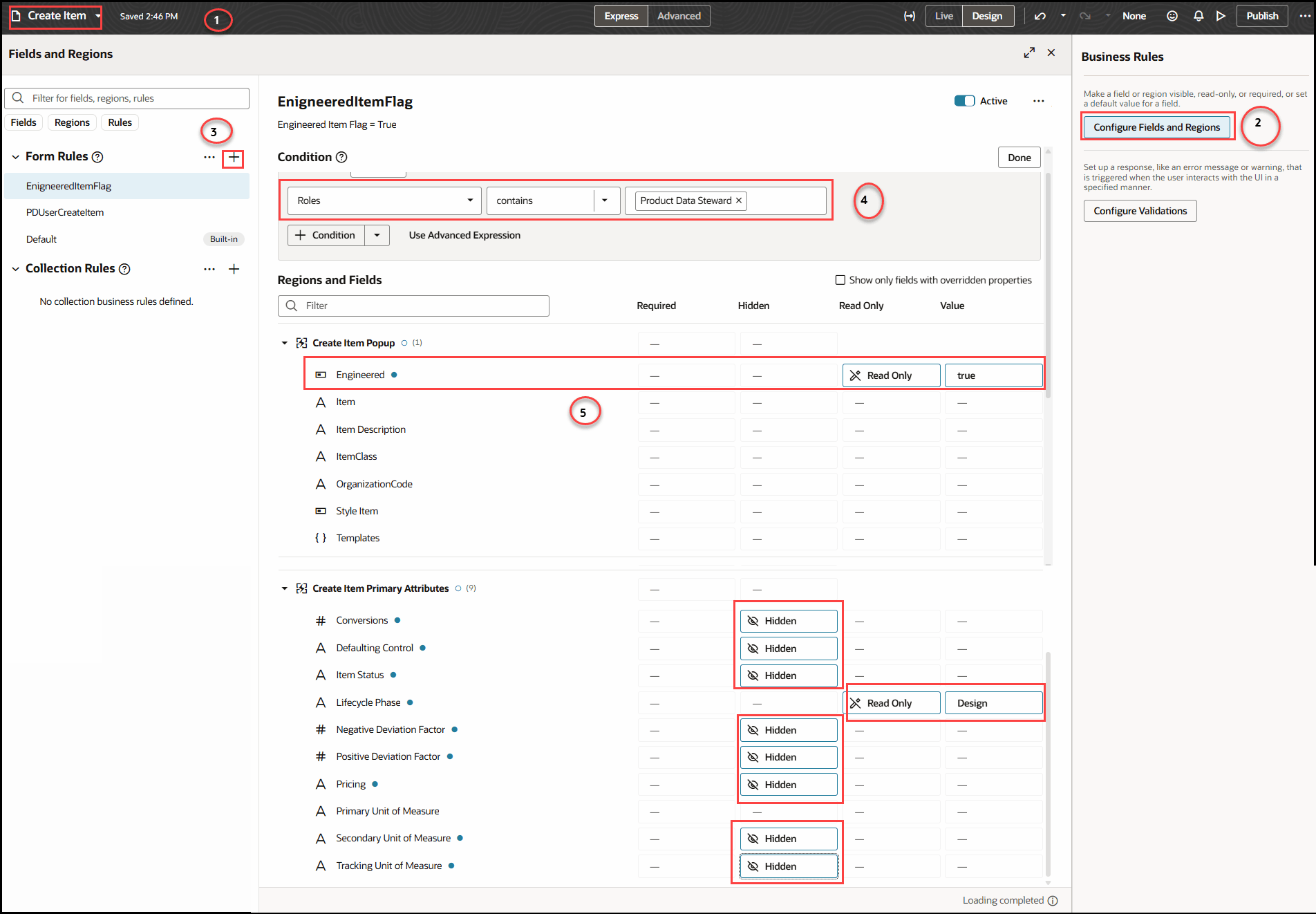
Use Case to Hide and Default Item Attributes based on Roles
- Condition:
- Role = Product Data Steward
- Actions:
- Hide Attributes:
- All Secondary Unit of Measure attributes, except the Primary Unit of Measure.
- Default and set as read-only:
- Engineered Item Flag = true
- Lifecycle Phase = Design
- Hide Attributes:
Use Case for Hiding Engineering Item
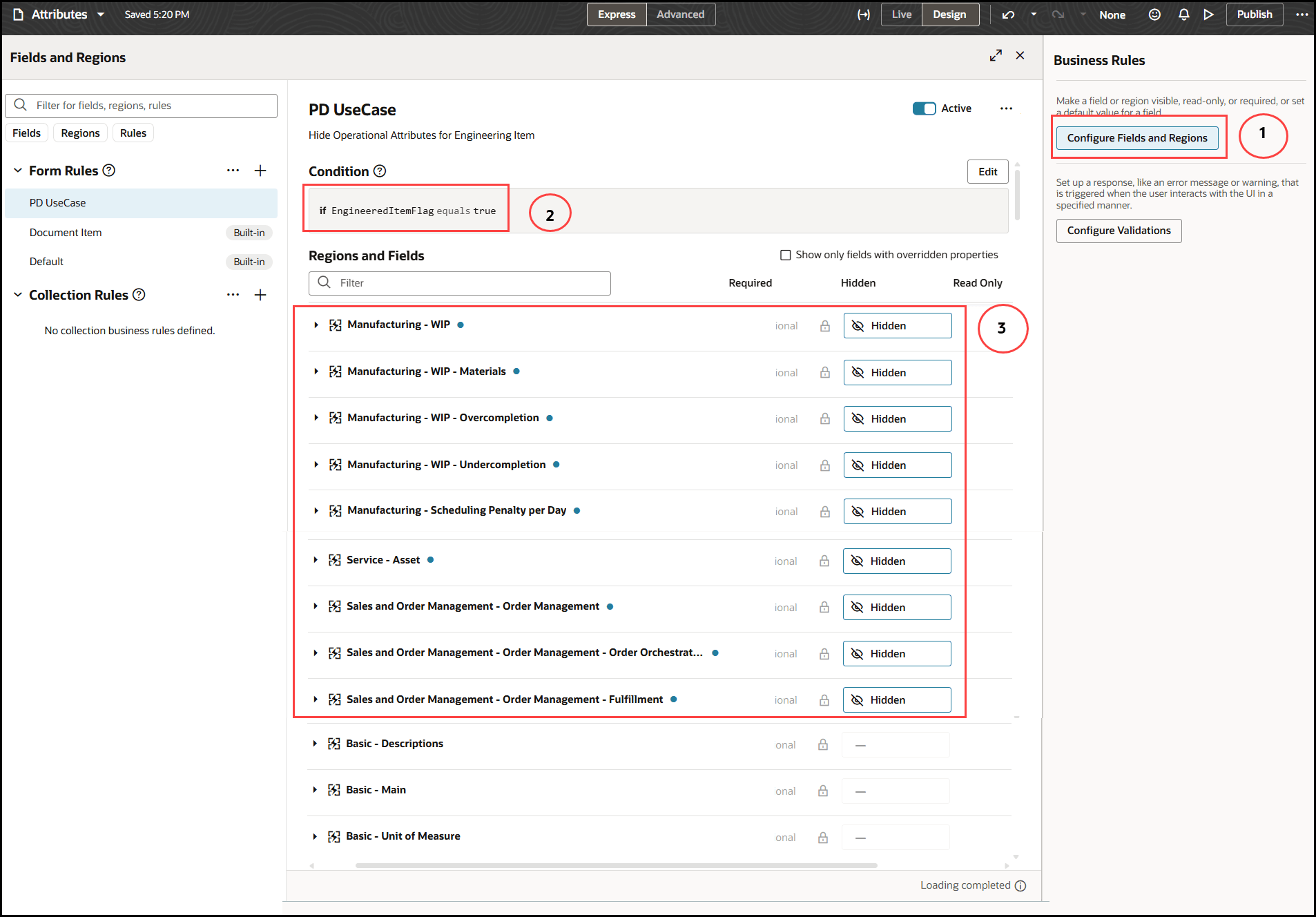
Here's an example of hiding attribute groups for an engineering item:
- Condition:
- Engineered Item Flag = true
- Actions:
- Hide Attributes:
- All Operational Attributes attribute groups, except the Item Basic attribute groups.
- Hide Attributes:
| Entity | Attributes |
| Item |
Engineered Flag Item Class |
| User |
User Name: For example: Logged in user's user name John.Dove Role: For example: Logged in user's role- SupplierProductDesignEngineer |
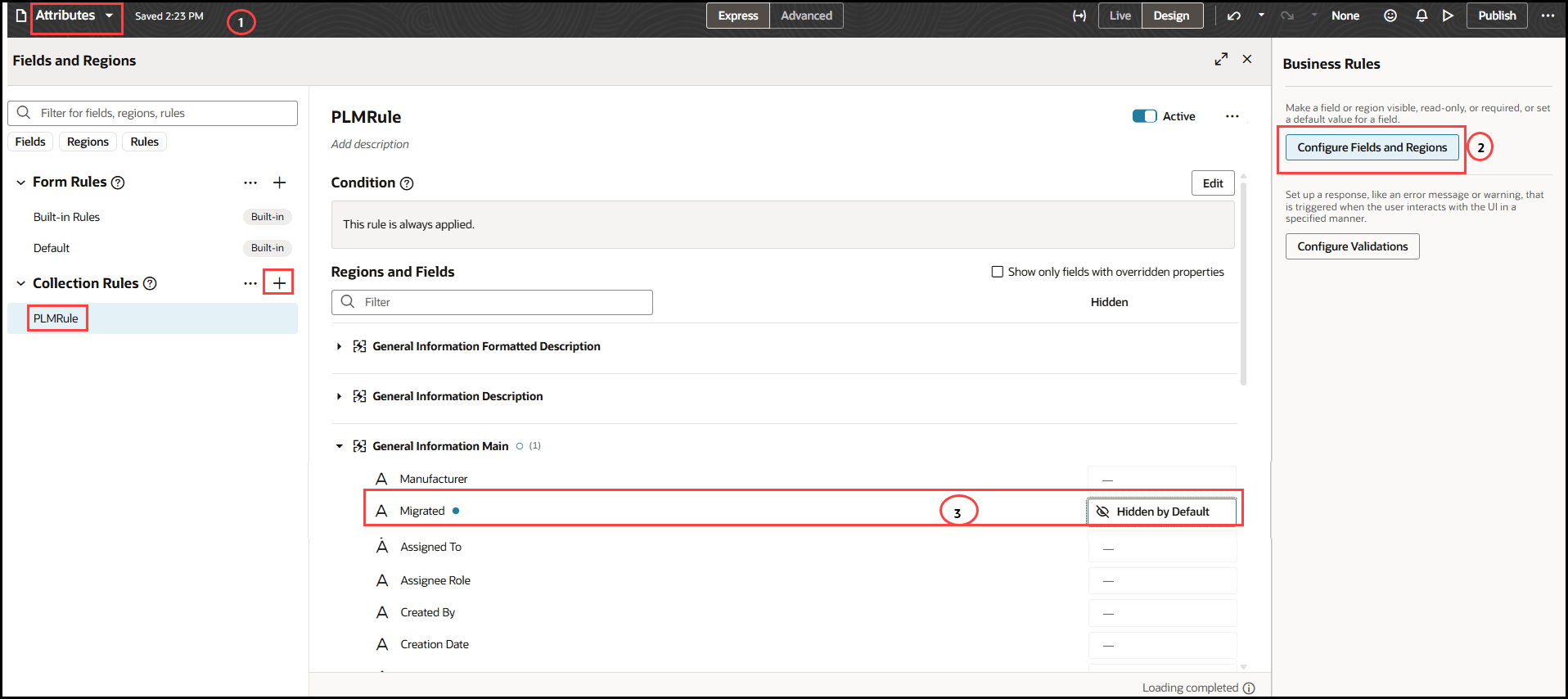
Use Case to Hide Migrated Attribute in Workflows
You can conditionally display attributes during view, edit, or create flows based on attributes described in Attributes Available for Workflow Conditions table.
Here's how you hide an attribute within a workflow object:
Use the Configure Fields and Regions to conditionally to hide an attribute within a workflow:
-
Hide Attribute:
- Migrated
Use Case to Make the Organization Field Read-Only and Set a Default Priority for New Item Requests
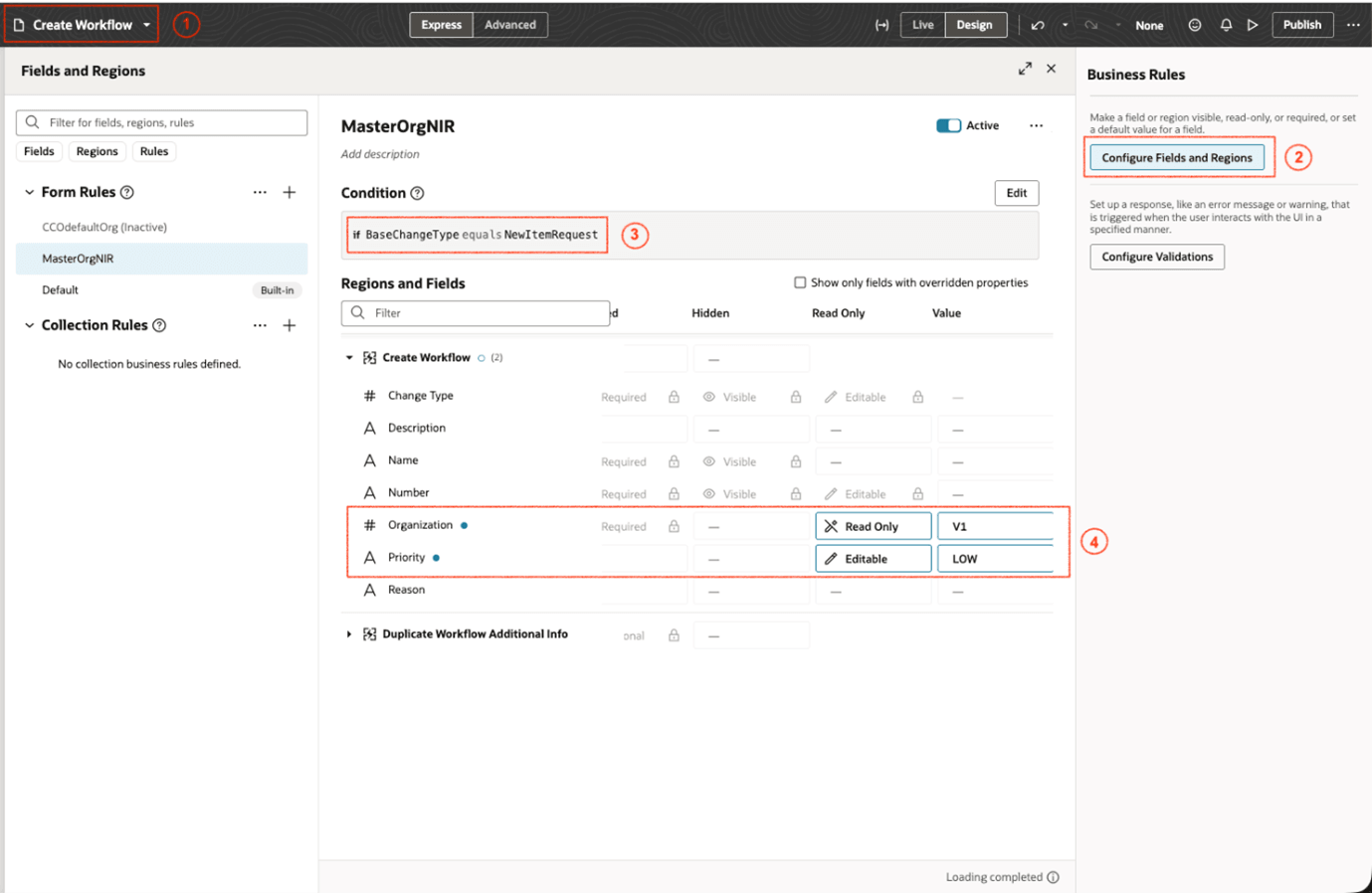
Here’s how you can mark the organization as read-only, defaulting it to the master organization, and setting the priority to Low when creating a new item request.
- Condition:
- BaseChangeType = NewItemRequest
- Actions:
- Set attributes as read-only:
- Organization
- Set default value for attributes:
- Organization = V1
- Priority = Low
- Set attributes as read-only:
Use Case for Change Orders
- Condition:
- BaseChangeType = Change Order
- Action:
- Hide attribute = Organization

| Entity | Attributes |
| Workflow |
BaseChangeType Organization Priority Reason Type |
| User |
User Name: For example: Logged in user's user name John.Dove Role: For example: Logged in user's role- SupplierProductDesignEngineer |
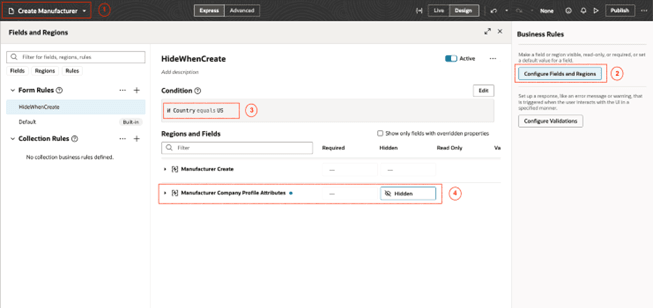
Use Case to Hide Company Profile Region in Create Manufacturer based on Country
- Condition:
- Country = US
- Action:
- Hide Tab:
- Manufacturer Company Profile Attributes
- Hide Tab:
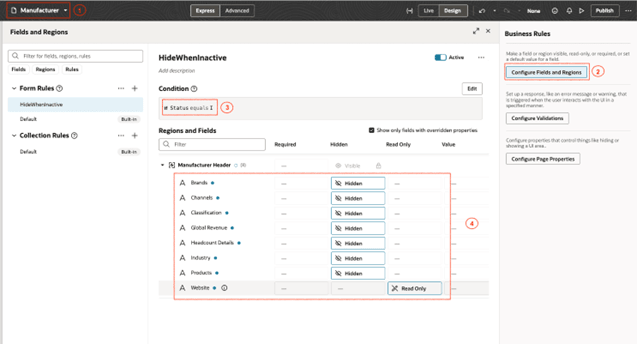
Use Case to Configure the Company Profile Region for Manufacturers Based on Status
- Condition:
- Status = Inactive
- Actions:
- Hide attributes:
- Classification
- Industry
- Channels
- Brands
- Products
- Headcount Details
- Global Revenue
- Make attributes read-only:
- Website
- Hide attributes:
| Entity | Attributes |
| Manufacturer |
Manufacturer Basic Attributes: For example: Country, Brand, Status Manufacturer Attachments Attributes: For example: Category, Type Manufacturer Extensible FlexFields (when exists) |
| User |
User Name: For example: Logged in user's user name John.Dove Role: For example: Logged in user's role- SupplierProductDesignEngineer |