Hide Columns in Tables
Use business rules of Oracle Visual Builder to hide the columns in the object pages.
How to Hide a Column in a Table
Here's how you can hide a column in a table using Visual Builder Studio:
- Navigate to the page.
- Select the Edit Page in Visual Builder Studio task from the Settings and Actions menu.
- Select your project or create a new one. Ensure that you're in Express mode.
- Click the Configure Fields and Regions button in Business Rules.
- In the Fields and Regions area, click Collection Rules from the left panel and select the table <object_name_table_name>.
- In the <object_name_table_name> window, enter the rule details like Name, Id and Description and click Create.
- In the Regions and Fields area, select the columns that you want to show or hide and click in the Hidden column. Choose from Hidden By Default, Visible by Default and Always Hidden. The columns that you've hidden are displayed as Always Hidden.
- Preview and publish your changes. You can see that the columns are hidden in the object page.
Use Case for Manufacturers
Use the Configure Fields and Regions to conditionally display
attributes during view, edit, or create flows. Here's how you can hide columns
within a table for Manufacturer object:
- Condition:
- Role = Supplier Manager
- Action:
- Hide Columns:
- Actions
- Checked Out By
- Document Preview URL
- Last Updated By
- User Name
- Hide Columns:
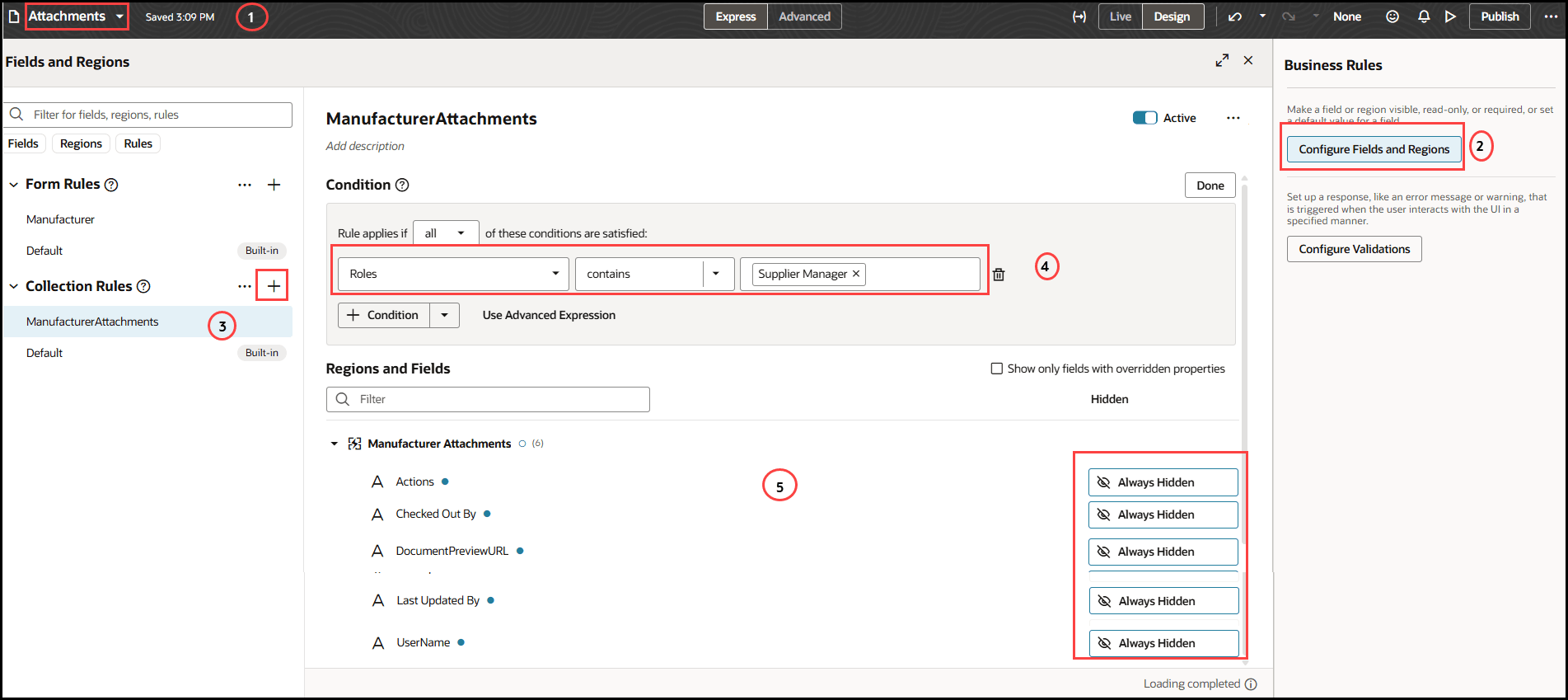
You can hide the columns in the following tables in the associated tabs by creating a Collection Rules
| Tab | Tables |
| Attachment | Manufacturer Attachment |
| Manufacturer |
Manufacturer Header Manufacturer Extensible Flexfields |
| MPN | Manufacturer Part Number |
You can use the following groups of attributes to define your Manufacturer
conditions:
| Entity | Attributes |
|---|---|
| Manufacturer | Manufacturer Status |
| User |
User Name: For example: Logged in user's user name John.Dove Role: For example: Logged in user's role- SupplierProductDesignEngineer |