About RTA Automation Assistant
Configuring RTA Automation for Tax Reporting is now easier and more intuitive with the new AI-driven Assistant. Leveraging Generative AI, the RTA Automation Assistant enables users to configure automation across multiple entities and jurisdictions by simply providing instructions in plain English. The assistant guides the user through the process—capturing key details such as Scenario, RTA Source Year, Posting Period, Posting Year, Entity, and Jurisdiction, and post confirmation generates the RTA Configuration to maintain the same language across.
Note:
- When Source and Target year is not mentioned correctly, the RTA Automation Assistant assumes the smallest year as the source year.
- Chat history of RTA Automation Assistant is not retained.
Considerations When Using RTA Assistant
Mandatory Fields: Source Year(s), Posting Year, Posting Period and Entity/Jurisdiction. The Assistant supports processing of Multiple Entities/Jurisdictions, for more details refer examples.
Optional Fields: Scenario if not provided, is defaulted to "Actual" Member.
Tip:
The usage of both member name/alias is supported, but they must be provided in double quotes "xxx"(for example, "North America", "LE101")
Auto Suggestion: The RTA Automation Assistant provides an auto-suggest option for dimension members. Type "#" plus three characters to start using auto-suggestions. See the example below where you key in #San and it lists all the entities.
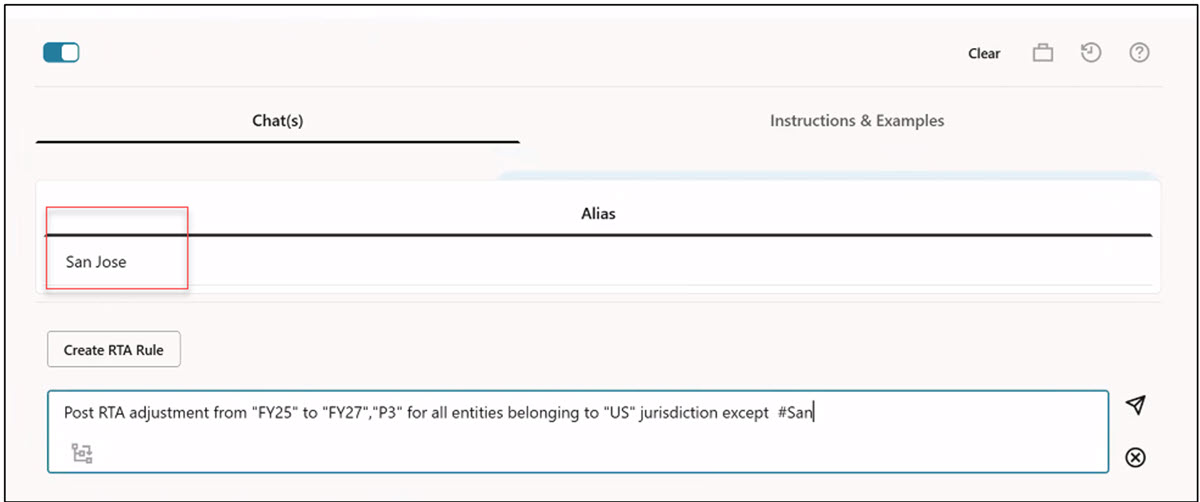
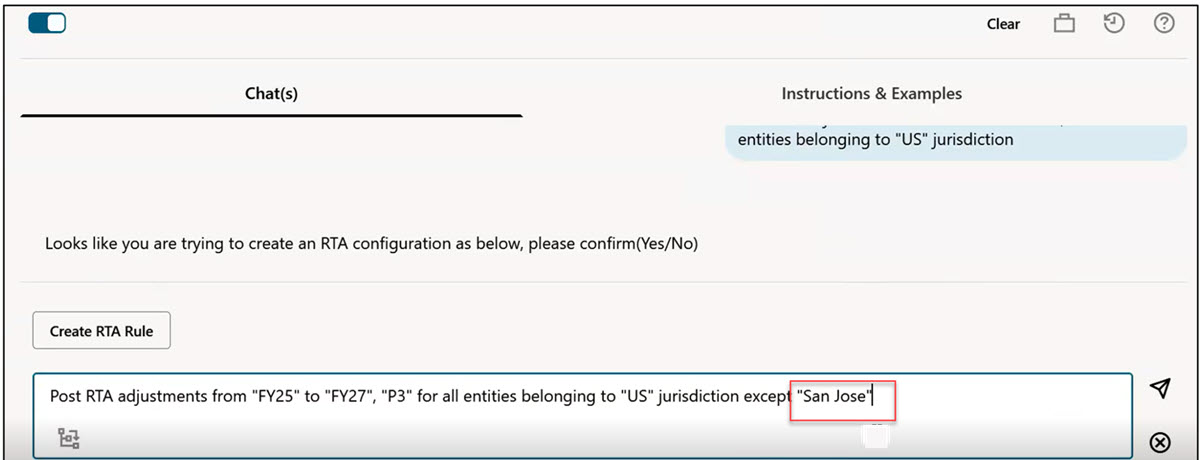
Once you select it, it gets automatically populated in double quotes, for example "San Jose".
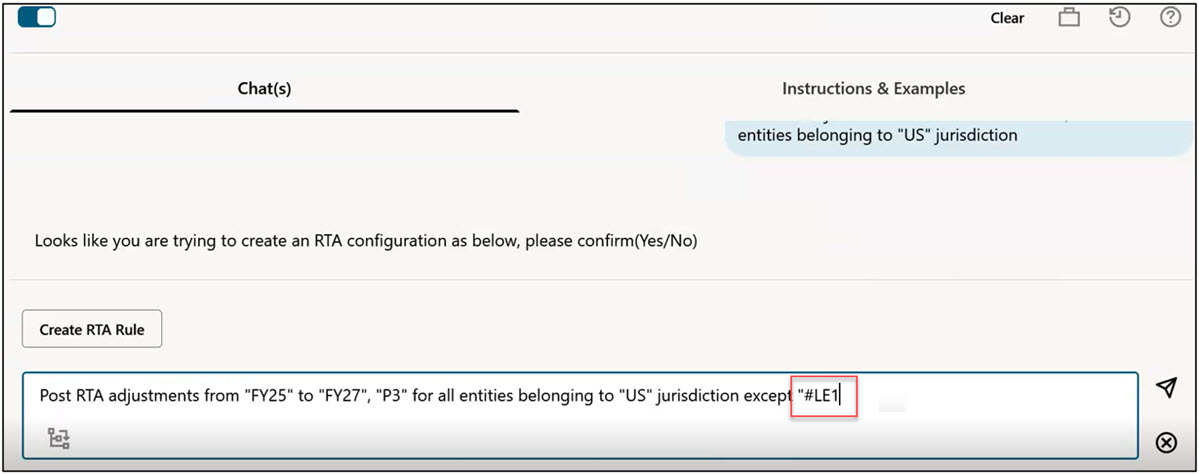
You can do the same with member names for example #LE1. You will see all the options populated.
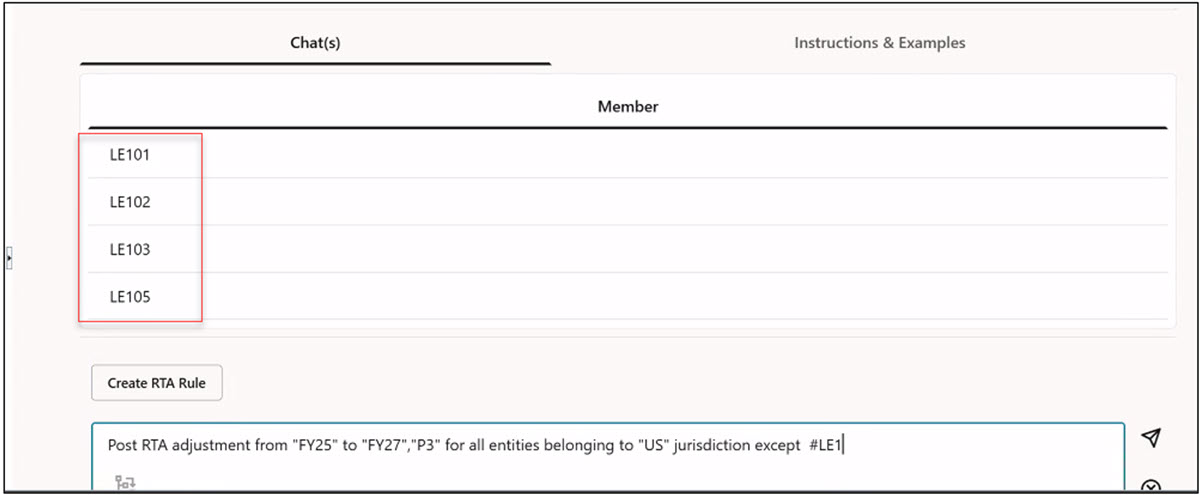
When you select the member name from above, it gets populated in double quotes for example "LE103".
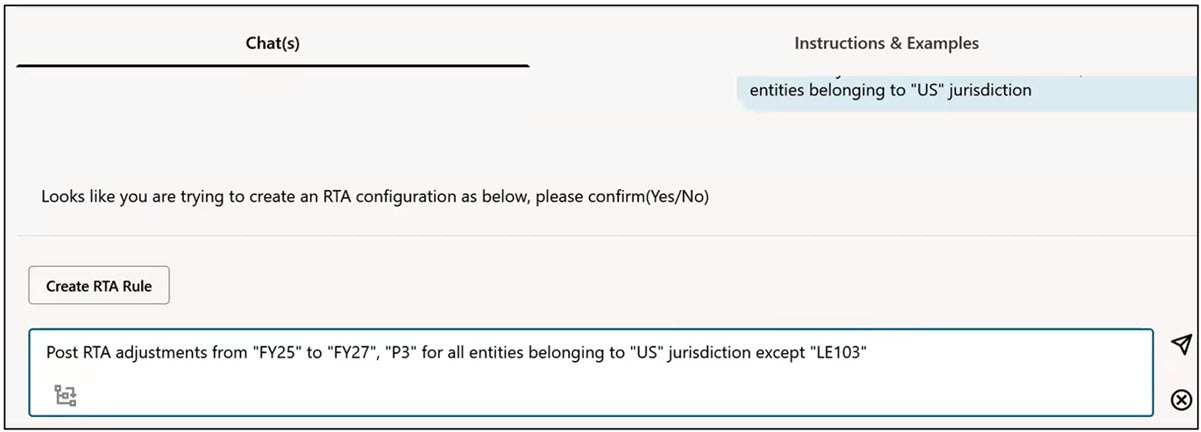
Restrictions and Limitations: The RTA Automation Assistant ignores any entity where:
- Approval Status of the entity is locked or not started
- User Access for the entity is read only
Note:
 (Jobs),
  (History),
  (Help) and
  (Member Selector) icons in the top right corner of the window are right now
disabled.
(Member Selector) icons in the top right corner of the window are right now
disabled.