Working with RTA Automation Assistant: Example Scenario
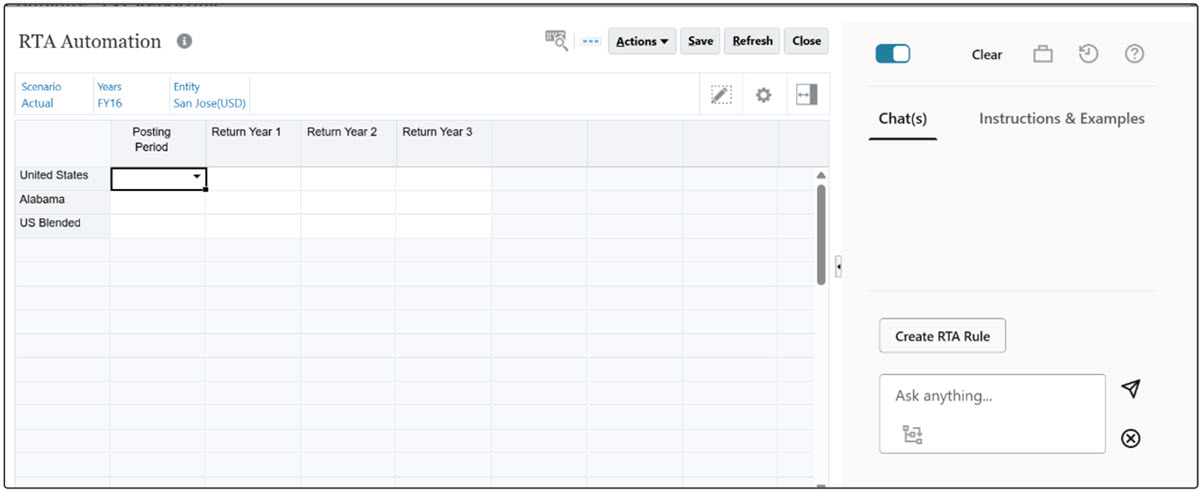
- After enabling AI Assistant (see, Enabling RTA Automation Assistant), you see RTA Assistant available in the RTA
Automation Form (Navigate to Application→ Configuration→ RTA
Automation).
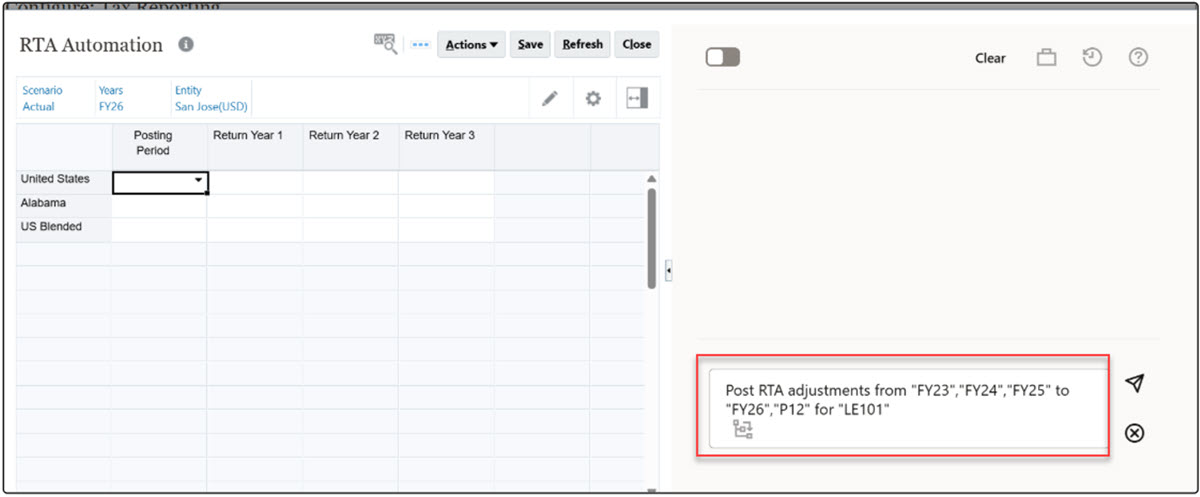
- Enter the following input in the chat text area of RTA Assistant "Post RTA
adjustments from "FY23","FY24","FY25" to "FY26","P12" for "LE101" and select the
send icon
 .
.
- RTA Assistant processes the input and asks for the confirmation as shown below:
Configuration Parameters:
Source Year:FY25,FY24,FY23,
Posting Year:FY26,
Posting Period:P12,
Entity:LE101,
Scenario:Actual,
Jurisdiction:US
INFO: The Scenario was not provided or not found; the system proposes default Scenario "Actual".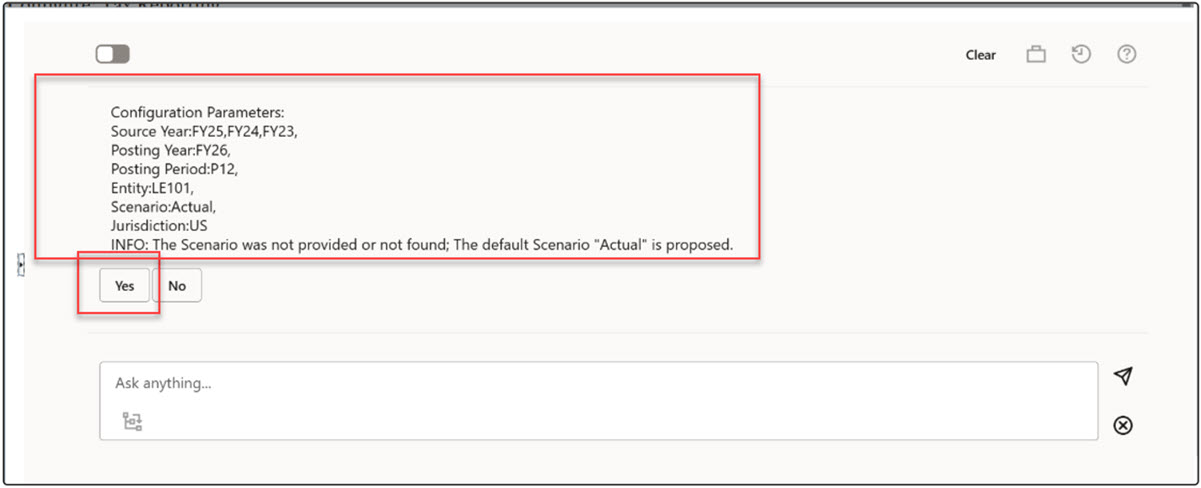
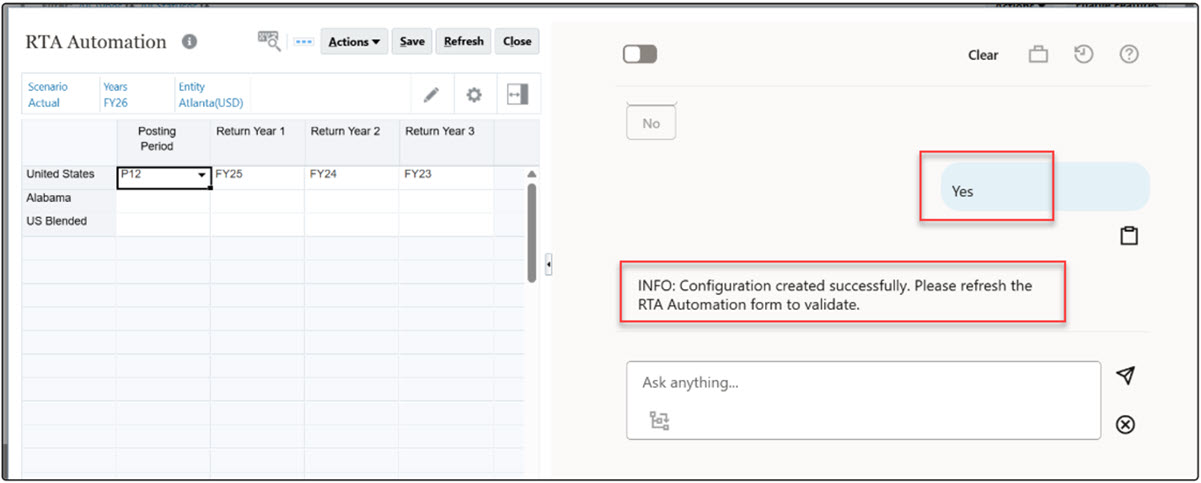
- Confirm selecting YES and the configuration gets created. Refresh the form
manually to see the created configuration.
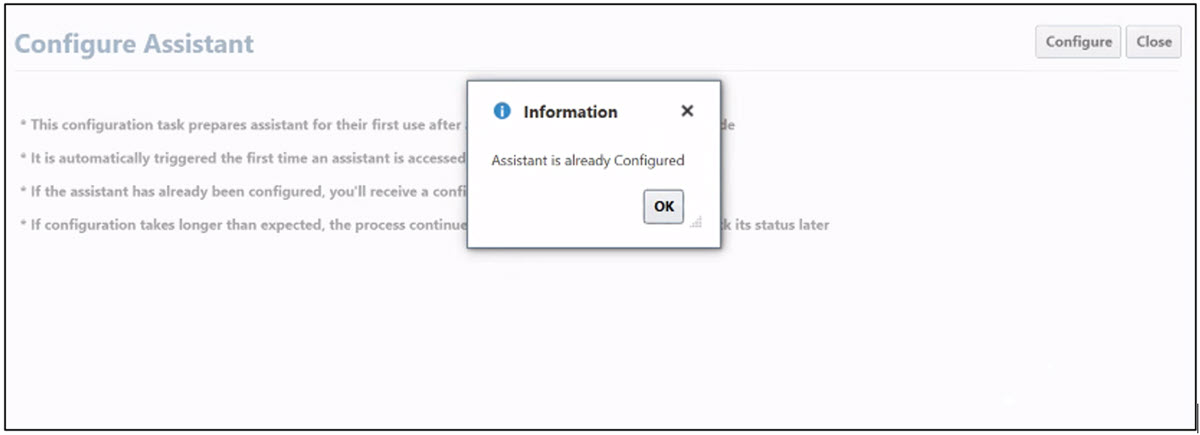
- The Assistant will be configured with all the required data by default while
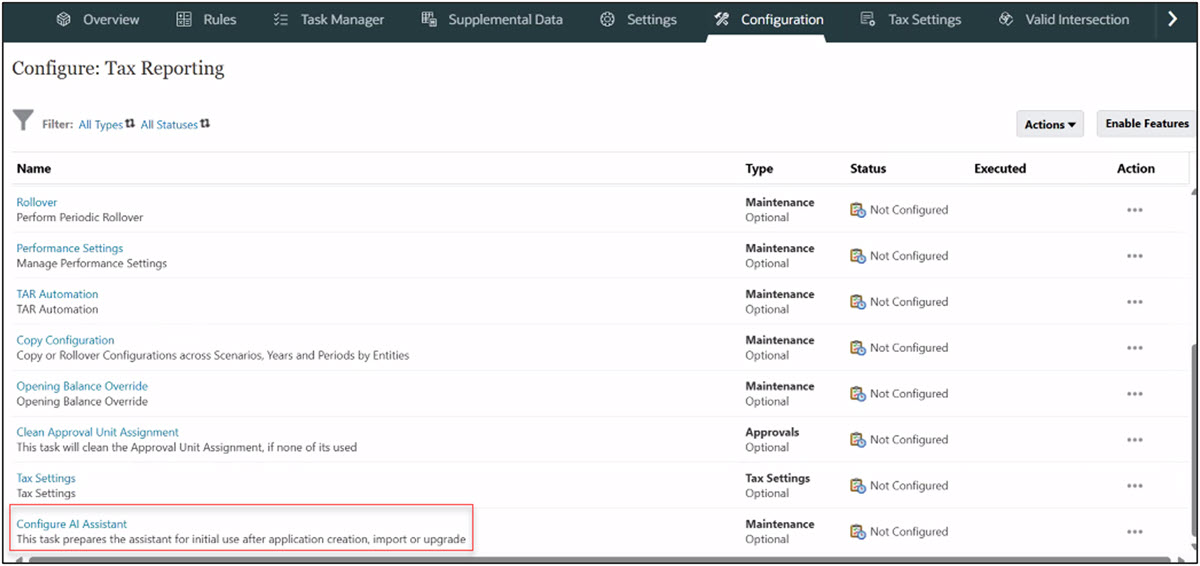
invoking. In case of failures, assistant can be configured manually also by running
the Configure AI Assistant by navigating to Application ->
Configuration -> Configure: Tax Reporting -> Configure AI
Assistant -> Configure Assistant.
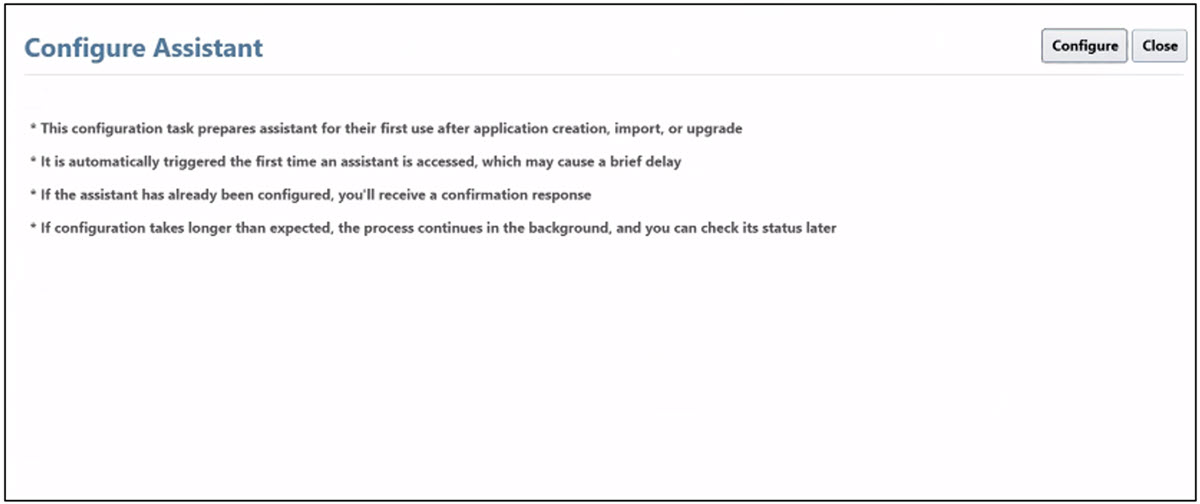
If RTA Assistant is already configured, you get the message below: