Setting up AI Agentic Trusts
- Sign in to Oracle Transportation and Global Trade Management as DBA.ADMIN.
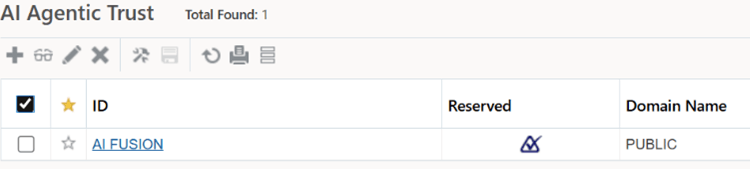
- Navigate to Configuration and Administration > Power Data > AI > AI Agentic Trusts.
- Search for and edit the AI FUSION record.
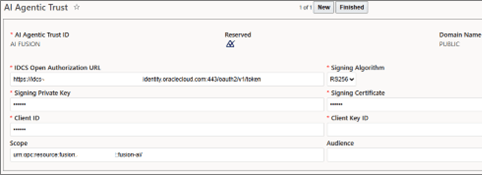
- For the IDCS Open Authorization URL, enter the Fusion IDCS URL. This should be the Fusion IDCS Auth Token URL.
- For the Signing Algorithm, select RS256.
- For the Scope, enter the IDCS of Fusion confidential app
Scope. Remember: Use the value that you wrote down for the IDCS of Fusion confidential app Scope in Prerequisites.
- For Signing Private Key, enter
jwt-signing.key.Remember: Import the certificate that you created earlier. Generating Public/Private Keys with a Certificate - For Signing Certificate, paste the contents of the file
jwt-signing.crt.Note: Open the certificate that was created earlier. Copy the contents of the file including the empty line at the end of the file and paste it here.Remember: Import the certificate that you created earlier. Generating Public/Private Keys with a Certificate - For the Client ID, enter the client ID from Fusion IDCS
confidential app created previously. This is the unique identifier of the
confidential application in the Fusion IDCS domain.Remember: Use the value that you wrote down for the IDCS of Fusion confidential app Client ID in Prerequisites.
- For the Client Key ID enter the Alias
of the certificate that you imported against the confidential app IDCS of
Fusion.Remember: Use the value that you wrote down for the IDCS of Fusion confidential app certificate Alias in Prerequisites.
-
Select Finished to save the record.