Defining Expiry Date Range
Expiry Date Range allows you to set up rules, so that your wave only allocates inventory that will expire within the date range that you have defined in the Expiry Date Range UI. For example: Different medications can have different life spans where you want to allocate inventory within defined time span.
To add or edit an expiry date rule, do the following:
- Go to Wave Template > Expiry Date Range.
- Expiry Date Range UI opens. This will open of all the Expiry Date Rules.
- To define your rule, click the (+) icon.
- Enter the following details:
- Rule Name*: Enter the name for the rule. This is a Mandatory field.
- Description: Enter a description that best describes the rule.
- The newly created rule appears on the Expiry Date Range screen.
- To add or edit the rules, click the Details icon.
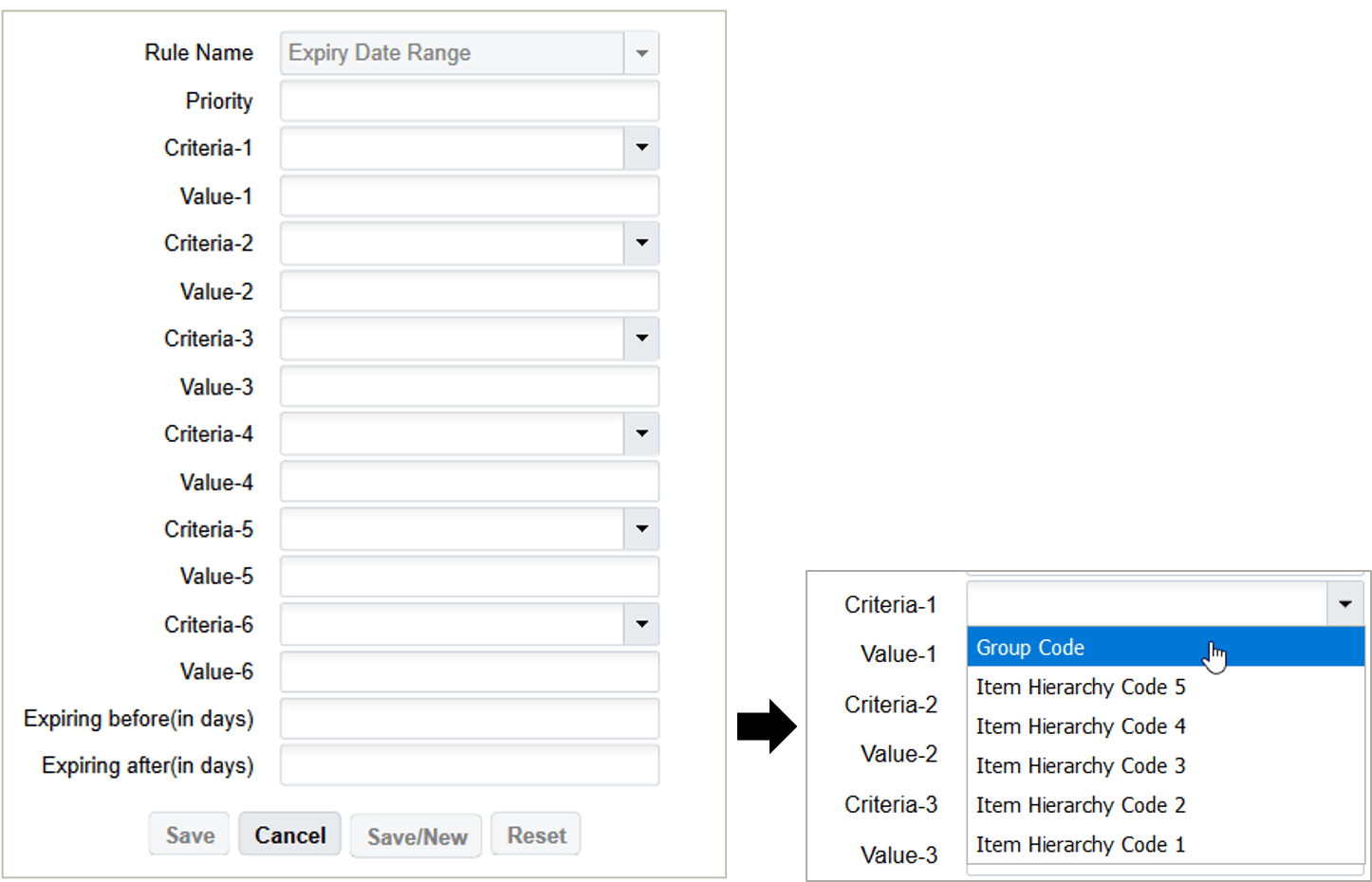
Expiry Date Range Parameters
Fields Description Rule Name Displays the name of the rule. Priority You can set the priority of the rule.Note: The system processes the order in ascending order of the priority column value.Criteria-1 to Criteria-6 You can configure different criteria for additional filter. These additional fields expose following six items field:- Group Code
- Item Hierarchy Code 1 - 5
Value-1 to Value-6 Corresponding matching value for the selected column needs to be populated. Expiring before (in days) This value will be configured in terms of days. The default value will be blank.
While allocating Expiry date tracked items, wave will only allocate inventory with expiration date <= (current facility date +number configured in the Expiring before(in days)).
If set to 0, it will look for inventory that expires today or before.
Expiring after (in days) This value will be configured in terms of days. The default value will be blank.
While allocating Expiry date tracked items, wave will only allocate inventory with expiration date >= (current facility date +number configured in the Expiring after (in days)).
If set to 0, it will look for inventory that expires today or after.
- After defining the configuring, click the Save.
- Now, when you run wave you can fetch your defined Expiry Date Rule from the
drop-down menu in the Wave Template screen:
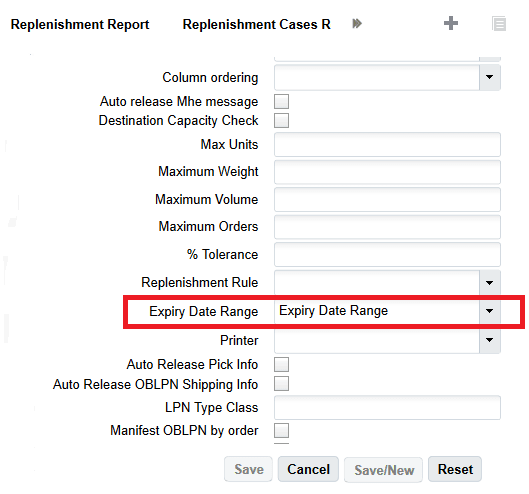
- Click Save.
For example, you have the following inventory available:
Facility date is 22/02/2021.
- LPN1 (A1)= SKU1 = 3 Qty Expiry date = 18/02/2021.
- LPN2 (A1)= SKU1 = 5 Qty Expiry date = 19/02/2021.
- LPN3 (A1)= SKU1 = 2 Qty Expiry date = 20/02/2021.
- LPN4 (B1)= SKU1 = 2 Qty Expiry date = 22/02/2021.
- LPN5 (A1)= SKU1 = 5 Qty Expiry date = 22/02/2021.
- LPN6 (B1)= SKU1 = 3 Qty Expiry date = 23/02/2021.
Your order = SKU 1 with 10 units and following is the configuration:

If you run a wave template that has the rule Expiry Date Range set up, the system will allocate inventory which Item Hierarchy Code 1 equals to A1, and if expiry date falls between the following dates:
- Expiring before( in days) = inventory with expiration date <= (current Facility date - number configured in Expiring before(in days)).
- Expiring before( in days) = inventory with expiration date <= 22/02/2021 plus 4. This means it will allocate inventory that is <= 26/02/2021
- Expiring after (in days) is set to zero, therefore it will look for inventory that
expires today or after.
According to your rules, you want to allocate inventory that expires between today and 26/02/2021. That is, the system allocates the inventory LPN4, LPN5, and LPN6 having expiry date of 22/02/2021 and 23/02/2021.
Honor Expiry Date Range Rules for Direct Allocation
Direct Allocation supports expiry date validation during allocation. Use the Expiry Date Range Rule mobile screen parameter to apply expiry date validation during Direct Allocation. When users scan an LPN or pallet for allocation, WMS checks whether the inventory falls within the configured expiry date range before allocating it to the order.
If the parameter is blank, WMS continues the standard Direct Allocation flow.
To honour expiry date range during direct allocation, do the following:
- Go to the Mobile Direct Allocation screen parameters.
- Set Expiry Date Range Rule to the required expiry date range rule.
- Perform Direct Allocation by scanning the order and the LPN or pallet.
- WMS validates the scanned inventory against the configured expiry date range rule.
- If the inventory falls within the configured range, WMS allocates the inventory and continues to packing.
- If no inventory in the scanned LPN or pallet meets the rule, WMS stops the allocation and displays a warning.
Honor Expiry Date Range Rules for Cross Dock Pick and Allocate
Pick and Allocate validates picked inventory against an Expiry Date Range rule before allocation. Use the Expiry Date Range Rule mobile screen parameter to apply expiry date validation during Pick and Allocate. When users scan inventory, WMS checks whether the inventory expiry date falls within the configured expiry date range before allocating it to the order. This validation applies to active and reserve locations. It also applies to both user-directed and system-directed Pick and Allocate flows.
If the parameter is blank, WMS continues the standard Pick and Allocate flow.
Steps to Enable
- Go to the Mobile Pick and Allocate screen parameters.
- Set Expiry Date Range Rule to the required expiry date range rule.
- Perform Pick and Allocate by scanning the order, location, and inventory.
- WMS validates the scanned inventory against the configured expiry date range rule.
- If the inventory expiry date falls within the configured range, WMS allocates the inventory to the order.
- If the inventory expiry date is outside the configured range, WMS stops the allocation and displays, Inventory is not within the configured expiry date range.
Honor Expiry Date Range, Order Prioritization Rules for Distribute LPN
Warehouses use flow through to move received inventory directly to outbound orders instead of storing it first. When multiple orders can receive the same inventory, users need a consistent way to decide which inventory should flow through and which order should receive it. Use Crossdock Flowthrough Rules to control flowthrough decisions during receiving and Distribute LPN flows. WMS evaluates inventory details, expiry date range, order criteria, and order sequence before assigning inventory to an outbound order.
This helps users apply consistent rules when multiple orders can receive the same inventory.
Flowthrough Rule Criteria
A Crossdock Flowthrough Rule can include:
- Inventory Selection Criteria: Defines which inventory is eligible for flowthrough and which inventory should be received without flowthrough.
- Expiry Date Range: Selects inventory based on the configured expiry range.
- Order Selection Criteria: Defines which orders are eligible for flowthrough.
- Order Sequence Rule: Defines the order sequence when multiple orders are eligible.
WMS evaluates the configured criteria together. If the inventory and order match the rule, WMS performs flowthrough. If the inventory does not match, WMS receives the inventory without flowthrough.
If inventory-orderselection-rule is blank, WMS continues the standard flowthrough behavior. This behavior applies to:
- Mobile Receive by Shipment
- Mobile Receive by Load
- Distribute LPN
For Distribute LPN, WMS also applies these rules during distribution:
- For Distribution without Residue, WMS follows full LPN allocation behavior.
- For Distribution with Residue, WMS can allow partial allocation when eligible inventory exists in the LPN.
- If flowthrough-alloc-prty is configured, WMS considers it during flowthrough processing.
Steps to Enable
- Configure the required Crossdock Flowthrough Rule.
- Add the required rule criteria:
- Inventory Selection Criteria
- Expiry Date Range
- Order Selection Criteria
- Order Sequence Rule
- Go to the applicable mobile flow through screen parameters.
- Set inventory-orderselection-rule to the required Crossdock Flow through Rule.
- Review flowthrough-alloc-prty if your flow through process uses allocation priority.
- Perform flow through using Mobile Receive by Shipment, Mobile Receive by Load, or Distribute LPN.
- WMS evaluates the inventory and order against the configured rule.
- If the criteria match, WMS performs flow through.
- If the criteria do not match, WMS receives the inventory without flow through.
You can also perform Expiry date range during Cross-dock. Refer to Cross-Dock Configuration.