Realtime Data Ingestion into Azure Databricks (unity catalog enabled) with GoldenGate for DAA
Overview
This document covers a step-by-step process showing how to ingest real-time data into Azure Databricks delta tables with GoldenGate for Distributed Applications and Analytics (GG for DAA).
Databricks is a unified, open analytics platform for building, deploying, sharing, and maintaining enterprise-grade data, analytics, and AI solutions at scale.
GG for DAA Databricks handler uses the stage and merge data flow. In stage and merge, the change data is staged in a temporary location in microbatches and eventually merged into to the target table using Merge SQL.
All replication process is automatically handled by GoldenGate for Distributed Applications and Analytics (GG for DAA) Databricks Handler
GG for DAA supports Databricks workspaces configured with and without Databricks Unity Catalog. This Quickstart covers Databricks workspaces with Unity Catalog and creates external tables. External tables are file-backed tables that reference data stored in an external location. Azure Storage container is the external location for Azure Databricks.
Prerequisites for Databricks Replication with Unity Catalog
To successfully complete this Quicktart, you must have the following:
-
A Databricks Connection.
-
Databrick workspace with Unity Catalog
-
A schema available in target catalog
-
Databricks username/ password (this quick start uses access tokens)
In this Quickstart, a sample trail file (named tr) which is shipped with GG for DAA is used. If you want to continue with sample trail file, it is located at GG_HOME/opt/AdapterExamples/trail/ in your GG for DAA instance.
GG for DAA will create the tables automatically.
Install Dependency Files
GG for DAA uses Java SDK provided by Databrick. You can download the SDKs using Dependency Downloader utility shipped with GG for DAA. Dependency downloader is a set of shell scripts that downloads dependency jar files from Maven and other repositories.
-
In your GG for DAA VM, go to dependency downloader utility. It is located at
GG_HOME/opt/DependencyDownloader/and locatedatabricks.sh. -
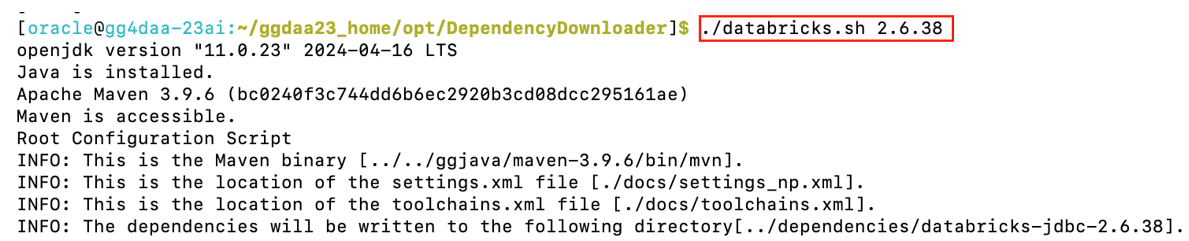
Run
databricks.shwith the required version. You can check the version and reported vulnerabilities in Maven Central. This document uses 2.6.38 which is the latest version when this Quickstart is published. -
A new directory is created in
GG_HOME/opt/DependencyDownloader/dependencies, which is named as <databricks_jdbc_version>. Make a note of this directory as it will be used in the replicat properties. For example: ` /u01/app/ogg/opt/DependencyDownloader/dependencies/databricks-jdbc-2.6.36`. Figure 114: Run databricks.sh with the required version
- Follow the same steps for Azure Storage dependencies. You can run
azure_blob_storage.shfor downloading Azure Storage dependencies. Figure 115: Run azure_blob_storage.sh for downloading Azure Storage dependencies

A new directory will be created in `GG_HOME/opt/DependencyDownloader/dependencies` named as `<azure-storage-blob_version>`. Make a note of this directory as it will be used in the replicat properties. For example: `/home/oracle/ggdaa23_home/opt/DependencyDownloader/dependencies/azure-storage-blob_12.13.0`
Create a Replicat in Oracle GoldenGate for Distributed Applications and Analytics
To create a replicat in Oracle GoldenGate for Distributed Applications and Analytics (GG for DAA):
- In the GG for DAA UI, in the Administration Service tab, click the + sign to add a replicat. Figure 116: Click + in the Administration Service tab.

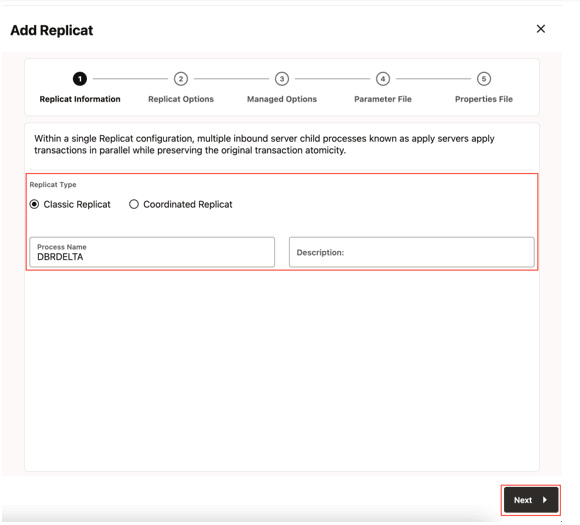
- Select the Classic Replicat Replicat Type and click Next. There are two different Replicat types available: Classic and Coordinated. Classic Replicat is a single threaded process whereas Coordinated Replicat is a multithreaded one that applies transactions in parallel. Figure 117: Select a Replicat Option
-
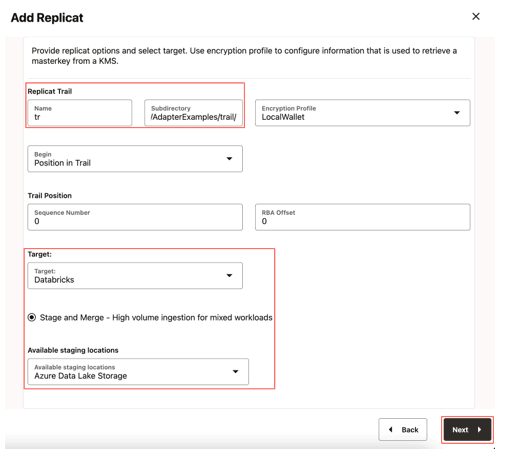
Enter the Replicat options and click Next:
-
Trail Name: Name of the required trail file (if using sample trail, provide as tr)
-
Subdirectory: Enter
GG_HOME/opt/AdapterExamples/trail/if using the sample trail. -
Target: Databricks
-
Available Staging Locations: Azure Data Lake Storage Figure 118: Provide Replicat Options and Select Target
-
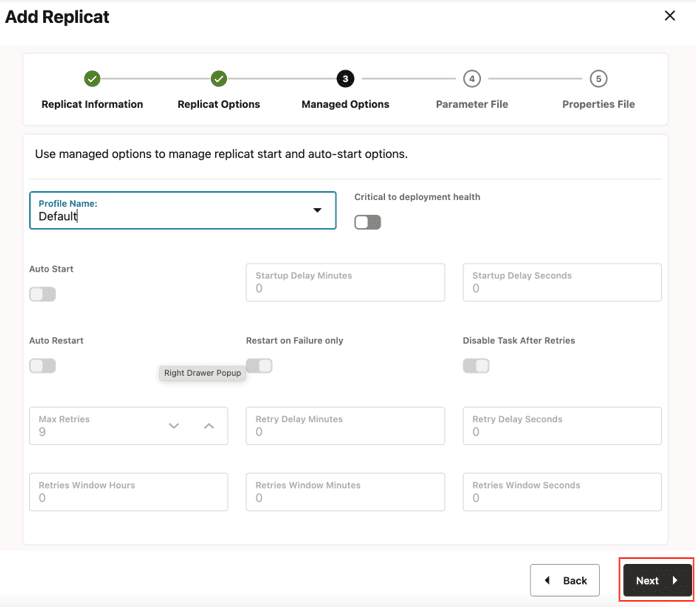
- Leave Managed Options as is and click Next. Figure 119: Managed Options
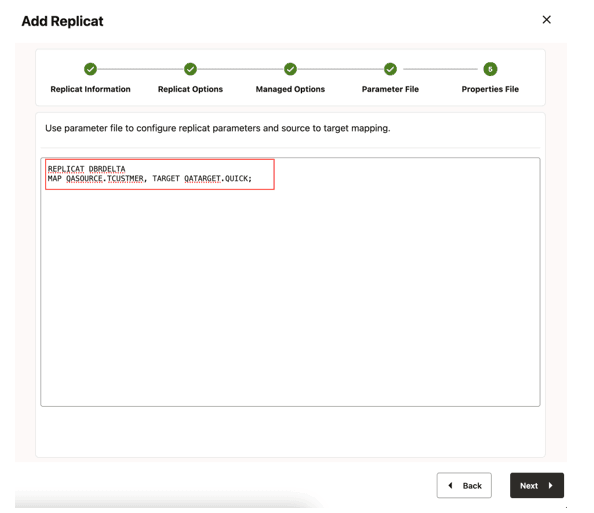
- Enter Parameter File details and click Next. In the Parameter File, you can specify source to target mapping. If you’re using the sample trail file (tr) provide as followed:
MAP QASOURCE.*, TARGET <your_schema_name>.*;Figure 120: Parameter File
-
In the Properties file, update the properties marked as TODO and click Create and Run.:
# Properties file for Replicat DBRDELTA
# Configuration to load GoldenGate trail operation records into Databricks using ADLS Gen2 stage.
# Note: Recommended to only edit the configuration marked as  TODO
gg.target=databricks
gg.stage=abs
# Azure Blob Event handler.
**#TODO: Edit Azure connection settings**
gg.eventhandler.abs.bucketMappingTemplate=<azure_adls_gen2_container_name>
gg.eventhandler.abs.accountName=<azure_storage_account_name>
gg.eventhandler.abs.accountKey=<azure_storage_account_key>

# Databricks Event Handler.
Edit your Databricks JDBC:
#TODO: Edit JDBC ConnectionUrl
gg.eventhandler.databricks.connectionURL=jdbc:databricks://<server-hostname>:443;httpPath=<http-path>[;<setting1>=<value1>;<setting2>=<value2>;<settingN>=<valueN>];EnableArrow=0
#TODO: Edit JDBC username or 'token'
gg.eventhandler.databricks.UserName=token
#TODO: Edit JDBC password
gg.eventhandler.databricks.Password=<password>
Provide path to dependency jar files that you downloaded in prerequisites
#TODO: Edit the classpath to include Azure Blob Event Handler dependencies and Databricks JDBC driver.
gg.classpath=/path/to/abs_dependencies/*: path/to/databricks_dependencies/*
#TODO: Provide sufficient memory (at least 8GB).
jvm.bootoptions=-Xmx8g -Xms1g
Figure 121: Properties File
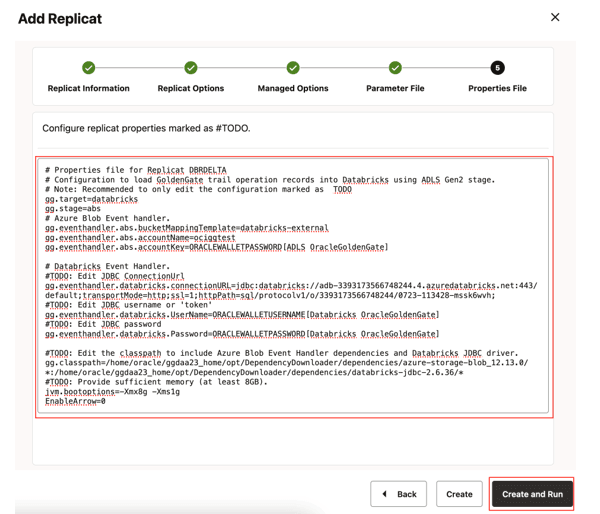
See [Databricks](databricks.html#GUID-23D66395-7DC6-480E-BF06-1FF64D0CE116) for more replicat configuration details.

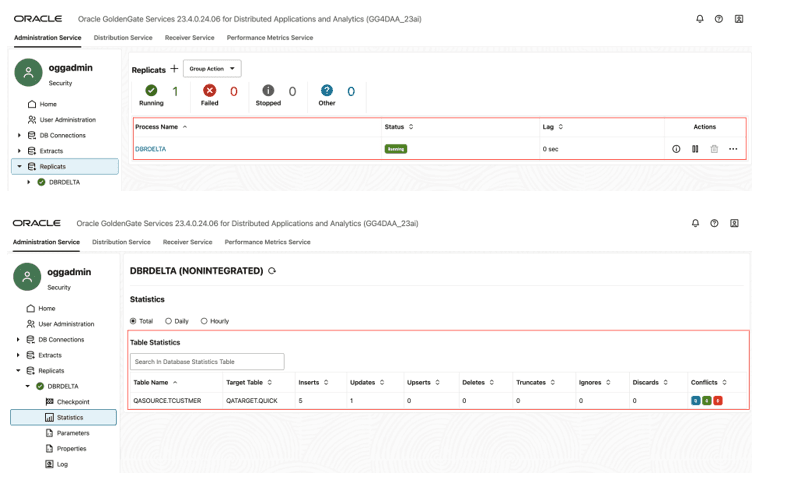
When replicat starts successfully, it will be in running state. Note that by default, batch window is set to 3 mins. It may take a short moment for your data to be loaded to Databricks. You can go to action/details/statistics to see the replication statistics. Figure 122: Replication Statistics
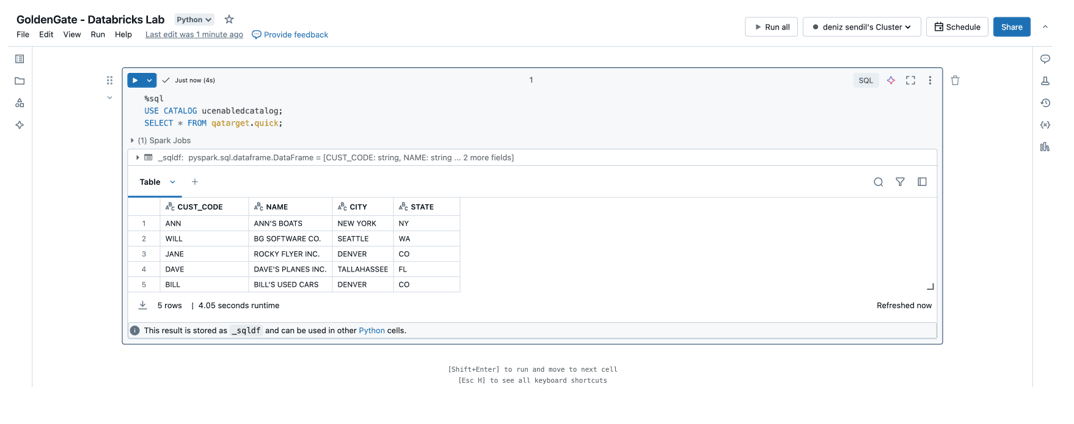
- You can go to Databricks and check the tables. It may take a short moment for tables to be created and loaded. Figure 123: Databricks Tables
Note: For more information, see Databricks.