Realtime Parquet Ingestion into OCI Object Storage with Oracle GoldenGate for Distributed Applications and Analytics 23.8 and later
This Quickstart covers a step-by-step process showing how to ingest parquet files into OCI Object Storage buckets in real-time with Oracle GoldenGate for Distributed Applications and Analytics (GG for DAA).
OCI Object Storage is a scalable, high-performance storage service provided by Oracle Cloud Infrastructure (OCI). It enables users to store and manage large amounts of unstructured data, such as images, videos, log files, backups, and other types of files.
GG for DAA OCI Object Storage handler works in conjunction with File Writer Handler and Parquet Handler (if parquet is required). File Writer Handler produces files locally, optionally Parquet Handler converts to parquet format and OCI Object Storage Handler loads into OCI Object Storage buckets.
Prerequisites
To successfully complete this Quicktart, you must have the following:
-
An OCI Object Storage Connection
-
OCI Object Storage access
In this Quickstart, we will use a sample trail file (named tr) which is shipped with GG for DAA. If you want to continue with sample trail file, it is located at GG_HOME/opt/AdapterExamples/trail/ in your GG for DAA instance.
Install Required Dependency Files
GG for DAA uses client libraries in the replication process and these libraries need to be downloaded before setting up the replication process. You can use dependency downloader to download the client libraries. Dependency downloader is a set of shell scripts that downloads dependency jar files from Maven and other repositories.
-
GG for DAA uses a 3-step process to ingest parquet into OCI Object Storage buckets:
-
Generating local files from trail files
-
Converting local files to Parquet format
-
Loading files into OCI Object Storage buckets
For generating local parquet files with GG for DAA, replicat uses File Writer Handler and Parquet Handler. To load the parquet files into GG for DAA uses OCI Event Handler in conjunction with File Writer and Parquet Event Handler.
GG for DAA uses 3 different set of client libraries to create parquet files and loading into AWS S3.
-
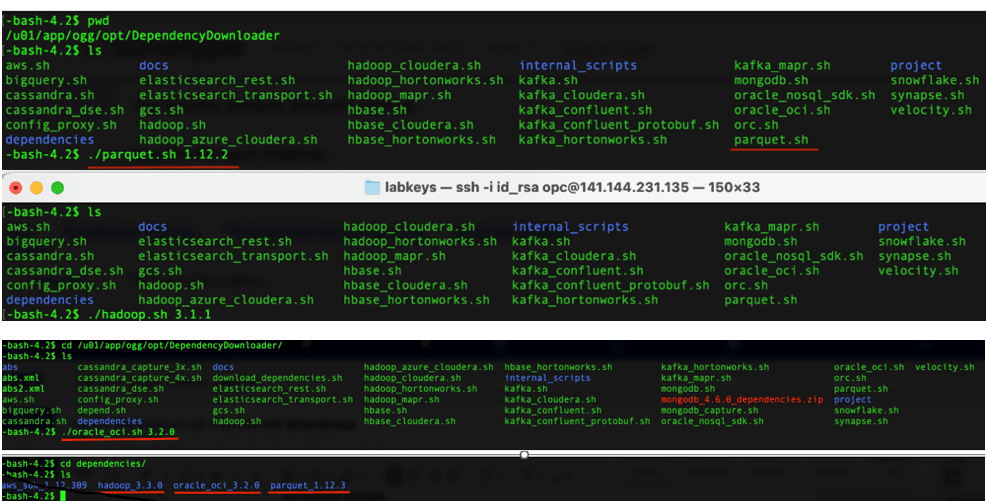
In your GG for DAA VM, go to dependency downloader utility. It is located at
GG_HOME/opt/DependencyDownloader/ -
Run
parquet.sh,hadoop.sh, andoracle_oci.shwith the required versions. Figure 59: Install required dependency files
-
3 directories are created in
GG_HOME/opt/DependencyDownloader/dependencies. Make a note of these directories.-
/u01/app/ogg/opt/DependencyDownloader/dependencies/oracle_oci_3.2.0/*: -
/u01/app/ogg/opt/DependencyDownloader/dependencies/hadoop_3.3.0/*: -
/u01/app/ogg/opt/DependencyDownloader/dependencies/parquet_1.12.3/*
-
Configure Credentials for Oracle Cloud Infrastructure
You need to create a configuration file to authenticate into OCI. The ideal configuration file include user, fingerprint, and key_file, tenancy, and region with their respective values. The default configuration file name and location is ~/.oci/config. You can refer to required keys and ocids document for details.
Sample config file
[DEFAULT]
user=<your_user_ocid>
fingerprint=<your_fingerprint>
key_file=~/.oci/oci_api_key.pem #path-to_your_key_file
tenancy=<your_tenancy_ocid>
Create a Replicat in Oracle GoldenGate for Distributed Applications and Analytics
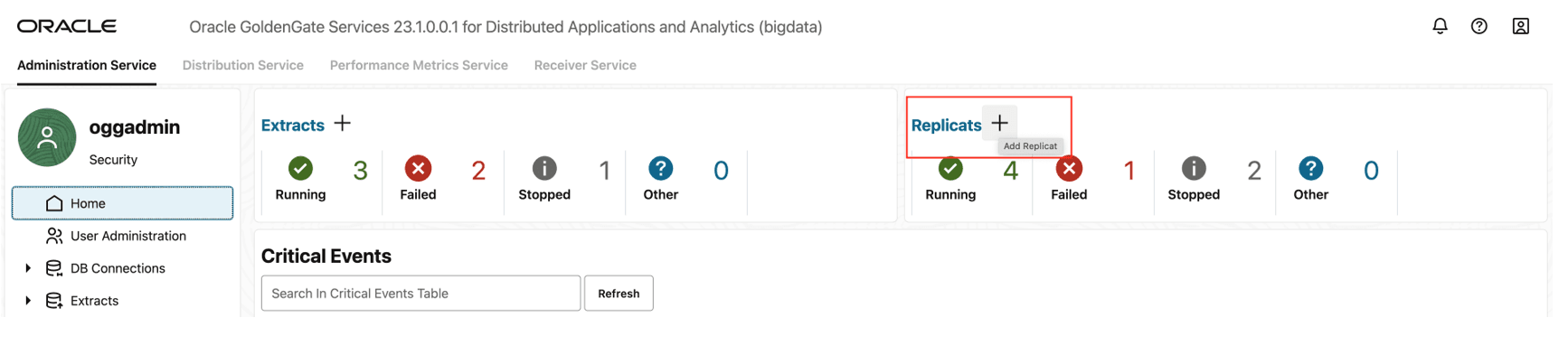
- Go to Administration Service and click + sign to add a replicat. Figure 60: Administration Service
-
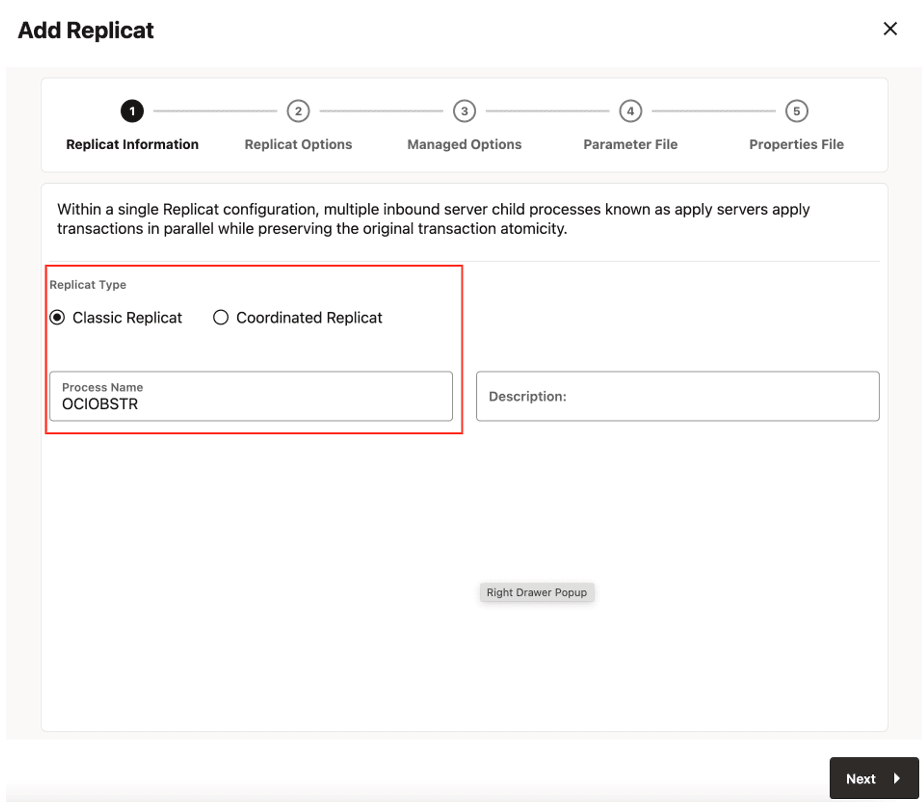
Select the ReplicatType and click Next
There are two different Replicat types available: Classic and Coordinated. Classic Replicat is a single threaded process whereas Coordinated Replicat is a multithreaded one that applies transactions in parallel. Coordinated Replicat results in multiple files being created as there is a multithreaded process running.
Figure 61: Replicat Information
-
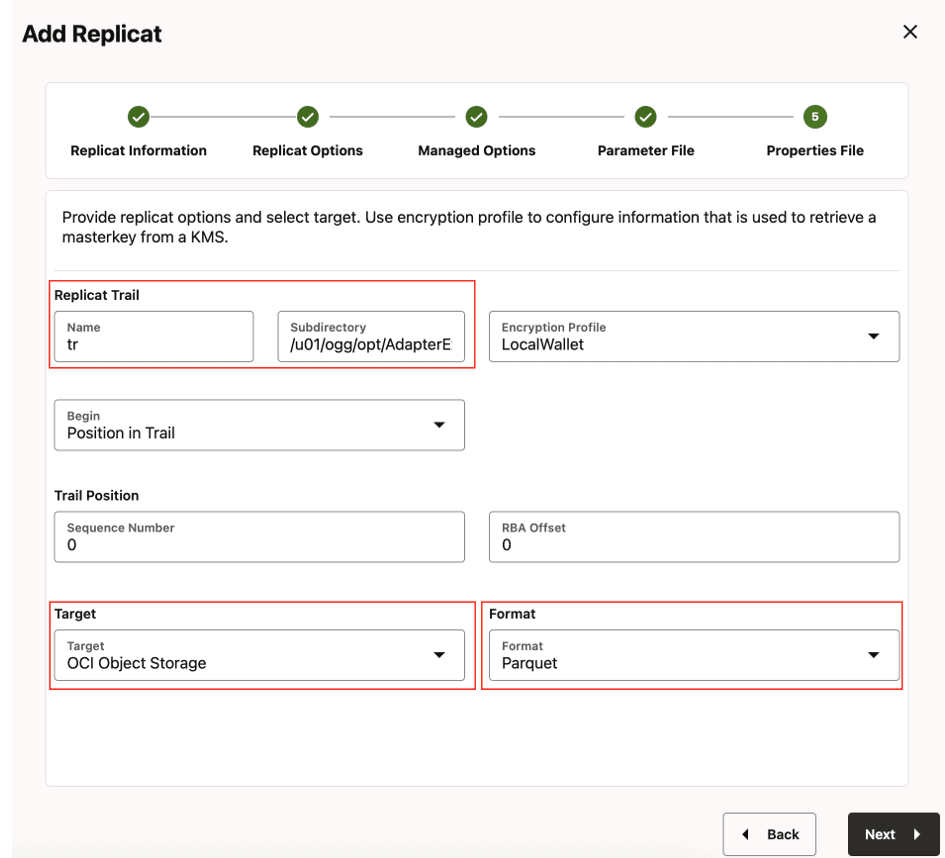
Enter the Replicat Options and click Next.
-
Replicat Trail: Name of the required trail file. For sample trail, provide
tr. -
Subdirectory: Enter
GG_HOME/opt/AdapterExamples/trail/if using the sample trail. -
Target: OCI Object Storage
-
Format: Select the file format.
Figure 62: Replicat Options
-
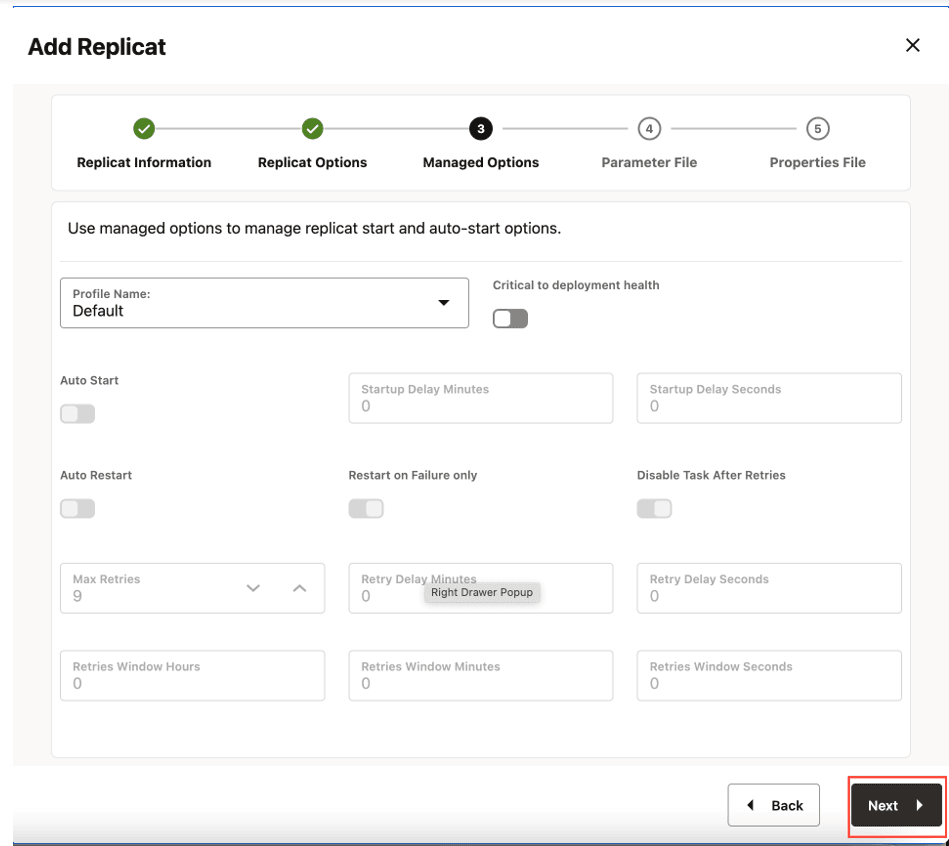
- Leave Managed Options as is and click Next. Figure 63: Managed Options
-
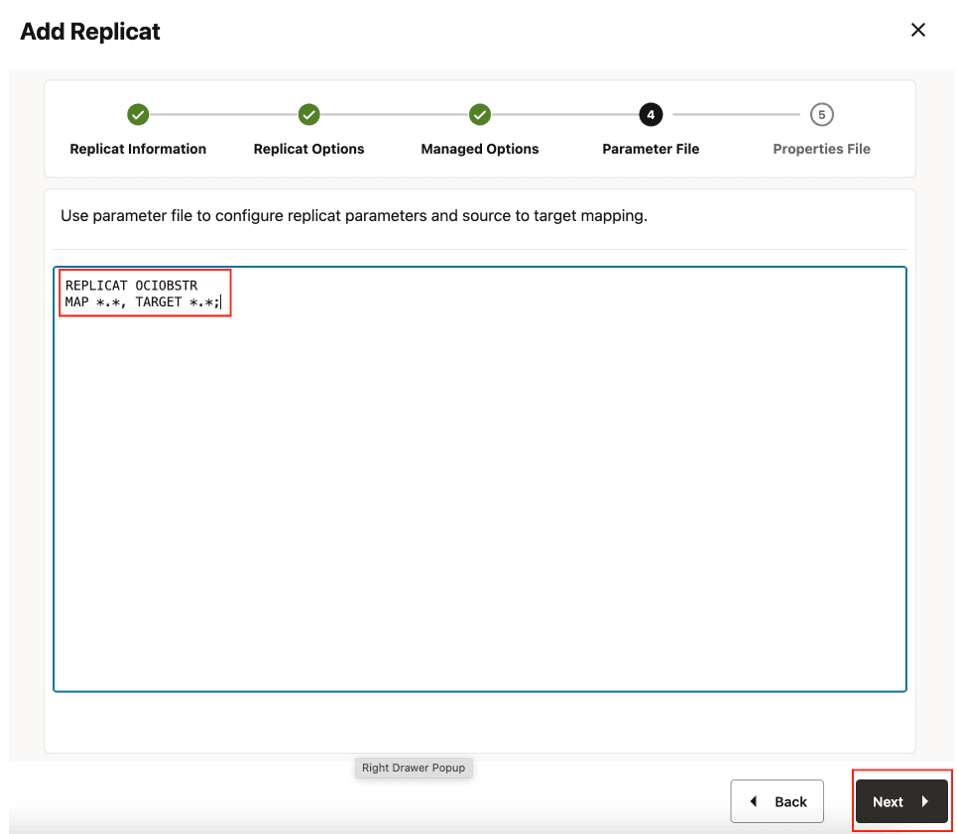
Enter Parameter File details and click Next.
In the Parameter File, you can either specify source to target mapping or leave it as-is with a wildcard selection. If Coordinated Replicat is selected as the Replicat Type, an additional parameter needs to be provided:
TARGETDB LIBFILE libggjava.so SET property=<ggbd-deployment_home>/etc/conf/ogg/your_replicat_name.propertiesFigure 64: Parameter File
-
In Properties File, update the properties marked as #TODO and click Create and Run.
# Properties file for Replicat # Configuration to load GoldenGate trail operation records # into OCI Object storage by chaining # File writer handler -> OCI Event handler. # Note: Recommended to only edit the configuration marked as TODO gg.target=oci #TODO: format can be 'parquet' or 'orc' or one of the pluggable formatter types. Default is 'parquet'. gg.format=parquet **#TODO: Edit the OCI region** gg.eventhandler.oci.region=<oci-region> **#TODO: Edit the OCI compartment OCID** gg.eventhandler.oci.compartmentID=<oci-compartment-ocid>**#TODO: Edit the OCI bucket name** gg.eventhandler.oci.bucketMappingTemplate=<oci-bucket-name> **#TODO: Edit the OCI Config file path** gg.eventhandler.oci.configFilePath=./oci/config**#TODO: Edit to include the OCI Java SDK**. gg.classpath= ./oci-java-sdk/lib/*:./oci-java-sdk/third-party/lib/*:/path/to/hadoop-deps/:/path/to/parquet_deps/* -
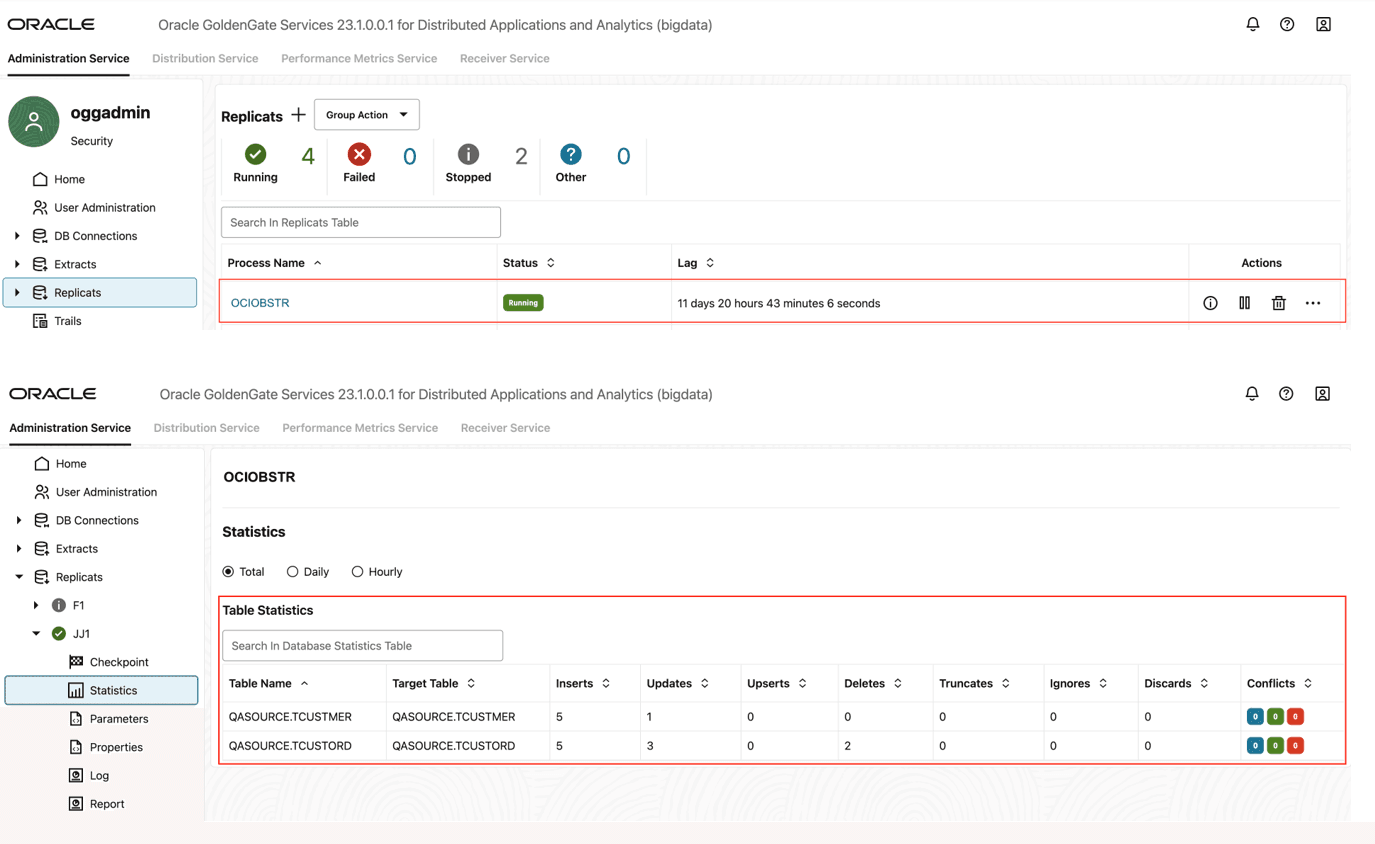
If replicat starts successfully, then it is in running state. Go to action/details/statistics to see the replication statistics. Figure 65: Replication Statistics
- Go to OCI console and check the bucket. Figure 66: OCI Console
  <div class="infoboxnote" markdown="1">

  **Note:**

  - If target OCI Object Storage bucket does not exist, then it will be auto created by GG for DAA. You can use [Template Keywords](additional-details.html#GUID-742BA6BE-D446-4E21-8E38-7105AC9F5E5E) to dynamically assign OCI bucket names.

  - OCI Object Storage Event Handler can be configured for proxy server. For more information, see [OCI Object Storage Event Handler](additional-details.html#GUID-7EC8787A-49B7-4EAA-8C3A-E03D496F0585 "The File Writer handler needs to be chained with an object store Event handler. Oracle GoldenGate for Distributed Applications and Analytics (GG for DAA) supports uploading files to most cloud object stores such as OCI, AWS S3, and Azure Data Lake.").

  - You can use different properties to control the behaviour of file writing. You can set file sizes, inactivity periods and more. You can get more details in the File Writer [blog post](https://blogs.oracle.com/dataintegration/post/goldengate-for-big-data-file-writer-handler-behaviour).

  </div>