Authenticate the Database Connection Using the Database Password Plugin
Oracle GoldenGate 23.5 and higher includes a user-friendly plugin that enables writing custom code to retrieve database credentials from a third-party vault and then return it in a predefined API to Oracle GoldenGate.
With increased security rules included as best practices by organizations, some organizations do not allow storing the database credentials, such as password, in Oracle GoldenGate’s local wallet (credential store). The password needs to be stored in a vault outside of Oracle GoldenGate. To implement this method of authentication, the Database Password Plugin has been introduced. It allows Oracle GoldenGate to retrieve the password from any third-party vault of your choice or the OCI Vault, when it needs to connect to a database instance.
Learn about the workflow to enable the Database Password Plugin in Oracle GoldenGate and use it to retrieve the secret password, when establishing a database connection from Oracle GoldenGate.
Use any of the following options to setup a database password plugin service for Oracle GoldenGate:
APIs Required for Database Password Plugin
A minimum of two function APIs need to exist in this plugin. These APIs are described as follows:
getManifest()
Each plugin must expose the getmanifest function that returns a JSON style string describing the plugin, as shown:
{"$schema": "ogg:plugin", "version": "23.4" }The version number can be equal to or lower than the Oracle GoldenGate version number. For example, if you are running Oracle GoldenGate version 23.6, then the version number in the JSON string could be 23.4, 23.5, or 23.6.
getUseridAliasPassword(oggDomain *C.char, oggAlias *C.char, oggUserid *C.char, oggPassword *C.char)
This function is called by Oracle GoldenGate to retrieve the password for a USERIDALIAS.
Returns an integer value. 0 means success and any non-zero value is a failure.
oggDomain, oggAlias, and oggUserid are the input parameters to identify the database user credentials. oggPassword is the output parameter that returns the password fetched from the vault.
Configure the Database Password Plugin to Store and Access the Database Password from a Third-Party Vault
To create, store, and retrieve the secret password from a third-party vault of your choice, you need to write your own custom code. The code needs to generate a shared user library, which would be used to activate the plugin as a service from Oracle GoldenGate Service Manager. After the plugin in activated, you can access the third-party vault to retrieve the stored secret password, when establishing a database connection from Oracle GoldenGate. Oracle GoldenGate stores that USERID as an alias in its credential store under domain_name.alias_name. The domain_name and alias_name are used as input parameters to call the plugin. For example, if the domain name is OracleGoldenGate and the alias is ggeastadmin, then the secret name would be OracleGoldenGate.ggeastadmin. Plugin identifies the secret name to retrieve the secret (password) from the vault.
The custom code can be written in any language as long as it can be compiled into a shared user library. The most popular languages that can be used include GoLang, C/C++, and Python.
The following diagram shows the workflow when the Database Password Plugin is used with Oracle GoldenGate to set up a database connection from a third-party vault. The USERIDALIAS is stored in Oracle GoldenGate credential store and the secret password is stored in the third-party vault.
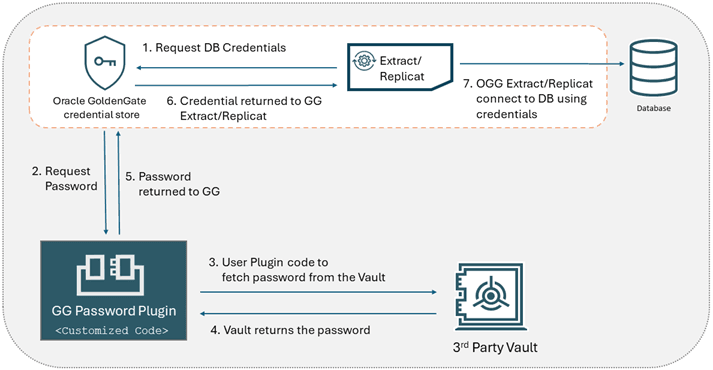
Use the following steps to configure the Database Password Plugin for storing the Database password in a third-party vault and retrieving it to authenticate a database connection from Oracle GoldenGate:
-
Locate the Database Password Plugin, which is present in the GG Service Manager Home/var/lib/plugins/ directory. By default, there is no library under this directory. Note: Although there are no restrictions on the library file name, the plugin will pick up only the first library file that exists in this location.
-
Check the function APIs used with the plugin. See APIs Required for Database Password Plugin for details.
-
Write and compile the code to create a shared user library that would be used to activate the Database Password Plugin. You need to write and compile the code, based on the third-party vault that you are using to set up the Database Password Plugin.
-
Copy the compiled user library to the
Service_Manager_Home/var/lib/plugins/directory. -
Run the REST API command to activate the plugin as a new service under Service Manager. Assuming that the Service Manager is running locally on port 9011, then the command will look similar to the following:
shell>OGG_ADMIN_PASSWORD="xxxx"
shell>curl -svu "oggadmin:${OGG_ADMIN_PASSWORD}"
http://127.0.0.1:9011/services/v2/deployments/ServiceManager/services/pluginsrvr \ -XPOST --data '{"$schema":"ogg:service", "config":"external", "enabled":true,
"critical":true, "status":"running"}'
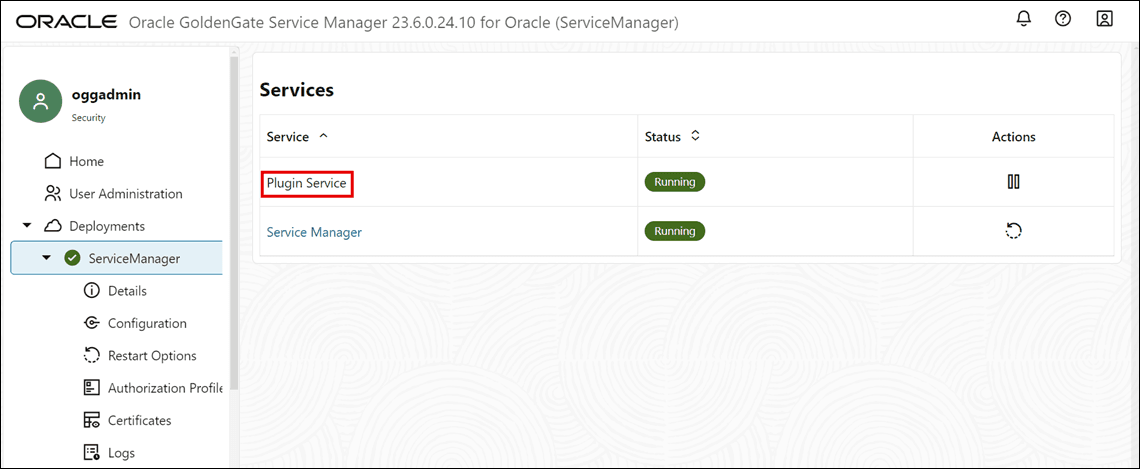
You can view the status of the plugin from the Service Manager after it is activated, as shown in the following image. You can view the service as Plugin Service under Services.
Note: If you are using NGINX or a secured deployment, you need to use https instead of http, and the appropriate CA certificate path in the command line.
-
Set up any environment variables for the third-party vault, if required, and restart the Service Manager.
-
Configure the third-party vault and store the password in it.
-
Run the Admin Client and set up the database login credentials with the
PLUGINoption or the previously usedNOPASSWORDoption and test that the connection to the database is successful. The following example illustrates this configuration:a. Connect to the deployment:
OGG (not connected) 1> CONNECT http://127.0.0.1:9011 AS oggadminb. Add credentials:
-
Using the
Pluginoption:OGG (http://127.0.0.1:9011 Deployment) 2> ALTER CREDENTIALSTORE ADD USER ggeastadmin@//dbms:1521/ORCLPDB1 PLUGIN ALIAS ggeastadmin
Output: <pre class="copy"><code>2026-04-02T18:34:14Z INFO OGG-15114 Credential store altered. Credential Type: Plugin</code></pre>-
Using the
PLUGIN SECREToption:OGG (http://127.0.0.1:9011 Deployment) 2> ALTER CREDENTIALSTORE ADD USER ggeastadmin@//dbms:1521/ORCLPDB1 PLUGIN SECRET abc ALIAS ggeastadmin
Output: <pre class="copy"><code>2026-04-02T18:34:14Z INFO OGG-15114 Credential store altered. Credential Type: Plugin Secret</code></pre>-
Using the legacy
NOPASSWORDoption, using the following command:ALTER CREDENTIALSTORE ADD USER ggeastadmin@//dbms:1521/ORCLPDB1 NOPASSWORD ALIAS u1alias;
c. Log in to the database using the credential alias:
OGG (http://127.0.0.1:9011 Deployment) 3> DBLOGIN USERIDALIAS ggadmin -
Configure the Database Password Plugin to Store and Access the Database Password from OCI Vault
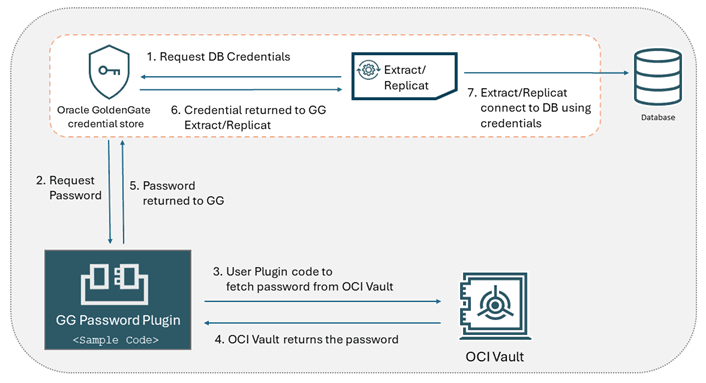
To create, store, and retrieve the secret password from OCI Vault, you can use the sample code, which shows how to retrieve the secret password from the OCI Vault. Oracle GoldenGate stores the USERID as an alias in its credential store under domain_name.alias_name. The password is stored in OCI Vault as a secret under the secret name domain_name.alias_name. For example, if the domain name is OracleGoldenGate and the alias is ggeastadmin, then the secret name would be OracleGoldenGate.ggeastadmin. Plugin identifies the secret name to retrieve the secret (password) from the vault.
The steps in the diagram demonstrate the workflow for setting up the Database Password Plugin with OCI Vault:
-
Create a password in OCI vault.
-
Verify that the secret is created in the OCI Vault that holds the password for this database user `ggeastadmin`. Make sure the secret name matches the expected naming convention, for example, `OracleGoldenGate.ggeastadmin` in the format `domain_name.alias_name`. 
-
Locate the Database Password Plugin, which is present in the GG Service Manager Home/var/lib/plugins/ directory. By default, there is no library under this directory.
Note: Although there are no restrictions on the library file name, the plugin will pick up only the first library file that exists in this location.
-
Check the function APIs that you need to use with the plugin. See APIs Required for Database Password Plugin for details.
-
Access the sample code from
OGG_HOME/src/PluginExamples/OCIVault/OCIVault.go, to generate the shared user library. -
Compile the code by running the
makecommand fromOGG_HOME/src/PluginExamples/OCIVault/OCIVault.go. This generates the user library, namedlibOCIVault.so. -
Copy the user library
libOCIVault.soto theService_Manager_Home/var/lib/plugins/directory. -
Issue the REST API command to activate this plugin as a new service under Service Manager. Assuming that the Service Manager is running locally on port 9011, then the command will look similar to the following:
shell>OGG_ADMIN_PASSWORD="xxxx"
shell>curl -svu "oggadmin:${OGG_ADMIN_PASSWORD}"
http://127.0.0.1:9011/services/v2/deployments/ServiceManager/services/pluginsrvr \ -XPOST --data '{"$schema":"ogg:service", "config":"external", "enabled":true,
"critical":true, "status":"running"}'
You can view the status of the plugin from the Service Manager after it is activated, as shown in the following image. You can view the service as Plugin Service under Services.
Note: If you are using NGINX or a secured deployment, you need to use
httpsinstead ofhttp, and the appropriate CA certificate path in the command line. -
In the Service Manager web interface, set the
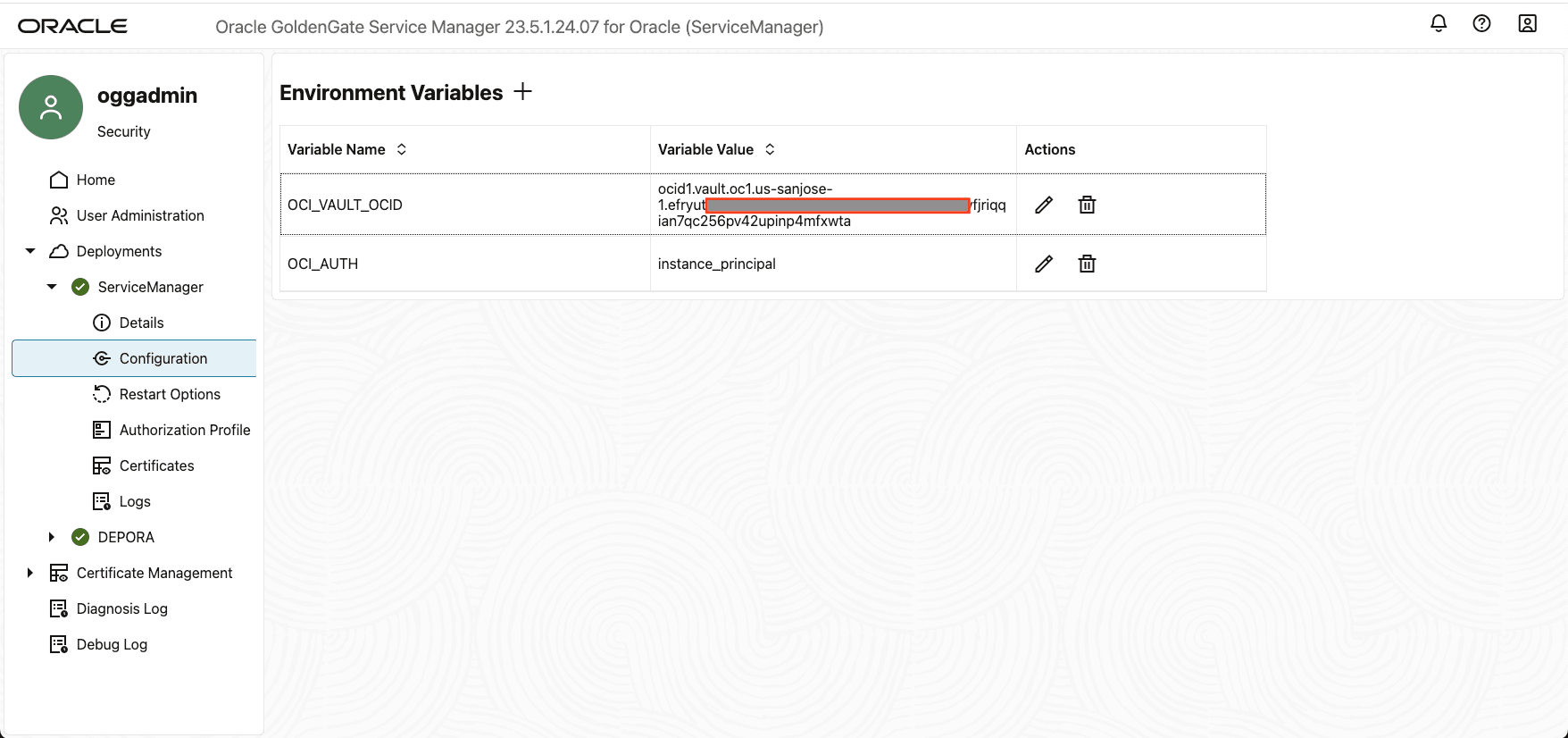
OCI_AUTHandOCID_VAULT_OCIDenvironment variables to the following values:-
OCI_AUTH = instance_principal: The
instance_principalauthentication method has been used in this example. However, the Database Password Plugin supports the following authentication methods for OCI Vault, including:-
instance_pricinpal: Instance Principal authentication. -
DEFAULT: Default profile in the OCI configuration file. -
Customized name: Customized profile in the OCI configuration file.
-
-
OCID_VAULT_OCID = ocid1.vault.oc1-us-sanjose-1.exxxxxxxxxxxxxxxxxx42upinp4mfxwta: This value is derived from step 2.Both these environment variables must be set up correctly in the environmental variable section under the Service Manager’s Configuration.
Note: If you are using NGINX or a secured deployment, you need to use
httpsinstead ofhttp, and the appropriate CA certificate path in the command line. -
-
Restart the Service Manager to activate the settings.
-
Identify the VM instance where Oracle GoldenGate Service Manager is running.
-
Add the VM instance to a dynamic group, to make
instance_principalauthentication work. -
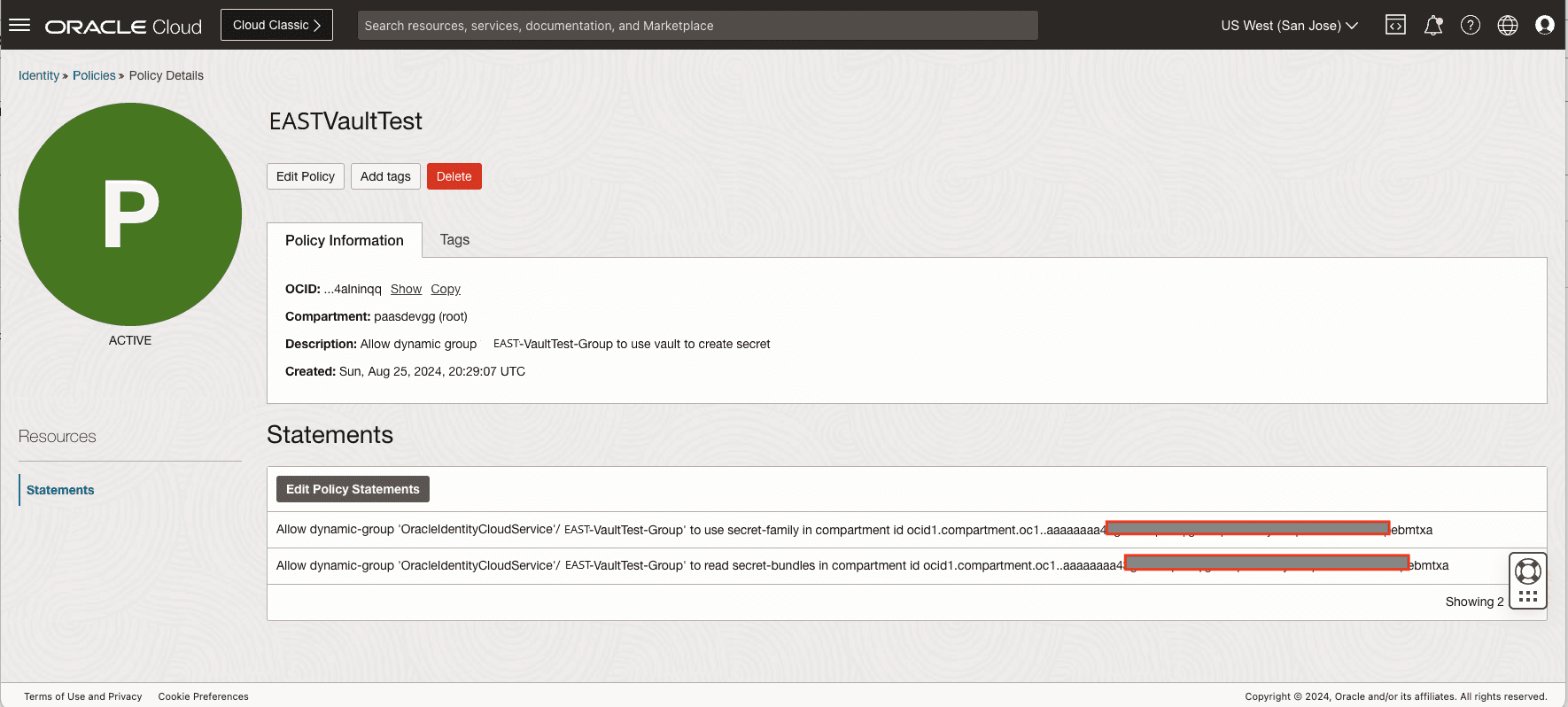
Assign a tag for the VM instance, for example, EASTVaultTest. This would make it easier to create dynamic groups. See Managing Dynamic Groups for details. The dynamic group needs a policy to use the secret in that vault.
-
Create a policy to allow this dynamic group to use the secret resource (secret password). For details on creating policy to control access to the vault service, see Details for the Vault Service.
-
Run the Admin Client to create Database login alias with the
NOPASSWORDoption and test that the connection is successful, as shown in the following example:OGG (not connected) 1> CONNECT http://127.0.0.1:9011 AS oggadmin Using default deployment 'Deployment'OGG (http://127.0.0.1:9011 Deployment) 2> ALTER CREDENTIALSTORE ADD USER ggeastadmin@//dbms:1521/ORCLPDB1 ALIAS ggeastadmin NOPASSWORD 2024-04-02T18:34:14Z INFO OGG-15114 Credential store altered.OGG (http://127.0.0.1:9011 Deployment) 3> DBLOGIN USERIDALIAS ggadmin Successfully logged into database.
Configure the Database Password Plugin to Store and Access the Database Password from Oracle Key Vault
Oracle GoldenGate 23.5 and higher releases include a plugin service that enables you to write custom code for retrieving database credentials from a third-party vault and then return the credentials in a predefined API to Oracle GoldenGate, as mentioned in Configure the Database Password Plugin to Store and Access the Database Password from a Third-Party Vault. This feature includes the libokvoggdbpwd.so library that can be configured in Oracle GoldenGate to manage passwords from Oracle Key Vault.
The following diagram represents the workflow between Oracle GoldenGate and Oracle Key Vault to configure the Plugin Service and then use the OKV Plugin Library to request and retrieve database passwords from Oracle Key Vault server.
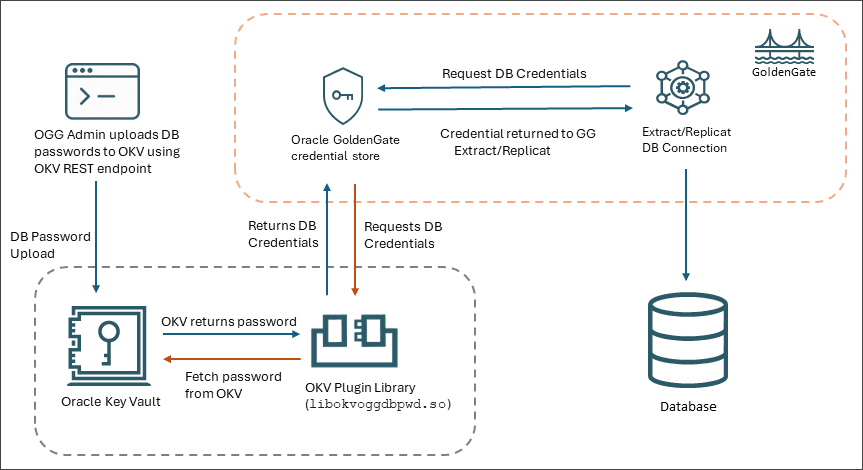
The process of storing and retrieving the database passwords from Oracle Key Vault can be summarized as follows:
-
Oracle GoldenGate administrator uses the RESTful services utility to upload Oracle GoldenGate passwords to Oracle Key Vault.
-
Oracle GoldenGate requests for the database credentials from Oracle Key Vault server using the
libokvoggdbpwd.soplugin library. This password is fetched from the OKV server after successful backend validations. -
After the password is retrieved, Oracle GoldenGate processes will be able to connect to the database using a remotely stored password.
See the Centralizing the Management of Oracle GoldenGate Passwords in the Oracle Key Vault Administrator’s Guide for details about implementing this feature for Oracle GoldenGate database password storage and retrieval.