Prepare Database Connection
Learn about configuring database connections for Oracle GoldenGate for Teradata.
Oracle GoldenGate for Teradata connects to Teradata databases using an ODBC Driver for Teradata and connection information provided in a Data Source Name (DSN). DSN connectivity requires connection details be listed in an odbc.ini file and then referencing the DSN value when creating database connections within the Oracle GoldenGate WebUI or Admin Client.
On the Oracle GoldenGate server, install and configure a supported ODBC Driver for Teradata and create a DSN entry to be used for Oracle GoldenGate connectivity to a target Teradata system.
Review the Oracle GoldenGate certification matrix for this release of Oracle GoldenGate to determine which version of the Teradata TTU is supported. Download and install that version of the ODBC Driver for Teradata available at https://downloads.teradata.com/.
Once the DSN entries have been created through the steps mentioned in the Configure a DSN Connection in Linux topic, proceed to the Add Database Connections topic to know about how to create database connections.
Configure a DSN Connection in Linux
To create a DSN entry for Oracle GoldenGate processes, perform the following steps to first, add a new environment variable for the Oracle GoldenGate for Teradata deployment, update an existing environment variable, and then create an odbc.ini file to store the connection attributes:
-
Log in to the Service Manager web interface.
-
From the left navigation pane, click Deployments and then select the Oracle GoldenGate Teradata deployment. This displays the available settings for the deployment.
-
Click Configuration and then click the plus sign (+) displayed next to Environment Variables.
-
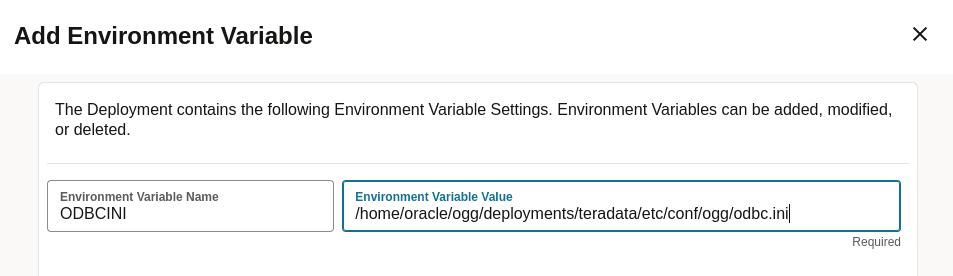
Provide the following information in the two available fields:
Environment Variable Name = ODBCINI
Environment Variable Value =
Teradata deployment path/etc/conf/ogg/odbc.ini
Note: You can choose to create the odbc.ini file in any location that you prefer, but it must be referenced correctly in the ODBCINI environment variable for the deployment.
Figure 2: Add Environment Variable
-
Click Submit to create the new variable.
-
Next, edit the existing
LD_LIBRARY_PATHenvironment variable by clicking the pencil icon under Actions for theLD_LIBRARY_PATHentry. -
Add the
libpath of the ODBC Driver for Teradata to the existingLD_LIBRARY_PATHvalue, such as:/opt/teradata/client/17.20/odbc_64/lib -
Click Submit to update the variable and then restart the deployment from the Service Manager Deployments pane, for the changes to take effect.
-
In the directory that you set for the
ODBCINIenvironment variable, create anodbc.inifile and add Teradata database connections to this file, using the following minimum information and example. For more details about available connection options, review the ODBC Driver for Teradata User Guide.Example of odbc.ini file
[ODBC]InstallDir=/opt/teradata/client/17.20/odbc_64[ODBC Data Sources]DSN Name=Teradata Database ODBC Driver 17.20[DSN Name]Driver=/opt/teradata/client/17.20/odbc_64/lib/tdataodbc_sb64.so -
Save and close the
odbc.inifile.
Preventing Multiple Connections
By default, the Replicat processes create a new connection for catalog queries. You can prevent this extra connection by using the DBOPTIONS parameter with the NOCATALOGCONNECT option.