Configure and Use the AI Service
Oracle GoldenGate provides the AI Service to allow embedding from various AI Service providers, including Google Gemini, OpenAI, Voyager AI, and OCI Generative AI. This service allows you to bring embedded data from the AI service.
Before you begin using the AI Service from Oracle GoldenGate, make sure to complete the tasks given in Before Adding an AI Service Provider.
You also need to have the required values to configure the AI Service Provider and the associated AI Model details.
The following table lists the AI Service Provider and the configuration details required for configuring the specific provider:
| Provider Type | Options |
|---|---|
|
The following values are required:
|
| OCI Generative AI | The following values are required:
|
From the Service Manager, first you configure an AI Service Providers and then configure AI Service Models based on your AI Service Provider.
Here are the steps to add AI Service Providers and AI Models: 1. Click the plus sign in the Providers section. This displays the Add Provider dialog box to add an AI provider.

-
Select from the list of AI Service Providers (Gemini, OpenAI, OCI Generative AI, and Voyager AI) and provide details.
-
Click Submit. The AI Provider is listed in the Providers list. Now, you can create an AI Model associated with the provider.
-
To create an AI Model, add the following values:
-
Model ID: Depending on the AI service provider, you can specify a model ID. For example, for Gemini, you can select the model ID as gemini-3.0-pro.
-
Model Name: Specify a name for the model.
-
Remote Model Name: Specify the name of the model that is hosted on a provider’s server and would be accessed using APIs for different tasks.
-
Provider ID: This is the same provider that you have created.
-
Capabilities (Embedding): Preselected option set to Embedding.
-
Enabled (toggle switch): Enable or disable the model.
-
Maximum Input Characters: Maxmimum characters allowed in the given Model.
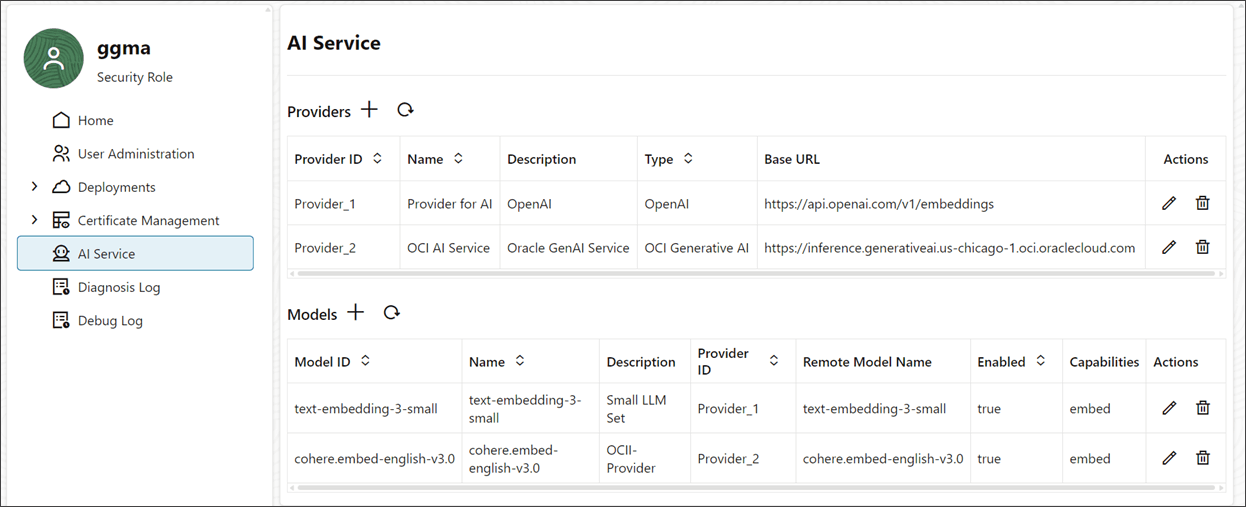
The following image shows the list of added service Providers and Models on the AI Service page:
-
-
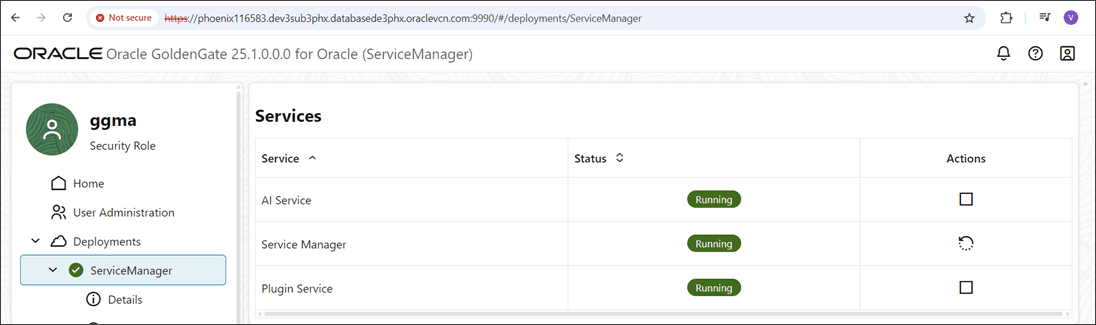
After the AI Service is enabled, it is displayed under the Services list of the Service Manager, as shown in the following image:
-
To view the AI Models, navigate to the Microservices portal and click AI Service from the left navigation pane. The AI models are automatically listed here, as shown in the following image:

-
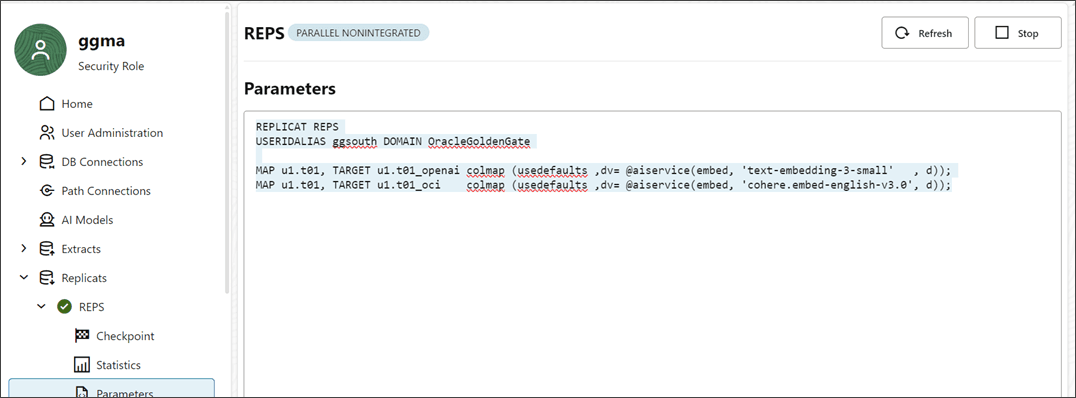
Move to the Replicat Parameters page to see the added parameters, shown in the following image: