Manage Pipelines
Manage pipelines from the GoldenGate Studio user interface including steps to edit, start, stop, and delete pipelines.
View Pipeline Details
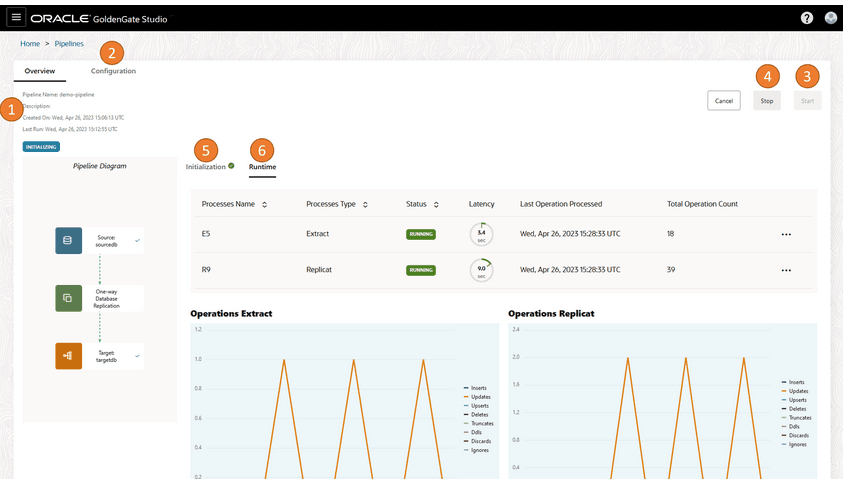
Follow these steps to view pipelines details:
On the Pipelines page, select a pipeline to view its details. On the pipeline’s details page, from the Actions menu, select View. You can:
-
Review pipeline details such as the pipeline name, description, when it was created, when it was last run, and whether it ran successfully.
-
Edit the pipeline's configuration, mappings, mapping rules, and advanced options.
-
Start and stop the pipeline.
-
View the pipeline as it runs in realtime.
Note: The pipeline runs continuously until you select Stop.
-
View its initialization steps, the status and logs for each step, and initial load details.
Note: To view message logs for a step, on the Overview page, from the Actions menu, select Log Events.
Start a Pipeline
Before you can start a pipeline, you must first Configure a Pipeline
To start a pipeline:
-
On the Pipelines page, select the pipeline to start.
-
On the pipeline's details page, select Start.
You're brought to the pipeline's initialization page, where you can observe the initial load tasks performed on the target database, as well as the creation and start of Extract and Replicat processes.
-
After the pipeline is initialized, you're brought to the Runtime page, where you can observe data capture operations on the source database replicated to the target database.
The pipeline runs continuously until it’s stopped.
Stop a Pipeline
You can only stop a pipeline that is running. Pipelines run continuously until you manually stop them. When you stop a pipeline, GoldenGate Studio stops both the Extract and Replicat processes.
To stop a pipeline:
-
On the Pipelines page, select the pipeline to stop. You're brought to the pipeline's details page.
-
On the pipeline's details page, select Stop.
After the pipeline stops, you can select Start to restart it. GoldenGate Studio resumes the Extract and Replicat processes, replicating any transactions that occurred while the pipeline was stopped.
Delete a Pipeline
To delete a pipeline:
-
On the Pipelines page, from the Action menu (ellipsis icon) of the pipeline you want to delete, select Delete.
-
In the Delete dialog, select whether you want to also delete the GoldenGate Studio configuration.
Note: GoldenGate Studio configuration includes the Extract and Replicat processes created when the pipeline was originally initialized.
-
Select Delete.
The Pipeline page refreshes, and the deleted pipeline no longer appears in the list. Once deleted, you can’t undo the action.