Pipelines and Recipes
Learn to create data replication processes using recipes and pipelines.
About Pipelines
A pipeline is an instance of a recipe. It enables you to select your source connection, the type of replication action(s) to apply, and the target connection. After a pipeline starts, you can observe the replication process in real time.
If you’re familiar with GoldenGate Studio Extract and Replicats, pipelines are an abstraction of the GoldenGate Studio replication process. When you start a pipeline, GoldenGate Studio:
-
Prepares the database objects for extraction
-
Creates a Heartbeat Table
-
Creates and runs the Extract process
-
Performs an initial load using Oracle Data Pump
-
Creates the Checkpoint Table
-
Creates and runs the Replicat process
These steps can be observed during the pipeline’s Initialization phase on the Pipeline Details page.
You can view pipelines on the Home page, as well as the Pipelines page. Before you create a pipeline, ensure that you have Database Connections configured for the source and target databases.
To learn more, see About Extracts and About Replicats in GoldenGate Studio Microservices Documentation.
About Recipes
Recipes are templates for common replication scenarios that you can use to accelerate your data replication journey.
A recipe is a template that defines a set of data replication tasks or mappings between source and target systems. Recipes help simplify and accelerate the creation of replication solutions. Using a recipe reduces the time and effort required to set up new data integration projects, ensuring consistency and reliability across different environments. GoldenGate Studio includes the following recipes:
-
One-way Database Replication: One-way data replication is a process in which data changes from a source database are continuously or periodically copied to a target database, but not vice versa. Only the source updates the target; changes in the target database do not flow back to the source. Performs an initial load and ensures the target database is kept in sync with the source database.
Use one-way data replication in the following scenarios:
-
Reporting/Analytics: You want to offload queries and analytics to a separate reporting/BI database without affecting your primary transactional database.
-
Data Migration: Moving data from a legacy system to a modern one with as little downtime as possible.
-
Disaster Recovery/Backup: Maintain an up-to-date standby instance for failover/failback scenarios.
-
Data Distribution: Send data from headquarters to branch office databases.
-
-
Active-Active Database Replication: Active-Active replication is a data architecture in which two or more databases can accept read and write operations simultaneously, and changes are automatically synchronized between all sites in near real time. This enables continuous availability and seamless failover and supports distributed workloads. Performs an initial load of the source database to the target, and then applies change events in both directions to keep the databases synchronized.
Use Active-Active replication in the following scenarios:
-
When seamless disaster recovery and high availability are required, allowing all sites to process traffic and support immediate failover.
-
When balancing workloads across multiple, geographically dispersed data centers to improve overall system performance and resilience.
-
-
Database Migration: Provides a step-by-step framework for transferring data from one system or environment to another using Oracle tools and best practices. It typically involves planning, data assessment, extraction, transformation, loading, validation, and post-migration support. The Database Migration recipe performs an Initial load, and then applies change events until you're ready to switch over to the target database.
Note: GoldenGate Studio does not support data migration from Oracle AI Database (including Oracle Autonomous AI Database) to MySQL database.
Database migration is necessary when you want to perform a one-time or phased bulk movement of database objects and data from one environment to another (for example, during cloud adoption or hardware refresh). The data migration recipe facilitates online and offline database migrations:
-
Offline: Source applications must be taken offline to prevent updates to the source database during migration. Offline migration is most suitable for small databases or where the duration of downtime is not a concern. Data and metadata are exported from the source database and imported into the target database. Offline migration is ideal for development and testing in small, non-critical database environments.
Note: For MySQL, only the One-way recipe and Data Migration recipe are supported.
-
Online: Source systems can remain online during the migration. Online migration is most suitable for large databases or for critical applications where the duration of downtime is a concern. An initial snapshot of data and metadata is exported from the source database and imported into the target database, followed by continuous synchronization of changes.
-
-
ZeroETL Mirror: ZeroETL is a data integration approach that eliminates traditional, batch-oriented ETL pipelines. Provides near real-time replication from an operational database to an analytics or reporting environment without requiring traditional ETL (Extract, Transform, Load) processes. This recipe simplifies architecture and delivers up-to-date data for analytics with minimal latency.
ZeroETL is ideal for scenarios where actionable insights from fresh operational data are crucial—for example, real-time dashboards, instant reporting, integrating legacy on-premises databases with other enterprise applications, and seamless cloud or on-premises migrations.
Note: If you encounter a warning about sequences detected, ensure that you don’t replicate database generated sequential values. The range of values must be different on each system, with no chance of overlap. For example, in a two-database environment, you can have one server generate even values, and the other odd. For an n-server environment, start each key at a different value and increment the values by the number of servers in the environment. This method may not be available to all types of applications or databases. If the application permits, you can add a location identifier to the value to enforce uniqueness.
Create a Pipeline
Learn to create pipelines in GoldenGate Studio.
Before You Begin
Before you create a pipeline, ensure that you’ve created and tested the source and target database connections. For Oracle AI Database, database configuration is performed during the Configure Source or Configure Target step while creating pipeline. For MySQL, you must configure the database before creating a pipeline. Check prerequisites for MySQL in Before you Begin section of Create a MySQL Database Connection.
If you want to use Oracle Autonomous AI Database as your pipeline’s source or target connection, you must:
-
Configure Oracle Autonomous AI Database:
-
Download the Wallet: Download the Oracle Autonomous AI Database wallet from the instance's details page in Oracle Cloud Infrastructure. You'll upload it to GoldenGate Studio when you create the connection, if you haven't done so already.
-
Configure TNS Alias: Use the alias from
tnsnames.orainside the wallet for the Oracle Autonomous AI Database connections. -
Check Client Credentials: Make sure username and password are available and have permission for the GoldenGate Studio replication operations.
-
Verify Autonomous AI Database Firewall and VNet rules: Ensure appropriate network access so GoldenGate Studio can reach your Oracle Autonomous AI Database.
Note: Ensure that your wallet and credentials management comply with the Oracle security policies.
-
-
Target Database Access: Configure and validate connectivity to your target database (which can be Oracle Autonomous AI Database or any other supported Database).
-
User Alias Configuration:
-
Create a credential store with a user alias. Complete steps 3 to 6 in Configure Extract for Oracle Autonomous AI Database. The user alias references the secure credentials for the source and target databases.
-
Register the user alias in the GoldenGate Studio credential store, and enter this user alias in GoldenGate Studio when creating pipelines with Oracle Autonomous AI Database connections to avoid storing plain-text credentials.
Note: To verify if the user alias is functioning correctly, go to your GoldenGate Studio user interface and test the Database Connections there first. See Prerequisites for Capturing from Autonomous AI Database in GoldenGate Studio Microservices Documentation.
-
-
Database Privileges: You need the required database permissions on the source and target side to support GoldenGate Studio operations (typically
SELECT,FLASHBACK, DBA-level privileges, and so on).Note:
For MySQL migration and replication recipe to work, you must have permission to grant access to the necessary databases and tables. Execute the following SQL command to grant all privileges:
GRANT ALL PRIVILEGES ON *.* TO 'username'@'host' WITH GRANT OPTION;
FLUSH PRIVILEGES;
Create a Pipeline
To create a pipeline:
-
From the GoldenGate Studio Home page, select Create Pipeline.
You can also select Pipelines from the navigation menu, and then select Create Pipeline on the Pipelines page.
-
The Create Pipeline panel consists of 6 pages:
-
On the Recipe page, select a Recipe, and then select Next.
-
On the Overview page, enter a Name and optionally, a Description, and then select Next.
-
On the Connections page, select the Source and Target Connections and Deployments. If either of the connections is an Oracle Autonomous AI Database instance, you must also provide the GoldenGate Studio user alias as follows, and then select Next.
- Oracle Autonomous AI Database as Source only: Source GoldenGate Studio user alias
- Oracle Autonomous AI Database as Target only: Target GoldenGate Studio user alias
- Oracle Autonomous AI Database as Source and Target: Source and Target GoldenGate Studio user aliases
-
On the Validate Source page, select Validate to check and prepare the source database connection for replication. After the validation for source database completes successfully, select Next.
If the source validation fails, then a new step, Configure Source is added. See Validate Source and Target Database Connections with SYS User to perform validation in this steps.
-
On the Validate Target page, select Validate.
If the target validation fails, then a new step, Configure Target is added. See Validate Source and Target Database Connections with SYS User to perform validation in this steps.
-
On the Confirmation page, select Save & Continue.
-
-
You can now Configure the pipeline, or select Start.
After the pipeline starts, you can view detailed status and logs for each pipeline. This helps identify and troubleshoot errors, in case the pipeline creation process fails.
Validate Source and Target Database Connections with SYS User
This step is required only when the source and/or target database connection validation fails while creating a pipeline.
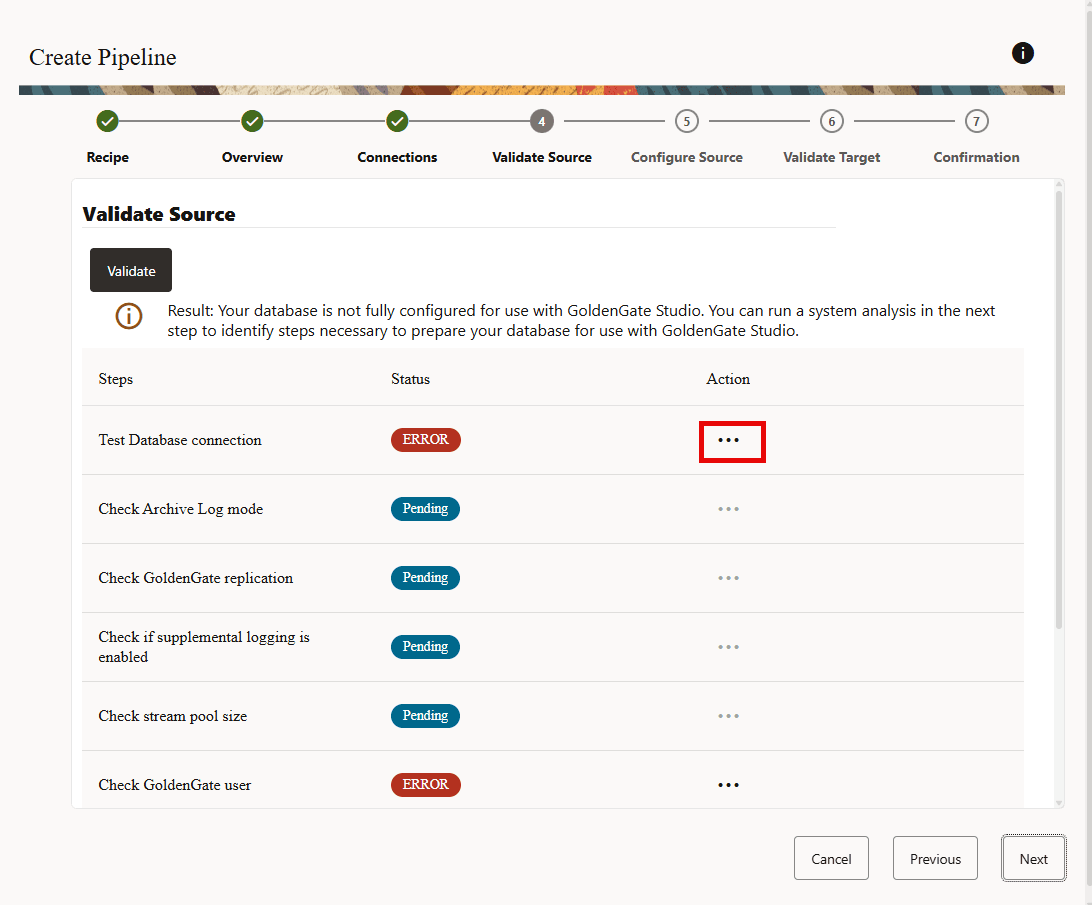
If a source validation step fails, then the validation source status displays an error.
Note: GoldenGate Studio only supports Configure option for Oracle Database sources and targets in this release. For other technologies you need to manually configure your database.
You can use the Action menu (ellipses) to view the error details for the validation failure, as shown in the following image:
The following steps are required to validate the source database connection using a SYS/SYSDBA user.
-
When the validate source connection step fails, select Next in the Validate Source screen. The Configure Source screen is displayed.
-
In the Configure Source screen, enter credentials for
SYSuser or a user with theSYSDBArole, as shown in the following image: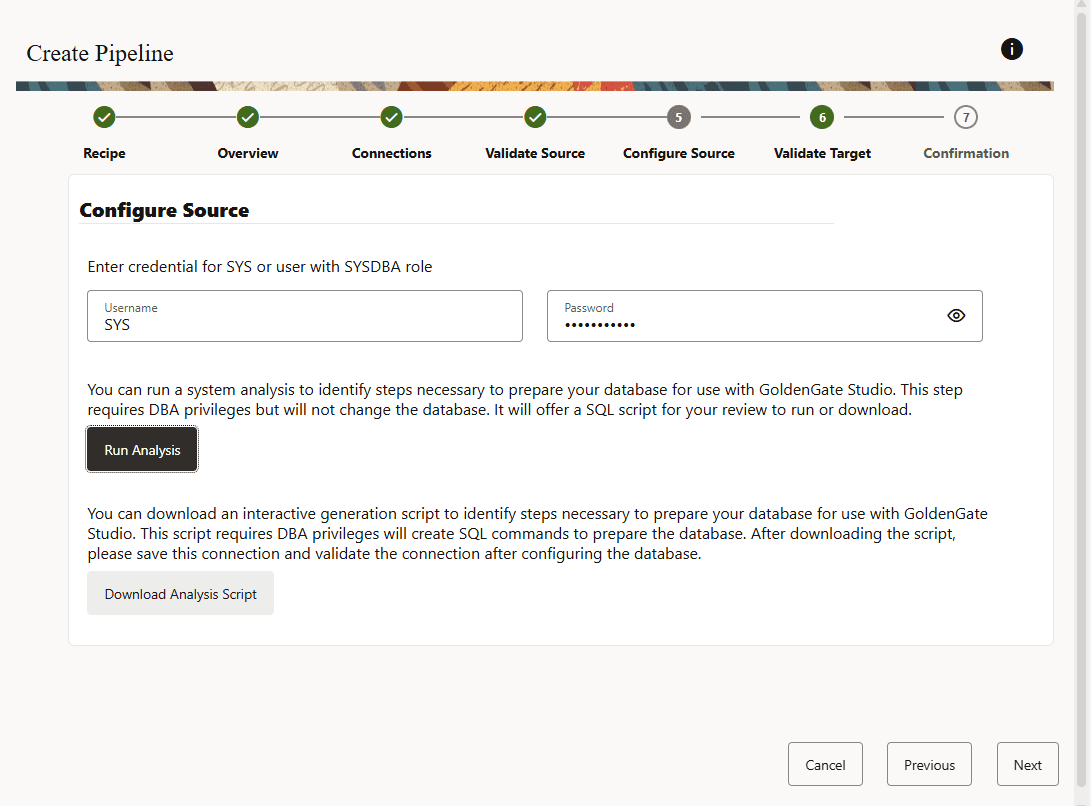
-
Select one of the following options:
Note: For Oracle CDBs, the SQL preparatory script requires connections to both the CDB (Container Database) and PDB (Pluggable Databases). The script automatically configures the necessary settings for both, the CDB and PDBs. The script should be run at the CDB level. If any ALTER DATABASE command requires a database restart, then the script will send a notification. To run this script, you require SYS user privileges.
-
Select Run Analysis to perform a system analysis and review the recommended SQL script needed to prepare your database for GoldenGate Studio (requires database administrator privileges).
This option is available when the database is already configured and does not require additional configuration allowing you to execute the required scripts directly from the interface, streamlining the setup process.
-
Select Download SQL to obtain a script that generates the required SQL commands for configuration.
This option is available for databases that require manual configuration of enabling archive log, setting up
stream_pool_size, or configuring GoldenGate Studio replication for Oracle AI Database 19c, as these tasks may require a database restart. In these instances, you must first configure the database before proceeding.
-
-
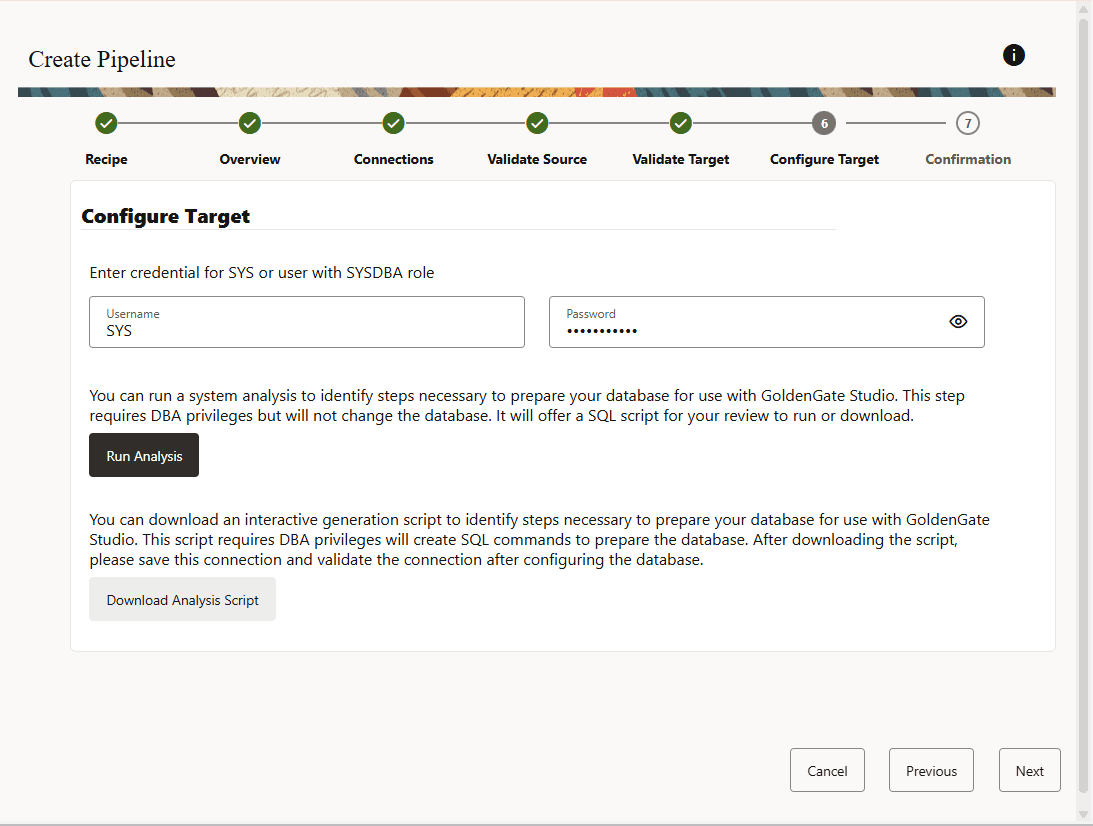
If the target validation fails, then select Next. The Configure Target screen is displayed, as shown in the following image:
-
Follow the tasks given in step 3 for validating the target database connection using the
SYS/SYSDBAuser.
Configure a Pipeline
You must have a pipeline created before you can configure it.
After you create a pipeline, the Configuration page is displayed. If you’re revisiting a pipeline after creating it, you can select the pipeline from the Pipelines page to view its details, and then select Configuration to return to the Configuration page.
To configure a pipeline:
-
Under Mapping, you can review and select the source database schemas and tables to replicate.
Note: The username entered when creating the connection will not appear on the pipeline Mapping page for mapping selection.
Always double check the rules added in the Mapping Rules list after selecting or deselecting schemas or tables using the Mapping tree view. These are the source of truth on what will be executed by GoldenGate Studio.
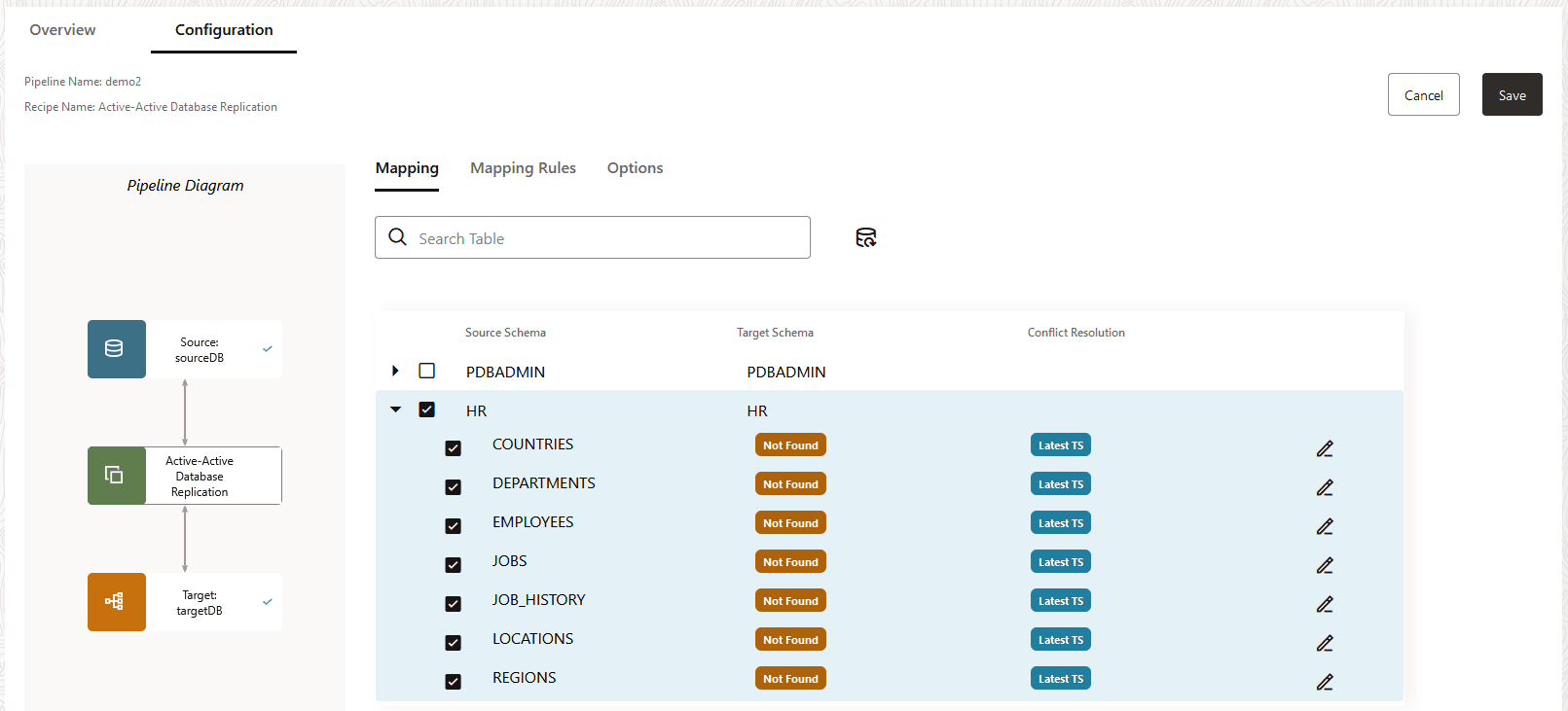
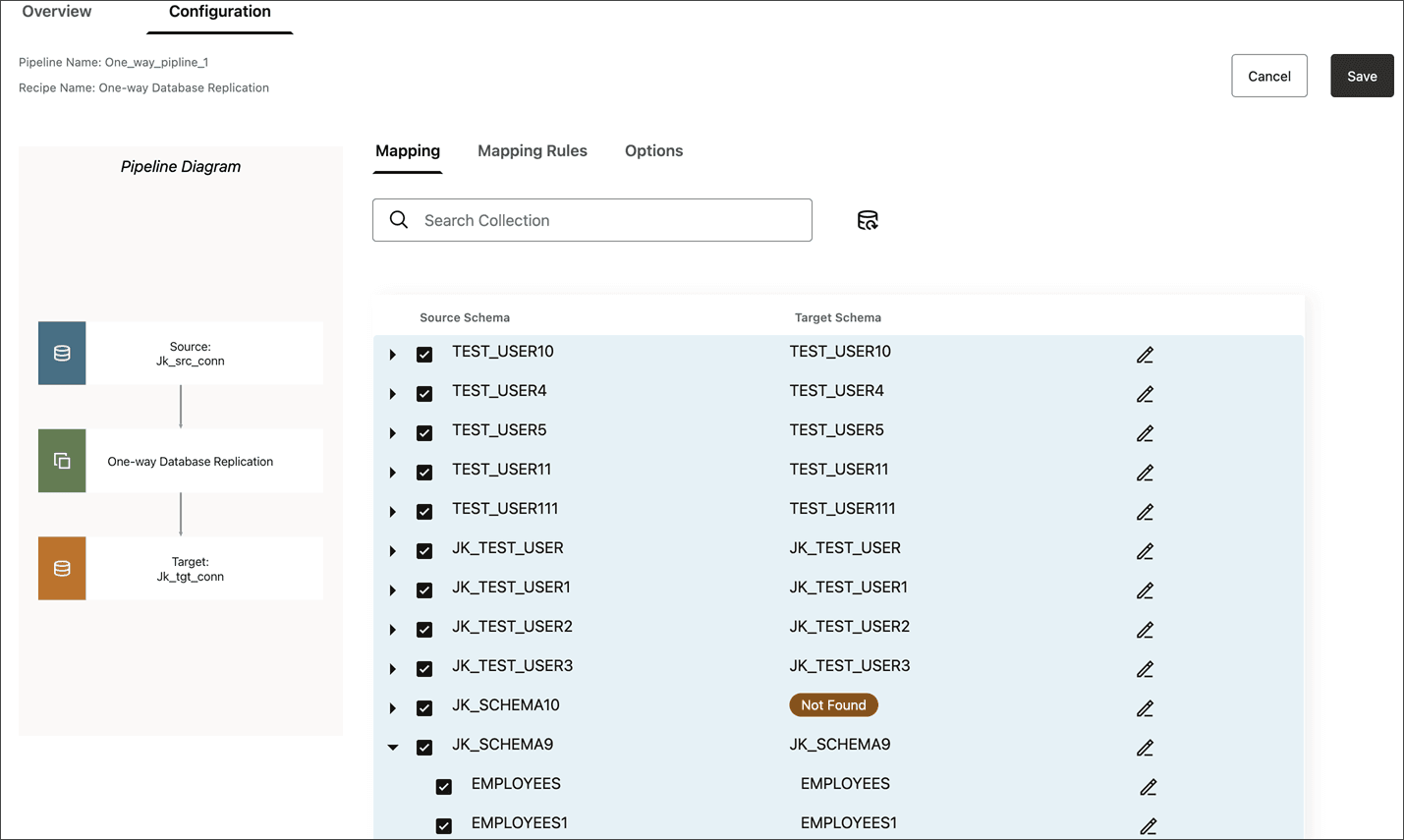
Note: In One-way database replication, target schemas and tables show only when they exist in the target, otherwise they show as Not found.
The following image shows a One-way data replication pipeline:
-
Using the Mapping tab, you can:
-
Select Edit (pencil icon) to rename a target schema or table. This redirects the replication to the renamed schemas and tables.
-
Include a schema and all its tables. This also ensures that any tables added to the schema in the future are also implicitly included and replicated.
-
Include a schema but not all its tables. Tables not included will not be replicated, however, future tables added to the schema are implicitly included and replicated to the target.
-
Exclude the schema but include its tables. Any tables added to the schema in the future are not included.
-
Exclude an entire schema and all its tables.
As you select or deselect source schemas and tables, or edit target schemas or tables, rules are added to Mapping Rules.
Note: For Autonomous AI Database, system schemas such as DCAT_ADMIN, RMAN$CATALOG, GGADMIN, ADBSNMP, and ADB_APP_STORE may be visible. Consider excluding them manually from mapping.
-
-
For Active-Active replications, a Conflict Resolution column appears in the Mapping screen.
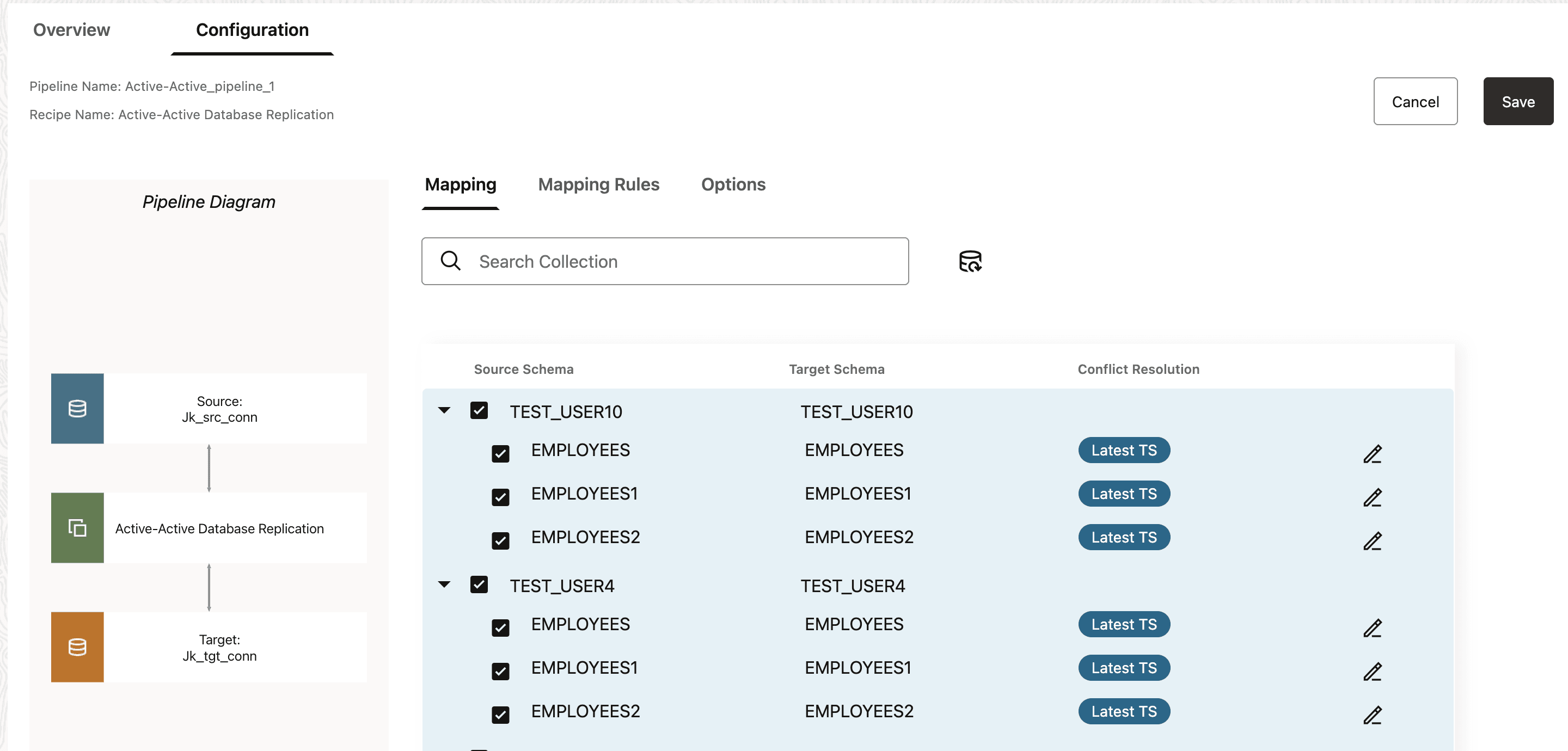
In Active-Active pipeline, Automatic Conflict Detection and Resolution (ACDR) is enabled for tables if it is not already enabled. If ACDR is already enabled, then GoldenGate Studio will not modify the configuration.
To configure Automatic Conflict Detection and Resolution (ACDR):
-
Select Edit next to the schema for whom you want to configure ACDR.
-
In the Edit table mapping panel, select Automatic Conflict Detection and Resolution.
-
For Timestamp, select whether the Latest change or Earliest change takes precedence.
-
Select Delta Resolution if the changes made must be combined to resolve the conflict, and then select the columns to use. For example, updates made to product inventory.
-
Select Apply.
WARNING:
GoldenGate Studio doesn’t support the addition of new tables, nor the change of ACDR type, after the Active-Active pipeline starts. Unless absolutely necessary, you can either:
-
Create, configure, and start a new pipeline with the new tables added.
-
In the GoldenGate Studio console:
-
Stop the pipeline.
-
Create a new table externally.
-
Under Mapping, expand the schema and select new tables.
-
Under Options, in Advanced Options and under Replicat, select DISCARD for Actions upon DML Error.
-
Save the pipeline configuration and then restart the pipeline.
-
Note:
-
ACDR isn’t automatically enabled for tables without keys.
-
If you stop a pipeline while ACDR is enabled or if the Enable ACDR step generates an error, then ACDR will not be enabled for selected tables.
-
-
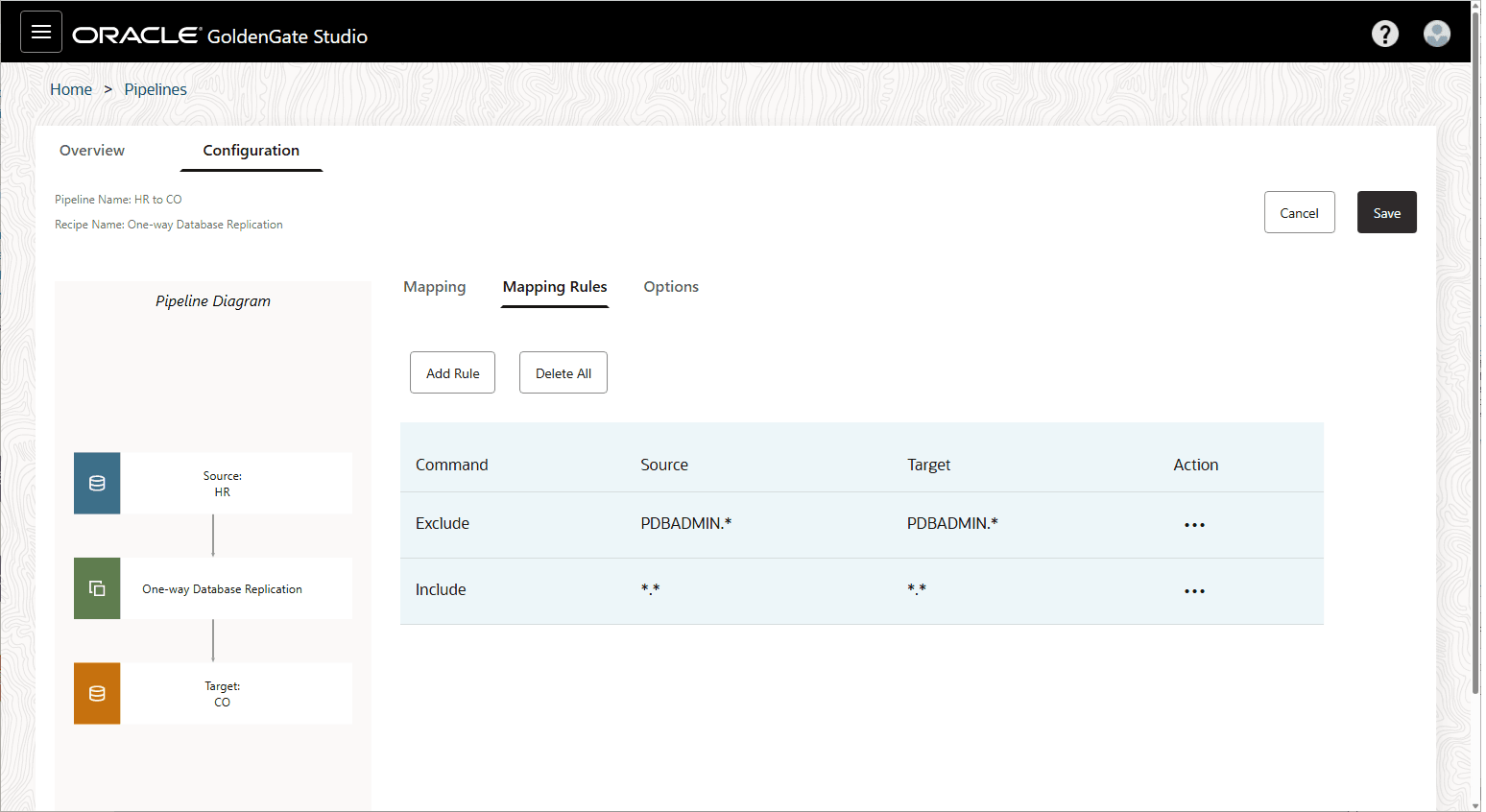
Under Mapping Rules, you can review, add, delete, and reorder rules.
Additional Considerations:
-
Exclude rules take precedence over Include rules.
-
To delete a rule, select Actions (ellipsis icon) and select Delete.
-
To reorder a rule, select Actions (ellipsis icon) and then select either Increase priority or Decrease priority.
-
To add a new rule, select Add rule. You can use the following special characters when constructing rules:
-
Asterisk (*) as a wildcard for any number of characters
-
Underscore (_)
-
Space ( )
-
Double quotes (“) to enclose schema or table names that include spaces or when case sensitivity is required.
-
-
Individual rules take precedence over group rules.
-
Delete all removes all rules in the list.
Note: Starting with Studio 23.26.1.X.Y.Z, adding a . mapping from the Mapping Rules tab translates to individual schema mappings. New schemas added after pipeline creation must be mapped manually from the Mapping or Mapping Rules page.
-
-
Under Options, you can configure a limited set of GoldenGate Studio parameters:
-
Initial Load of existing schemas and/or tables
Note:
- If you use a Database Link for Initial Load, you must provide the Source Wallet URI parameter value.
- If you use Object Storage for Initial Load, you must provide the Object Storage Bucket URI value.
-
Replicate Data Definition Language (DDL)
-
Advanced options for Initial Load (Data Pump), Extract, or Replicat.
Note: Refrain from making changes to the underlying parameter file as it affects the ability to manage the pipeline. Likewise, if using the GoldenGate Studio console, refrain from changing the Replicat type.
-
-
Select Save to save your configuration settings.
-
After configuring the pipeline, select Start to run it.
You can review the initialization procedure, the status and progress of each step in the replication process, and how much time it takes for each step to complete.
-
After initialization completes, the Runtime page displays data capture operations on the source database replicated to the target.
The pipeline runs continually until it’s stopped.
Next Steps
After your pipeline is created, configured, and running, learn to Manage Pipelines.