Configuring Workflow for Two-Way SSL in Oracle GoldenGate Veridata using Self-Signed Certificates
Prerequisites
-
Ensure PATH environment variable contains the path to JDK bin directory, where keytool is located.
-
Keystore is also known as Identity Store in older releases.
-
For HP NonStop, see Configuring Two-Way SSL for the NSK C-Agent on the Veridata Server.
This topic comprises the following:
Enabling SSL in the Agent Properties File
To enable SSL in the Agent properties file:
-
Open the
<AGENT_DEPLOY_LOCATION>/<AGENT PROPERTIES>file. The default<AGENT PROPERTIES>would beagent.properties. -
Find the entry
server.useSsl, set it totrueand save the changes.
Generating Agent Keystore and Certificate
To generate agent keystore and certificate file:
-
Go to
<AGENT_DEPLOY_LOCATION>/config/certsdirectory. -
Build Agent Keystore with the following command, you will also need the same password to unlock at a later step.
keytool -genkeypair -keyalg RSA -keystore vdtAgentKeystore.p12 -storepass <unlock-password> -
Export Agent Keystore to a certificate with following command:
keytool -exportcert -keystore vdtAgentKeystore.p12 -storepass <unlock-password> -file vdtAgent.crt
Generating Server Keystore and Certificate
To generate the server keystore and certificate file:
-
Go to
<Server_installation_location>/configdirectory. -
Build Server Keystore with the following command:
keytool -genkeypair -keyalg RSA -keystore vdtServerKeystore.p12 -storepass <unlock-password> -
Export Server Keystore to a certificate with the following command:
keytool -exportcert -keystore vdtServerKeystore.p12 -storepass <unlock-password> -file vdtServer.crt
Importing Agent Certificate to Server Truststore
To import agent certificate to Server truststore:
-
Go to
<Server_installation_location>/configdirectory, and copy<AGENT_DEPLOY_LOCATION>/config/certs/vdtAgent.crtto this directory. -
Run the following command to create a server truststore and import agent certificate into this truststore.
Note: When importing multiple agent certificates into a server truststore, assign a unique
-aliasvalue to each agent certificate.keytool -importcert -file vdtAgent.crt -alias vdtAgent.crt.<unique-id> -keystore vdtServerTruststore.p12 -storepass <unlock-password> -
Delete
vdtAgent.crtin<Server_installation_location>/configdirectory.
Saving Server Keystore/Truststore Passwords to Server Wallet
Run the following script configure_server_ssl.sh under <Server_installation_location>/config directory:
./configure_server_ssl.sh
OGGV-80056: Copyright (c) 2013, 2024, Oracle and/or its affiliates. All rights reserved.
OGGV-80057: Veridata Server SSL Configuration Utility
OGGV-80058: Notes:
OGGV-80059: OGGV-80059: This utility allows Veridata to access keystore and truststore. When entering the passwords below, unlock password should match the one used in keytool -storepass option
[OGGV-80060: Enter Server Keystore unlock password:]
[OGGV-80062: Enter Server Truststore unlock password:]
Importing Server Certificate to Agent Truststore
To import Server certificate to agent truststore:
-
Go to
<AGENT_DEPLOY_LOCATION>/config/certsdirectory, and copy<Server_installation_location>/config/vdtServer.crtto this directory. -
Run the following command to create an agent truststore and import server certificate into this truststore.
Note: When importing multiple Server certificates into an agent truststore, assign a unique
-aliasvalue to each Server certificate. This is less common, because there is typically only one Oracle GoldenGate Veridata server.keytool -importcert -file vdtServer.crt -alias vdtServer.crt.<unique-id> -keystore vdtAgentTruststore.p12 -storepass <unlock-password> -
Delete
vdtServer.crtin<AGENT_DEPLOY_LOCATION>/config/certsdirectory.
Saving Agent Keystore/Truststore Passwords to Agent Wallet
-
Run the script
configure_agent_ssl.shunder <AGENT_DEPLOY_LOCATION> directory. The parameterAgentIDis the name of the agent properties file, without the.propertiesextension.:./configure_agent_ssl.sh AgentID 2024-08-30 11:21:25.782 TRACE OGGV-80018 Wallet messages are installed correctly. OGGV-80028: Copyright (c) 2013, 2024, Oracle and/or its affiliates. All rights reserved. OGGV-80029: Veridata Agent SSL Configuration Utility OGGV-80030: Notes: OGGV-80031: OGGV-80031: This utility allows Veridata to access keystore and truststore. When entering the passwords below, unlock password should match the one used in keytool -storepass option. [OGGV-80022: Enter Agent Keystore Store unlock password:] [OGGV-80024: Enter Agent Trust Store unlock password:] OGGV-80037: SSL Configuration of Veridata Agent is successful. -
Delete
vdtServer.crtin<AGENT_DEPLOY_LOCATION>/config/certsdirectory.
Creating an Agent Connection in UI
-
Log in to the Veridata website, navigate to the Connections page, and click Create on the right side of the page.
-
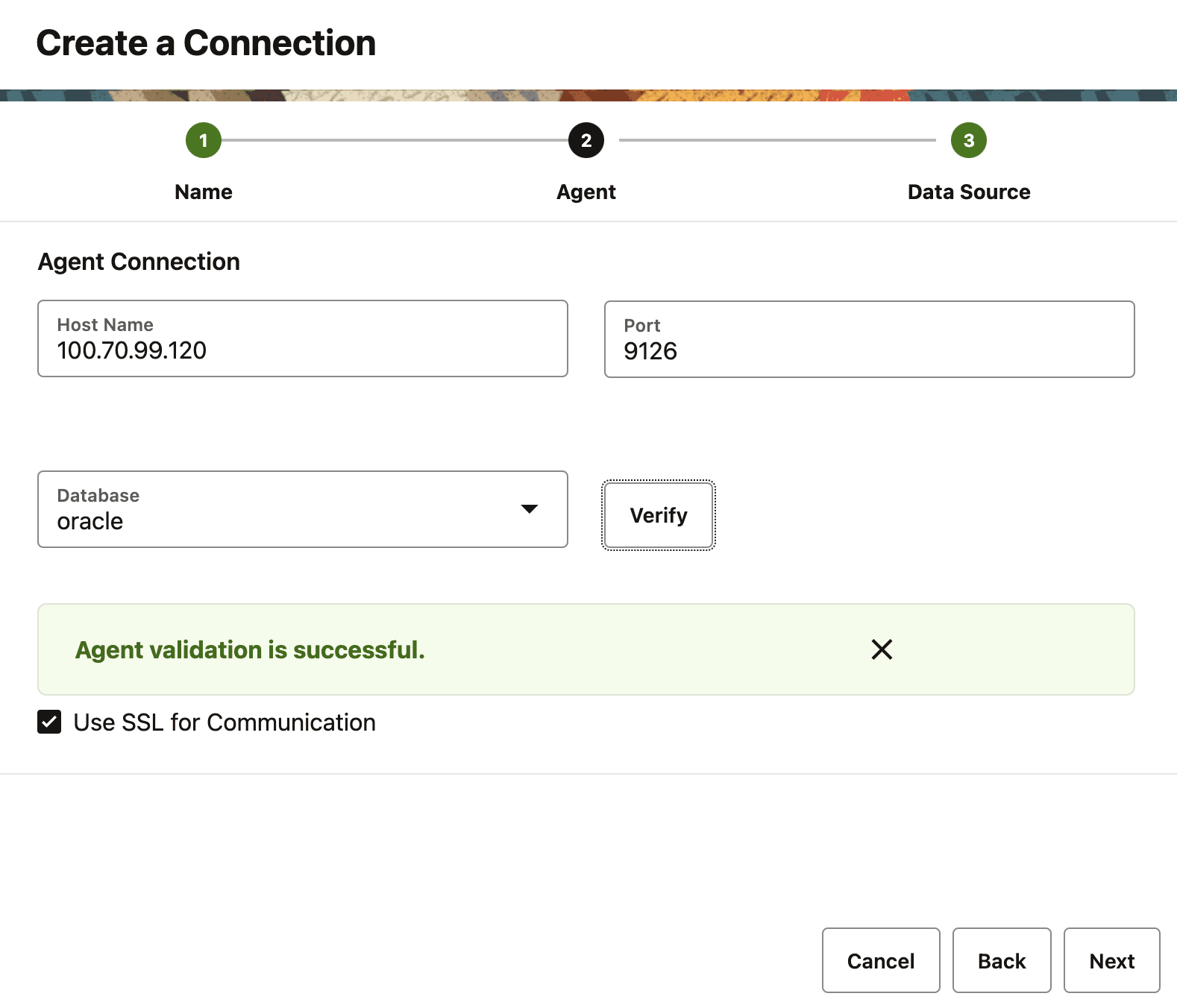
Enter the required connection name and agent host machine address/port. Check the Use SSL for communication checkbox to enable SSL for the connection, and click Verify to verify the connection:
Figure 1: Create a Connection
-
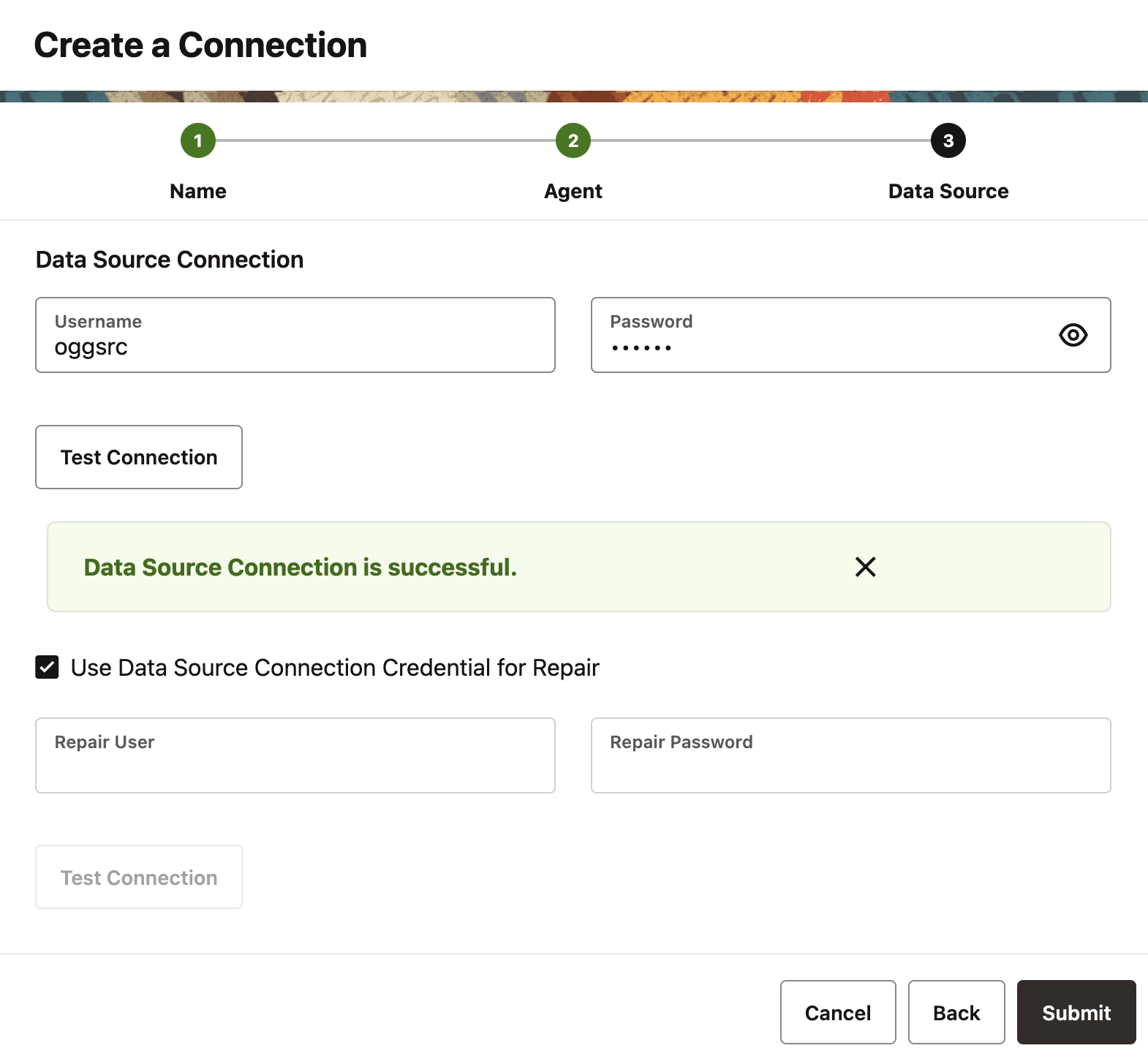
Enter the database username and password, then click the Test Connection to validate the credentials. If different credentials are needed for repair, uncheck the Use Data Source Connection Credential for Repair checkbox and enter the repair credentials.
Figure 2: Data Source Connection
-
Click Submit to save the connection.