Add MCP Server
Manage and configure your MCP servers in one centralized location. See Build Your Own MCP Server to build your own MCP server from scratch.
- Centralize your MCP server list to avoid re-entering server details for each workflow.
- Authenticate using OAuth mode with the authorization-code flow and a consistent callback URL.
- Use Auth Request mode to authenticate with a username and password against a token endpoint, storing the resulting access token.
Note: Tokens refresh automatically after OAuth or Auth Request authentication.
Configure an MCP Server With OAuth Authentication
-
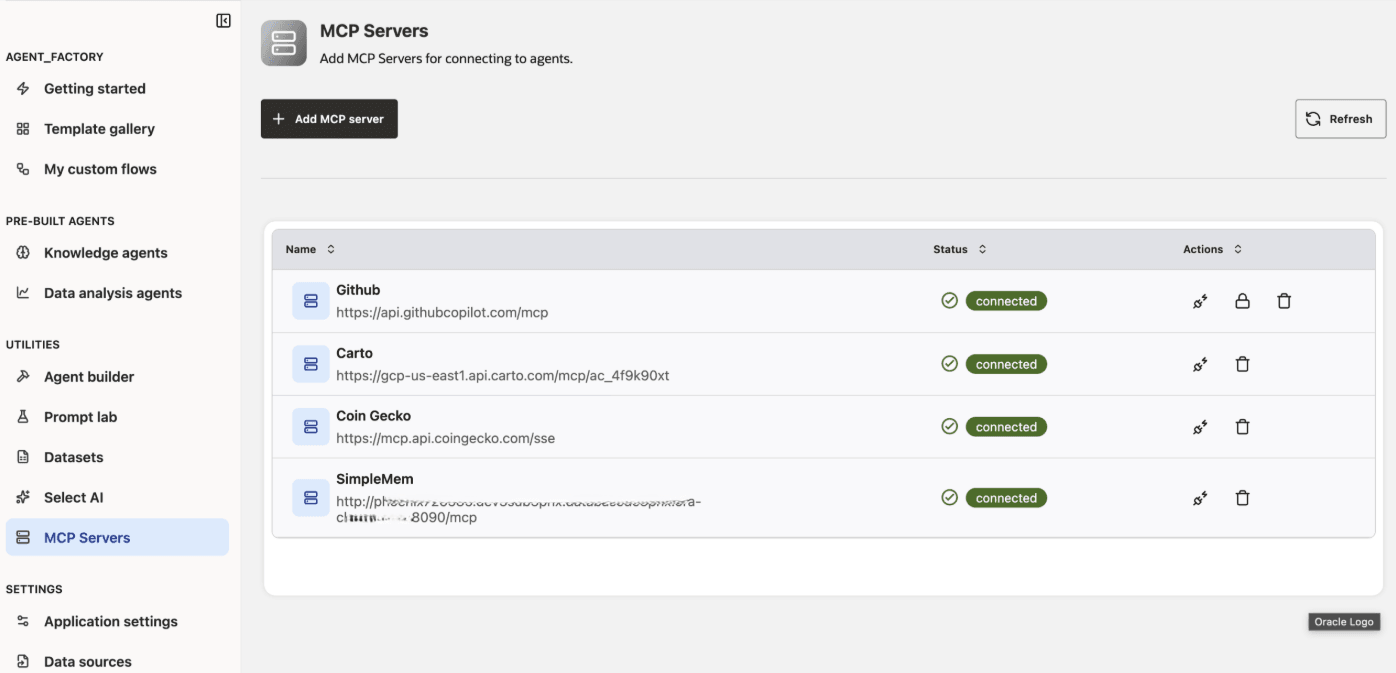
Click the MCP Servers tab from the left-side navigation.
-
Click the Add MCP Server button in the top left corner.
-
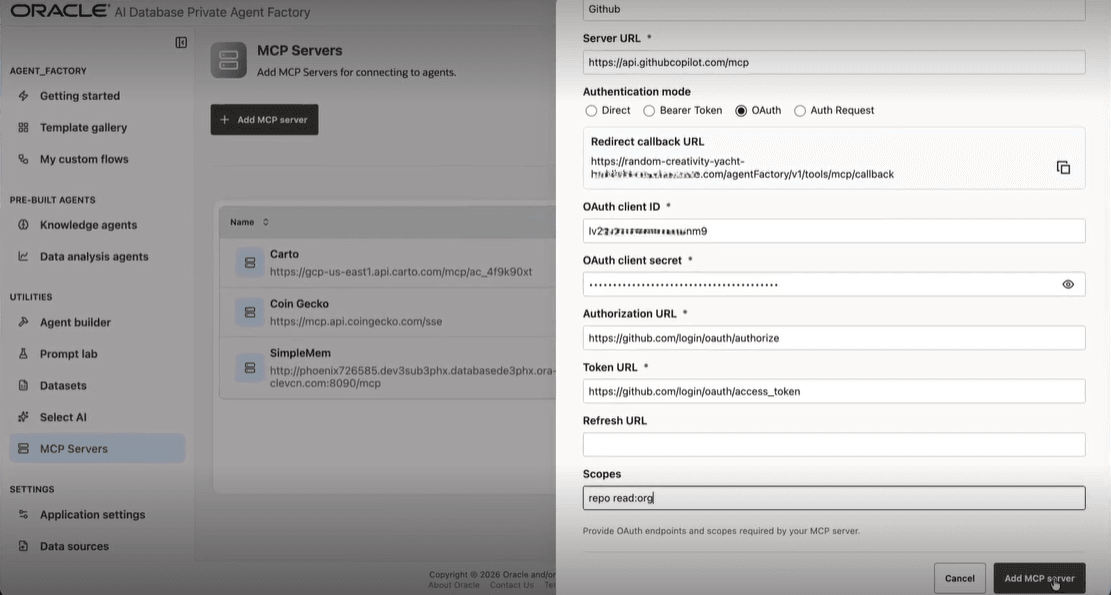
Provide a unique name for your MCP Server. This name will be used to configure the MCP Server Node in the Agent Builder workflow.
-
Set the URL of MCP server to
https://<host>:<port>/mcporhttps://<host>:<port>/sse. The URL fully defines the endpoint path, there are no extra path fields. -
Select OAuth as the authentication mode.
-
Configure an application in your MCP server provider, using the provided Redirect Callback URL.
-
Enter all required credentials for MCP Server OAuth.
-
Click Add MCP Server once all details are entered.
-
A dialog box requesting authorization will appear. Click Request Authorization.
-
You will be redirected to the OAuth page to authorize the application.
-
After authorization is complete, the MCP Server will be listed in the table.
See MCP Server to learn how to use your MCP Server in the Agent Builder workflow.