Configure Select AI for Your Database
Before you can create and execute Select AI workflows in Agent Builder, you must first create a profile for your database. To do this, navigate to the Select AI Framework tab from the left-side navigation and follow the instructions on this page. Agent Builder operates exclusively at the profile level. See Select AI for instructions on configuring Select AI nodes in Agent Builder and incorporating them into your workflows.
Prerequisites
Make sure your database is provisioned with the necessary Oracle packages and privileges before you start setting up the credentials, profiles, or vector indexes.
Prepare Database for Using Select AI Components
Package Requirements:
- For Credentials and Profile Management:
The database must have at least one of the following. If any of the packages below are present, you will be able to configure and manage Credentials and Profiles.DBMS_CLOUDDBMS_CLOUD_ADMINDBMS_CLOUD_AI
-
For Vector Index Management:
The database must have at least one of the above (for credential/profile management) andDBMS_CLOUD_PIPELINE. - For Agent Deployments (Agent Builder):
The database must have any of the the required packages for credential/profile management andDBMS_CLOUD_PIPELINE.
Grant Privileges (Autonomous Database Example)
Log in as ADMIN and execute:
GRANT CREATE DATABASE LINK TO <your_user>;
GRANT EXECUTE ON DBMS_CLOUD_ADMIN TO <your_user>;
GRANT EXECUTE ON DBMS_CLOUD TO <your_user>;
GRANT EXECUTE ON DBMS_CLOUD_AI TO <your_user>;
GRANT EXECUTE ON DBMS_CLOUD_AI_AGENT TO <your_user>;
GRANT EXECUTE ON DBMS_CLOUD_PIPELINE TO <your_user>;
Replace
Select AI Configuration Workflow
Choose a database from the Select Database dropdown to configure Select AI resources.
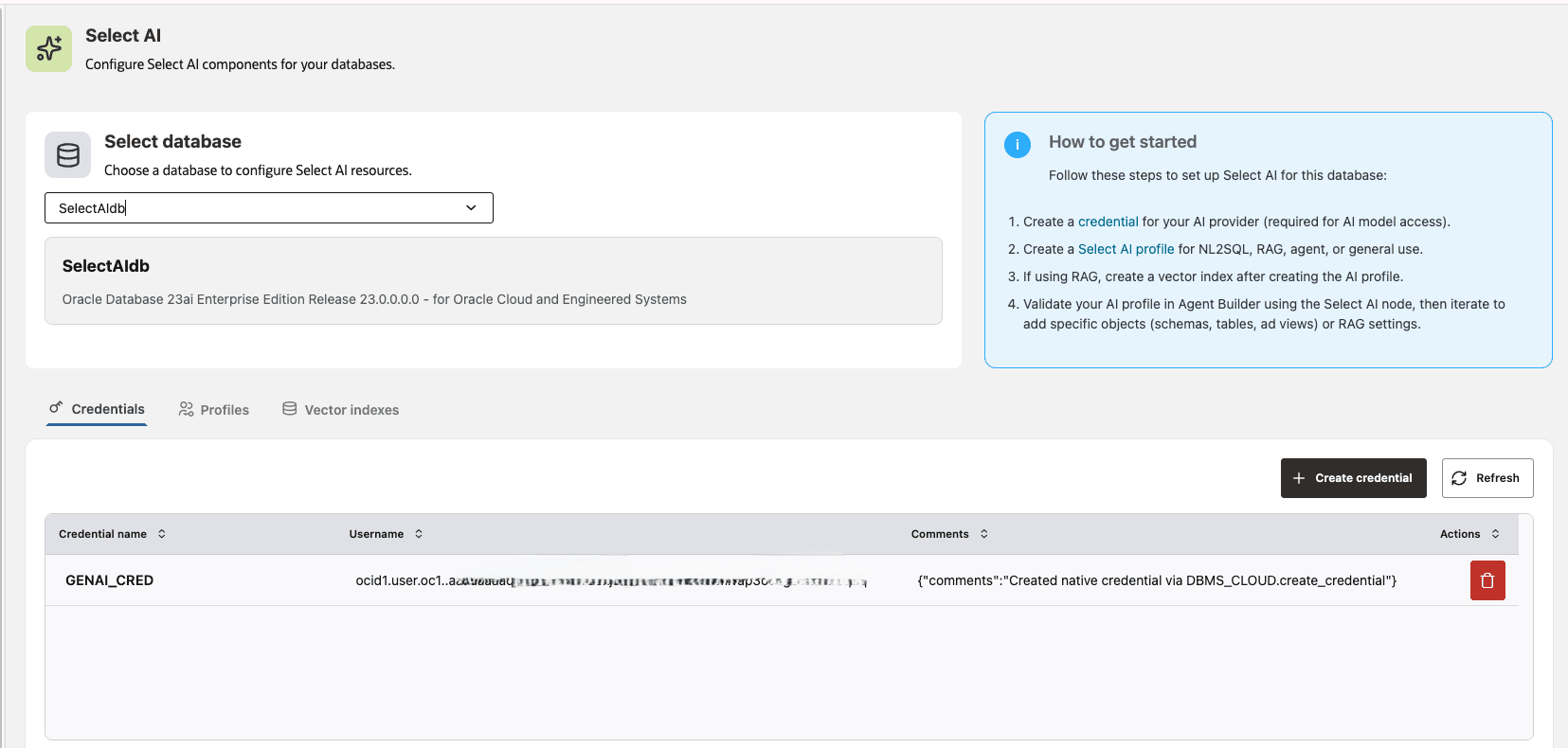
Follow the steps below to configure Select AI components for your selected database:
Step 1: Create Credential
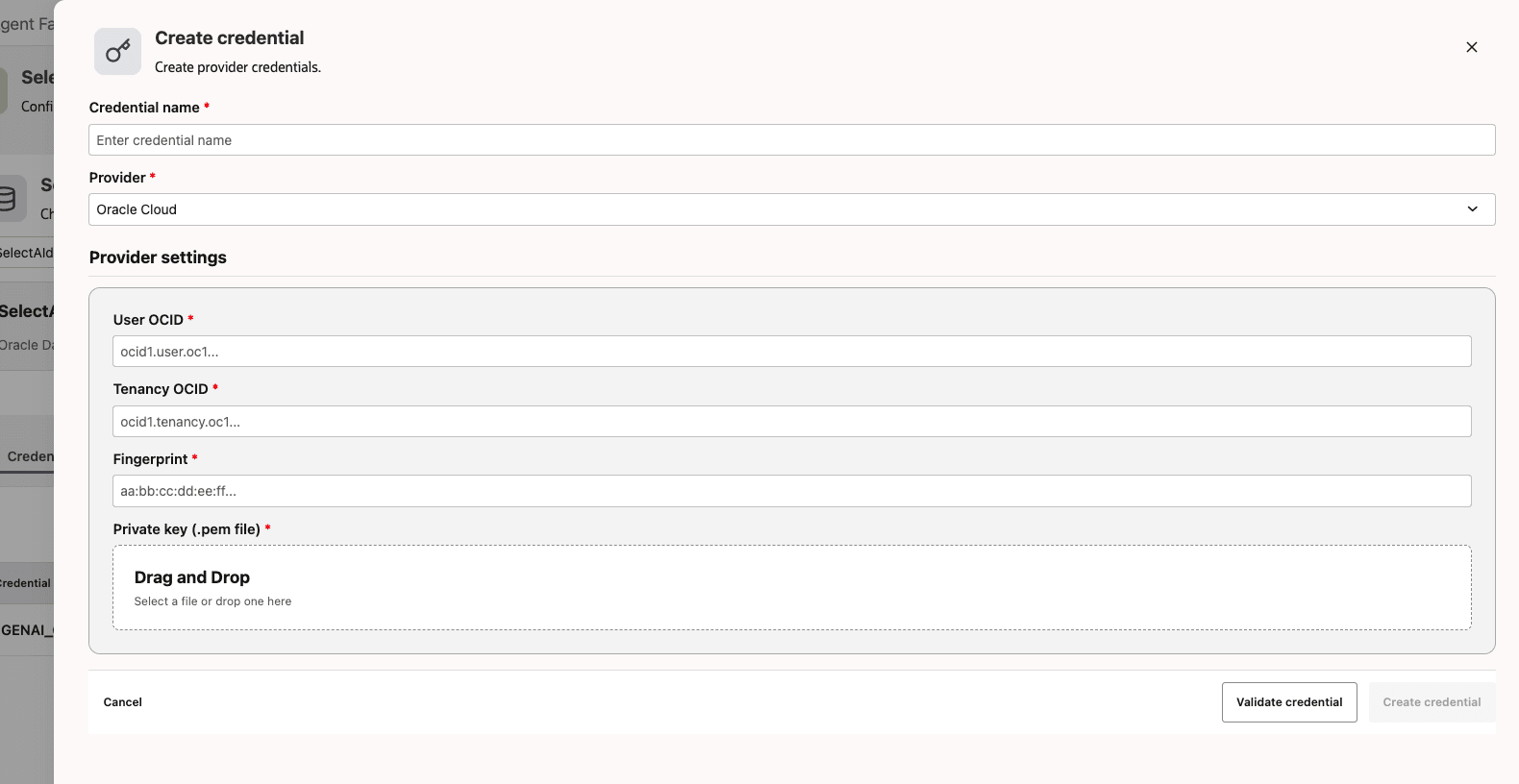
In the Credentials tab, click Create Credential to enable secure communication with providers and storage systems.
-
Enter a unique Credential name to identify your credential. This name will be stored in the database and referenced by profiles or vector indexes.
-
Choose the target provider for your credential, such as
oci. The selected provider determines which additional fields must be filled. - Configure provider settings:
- Enter User OCID (for OCI Provider) required for OCI signing. Input the OCID in the format
ocid1.user…for the OCI user. - Enter Tenancy OCID (for OCI Provider) required for OCI signing. Input the OCID for your Oracle Cloud tenancy in the format
ocid1.tenancy…. This associates the credential with the relevant tenancy. - Enter Fingerprint (for OCI Provider). Paste the fingerprint for your API key. The fingerprint must match the public key associated with your private PEM key.
- Enter Private Key (PEM) (for OCI Provider). Provide the PEM-formatted private key as plain text. This key is used for secure request signing.
- Enter User OCID (for OCI Provider) required for OCI signing. Input the OCID in the format
-
Click the Validate Credential button to verify that your entries are correct and that the connection to the provider is successful.
- Once all required fields are completed and validated, click the Create Credential button. This saves your credential, making it available for use with profiles and vector indexes.
Step 2: Create Profile
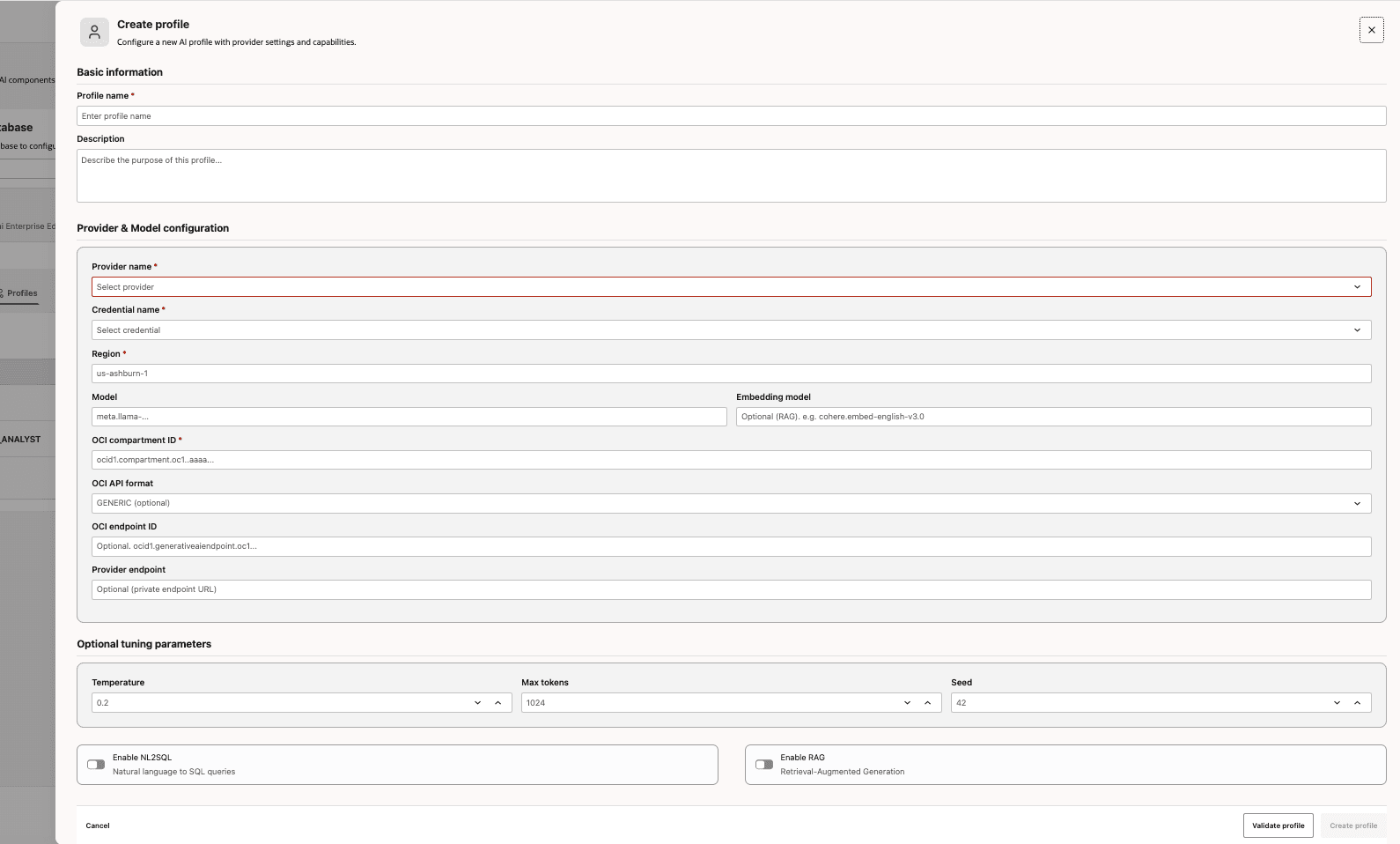
In the Profiles tab, click Create Profile to define AI behavior, provider routing, and feature configuration.
Tip: To enable Retrieval-Augmented Generation (RAG), your profile must link to an existing Vector Index. Do not enable RAG if no Vector Index exists. Similarly, NL2SQL should only be enabled if a Database Object List is defined. If you have neither, consider creating a Generic Profile, which has no dependencies and can later be used as a base for adding a Vector Index or creating a specialized profile.
-
Enter a unique Profile Name for the AI profile. This will identify your profile and is used by the Agent Builder.
-
Add a Description (optional), which is a human-friendly summary or notes about the profile. Including a description is recommended for clarity.
-
Select the provider routing key, such as the platform or service being configured (typically OCI) in Provider Name.
-
Choose an existing Credential Name (created in Step 1) to be used for API calls. The credential must already be created and available for selection.
-
Specify the provider Region where resources will be provisioned or accessed. Ensure the region matches where the model is available.
-
Specify the Model for the large language model (LLM) you want to use. This value may be provider-specific.
-
Enter OCI Compartment ID OCID (for OCI Providers) for resource scoping. This value typically starts with
ocid1.compartment…. -
(Optional) Specify OCI API Format to set the provider interface style (such as GENERIC or COHERE). This controls the way API requests are formatted.
-
(Optional) Specify Provider Endpoint to override the provider’s base URL. For example, enter a URL string for private endpoints.
-
(Optional) Enter the OCI Endpoint ID OCID for advanced OCI configurations (typically begins with
ocid1…) to specify a dedicated OCI endpoint. -
(Optional) Specify Embedding Model for embedding generation (such as for Retrieval-Augmented Generation (RAG) workflows).
-
(Optional) Set Temperature value to control randomness in model responses. Use a lower value for more deterministic outputs.
-
(Optional) Set Max Tokens to define the maximum response length in tokens. If omitted, system default values will apply.
-
(Optional) Set Seed value to control reproducibility of responses. This can be a string or integer, depending on provider support.
-
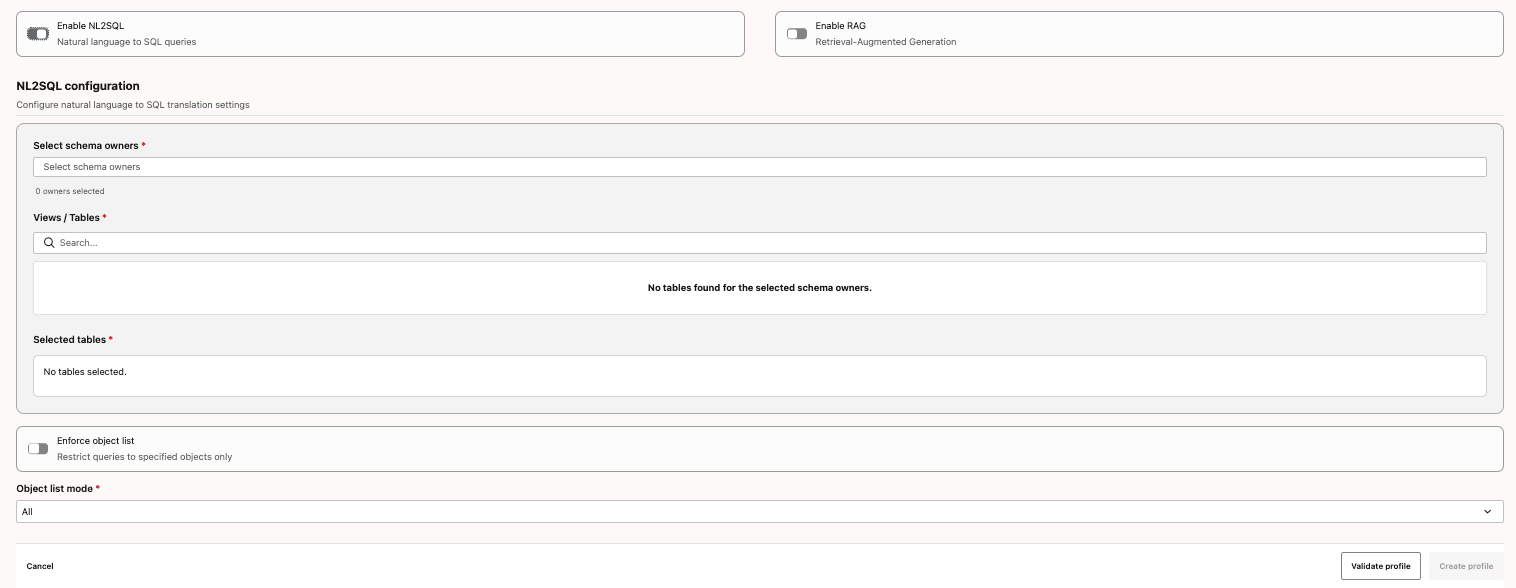
(Optional) Configure settings for natural language to SQL translation by toggling the Enable NL2SQL option. The setting controls which tables/views the model may query.
-
Choose which schema owners should be inspected when generating SQL queries in the Select Schema Owners. The list of available owners is populated dynamically.
-
Specify the tables and views that you want to allow for NL-to-SQL queries by selecting from the available
{ owner, name }objects in the Views/Tables. This defines the list of database objects that NL2SQL can query. -
Enable the Enforce Object List option (Recommended) to restrict SQL queries to only the objects specified in the Tables/Views List. This is an important guardrail for security and query scope control.
-
Set Object List Mode (Optional) for metadata selection behavior. Options include:
- All: Use all available objects from the object list.
- Automated: Automatically select and vectorize columns for RAG workflows, especially if many tables are required.
-
-
(Optional) Activate Retrieval-Augmented Generation (RAG) workflows by toggling the Enable RAG option. Enabling this will allow you to select a Vector Index as a retrieval source.
-
Choose an existing vector index from the Vector Index Name dropdown to serve as the source for retrieval. The selected vector index must already exist in your environment.
-
Optionally, enable Source Offsets to add traceability metadata to retrieval results. This feature can be useful for explainability by showing the source position of retrieved content.
-
-
Click the Validate Profile button to verify that your entries are correct.
-
Once all required fields are completed and validated, click the Create Profile button. This saves your profile for use with Agent Builder workflows.
Step 3: Create Vector Index (Optional/RAG Only)
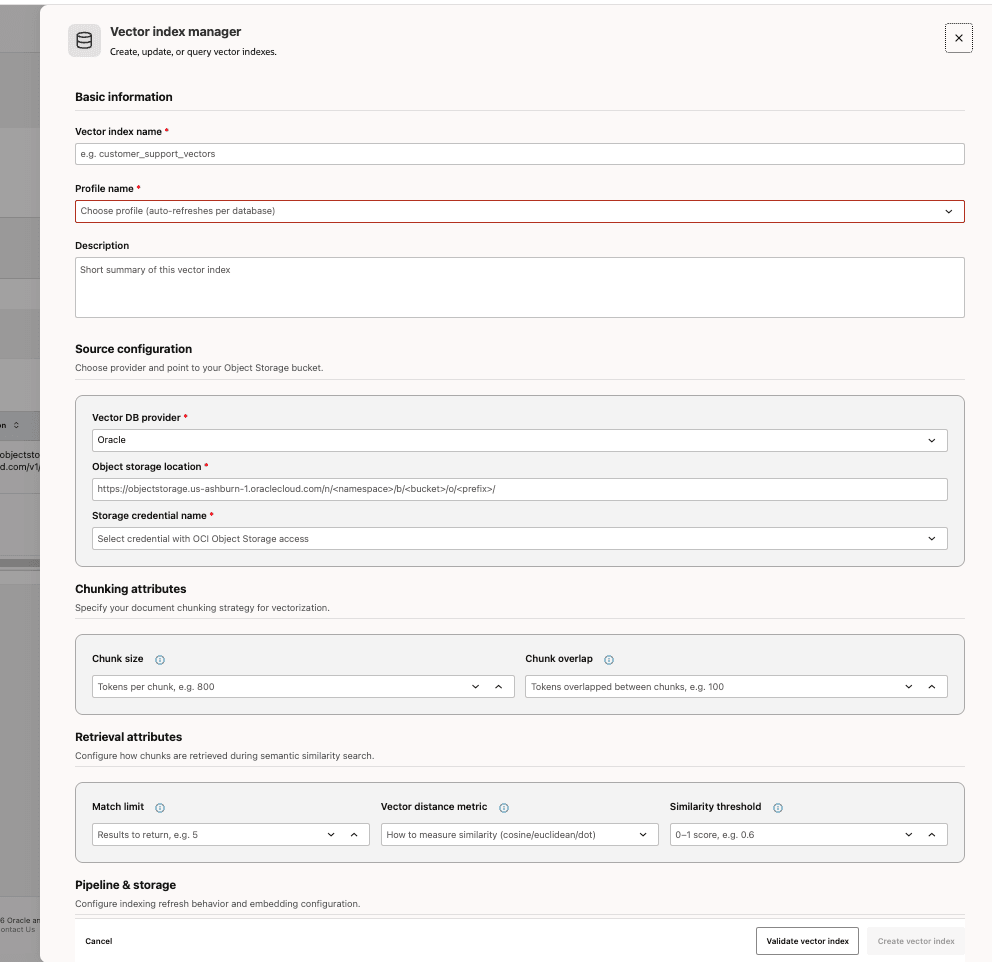
Vector Indexes enable RAG workflows. Follow the steps below to create a vector index:
-
Enter a unique Vector Index Name to identify your vector index. This name will be referenced by RAG profiles.
-
Choose an existing Profile Name to reference for embedding generation. The selected profile will be used for embeddings.
-
Optionally, add a Description to provide notes or context for the vector index. Adding a description is recommended for clarity.
-
Select Vector DB Provider which specifies the storage backend, such as Oracle or another supported provider.
-
Specify the Object Storage Location, which is a URL or prefix for the document source path—typically a bucket or folder in object storage.
-
Choose a Storage Credential Name that provides access to the object storage location. Ensure the credential has read permissions.
-
Set the Chunk Size (Optional) to define the size used to split documents into chunks. Adjust this integer value to control the granularity of indexing.
-
Enter a value for Chunk Overlap (Optional) to help preserve context between chunks and improve recall during retrieval.
-
Set the Match Limit (Optional) to specify how many results to return per retrieval operation. Adjust this integer value based on recall and cost considerations.
-
Select a Vector Distance Metric (optional) to use for similarity calculation, such as cosine similarity.
-
Set the Similarity Threshold (optional), which is a float value that defines the cutoff for relevance matches. Higher values return stricter matches.
-
Set the Refresh Rate (optional) to define the automatic index refresh frequency, if scheduling is supported.
-
Specify the Pipeline Name (optional) if you are using a specific ingestion workflow. Enter the pipeline name as required by your platform.
-
Specify the Vector Table Name (Optional) of the target table used to store vectors, if required by your provider.
-
Click the Validate Vector Index button to verify the access and configuration.
-
Click the Create Vector Index button to save the vector index.