Installation on macOS
Follow the steps below to get your Agent Factory environment provisioned, configured, and running on macOS. You can choose between Production mode and Quick Start mode, depending on your requirements. See Installation Modes to select the installation mode that best suits your needs.
Note: If you already have Agent Factory configured, see Upgrade Agent Factory for instructions on upgrading to a newer version.
Caution: Run the installation as a non-root user. Podman, a critical component, must be set up and used in rootless mode for Agent Factory installations. Do not perform the installation or run deployment steps as the root user.
Note: Sections where user input is expected are highlighted <like_this>.
VPN On. Production mode
Download the installation kit
Go to the official download website and get the installation kit.
-
Choose the Linux ARM 64-bit platform installer kit
applied_ai_arm64.tar.gzfor Apple Silicon (M-series) Mac systems. -
Choose the Linux x86-64 platform installer kit
applied_ai.tar.gzfor Intel-based Mac systems.
Uncompress the Installation Kit at the Staging Location
The staging location is a specified directory used to store build artifacts (such as executables and configuration files) needed to create Podman images for the application, and it also includes a Makefile to manage the entire deployment lifecycle.
Note: While choosing the staging location, make sure it is not on an NFS mount.
-
Create the staging location and copy the downloaded kit to the staging location.
mkdir <staging_location> cd <staging_location> cp <path to installation kit> . -
Uncompress the installation kit in the staging location.
-
For Apple M-Series Mac:
tar xzf applied_ai_arm64.tar.gz -
For Intel Mac:
tar xzf applied_ai.tar.gz
-
Before you begin the installation process, make sure to configure any proxies required to connect outside your VPN.
export http_proxy=<your-http-proxy>;
export https_proxy=<your-https-proxy>;
export no_proxy=<your-domain>;
export HTTP_PROXY=<your-http-proxy>;
export HTTPS_PROXY=<your-https-proxy>;
export NO_PROXY=<your-domain>;
Set MAX_STRING_SIZE parameter to EXTENDED
The max_string_size database parameter must be set to EXTENDED before running the application. The max_string_size parameter for the DB should be extended to 32K before running the application.
-
Log in as the
SYSDBAuser to your Pluggable Database (PDB) using SQL*Plus or your preferred tool. -
Check the current value of the parameter:
SELECT value FROM v$parameter WHERE name = 'max_string_size'; -
If the output is already EXTENDED, no further action is needed. Otherwise, run the following script as the
SYSDBAuser. This sequence will restart the database.ALTER SYSTEM SET max_string_size=extended SCOPE=SPFILE; SHUTDOWN NORMAL; STARTUP UPGRADE; @$ORACLE_HOME/rdbms/admin/utl32k.sql SHUTDOWN IMMEDIATE; STARTUP; @$ORACLE_HOME/rdbms/admin/utlrp.sql
See MAX_STRING_SIZE for more details.
Run Interactive Installer
The interactive_install.sh script, included in the installation kit, automates nearly all setup tasks, including environment configuration, dependency installation, and application deployment.
This file will be present in the staging location once you extract the kit.
-
Run the Interactive Installer
Now that the kit is unpacked, execute the
interactive_install.shscript from within the same directory.bash interactive_install.sh --reset (Required if previously installed) bash interactive_install.sh -
When the interactive installer prompts you, select the option:
Are you on a corporate network that requires an HTTP/HTTPS proxy? (y/N): y
Do you want to use the default specs? (Y/n): y
Do you want to proceed with the manual database setup? (y/N): y
[WARNING] Step 1: Create the database user.
Enter the DB username you wish to create: <your_db_user>
Enter the password for the new DB user: <your_db_user_password>
[INFO] Run these SQL commands as a SYSDBA user on your PDB (Pluggable Database):
----------------------------------------------------
CREATE USER <your_db_user> IDENTIFIED BY <your_db_user_password> DEFAULT TABLESPACE USERS QUOTA unlimited ON USERS;
GRANT CONNECT, RESOURCE, CREATE TABLE, CREATE SYNONYM, CREATE DATABASE LINK, CREATE ANY INDEX, INSERT ANY TABLE, CREATE SEQUENCE, CREATE TRIGGER, CREATE USER, DROP USER TO <your_db_user>;
GRANT CREATE SESSION TO <your_db_user> WITH ADMIN OPTION;
GRANT READ, WRITE ON DIRECTORY DATA_PUMP_DIR TO <your_db_user>;
GRANT SELECT ON V$PARAMETER TO <your_db_user>;
exit;
----------------------------------------------------
Press [Enter] to continue to the next step...
Select installation mode:
1) prod
2) quickstart
Enter choice (1 or 2): 1
You selected Production mode. Confirm? (yes/no): yes
The following output indicates that the installation was completed successfully.
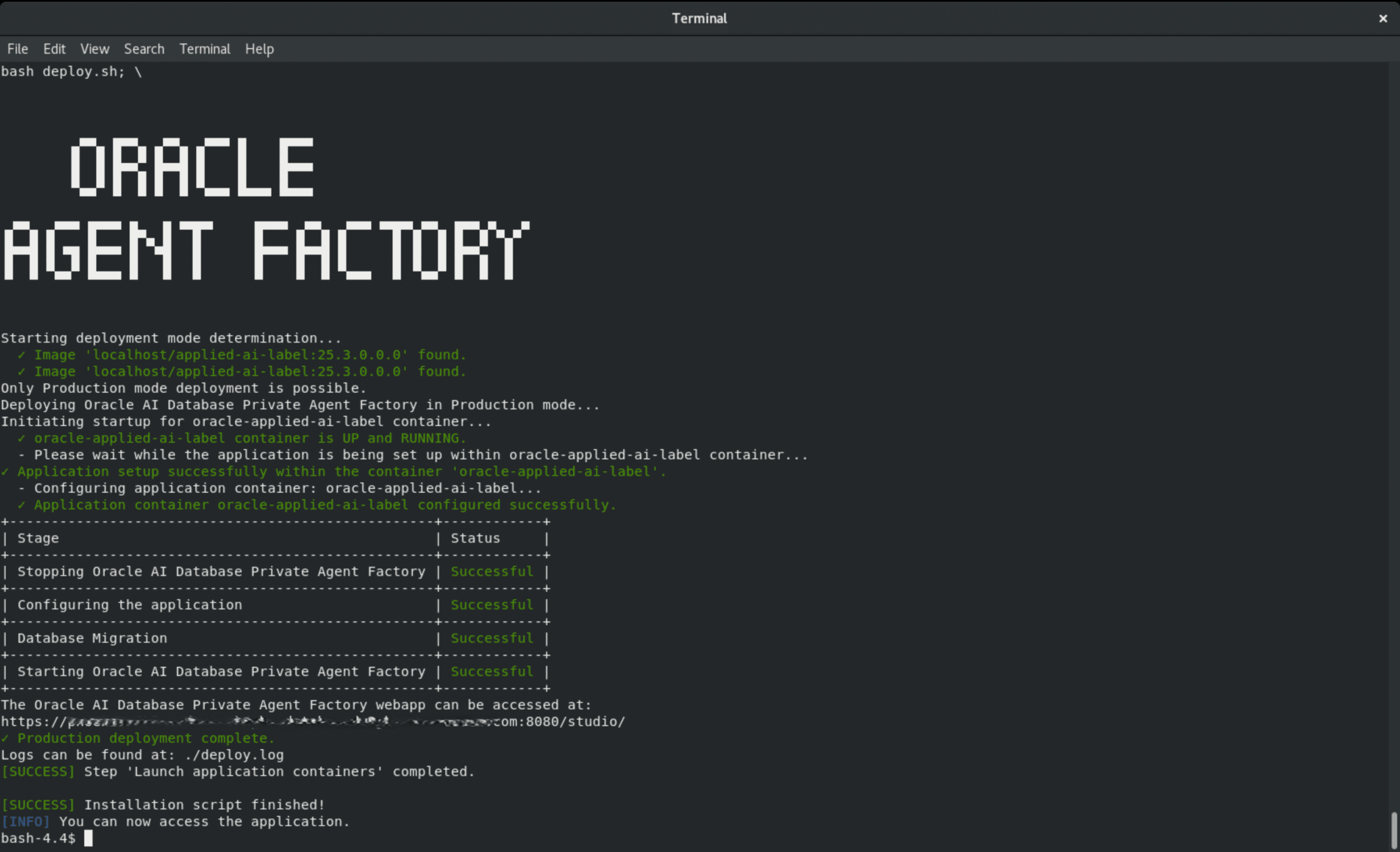
Once the installation script finishes successfully, you can access the application at the URL https://<hostname>:8080/agentFactory/ provided by the script and complete the remaining configuration through your web browser.
Access the Application
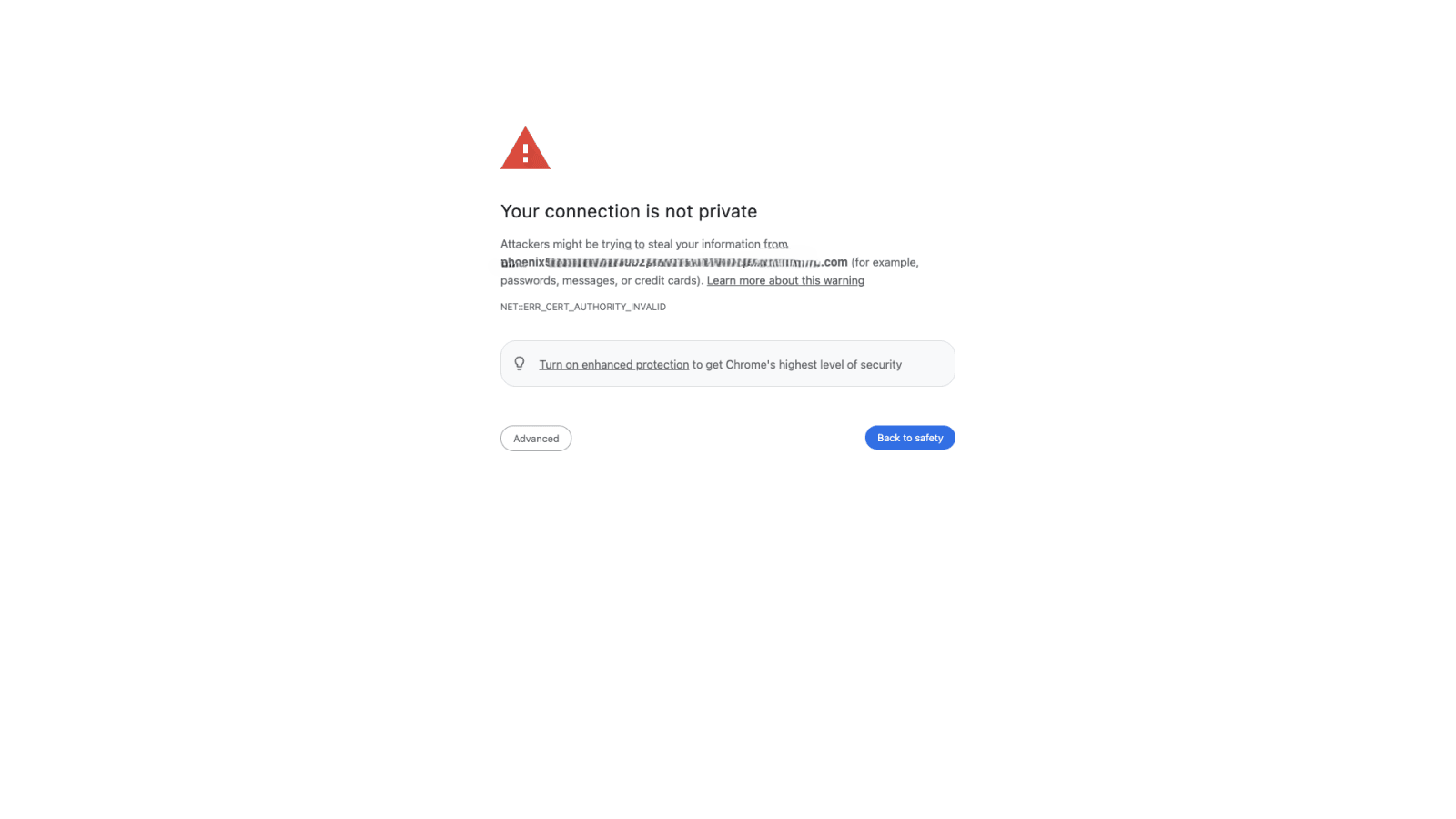
Copy and paste the application URL in a browser. You will see a page like below.
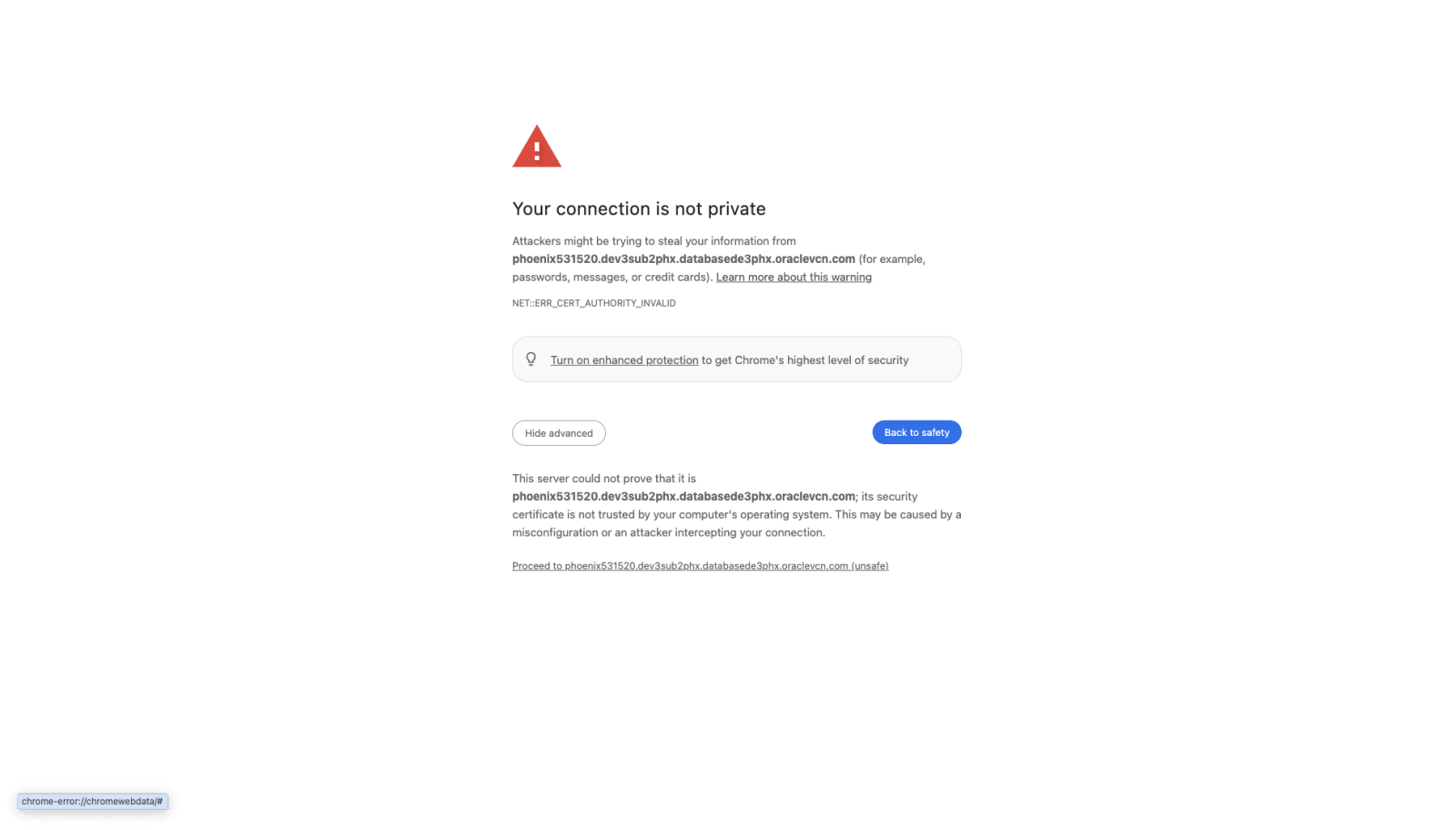
Click ‘Advanced’ and then ‘Proceed to host’.
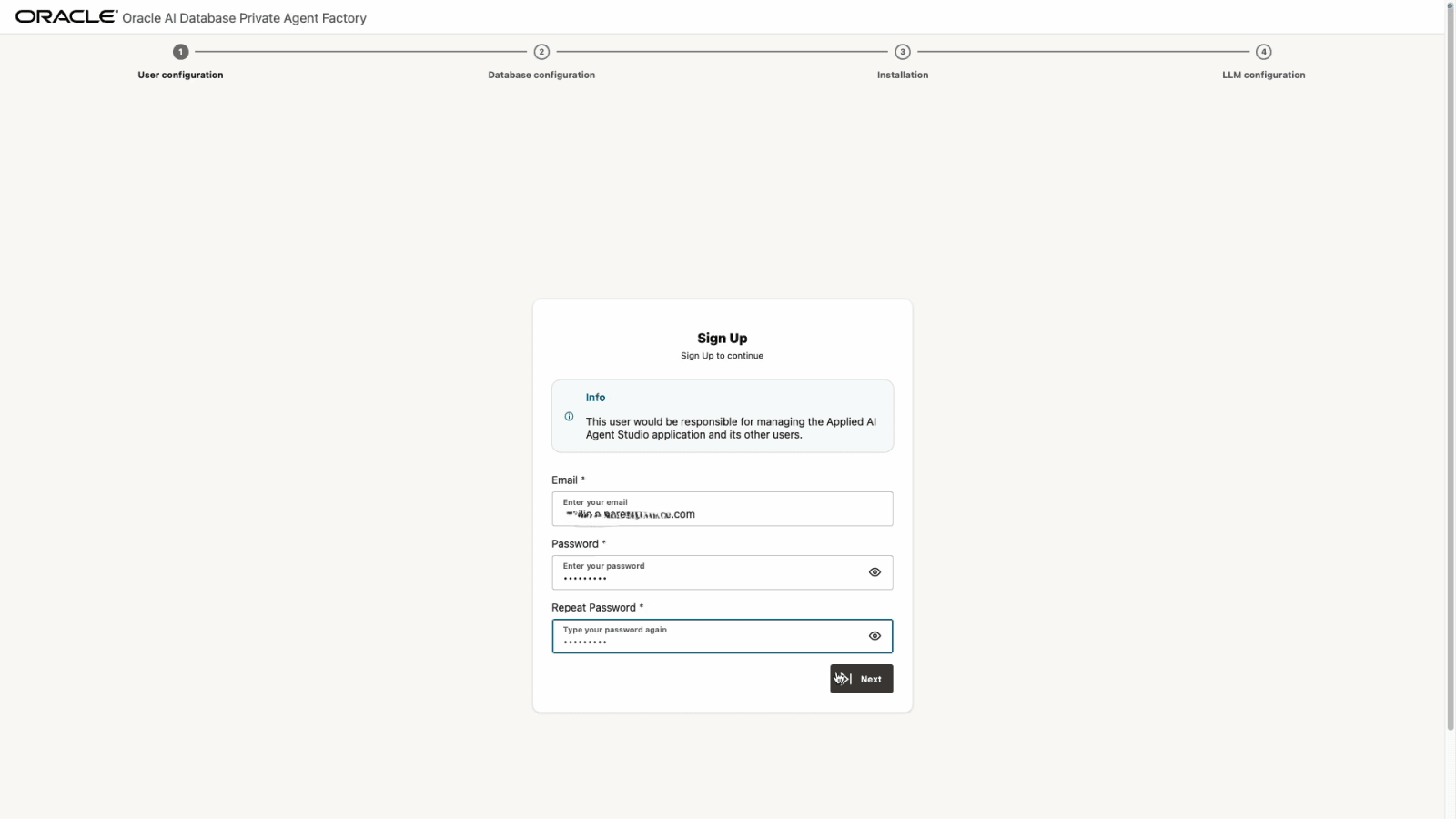
Configure User
Set up an email and a secure password.
Configure Database Connection
-
Provide your database connection details. You can either enter the Oracle AI Database 26ai connection details directly, provide the connection string or upload a database wallet file, along with a user and password.
-
Basic: Enter all the connection details manually and the previously created database user and password.
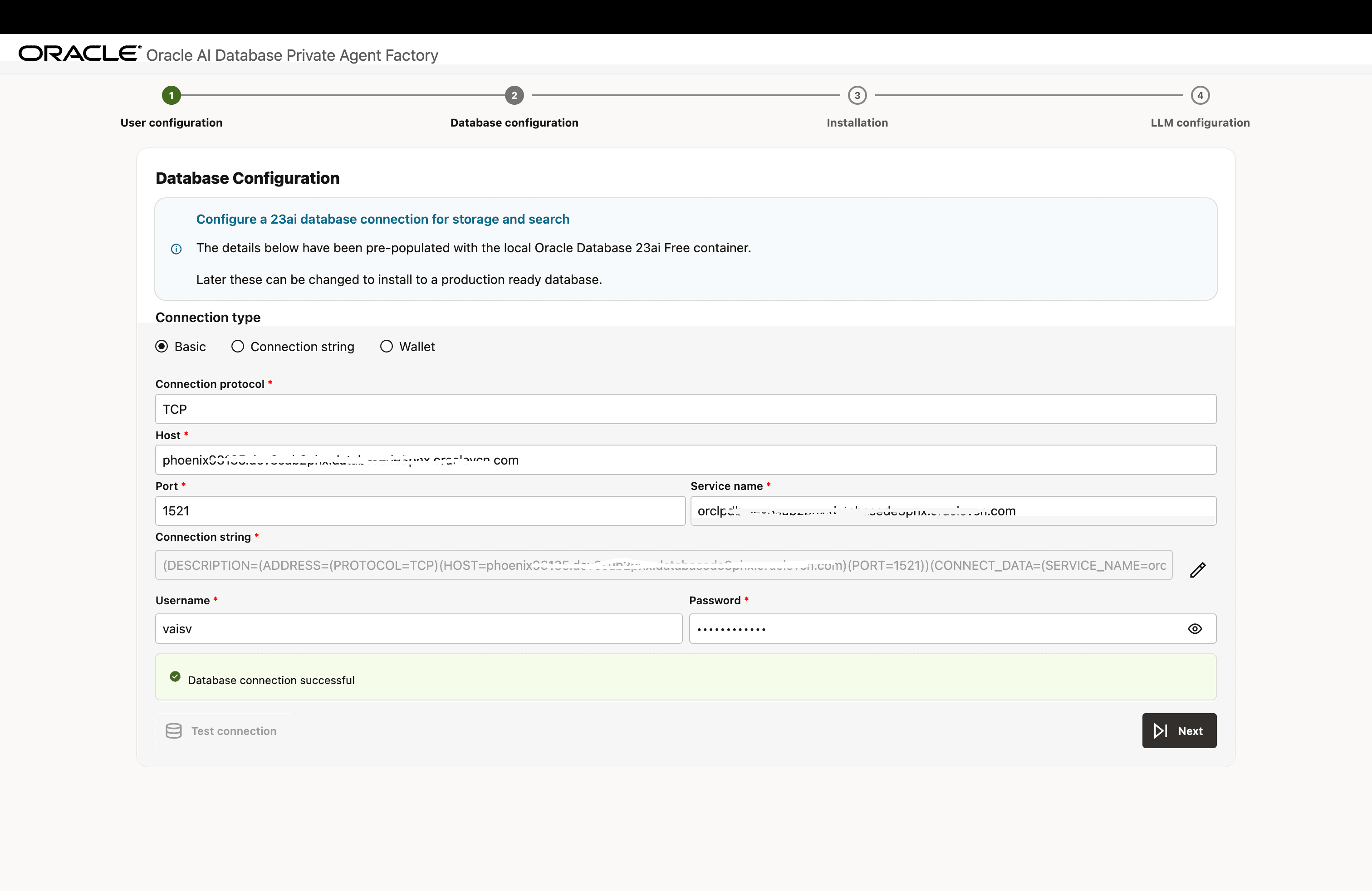
Description of the illustration install-step-2-db-config-1.png
-
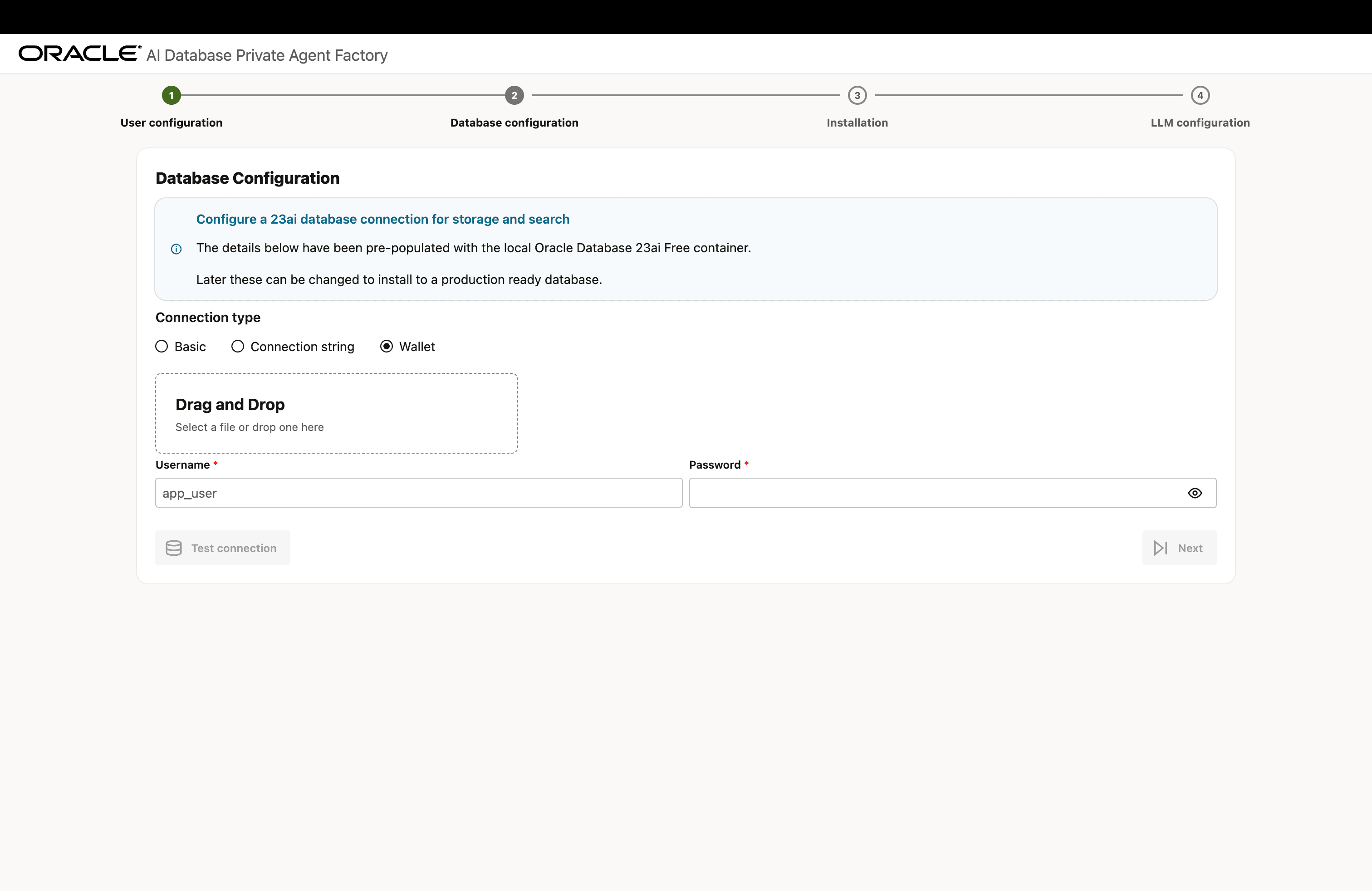
Connection String: Enter the Database Connection String and the previously created database user and password.
Description of the illustration install-step-2-db-config-2.png
-
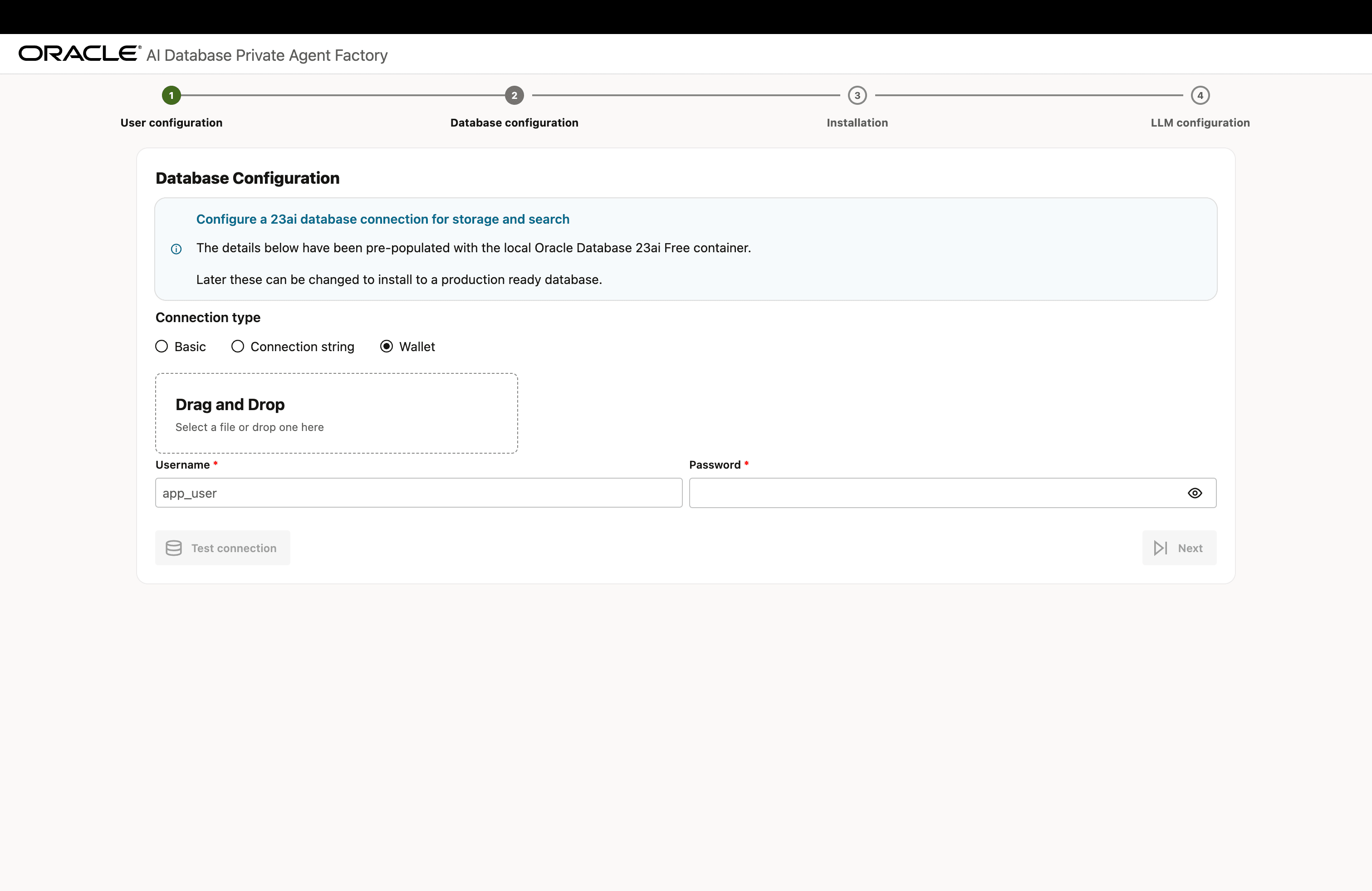
Wallet: Upload a Database Wallet File and enter the previously created database user and password.
Description of the illustration install-step-2-db-config-3.png
To successfully install the Oracle AI Database Private Agent Factory Knowledge Assistant when using database wallets, Agent Factory requires the database environment to be outside an air gapped environment and able to access OCI Object Storage using Pre-Authenticated Request (PAR) files. Verify whether
WALLET_LOCATIONorENCRYPTION_WALLET_LOCATIONis specified in thesqlnet.orafile on the database server. If either is configured, ensure that the required OCI certificates are added to the wallet. If the certificates are not present, add them to the wallet to enable access to Object Storage files. Please note that not installing Oracle AI Database Private Agent Factory Knowledge Assistant, which answers questions on this documentation, does not impact the Private Agent Factory or the Knowledge Agent component.Click here to download the certificates you need to add to the wallet. Below example assumes that the SSL wallet is located at
/u01/app/oracle/dcs/commonstore/wallets/ssland that you have unpacked the certificates in/home/oracle/dbc:#! /bin/bash # Check if the certificates are available under "Trusted Certificates" orapki wallet display -wallet /u01/app/oracle/dcs/commonstore/wallets/ssl # Add certificates if they are missing for i in $(ls /home/oracle/dbc/DigiCert*cer) do orapki wallet add -wallet /u01/app/oracle/dcs/commonstore/wallets/ssl -trusted_cert -cert $i -pwd <SSL Wallet password> doneSee Create SSL Wallet with Certificates for more details.
-
-
Click Test Connection to verify that the information entered is correct. Upon a successful connection, you will see a ‘Database connection successful’ notification. Click Next.
Install Components
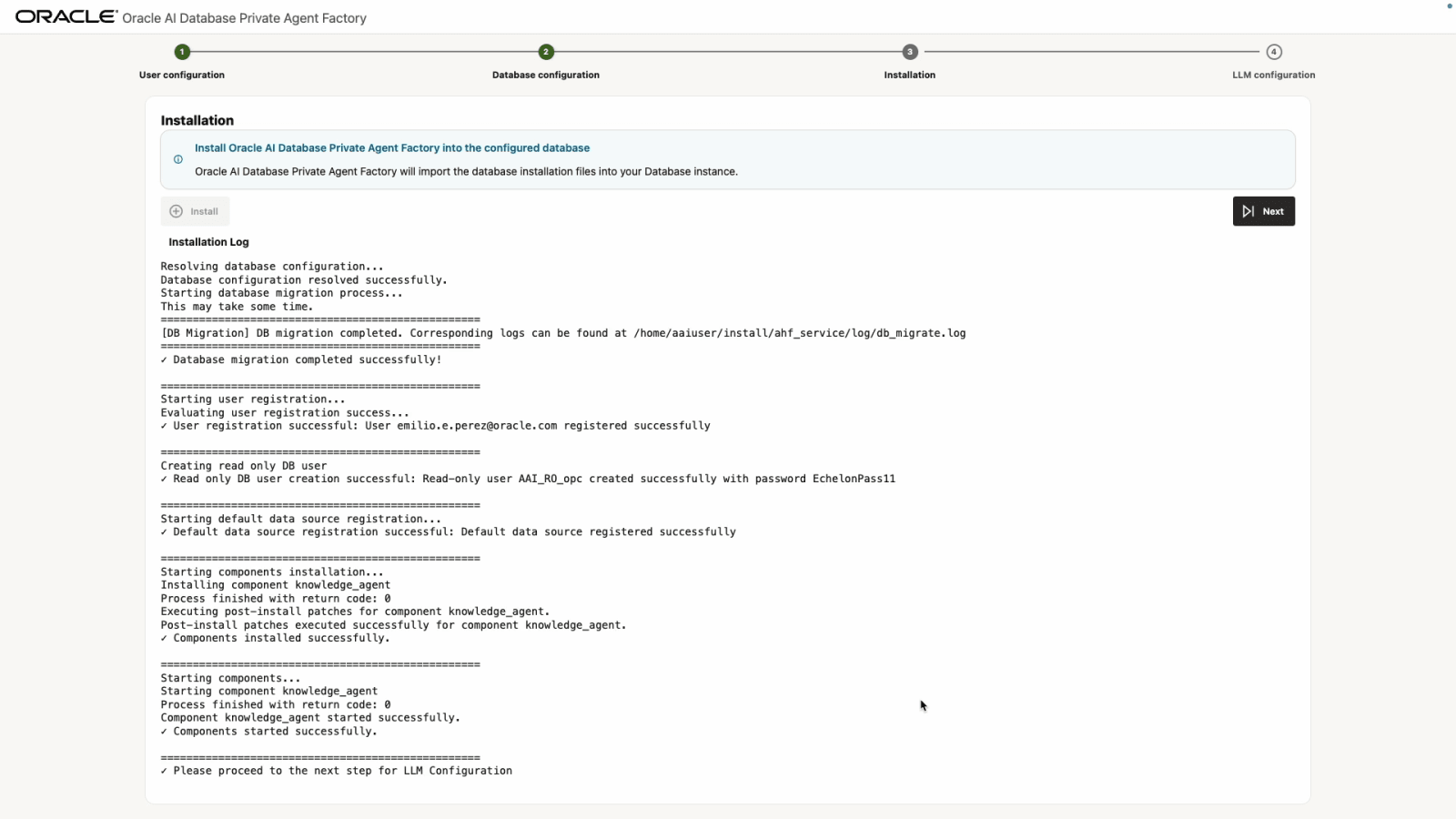
Click Install and wait a few minutes for the setup to complete.
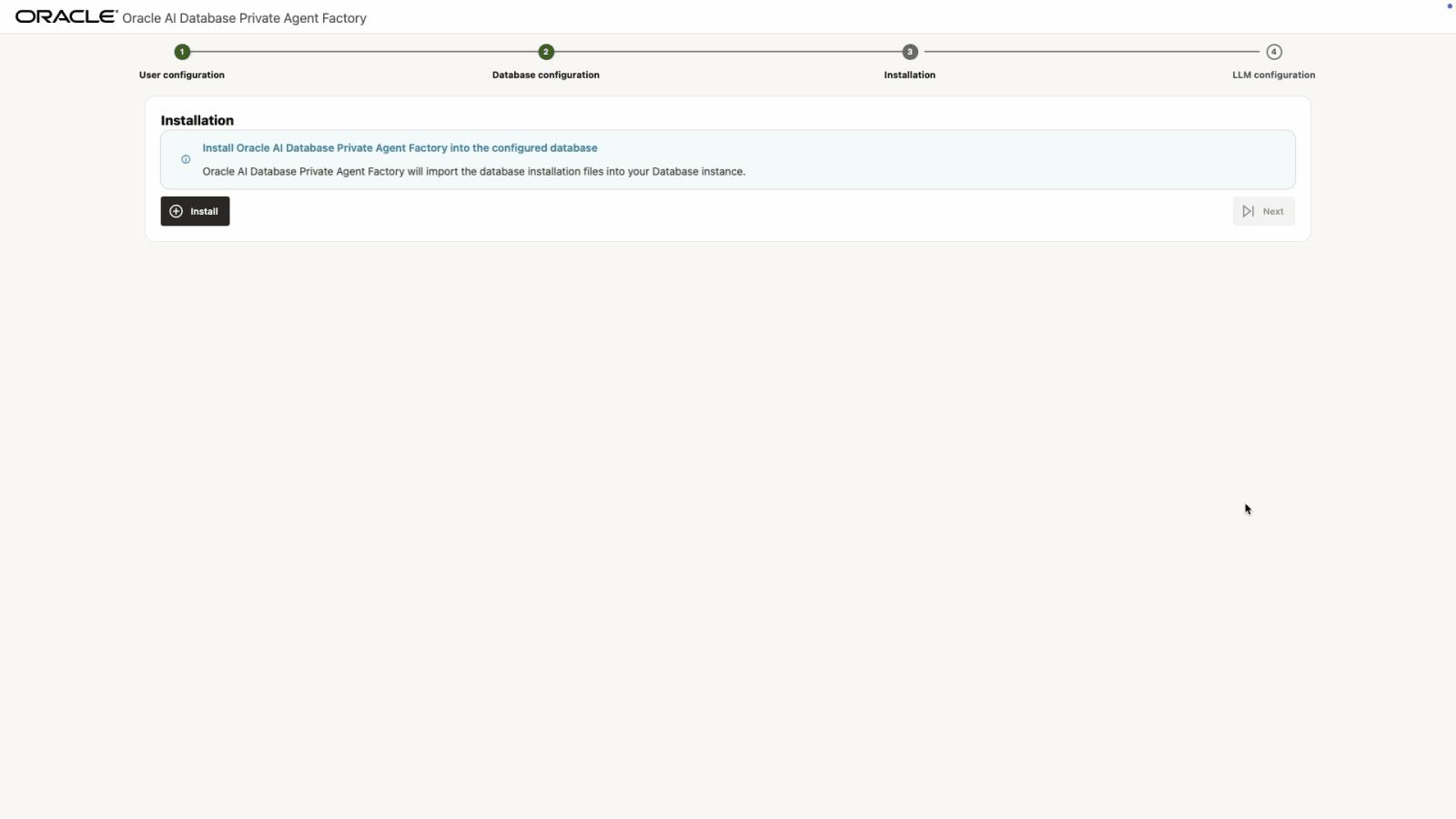
When finished, you will see the message ✓ Please proceed to the next step for LLM Configuration. Click Next.
Configure LLM
Before you continue, see Manage LLM to review the supported models and LLM providers, and how to set them up.
Select an LLM configuration based on your LLM provider. The application supports integration with Ollama, vLLM, OpenAI, and the full suite of OCI GenAI offerings. Depending on your selected provider, the required connection credentials may differ.
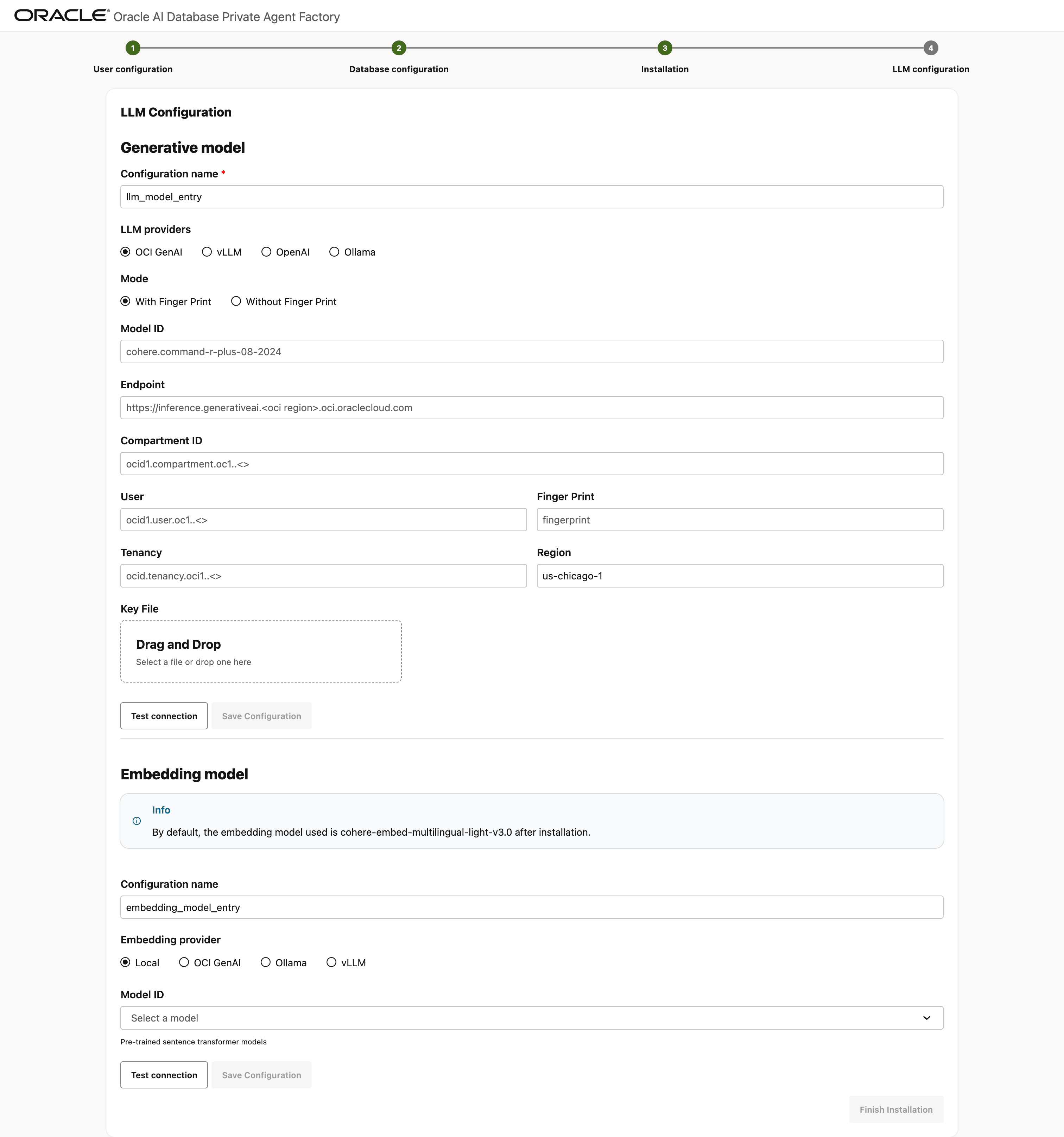
Description of the illustration install-step-llm-config.png
Enter the required details in the selected LLM configuration and select Test Connection. Once you see the Connection successful message, select Save Configuration.
Optionally, configure an embedding model to use for data ingestion and retrieval. By default, multilingual-e5-base model is used to generate embeddings and is also the local embedding model included with the service. If you choose OCI GenAI as the embedding provider, note that the following embedding models are supported for Knowledge Agents.
- cohere.embed-v4.0
- cohere.embed-english-v3.0
- cohere.embed-multilingual-v3.0
- cohere.embed-multilingual-light-v3.0
Finally, select Finish Installation to complete the setup and be redirected to the login page.
Log In to the Application
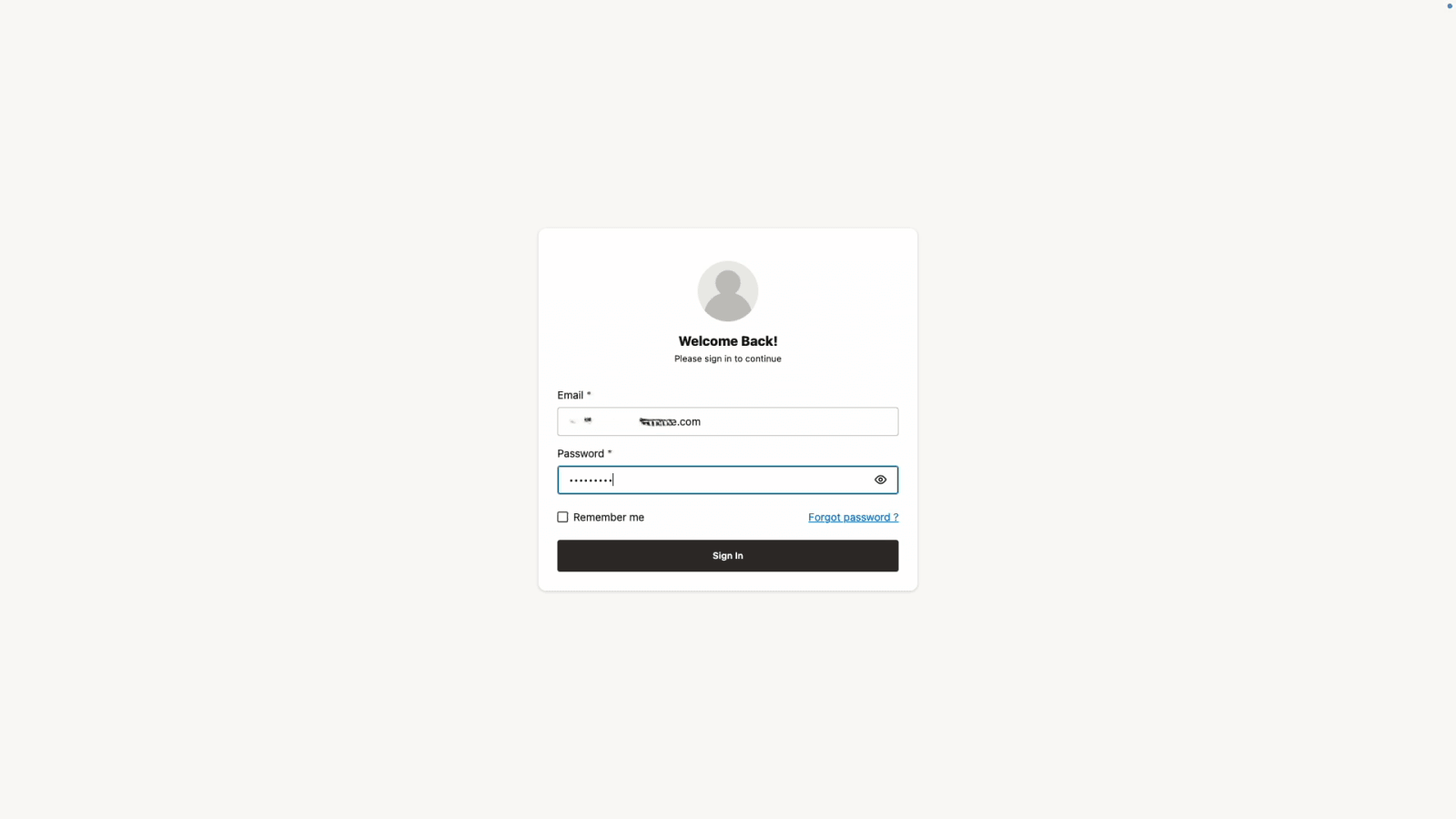
Log in with the email and password created previously. After logging in, you will be greeted by the Get Started screen.
VPN On. Quickstart mode
Download the installation kit
Go to the official download website and get the installation kit.
-
Choose the Linux ARM 64-bit platform installer kit
applied_ai_arm64.tar.gzfor Apple Silicon (M-series) Mac systems. -
Choose the Linux x86-64 platform installer kit
applied_ai.tar.gzfor Intel-based Mac systems.
Uncompress the Installation Kit at the Staging Location
The staging location is a specified directory used to store build artifacts (such as executables and configuration files) needed to create Podman images for the application, and it also includes a Makefile to manage the entire deployment lifecycle.
Note: While choosing the staging location, make sure it is not on an NFS mount.
-
Create the staging location and copy the downloaded kit to the staging location.
mkdir <staging_location> cd <staging_location> cp <path to installation kit> . -
Uncompress the installation kit in the staging location.
-
For Apple M-Series Mac:
tar xzf applied_ai_arm64.tar.gz -
For Intel Mac:
tar xzf applied_ai.tar.gz
-
Before you begin the installation process, make sure to configure any proxies required to connect outside your VPN.
export http_proxy=<your-http-proxy>;
export https_proxy=<your-https-proxy>;
export no_proxy=<your-domain>;
export HTTP_PROXY=<your-http-proxy>;
export HTTPS_PROXY=<your-https-proxy>;
export NO_PROXY=<your-domain>;
Run Interactive Installer
The interactive_install.sh script, included in the installation kit, automates nearly all setup tasks, including environment configuration, dependency installation, and application deployment.
This file will be present in the staging location once you extract the kit.
-
Run the Interactive Installer
Now that the kit is unpacked, execute the
interactive_install.shscript from within the same directory.bash interactive_install.sh --reset (Required if previously installed) bash interactive_install.sh -
When the interactive installer prompts you, select the option:
Are you on a corporate network that requires an HTTP/HTTPS proxy? (y/N): y
Do you want to use the default specs? (Y/n): y
Do you want to proceed with the manual database setup? (y/N): n
Select installation mode:
1) prod
2) quickstart
Enter choice (1 or 2): 2
You selected Quickstart mode. Confirm? (yes/no): yes
The following output indicates that the installation was completed successfully.
Once the installation script finishes successfully, you can access the application at the URL https://<hostname>:8080/agentFactory/ provided by the script and complete the remaining configuration through your web browser.
Access the Application
Copy and paste the application URL in a browser. You will see a page like below.
Click ‘Advanced’ and then ‘Proceed to host’.
Configure User
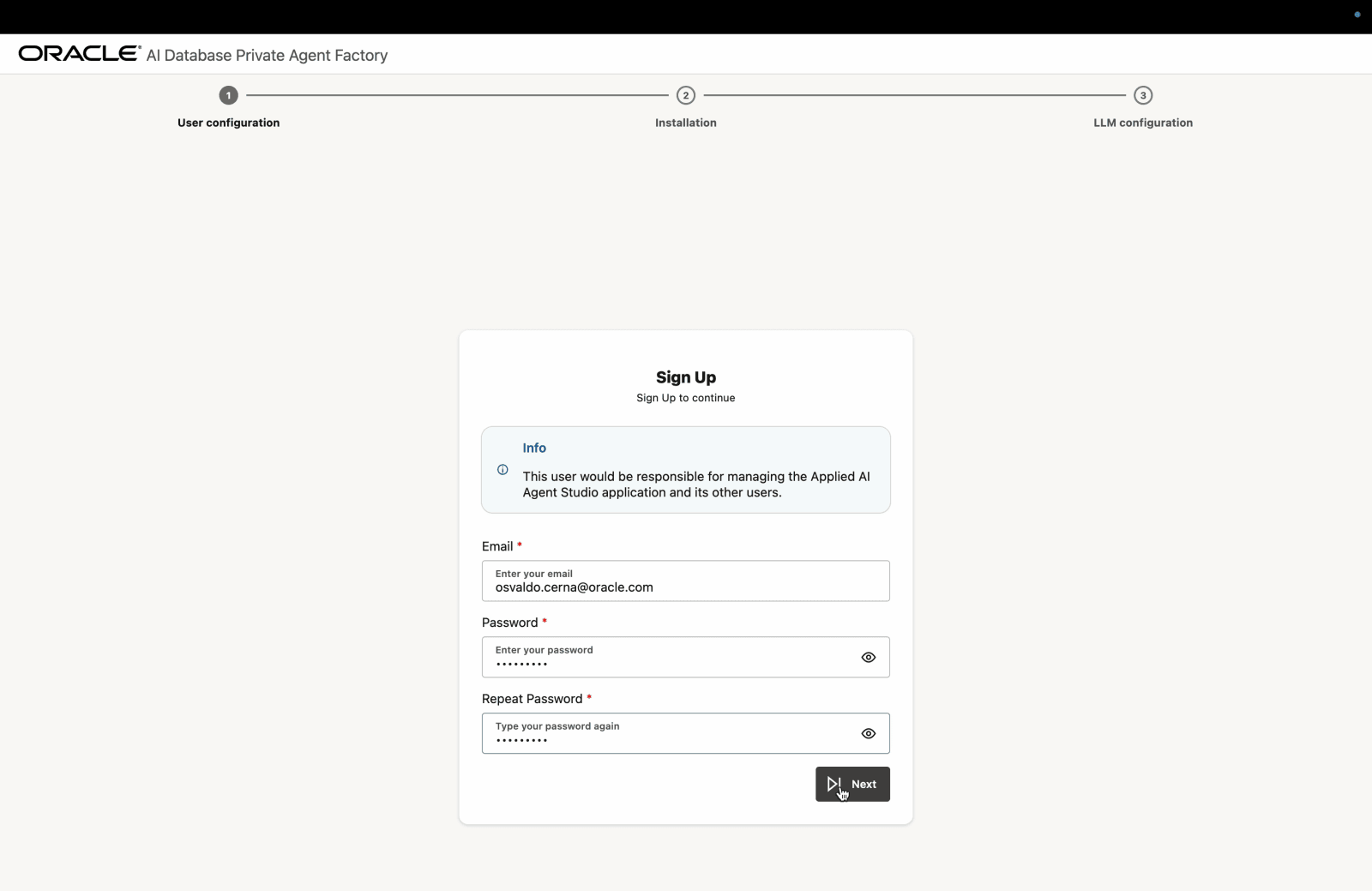
Set up an email and a secure password.
Install Components
Click Install and wait a few minutes for the setup to complete.
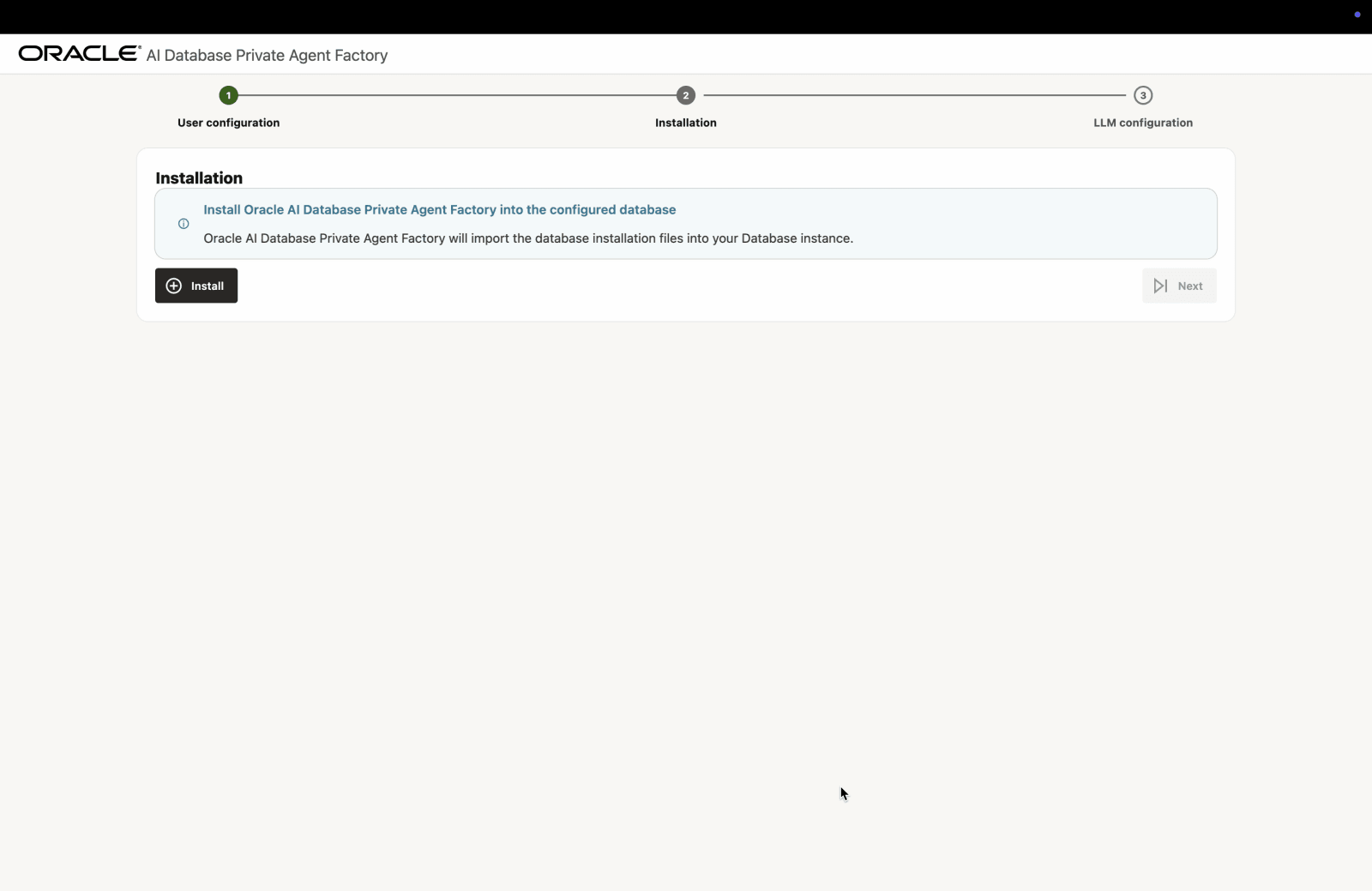
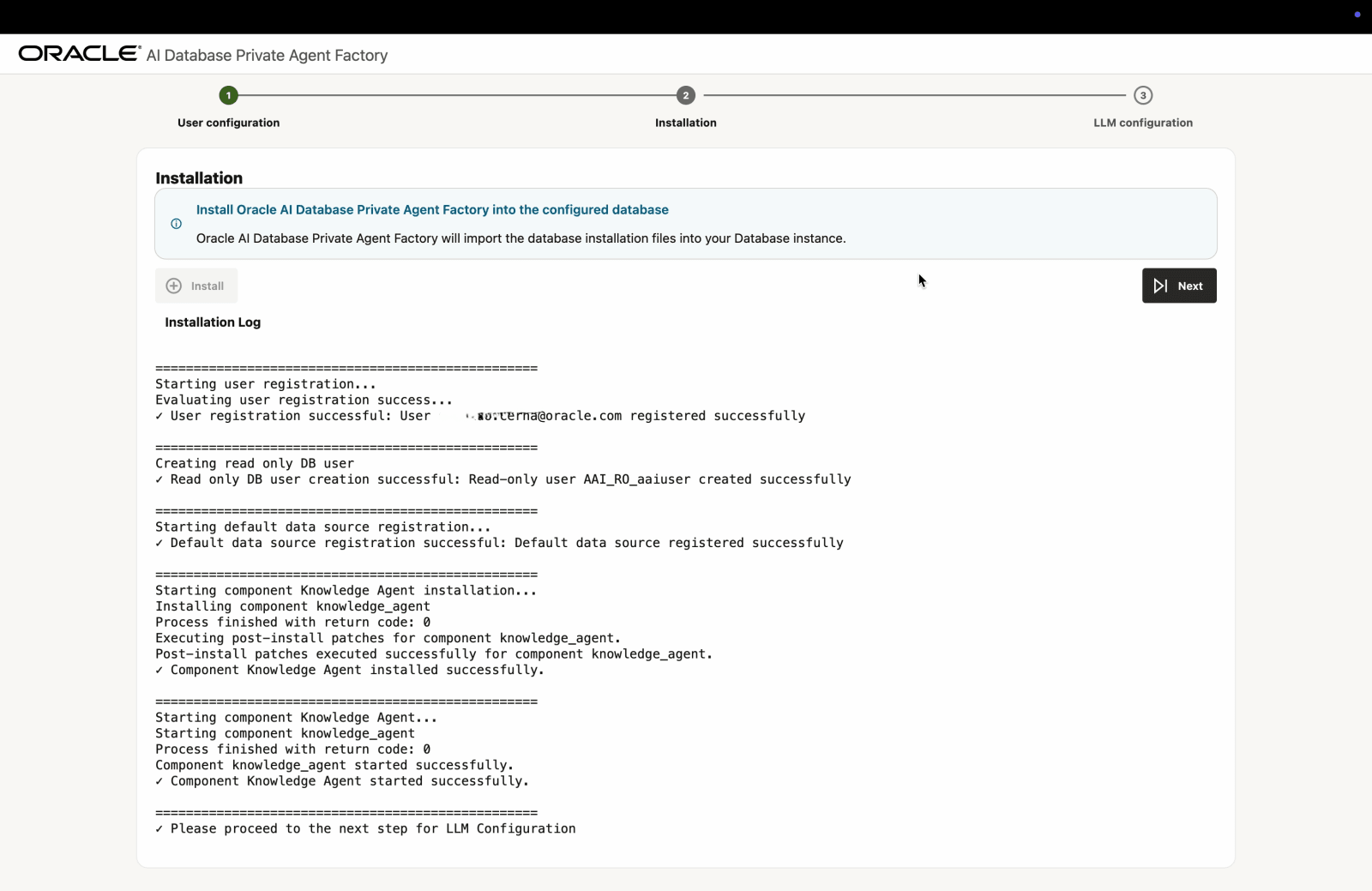
When finished, you will see the message ✓ Please proceed to the next step for LLM Configuration. Click Next.
Configure LLM
Before you continue, see Manage LLM to review the supported models and LLM providers, and how to set them up.
Select an LLM configuration based on your LLM provider. The application supports integration with Ollama, vLLM, OpenAI, and the full suite of OCI GenAI offerings. Depending on your selected provider, the required connection credentials may differ.
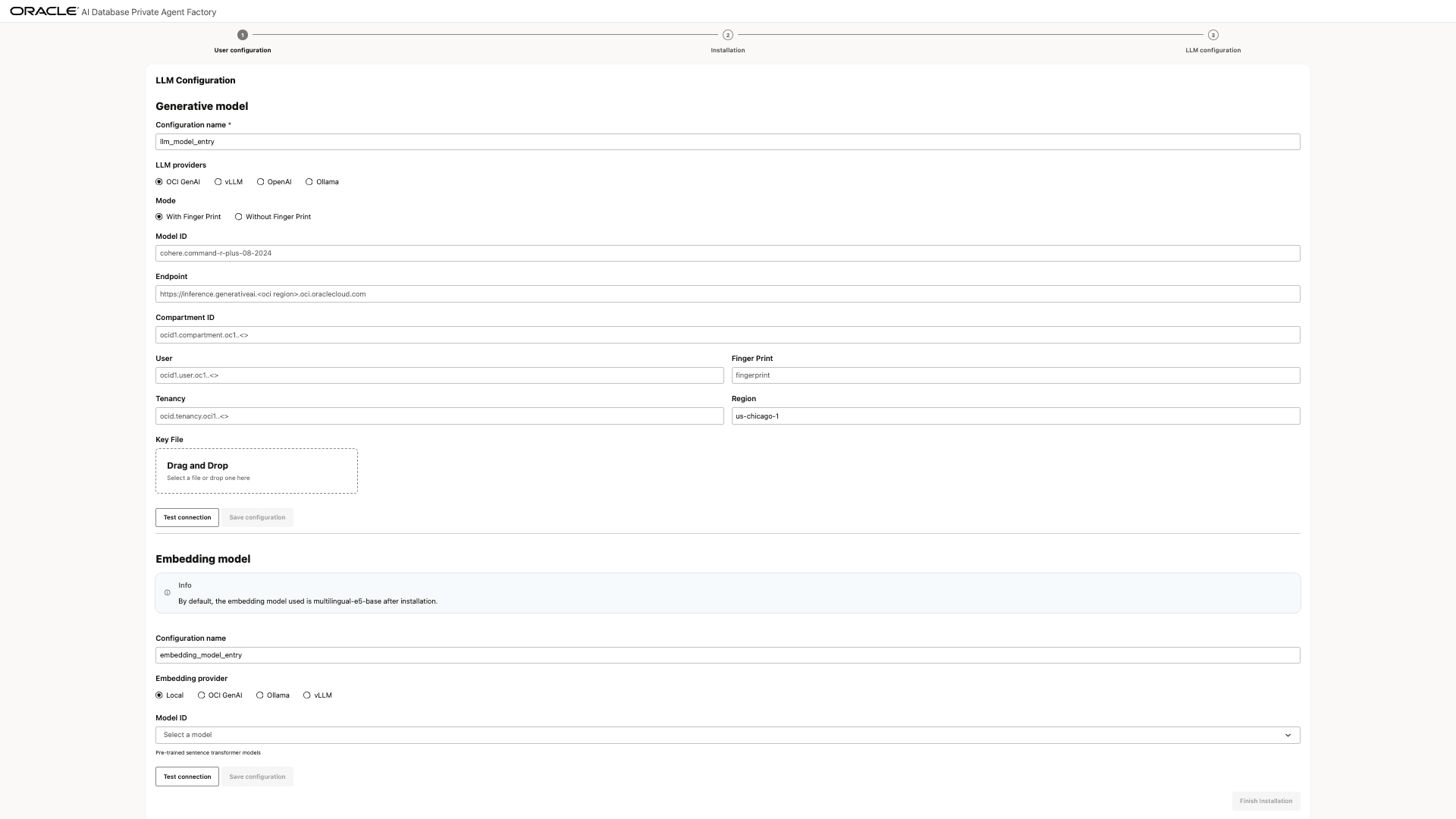
Enter the required details in the selected LLM configuration and select Test Connection. Once you see the Connection successful message, select Save Configuration.
Optionally, configure an embedding model to use for data ingestion and retrieval. By default, multilingual-e5-base model is used to generate embeddings and is also the local embedding model included with the service. If you choose OCI GenAI as the embedding provider, note that the following embedding models are supported for Knowledge Agents.
- cohere.embed-v4.0
- cohere.embed-english-v3.0
- cohere.embed-multilingual-v3.0
- cohere.embed-multilingual-light-v3.0
Finally, select Finish Installation to complete the setup and be redirected to the login page.
Log In to the Application
Log in with the email and password created previously. After logging in, you will be greeted by the Get Started screen.
No VPN. Production mode
Download the installation kit
Go to the official download website and get the installation kit.
-
Choose the Linux ARM 64-bit platform installer kit
applied_ai_arm64.tar.gzfor Apple Silicon (M-series) Mac systems. -
Choose the Linux x86-64 platform installer kit
applied_ai.tar.gzfor Intel-based Mac systems.
Uncompress the Installation Kit at the Staging Location
The staging location is a specified directory used to store build artifacts (such as executables and configuration files) needed to create Podman images for the application, and it also includes a Makefile to manage the entire deployment lifecycle.
Note: While choosing the staging location, make sure it is not on an NFS mount.
-
Create the staging location and copy the downloaded kit to the staging location.
mkdir <staging_location> cd <staging_location> cp <path to installation kit> . -
Uncompress the installation kit in the staging location.
-
For Apple M-Series Mac:
tar xzf applied_ai_arm64.tar.gz -
For Intel Mac:
tar xzf applied_ai.tar.gz
-
Set MAX_STRING_SIZE parameter to EXTENDED
The max_string_size database parameter must be set to EXTENDED before running the application. The max_string_size parameter for the DB should be extended to 32K before running the application.
-
Log in as the
SYSDBAuser to your Pluggable Database (PDB) using SQL*Plus or your preferred tool. -
Check the current value of the parameter:
SELECT value FROM v$parameter WHERE name = 'max_string_size'; -
If the output is already EXTENDED, no further action is needed. Otherwise, run the following script as the
SYSDBAuser. This sequence will restart the database.ALTER SYSTEM SET max_string_size=extended SCOPE=SPFILE; SHUTDOWN NORMAL; STARTUP UPGRADE; @$ORACLE_HOME/rdbms/admin/utl32k.sql SHUTDOWN IMMEDIATE; STARTUP; @$ORACLE_HOME/rdbms/admin/utlrp.sql
See MAX_STRING_SIZE for more details.
Run Interactive Installer
The interactive_install.sh script, included in the installation kit, automates nearly all setup tasks, including environment configuration, dependency installation, and application deployment.
This file will be present in the staging location once you extract the kit.
-
Run the Interactive Installer
Now that the kit is unpacked, execute the
interactive_install.shscript from within the same directory.bash interactive_install.sh --reset (Required if previously installed) bash interactive_install.sh -
When the interactive installer prompts you, select the option:
Are you on a corporate network that requires an HTTP/HTTPS proxy? (y/N): n
Do you want to use the default specs? (Y/n): y
Do you want to proceed with the manual database setup? (y/N): y
[WARNING] Step 1: Create the database user.
Enter the DB username you wish to create: <your_db_user>
Enter the password for the new DB user: <your_db_user_password>
[INFO] Run these SQL commands as a SYSDBA user on your PDB (Pluggable Database):
----------------------------------------------------
CREATE USER <your_db_user> IDENTIFIED BY <your_db_user_password> DEFAULT TABLESPACE USERS QUOTA unlimited ON USERS;
GRANT CONNECT, RESOURCE, CREATE TABLE, CREATE SYNONYM, CREATE DATABASE LINK, CREATE ANY INDEX, INSERT ANY TABLE, CREATE SEQUENCE, CREATE TRIGGER, CREATE USER, DROP USER TO <your_db_user>;
GRANT CREATE SESSION TO <your_db_user> WITH ADMIN OPTION;
GRANT READ, WRITE ON DIRECTORY DATA_PUMP_DIR TO <your_db_user>;
GRANT SELECT ON V$PARAMETER TO <your_db_user>;
exit;
----------------------------------------------------
Press [Enter] to continue to the next step...
Select installation mode:
1) prod
2) quickstart
Enter choice (1 or 2): 1
You selected Production mode. Confirm? (yes/no): yes
The following output indicates that the installation was completed successfully.
Once the installation script finishes successfully, you can access the application at the URL https://<hostname>:8080/agentFactory/ provided by the script and complete the remaining configuration through your web browser.
Access the Application
Copy and paste the application URL in a browser. You will see a page like below.
Click ‘Advanced’ and then ‘Proceed to host’.
Configure User
Set up an email and a secure password.
Configure Database Connection
-
Provide your database connection details. You can either enter the Oracle AI Database 26ai connection details directly, provide the connection string or upload a database wallet file, along with a user and password.
-
Basic: Enter all the connection details manually and the previously created database user and password.
Description of the illustration install-step-2-db-config-1.png
-
Connection String: Enter the Database Connection String and the previously created database user and password.
Description of the illustration install-step-2-db-config-2.png
-
Wallet: Upload a Database Wallet File and enter the previously created database user and password.
Description of the illustration install-step-2-db-config-3.png
To successfully install the Oracle AI Database Private Agent Factory Knowledge Assistant when using database wallets, Agent Factory requires the database environment to be outside an air gapped environment and able to access OCI Object Storage using Pre-Authenticated Request (PAR) files. Verify whether
WALLET_LOCATIONorENCRYPTION_WALLET_LOCATIONis specified in thesqlnet.orafile on the database server. If either is configured, ensure that the required OCI certificates are added to the wallet. If the certificates are not present, add them to the wallet to enable access to Object Storage files. Please note that not installing Oracle AI Database Private Agent Factory Knowledge Assistant, which answers questions on this documentation, does not impact the Private Agent Factory or the Knowledge Agent component.Click here to download the certificates you need to add to the wallet. Below example assumes that the SSL wallet is located at
/u01/app/oracle/dcs/commonstore/wallets/ssland that you have unpacked the certificates in/home/oracle/dbc:#! /bin/bash # Check if the certificates are available under "Trusted Certificates" orapki wallet display -wallet /u01/app/oracle/dcs/commonstore/wallets/ssl # Add certificates if they are missing for i in $(ls /home/oracle/dbc/DigiCert*cer) do orapki wallet add -wallet /u01/app/oracle/dcs/commonstore/wallets/ssl -trusted_cert -cert $i -pwd <SSL Wallet password> doneSee Create SSL Wallet with Certificates for more details.
-
-
Click Test Connection to verify that the information entered is correct. Upon a successful connection, you will see a ‘Database connection successful’ notification. Click Next.
Install Components
Click Install and wait a few minutes for the setup to complete.
When finished, you will see the message ✓ Please proceed to the next step for LLM Configuration. Click Next.
Configure LLM
Before you continue, see Manage LLM to review the supported models and LLM providers, and how to set them up.
Select an LLM configuration based on your LLM provider. The application supports integration with Ollama, vLLM, OpenAI, and the full suite of OCI GenAI offerings. Depending on your selected provider, the required connection credentials may differ.
Description of the illustration install-step-llm-config.png
Enter the required details in the selected LLM configuration and select Test Connection. Once you see the Connection successful message, select Save Configuration.
Optionally, configure an embedding model to use for data ingestion and retrieval. By default, multilingual-e5-base model is used to generate embeddings and is also the local embedding model included with the service. If you choose OCI GenAI as the embedding provider, note that the following embedding models are supported for Knowledge Agents.
- cohere.embed-v4.0
- cohere.embed-english-v3.0
- cohere.embed-multilingual-v3.0
- cohere.embed-multilingual-light-v3.0
Finally, select Finish Installation to complete the setup and be redirected to the login page.
Log In to the Application
Log in with the email and password created previously. After logging in, you will be greeted by the Get Started screen.
No VPN. Quickstart mode
Install the Application on Mac on Quickstart Mode with VPN off
Download the installation kit
Go to the official download website and get the installation kit.
-
Choose the Linux ARM 64-bit platform installer kit
applied_ai_arm64.tar.gzfor Apple Silicon (M-series) Mac systems. -
Choose the Linux x86-64 platform installer kit
applied_ai.tar.gzfor Intel-based Mac systems.
Uncompress the Installation Kit at the Staging Location
The staging location is a specified directory used to store build artifacts (such as executables and configuration files) needed to create Podman images for the application, and it also includes a Makefile to manage the entire deployment lifecycle.
Note: While choosing the staging location, make sure it is not on an NFS mount.
-
Create the staging location and copy the downloaded kit to the staging location.
mkdir <staging_location> cd <staging_location> cp <path to installation kit> . -
Uncompress the installation kit in the staging location.
-
For Apple M-Series Mac:
tar xzf applied_ai_arm64.tar.gz -
For Intel Mac:
tar xzf applied_ai.tar.gz
-
Run Interactive Installer
The interactive_install.sh script, included in the installation kit, automates nearly all setup tasks, including environment configuration, dependency installation, and application deployment.
This file will be present in the staging location once you extract the kit.
-
Run the Interactive Installer
Now that the kit is unpacked, execute the
interactive_install.shscript from within the same directory.bash interactive_install.sh --reset (Required if previously installed) bash interactive_install.sh -
When the interactive installer prompts you, select the option:
Are you on a corporate network that requires an HTTP/HTTPS proxy? (y/N): n
Do you want to use the default specs? (Y/n): y
Do you want to proceed with the manual database setup? (y/N): n
Select installation mode:
1) prod
2) quickstart
Enter choice (1 or 2): 2
You selected Quickstart mode. Confirm? (yes/no): yes
The following output indicates that the installation was completed successfully.
Once the installation script finishes successfully, you can access the application at the URL https://<hostname>:8080/agentFactory/ provided by the script and complete the remaining configuration through your web browser.
Access the Application
Copy and paste the application URL in a browser. You will see a page like below.
Click ‘Advanced’ and then ‘Proceed to host’.
Configure User
Set up an email and a secure password.
Install Components
Click Install and wait a few minutes for the setup to complete.
When finished, you will see the message ✓ Please proceed to the next step for LLM Configuration. Click Next.
Configure LLM
Before you continue, see Manage LLM to review the supported models and LLM providers, and how to set them up.
Select an LLM configuration based on your LLM provider. The application supports integration with Ollama, vLLM, OpenAI, and the full suite of OCI GenAI offerings. Depending on your selected provider, the required connection credentials may differ.
Enter the required details in the selected LLM configuration and select Test Connection. Once you see the Connection successful message, select Save Configuration.
Optionally, configure an embedding model to use for data ingestion and retrieval. By default, multilingual-e5-base model is used to generate embeddings and is also the local embedding model included with the service. If you choose OCI GenAI as the embedding provider, note that the following embedding models are supported for Knowledge Agents.
- cohere.embed-v4.0
- cohere.embed-english-v3.0
- cohere.embed-multilingual-v3.0
- cohere.embed-multilingual-light-v3.0
Finally, select Finish Installation to complete the setup and be redirected to the login page.
Log In to the Application
Log in with the email and password created previously. After logging in, you will be greeted by the Get Started screen.