Access Agent Factory Deployed in a Private Subnet
Load Balancer Approach
Follow the steps below to access the Agent Factory application deployed in a VM inside a private subnet using an OCI Load Balancer.
Note: Other options exist for accessing the application deployed in a private subnet. Configurations may vary; each network may need different configurations depending on its characteristics.
Ensure the application has access to the required database and LLM endpoint.
Prerequisites
- A Virtual Cloud Network (VCN) that contains both:
- Public subnet with an Internet Gateway (for Load Balancer).
- Private subnet (for the private VM).
- SSH keys available:
- Private and public (.pub) matching keys.
- IAM permissions:
Identity and Access Management (IAM) policies define permissions that control access and management of resources in OCI tenancies. Ensure your administrator enables the appropriate privileges to manage the required resources. See the OCI Documentation for details.
In the target compartment, grant the required permissions.
Allow group <group-name> to manage load-balancers in compartment <compartment-name>Note: Review these policies against your organization’s security guidelines before applying.
Deploy Agent Factory in a VM Inside a Private Subnet
You may use the Marketplace deployment or download the installation kit and deploy the application manually. See Marketplace setup for assistance in this step. We will refer to this deployment as “private VM”.
Create Load Balancer
The Load Balancer service provides automated traffic distribution from a single entry point to multiple servers within your Virtual Cloud Network (VCN). In this setup, we will configure the Load Balancer to provide access to the Agent Factory’s user interface from a public IP address.
- Add Details:
- Create a Load Balancer with public visibility.
- Select the VCN that contains the private VM and choose the public subnet.
- Choose Backend:
- Set the load balancing policy to Weighted Round Robin.
- Add the private VM as the backend set on port 8080.
- Configure the health check policy to use the TCP protocol on port 8080.
- Ingress and egress security list rules are created automatically.
- Configure Listener:
- For the listener, select the TCP protocol on port 443.
- Deactivate SSL (the SSL certificate will be managed by the application).
-
Manage Logging: Leave all other configurations as default.
- Review the configuration and create Load Balancer.
Make sure you add an ingress rule to your public subnet’s security list to allow all traffic (0.0.0.0/0), or restrict to a specific IP address such as 192.X.X.X/24 via the TCP protocol on port 443 from all ports.
Once created, the Load Balancer is assigned a public IP address.
Access the application at https://<lb_public_ip>/
Important: This method allows you to access the user interface, but you still must ensure that the private VM is able to establish connection to your database and LLM endpoint. Review your network configuration.
Bastion Approach
Use OCI Bastion with SSH port forwarding to access the Agent Factory application deployed in a VM inside a private subnet.
Note: Other options exist for accessing the application deployed in a private subnet. Configurations may vary; each network may need different configurations depending on its characteristics.
Prerequisites
- A Virtual Cloud Network (VCN) that contains both:
- Public subnet (for Bastion and tunnel VM)
- Private subnet (for target private VM)
-
Security rules permitting SSH (TCP/22) at minimum (more details in relevant sections below).
- SSH keys available:
- Private key and
- Corresponding public key (
.pub) to upload where required (private VM / bastion session).
- IAM permissions:
Identity and Access Management (IAM) policies define permissions that control access and management of resources in OCI tenancies. Ensure your administrator enables the appropriate privileges to manage the required resources. See the OCI Documentation for details.
In the target compartment, grant the required permissions.Allow group <group-name> to manage bastion-family in compartment <compartment-name>Optional (commonly needed depending on who creates resources)
Allow group <group-name> to manage instance-family in compartment <compartment-name>
Allow group <group-name> to manage virtual-network-family in compartment <compartment-name>
Deploy Agent Factory in a VM Inside a Private Subnet
You may use the Marketplace deployment or download the installation kit and deploy the application manually. See Marketplace setup for assistance in this step.
Follow the steps below to access and configure the Agent Factory UI installed in the private subnet.
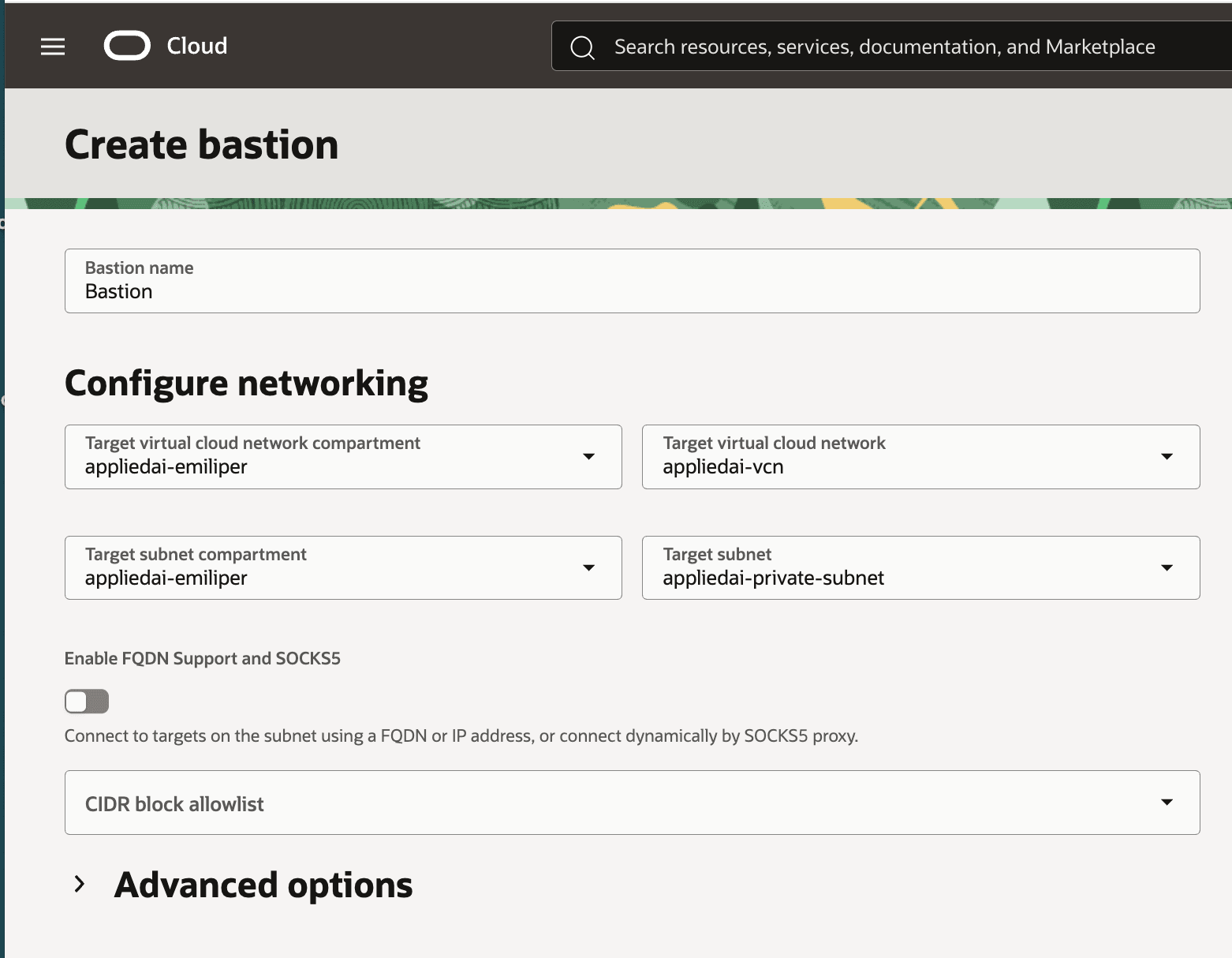
Configure Bastion
A Bastion is an OCI resource that provides restricted and time-limited secure access to resources that don’t have public endpoints and require strict resource access controls, such as VMs created in private subnets.
See OCI documentation for details.
-
Target VCN
Both the public and private subnets must be within the same VCN. -
Target subnet
Select the private subnet (the one hosting the private VM). -
Allowlist
Restrict access to the Bastion by allowlisting a single public IP (your current client IP).
Create a Bastion Session
A Bastion session is a secure, temporary SSH connection provided by the OCI Bastion service. It allows you to access private compute instances without exposing them to the internet, requiring public IPs, or a VPN connection. See OCI documentation for details.
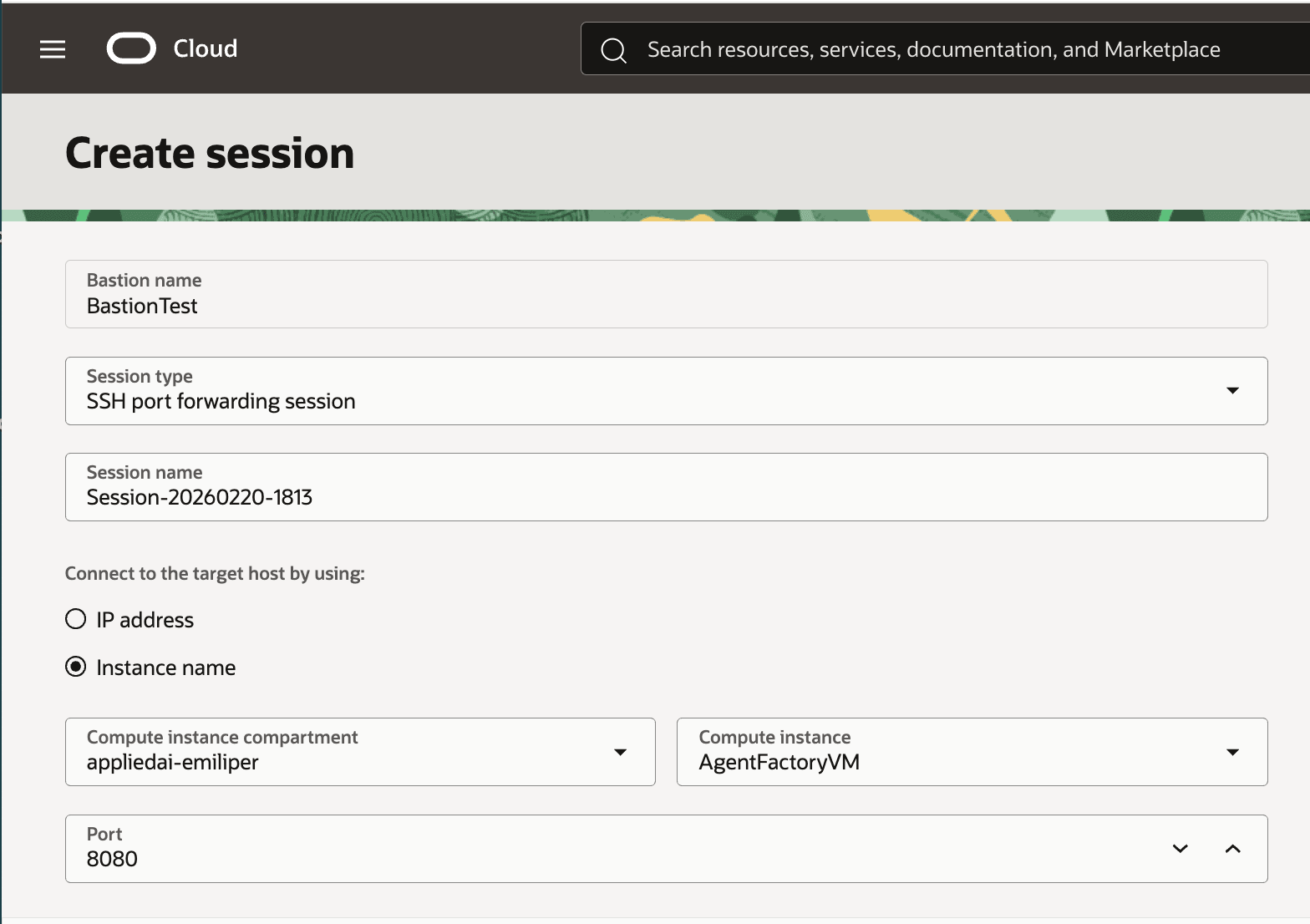
After the Bastion is active, create a session for each port you want to forward. Note that Bastion sessions are ephemeral by design.
To access the Agent Factory user interface (UI), you must forward port 8080. (Optional) Forwarding port 22 is also recommended for SSH access to the VM.
- Select SSH port forwarding session as the Session type
- Select Instance name
- Upload
.pubfile - (Optional) Increase session length of time.
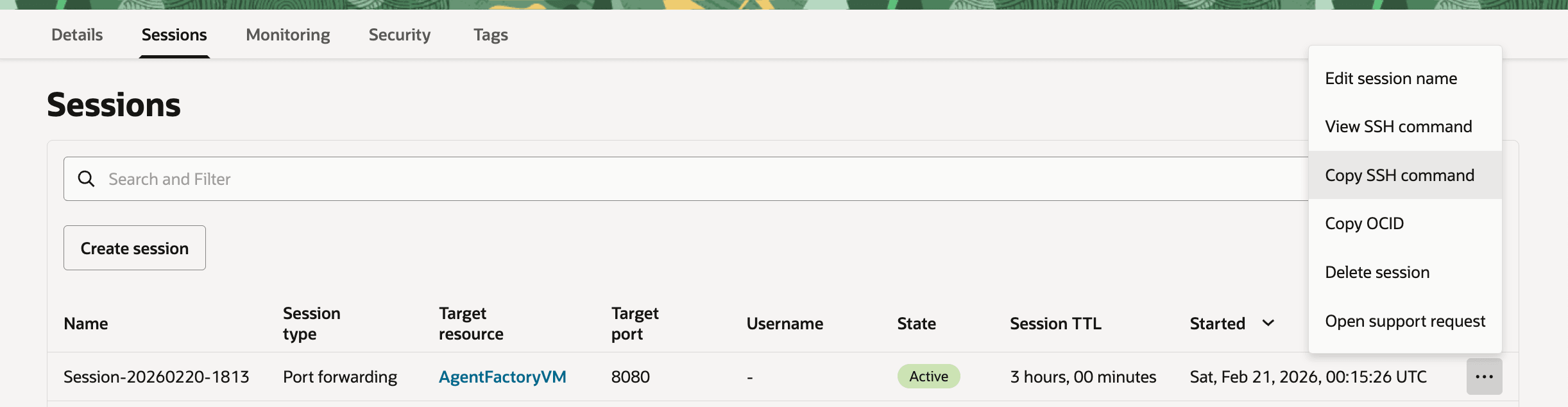
Once the session is active, click the vertical dots and copy the SSH command. The command is structured as follows:
ssh -i <privateKey> -N -L <localPort>:<private_vm_ip>:<port> -p <port> ocid1.bastionsession.<bastion_ocid>@host.bastion.<oci_region>.oci.oraclecloud.comOCI provides a prepopulated command. Replace <privateKey> with the path to the private SSH key matching the uploaded public key, and <localPort> with the local port on your host (e.g., 8080 if available; any free port works)
(Optional) For port 22 forwarding, use local port 2222.
Configure NAT Gateway
A Network Access Translation (NAT) Gateway enables cloud resources without public IP addresses to access the internet without exposing them to incoming connections. This allows Agent Factory (installed on the private VM) to connect to your database, LLM endpoint, and features like web sources.
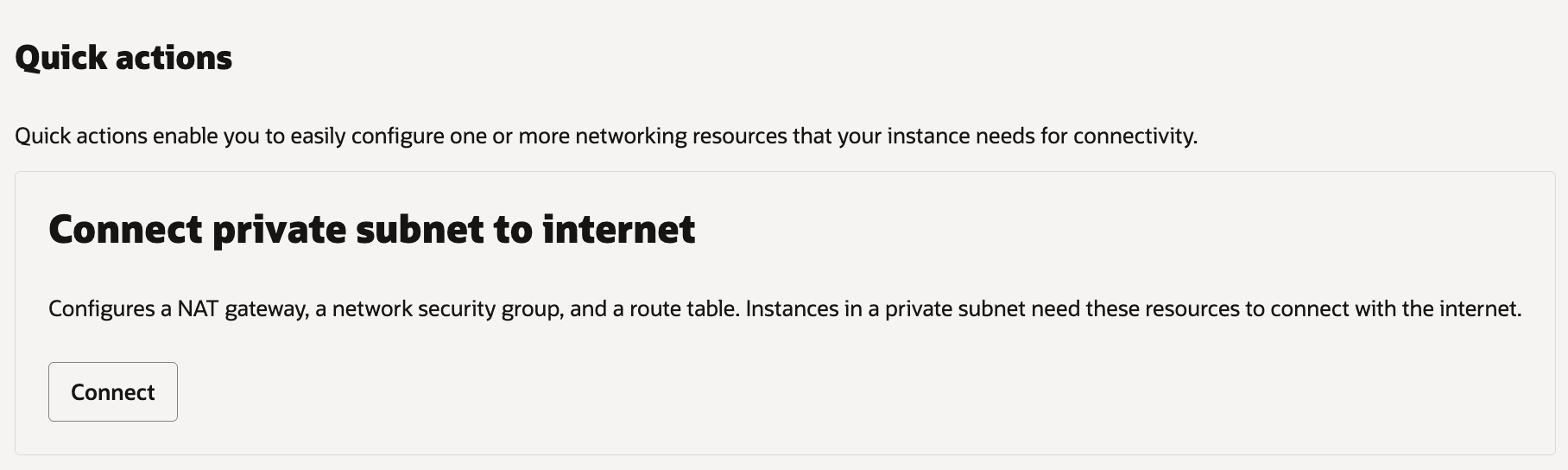
From the private instance’s description, under the Networking tab, use Quick actions > Connect private subnet to internet. This automatically creates and configures required resources. See the OCI Documentation for details.
Follow the steps below if your network requires custom configuration:
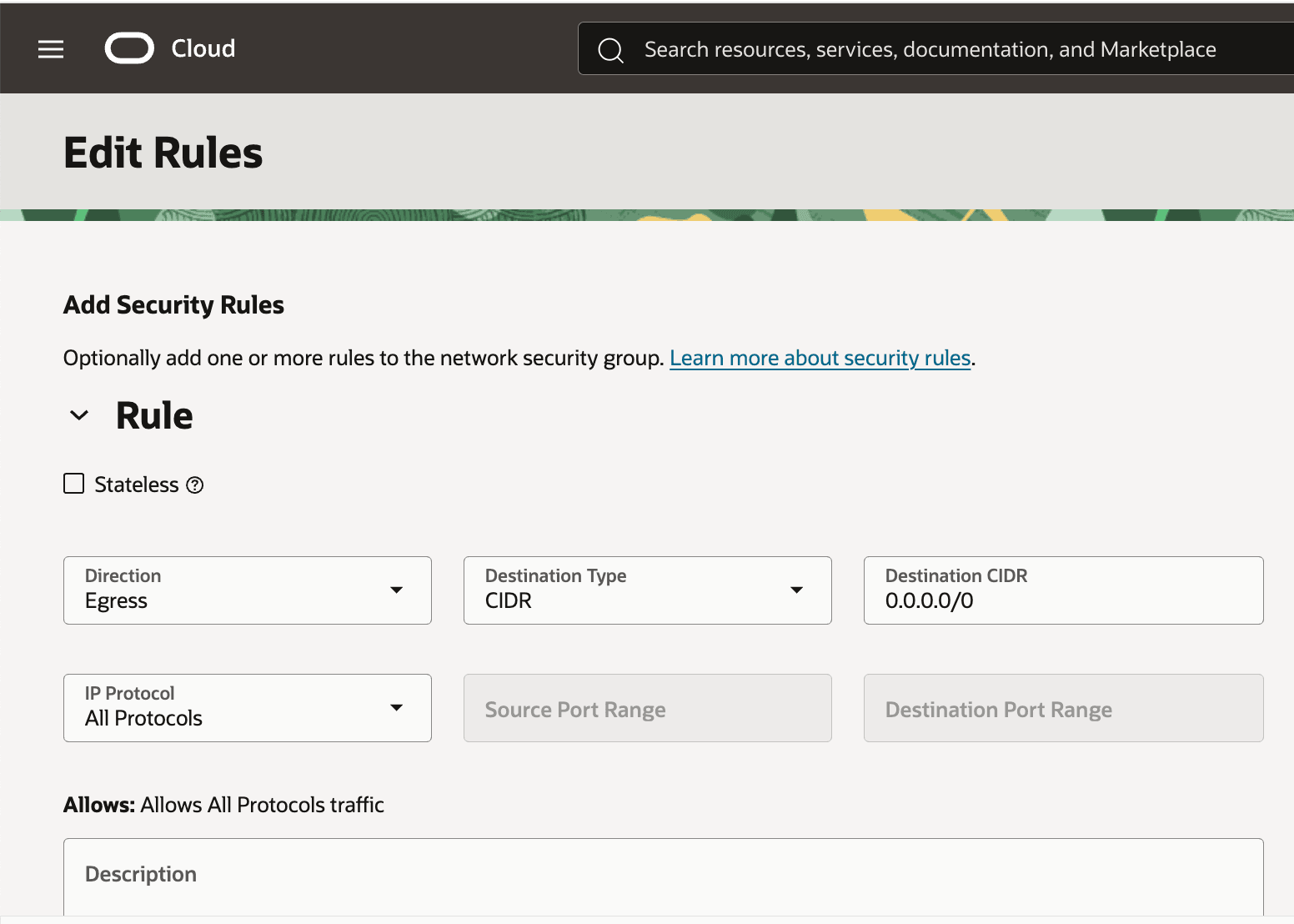
- On the VCN resource page, under Security > Network Security Groups, create a new group. Add an egress security rule:
- Destination type: CIDR
- Destination CIDR: 0.0.0.0/0
- Stateless: No
- Protocols: All (or customize as needed) The egress rules provide connectivity to the database and LLM endpoints.
-
On the VCN description page, under Gateways > NAT Gateways, create a new NAT Gateway in the private subnet.
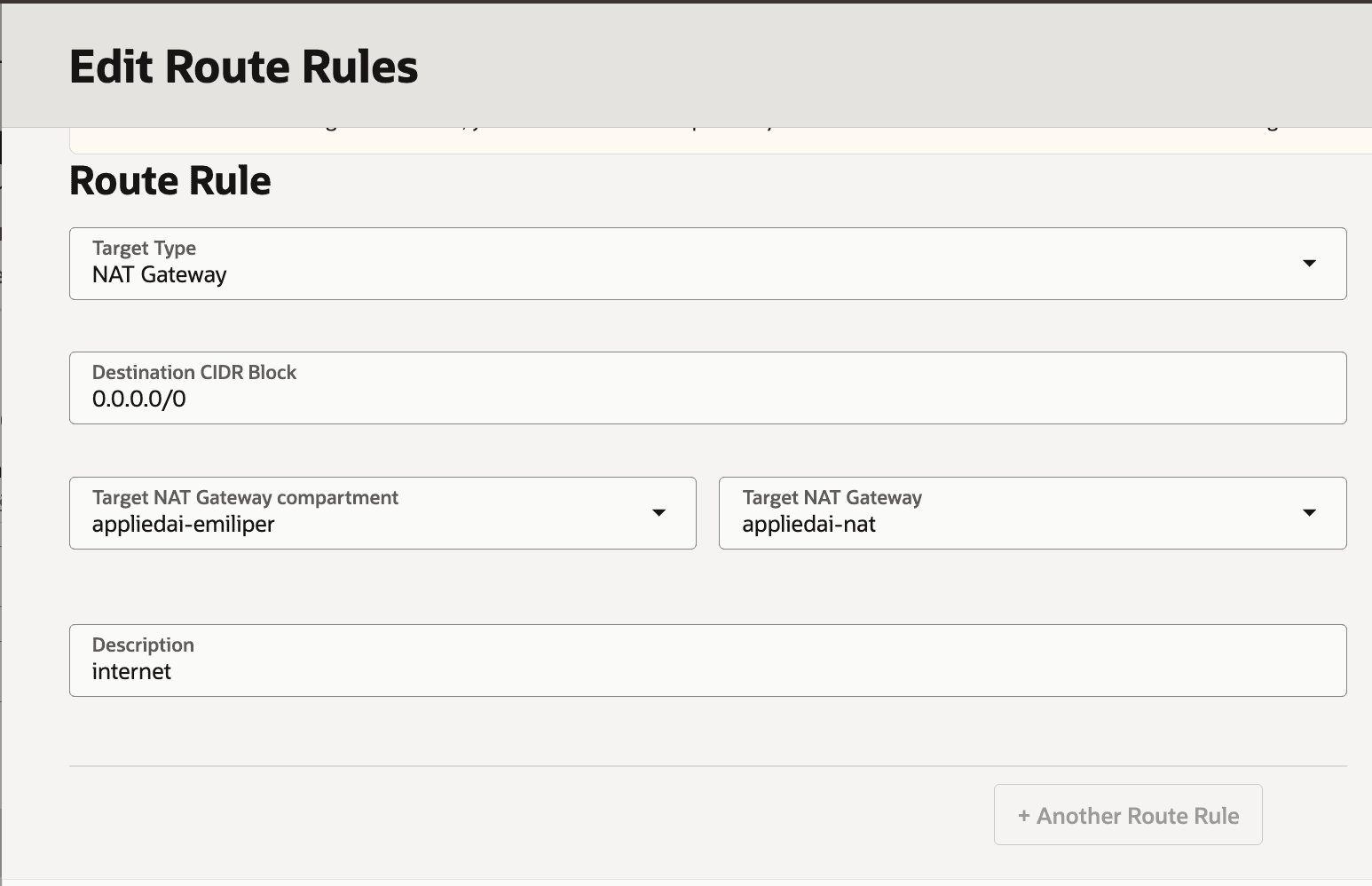
- Edit the associated route table: Add a rule such as:
- Target Type: NAT Gateway
- Destination CIDR Block: 0.0.0.0/0
- Target: your NAT Gateway
- Description: (e.g., “Route private subnet traffic to NAT”)
Set Up Tunnel VM
Some private subnets may not allow tunneling ports to devices outside the VCN. To work around this, create a Tunnel VM in a public subnet within the same VCN as the private VM. Ensure the security list SSH access to the Tunnel VM. No special memory or storage configuration is required.
(Optional) Setup a Virtual Network Computing (VNC) on the Tunnel VM for local GUI access to the application. The following uses TigerVNC, which includes a pre-installed Firefox browser for interacting with the Agent Factory UI.
Steps to Set Up VNC
- Install GUI and VNC
sudo yum groupinstall -y "Server with GUI" sudo yum install -y tigervnc-server - Boot to GUI by default
sudo systemctl set-default graphical.target - Set VNC password for your user
vncpasswd - Create xstartup (GNOME example)
mkdir -p ~/.vnc cat > ~/.vnc/xstartup <<'EOF' # !/bin/sh unset SESSION_MANAGER unset DBUS_SESSION_BUS_ADDRESS exec /usr/bin/gnome-session EOF chmod +x ~/.vnc/xstartup - Start VNC with preferred settings (e.g., display :1)
vncserver :1 -geometry 1920x1080 -depth 24 - From your local machine, forward the VNC port via SSH
ssh -i <tunnel_vm_private_key> -L 5901:localhost:5901 <tunnel_vm_user>@<tunnel_vm_hostname_or_public_ip> -
Connect with a VNC client (e.g., TigerVNC Viewer) by entering localhost:5901 as the server and your VCN password.
-
Open a terminal in the VNC and run the SSH command from the Bastion session (port 8080) to tunnel traffic from the private VM. Keep this running.
- In Firefox (within VNC), navigate to
https://localhost:8080/studio/installation
See Configure Application to finish setting up the application.