Installation from OCI Marketplace
If you already have a Marketplace instance configured, see Upgrade Your Marketplace Instance for instructions on upgrading to a newer version.
Prerequisites
To successfully deploy the application via OCI Marketplace you must meet the following requirements:
Marketplace deployment policies: You must have access to a tenancy where you have the privileges to create instances from Marketplace. If your account does not have said privileges, contact your tenancy’s administration.
Virtual Cloud Network (VCN) and Subnet: The recommended VCN configuration contains a 10.0.0.0/16 CIDR block, an internet gateway for external connectivity, a route table directing 0.0.0.0/0 traffic to the internet gateway, and a security list allowing inbound SSH (port 22), HTTP (port 8080), and Oracle Database (port 1521) traffic from any source. A public subnet (10.0.1.0/24) is also defined, associated with the custom route table and security list, with public IPs allowed on Virtual Network Interface Cards (VNICs).
Flex shapes specification: To deploy the application using a Flex shape this must have a minimum of 8 CPU cores, 16 GB of RAM and 120 GB of boot volume, 500 GB recommended.
You can install the Agent Factory application from the Oracle Cloud Marketplace in just a few steps:
Launch Stack
On February 20, 2026, the Marketplace deployment received an update with the fixes listed below. Note that this update only affects Marketplace deployment methods, not the application version or any already deployed VMs.
- The application now automatically starts and stops with the VM. Rebooting no longer causes the application to reset. Reinstalling the application may affect this service.
- You can now deploy the application on a private VM in a private subnet.
- You can now deploy the VM in a different compartment from the subnet.
- SSH keys are no longer auto-generated; you must upload a public key.
- The VM now requires less storage.
-
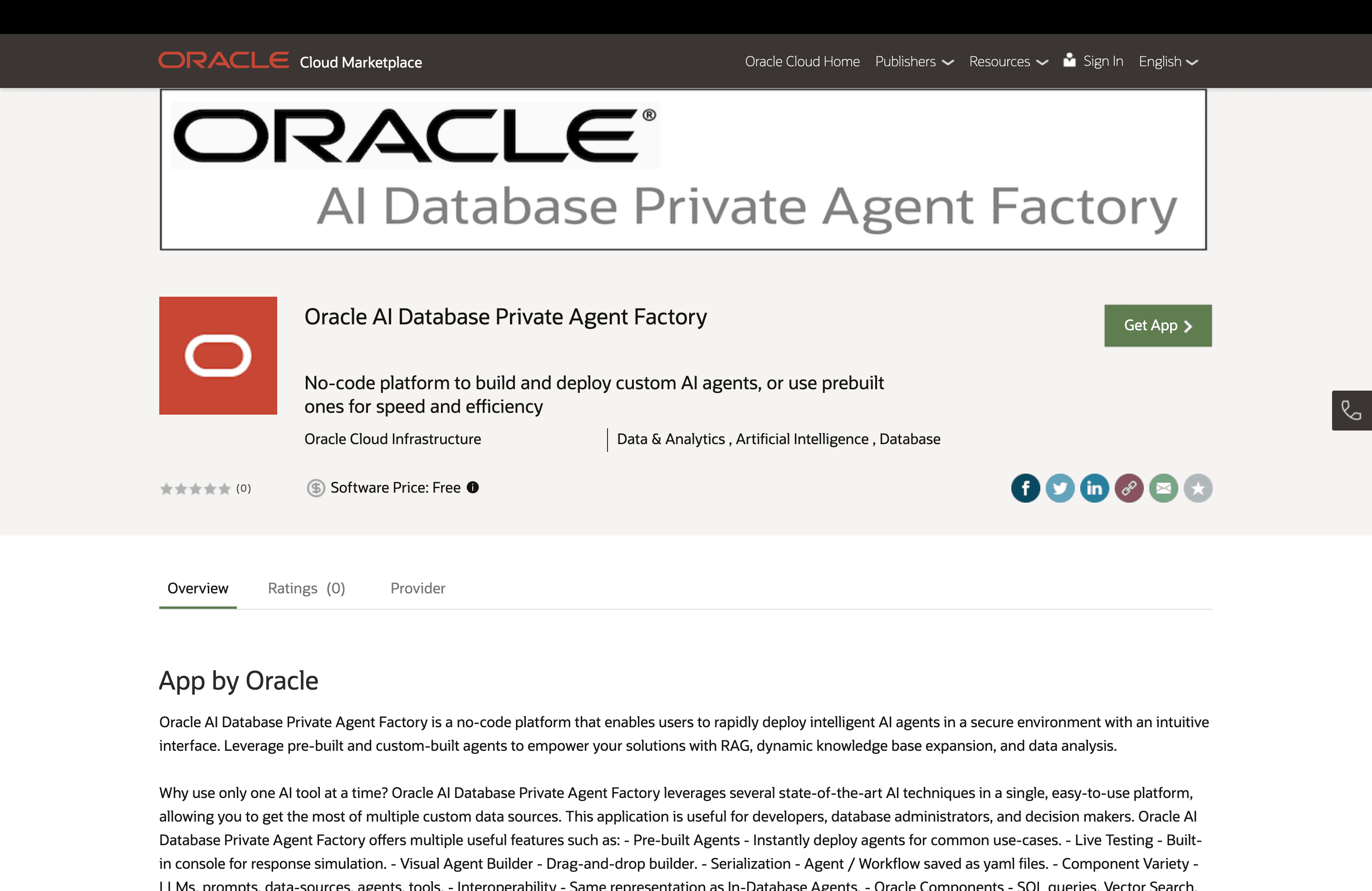
Visit the Agent Factory listing on Oracle Cloud Marketplace.
-
Click Get App and sign in to your OCI tenancy.
-
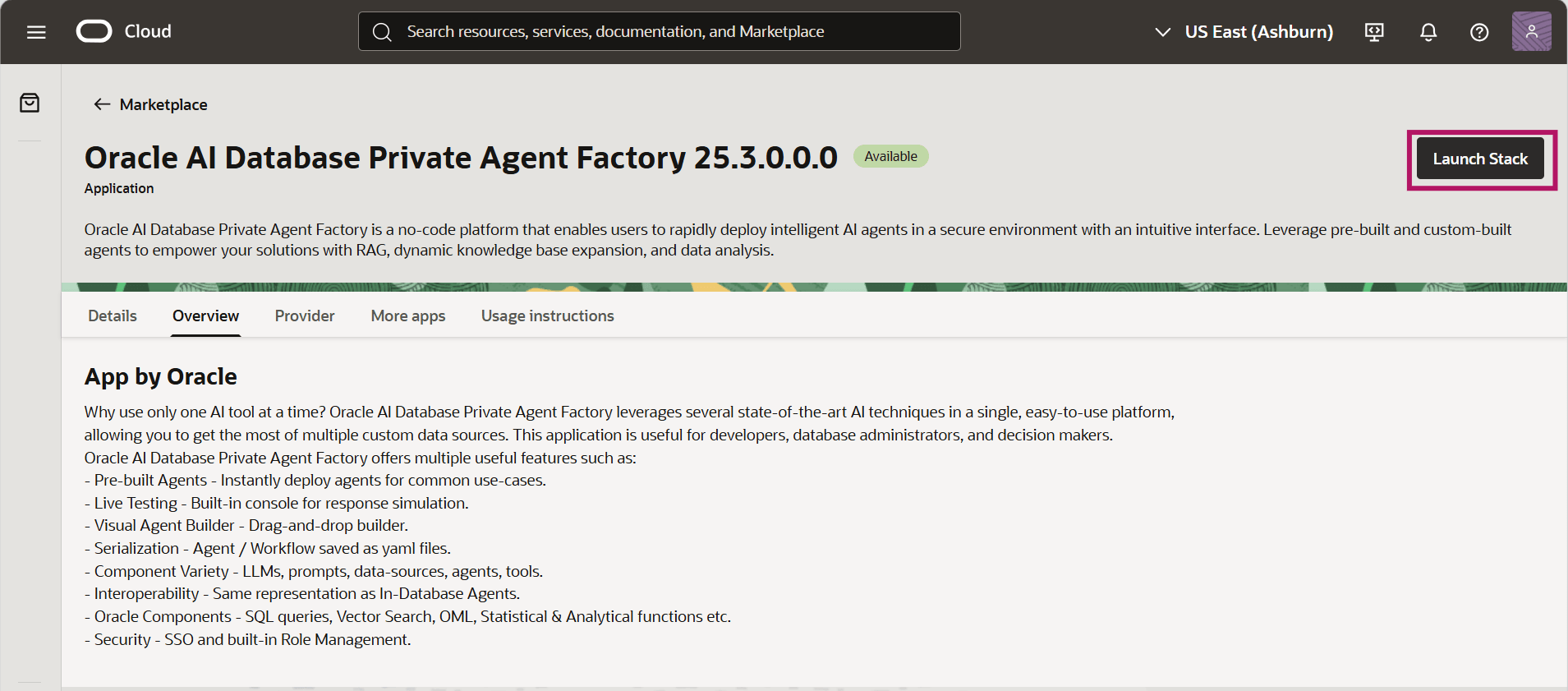
On the product overview page, review the details and usage instructions. Then, select the Launch Stack button in the top right corner.
-
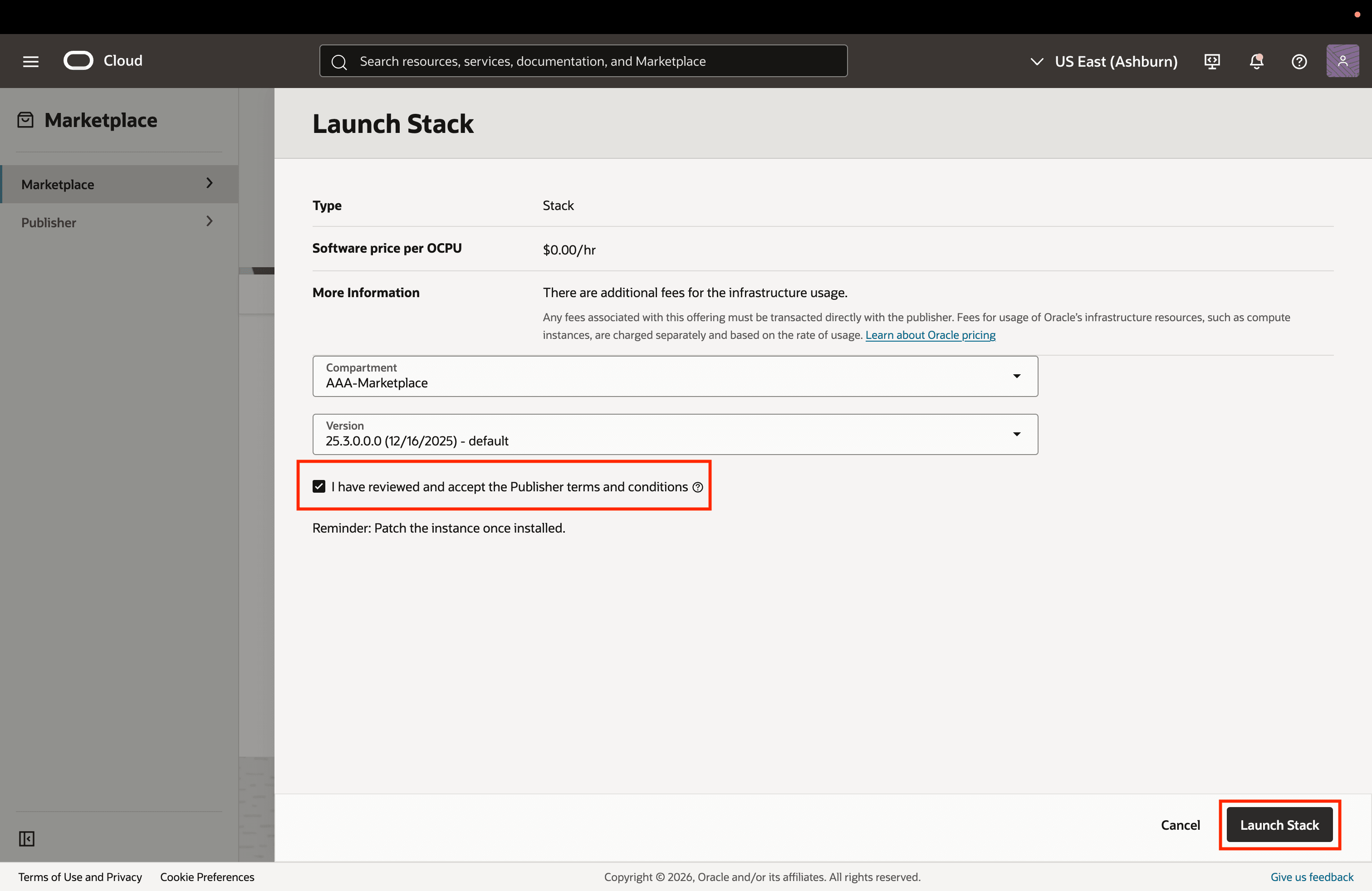
Once you review and accept the Oracle Standard Terms and Restrictions, select Launch Stack button in the bottom right corner.
By default, the stack will be created in the Resource Manager of your current compartment.
-
In Stack Information, you can rename the stack you are creating. Agent Factory prefills the stack information.
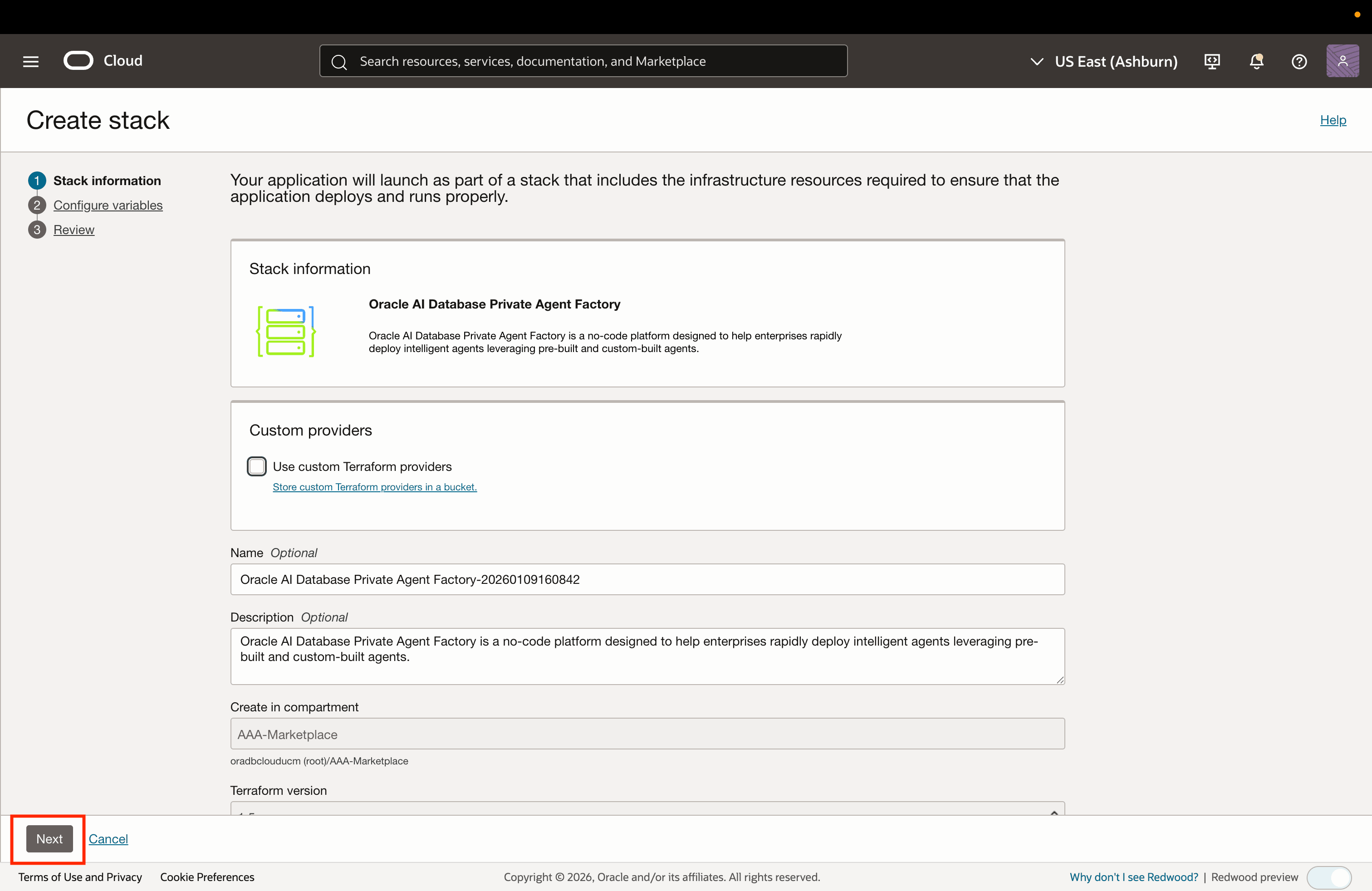
-
Under General Settings, select your preferred region, the compartment for deploying the VM, and the compartment containing the VCN and subnet for the VM. Both can be the same or different as needed. This is intended for users who have permissions to create VMs in one compartment but can only use VCNs from another.
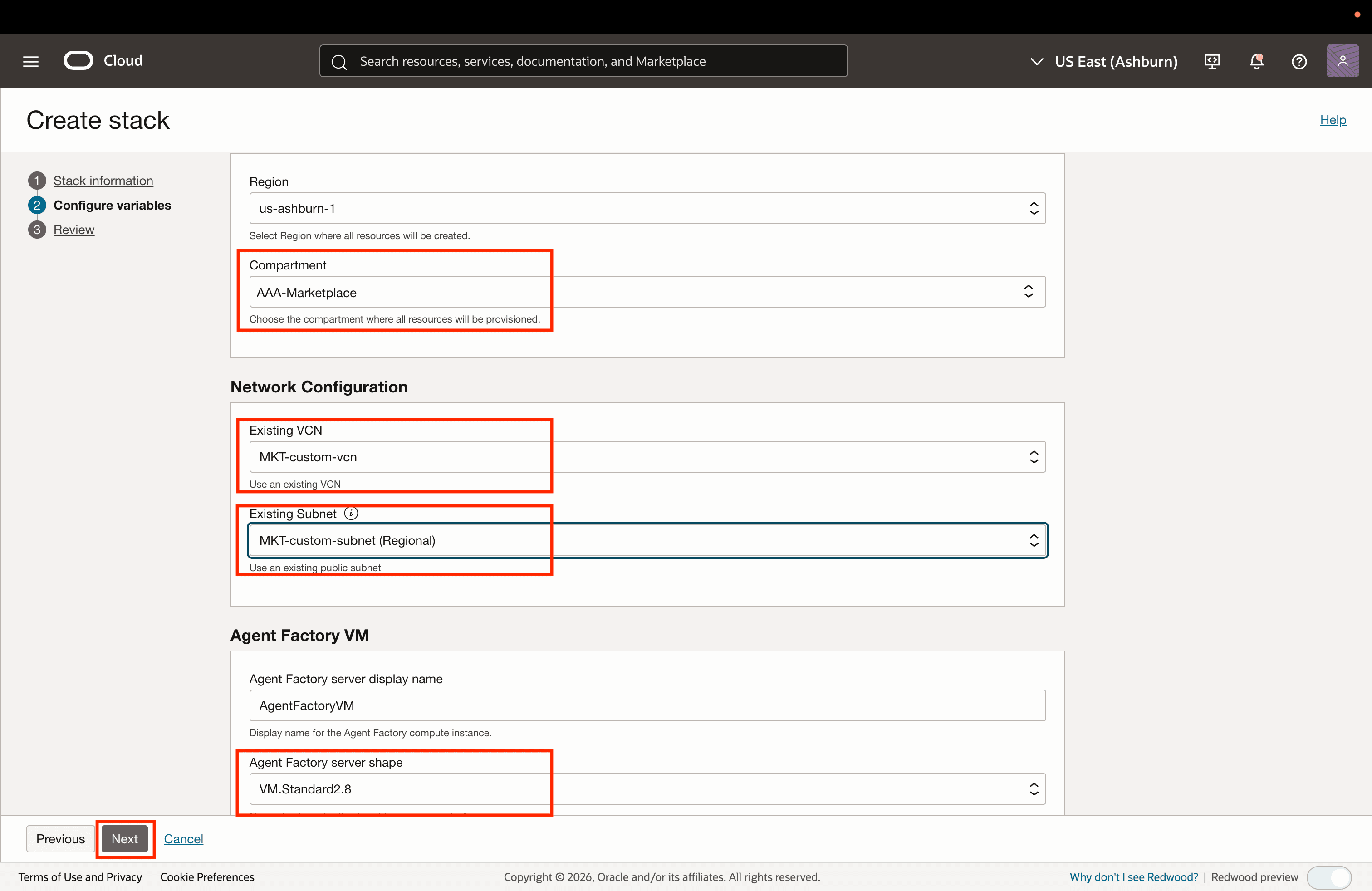
-
Under Network Configuration, select an existing VCN and subnet. These should be configured as described in the prerequisites section at the top of this page. You can now use private or public subnets, ensure to select the correct type for successful set up. Upload your own public SSH key to access the created VM later.
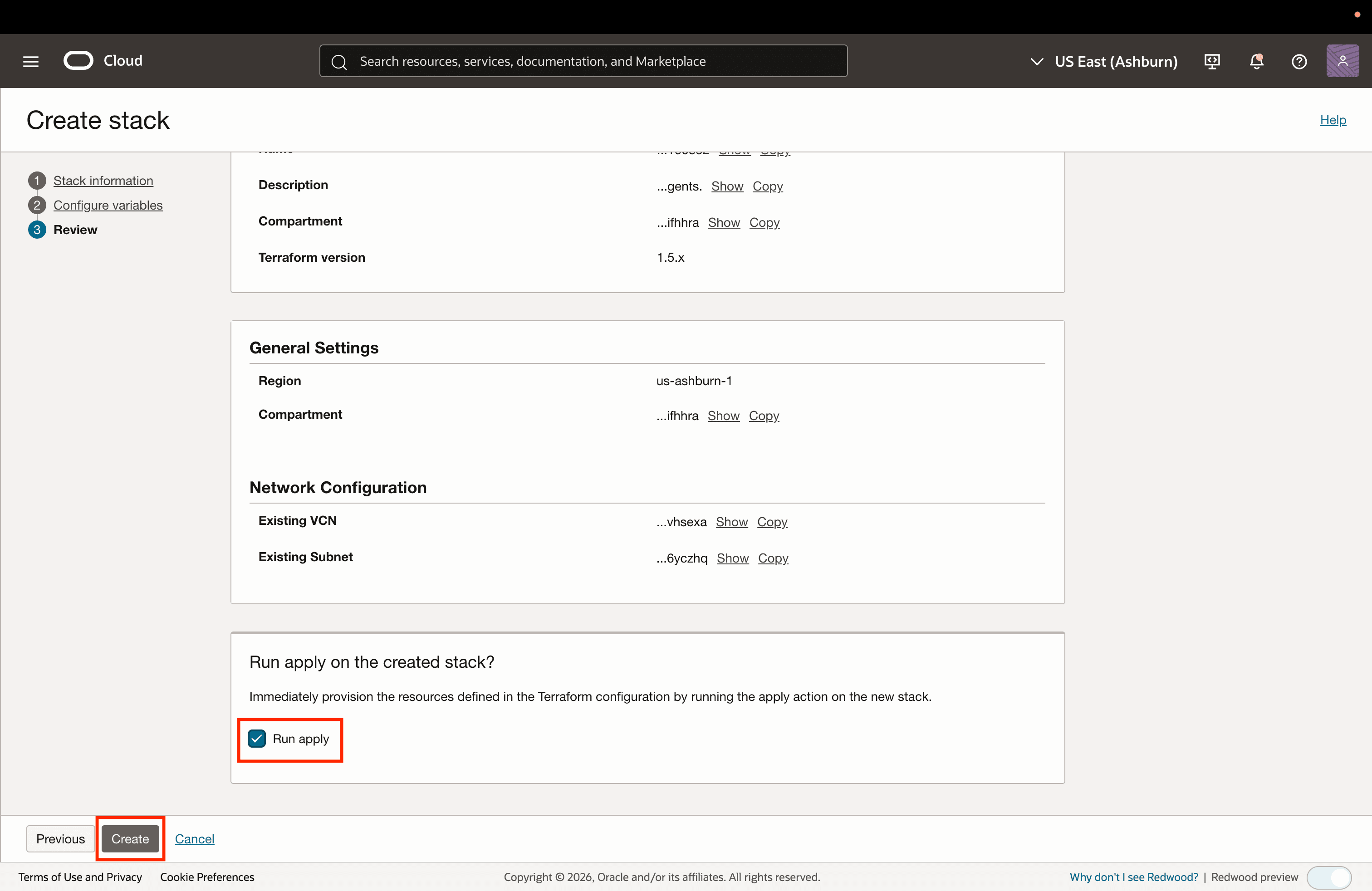
-
Provide a display name and an instance shape for the Agent Factory server and select Next.
-
Review the details and select Create to start the instance creation job.
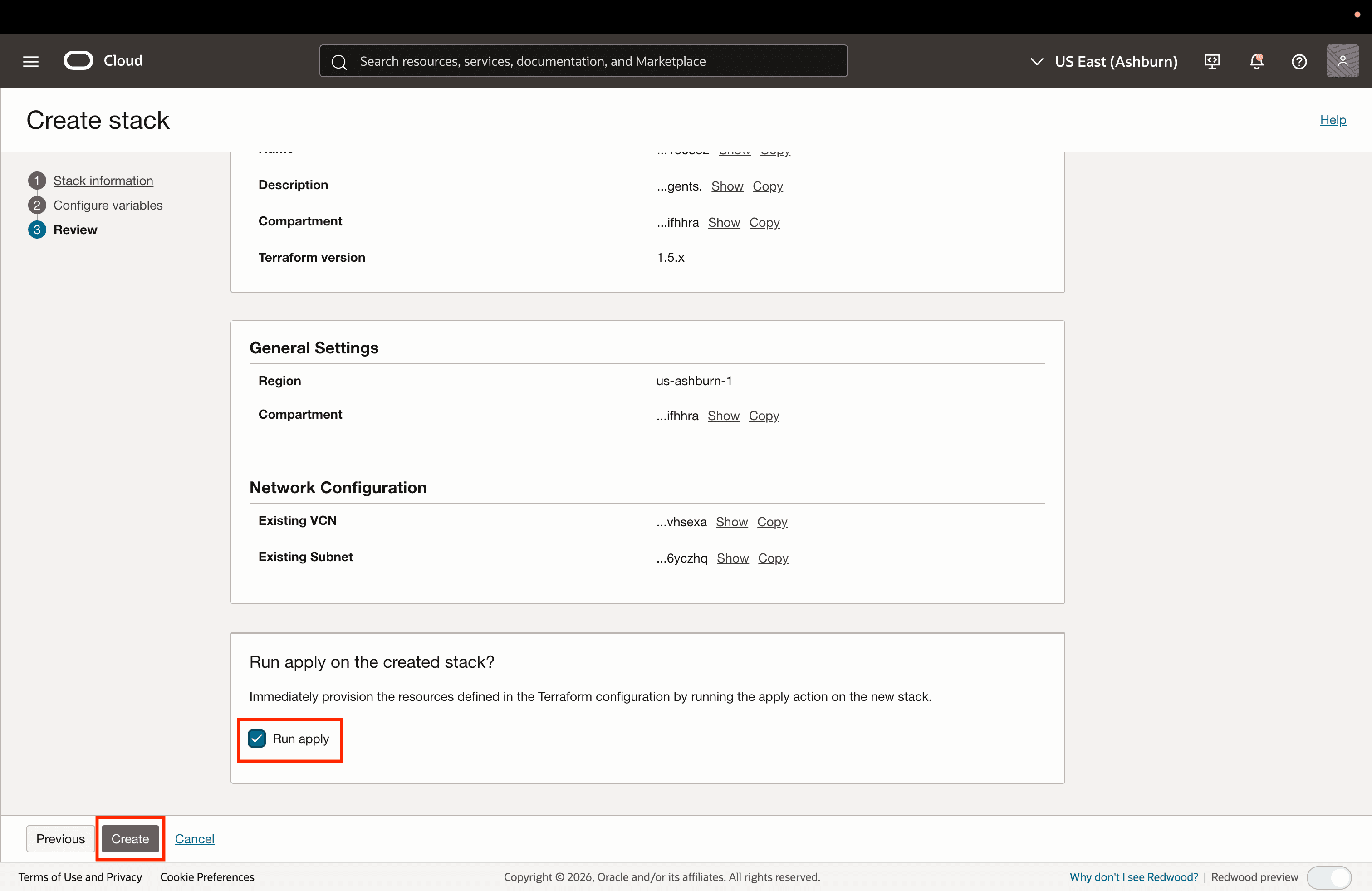
-
Once the job succeeds, copy the application URL in the format
https://<instance_public_ip>:8080/studio/installationas displayed in the logs.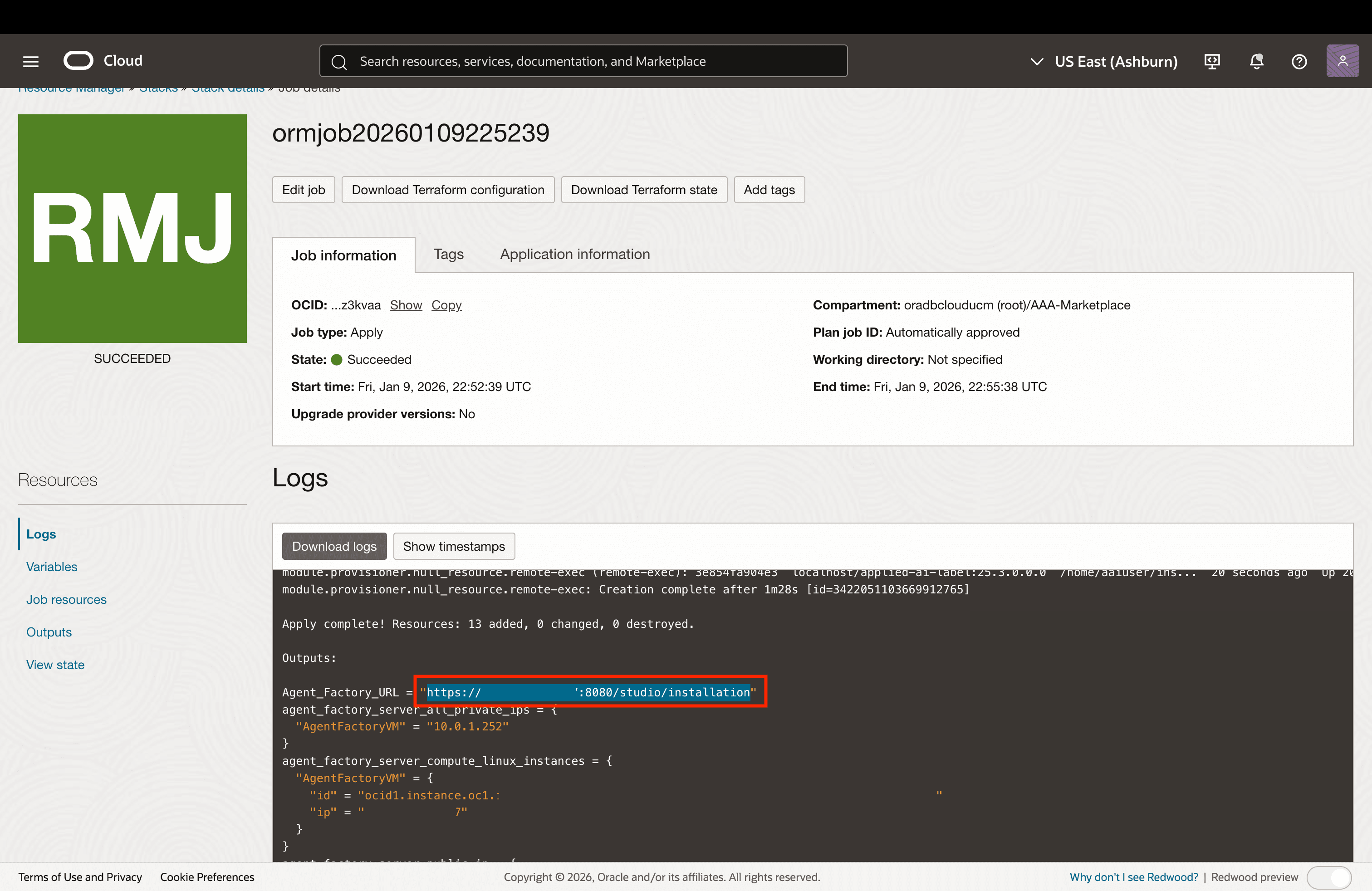
-
Access the URL to view the Sign Up page of the Oracle AI Database Private Agent Factory and start setting up the application.
Note: See Access Agent Factory Deployed in a Private Subnet to learn how to access Agent Factory when deploying in a private subnet.
Configure Application
The following prerequisites are required to successfully set up the Oracle AI Database Private Agent Factory:
-
Oracle Database 26ai. You will need access to an instance of Oracle Database 26ai. It is recommended to create a dedicated user for this purpose. This user should be used exclusively for managing these tables and not for storing production data. The following SQL script is recommended for creating the dedicated user:
CREATE USER <DB_USER> IDENTIFIED BY <DB_PASSWORD> DEFAULT TABLESPACE USERS QUOTA unlimited ON USERS; GRANT CONNECT, RESOURCE, CREATE TABLE, CREATE SYNONYM, CREATE DATABASE LINK, CREATE ANY INDEX, INSERT ANY TABLE, CREATE SEQUENCE, CREATE TRIGGER, CREATE USER, DROP USER TO <DB_USER>; GRANT CREATE SESSION TO <DB_USER> WITH ADMIN OPTION; GRANT READ, WRITE ON DIRECTORY DATA_PUMP_DIR TO <DB_USER>; GRANT SELECT ON SYS.V$PARAMETER TO <DB_USER>; exit; -
LLM endpoint. The Oracle AI Database Private Agent Factory relies on integration with a Large Language Model to function properly. You will require appropriate authentication credentials or an access key to connect the application with an available LLM instance of your choice.
Access the Application
-
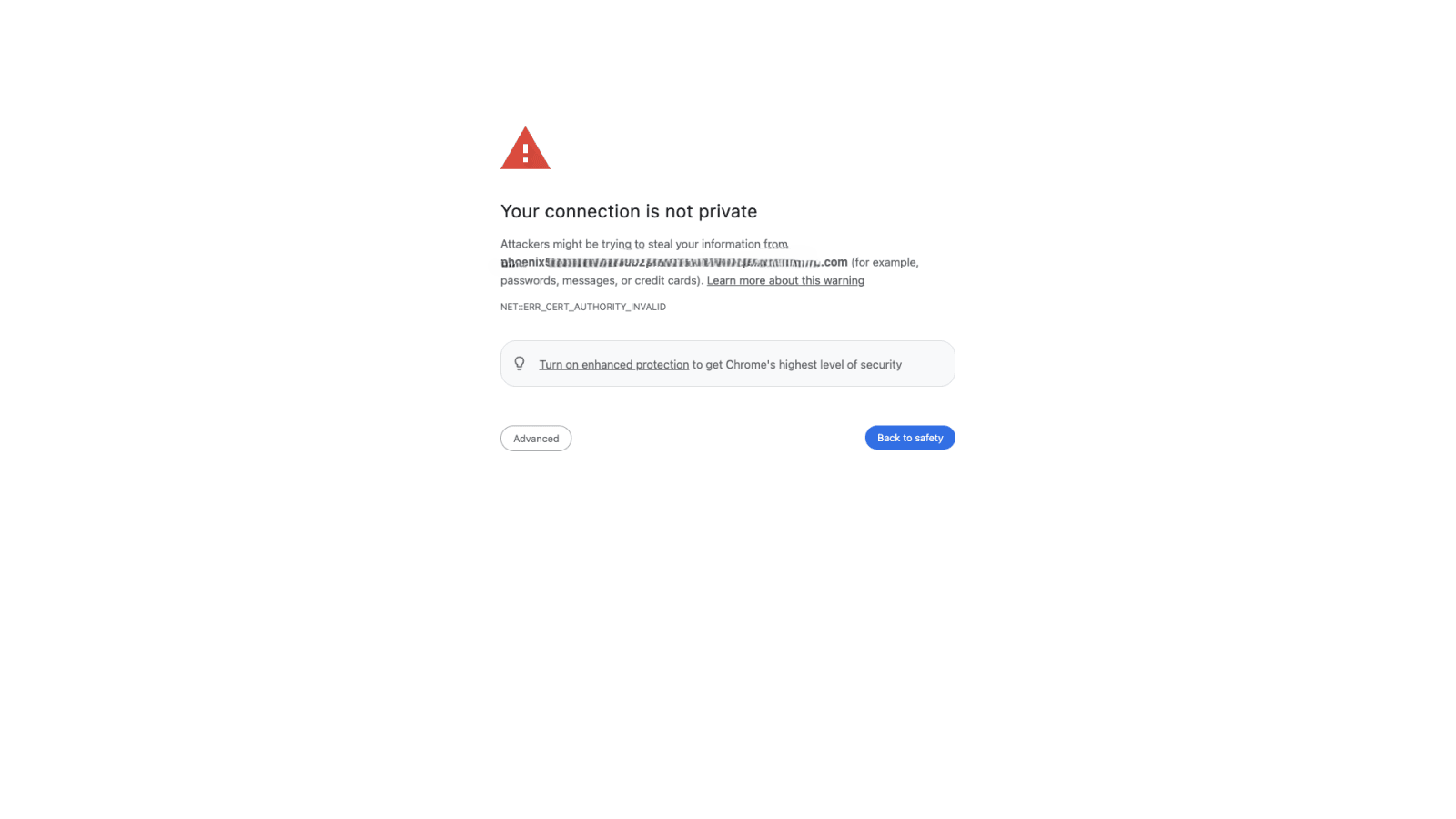
Copy and paste the application URL in a browser. You will see a page like below.
-
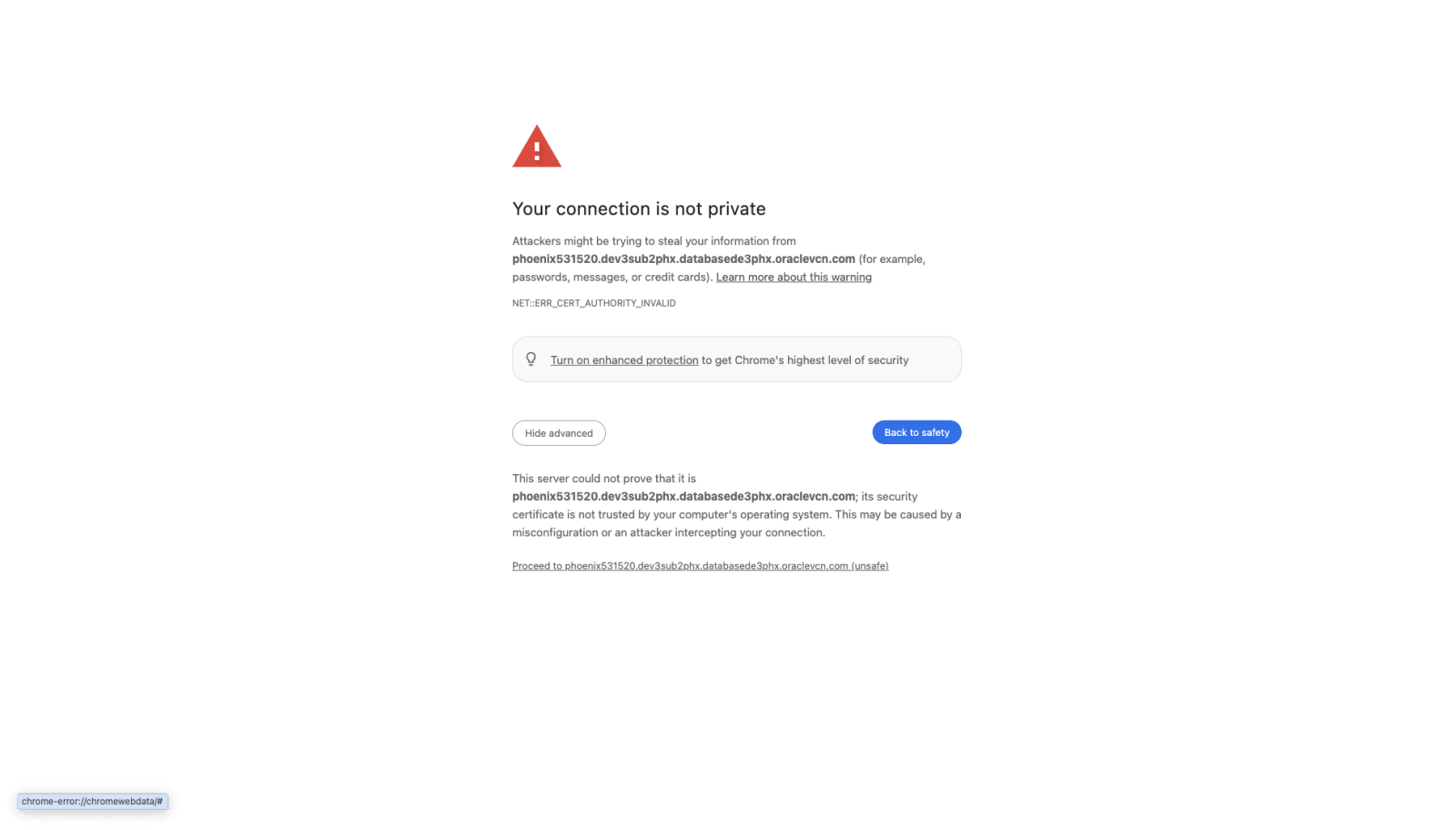
Click ‘Advanced’ and then ‘Proceed to host’.
Configure User
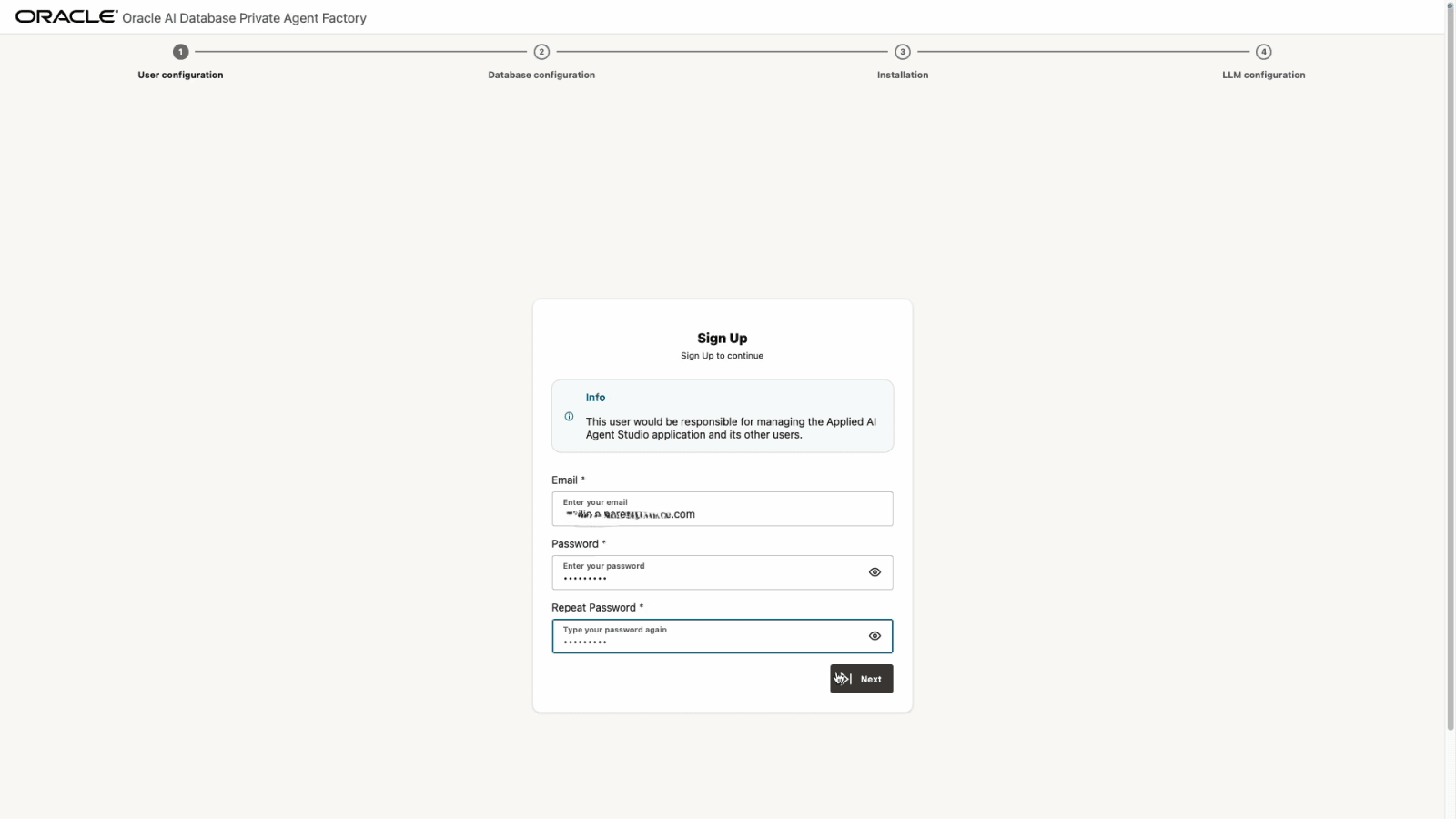
Set up an email and a secure password.
Configure Database Connection
-
Provide your database connection details. You can either enter the Oracle AI Database 26ai connection details directly, provide the connection string or upload a database wallet file, along with a user and password.
-
Basic: Enter all the connection details manually and the previously created database user and password.
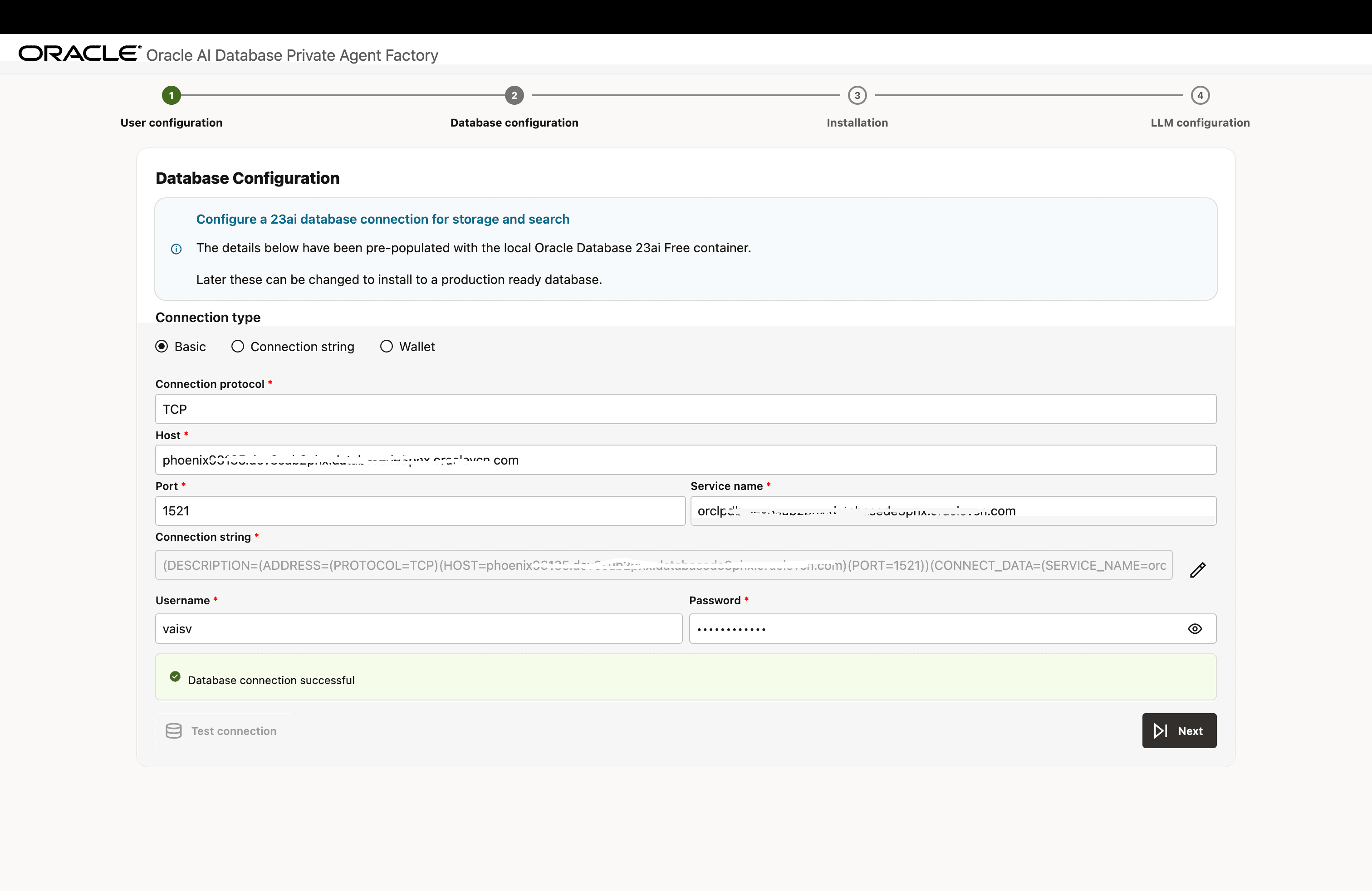
Description of the illustration install-step-2-db-config-1.png
-
Connection String: Enter the Database Connection String and the previously created database user and password.
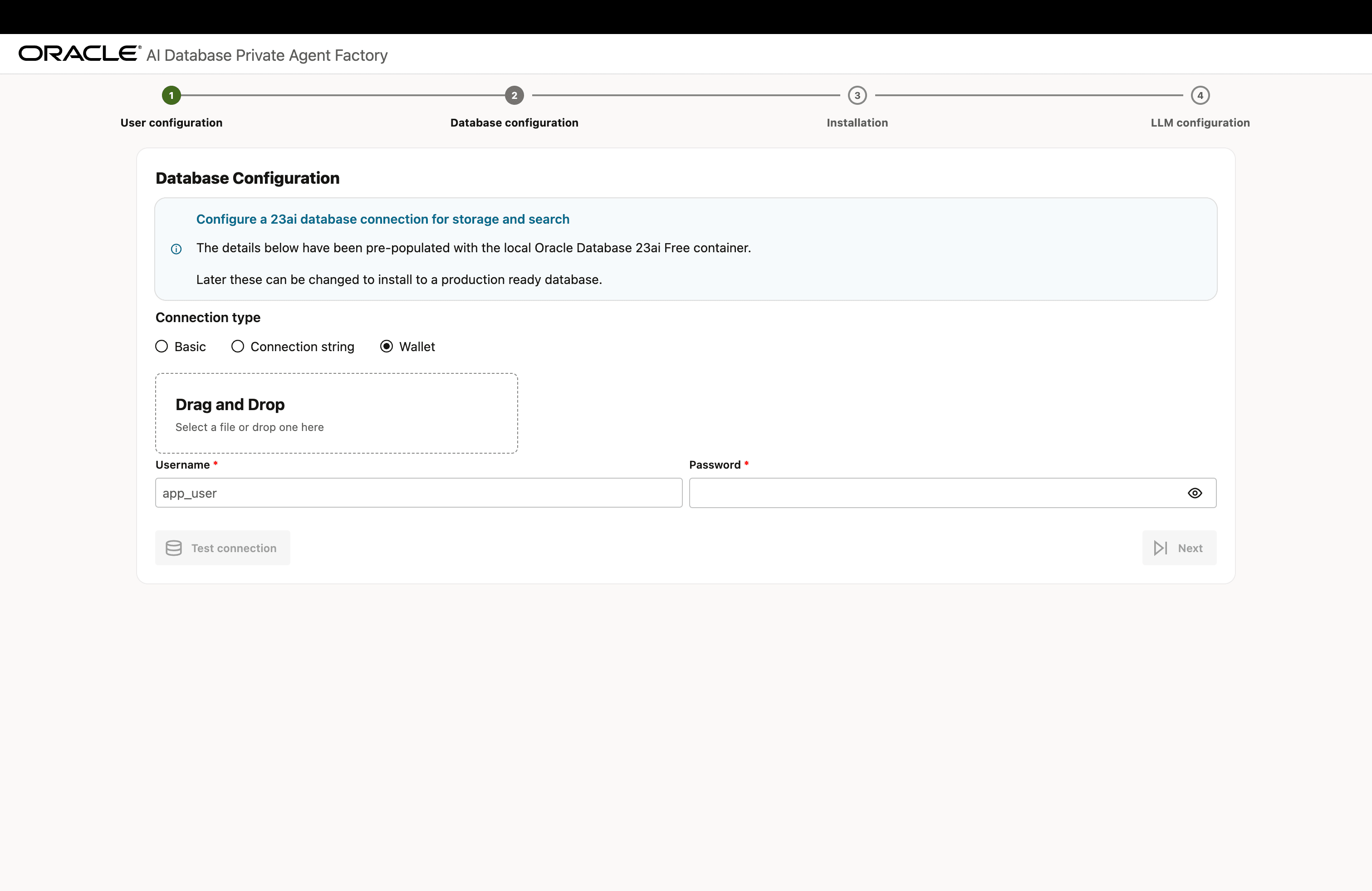
Description of the illustration install-step-2-db-config-2.png
-
Wallet: Upload a Database Wallet File and enter the previously created database user and password.
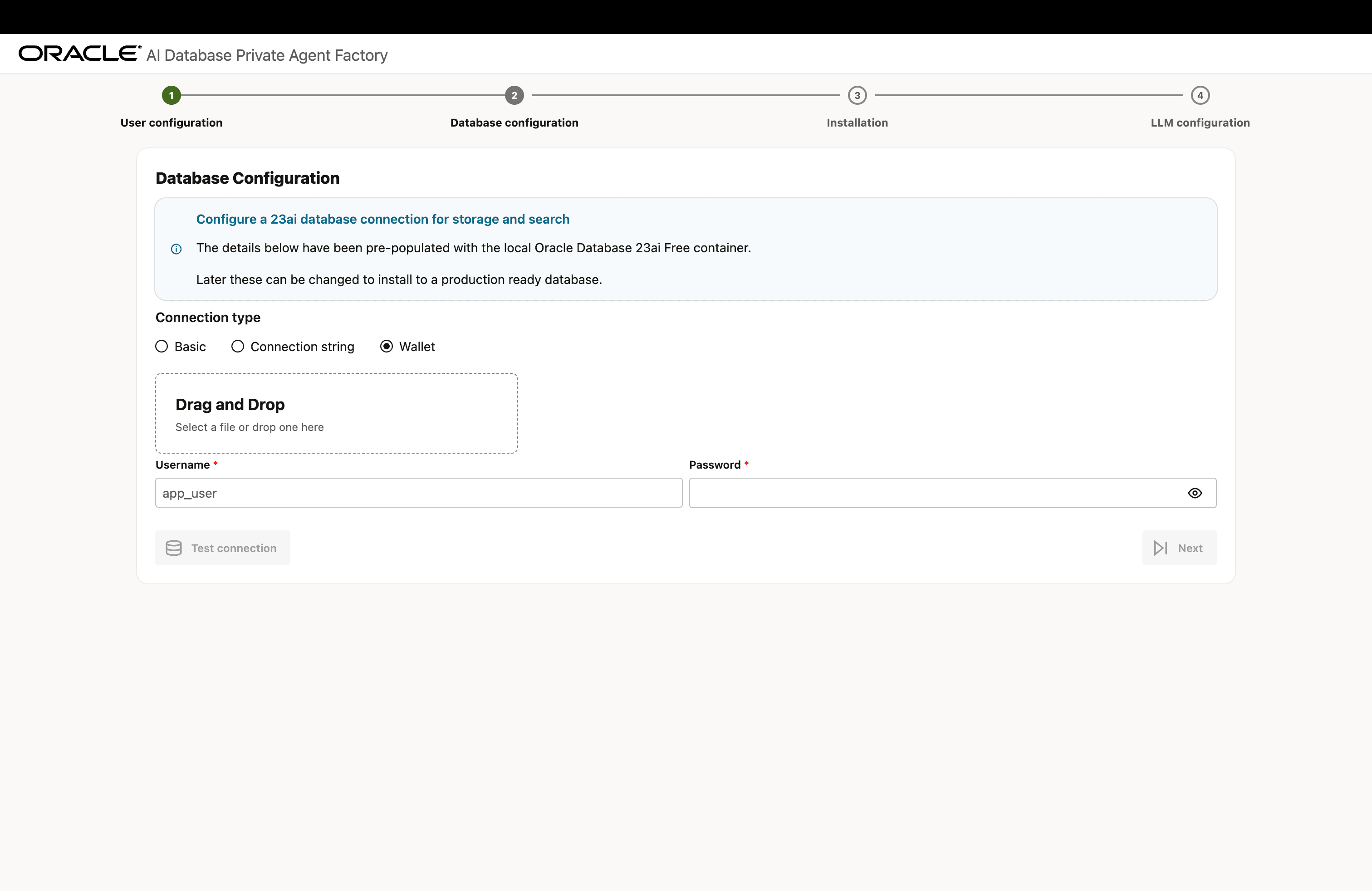
Description of the illustration install-step-2-db-config-3.png
To successfully install the Knowledge Agent, including the pre-built Knowledge Assistants, Agent Factory requires the database to access OCI Object Storage using Pre-Authenticated Request (PAR) files. Verify whether
WALLET_LOCATIONorENCRYPTION_WALLET_LOCATIONis specified in thesqlnet.orafile on the database server. If either is configured, ensure that the required OCI certificates are added to the wallet. If the certificates are not present, add them to the wallet to enable access to Object Storage files and prevent Knowledge Agent installation failures. If the database does NOT use a wallet, you can skip this step.Click here to download the certificates you need to add to the wallet. Below example assumes that the SSL wallet is located at
/u01/app/oracle/dcs/commonstore/wallets/ssland that you have unpacked the certificates in/home/oracle/dbc:#! /bin/bash # Check if the certificates are available under "Trusted Certificates" orapki wallet display -wallet /u01/app/oracle/dcs/commonstore/wallets/ssl # Add certificates if they are missing for i in $(ls /home/oracle/dbc/DigiCert*cer) do orapki wallet add -wallet /u01/app/oracle/dcs/commonstore/wallets/ssl -trusted_cert -cert $i -pwd <SSL Wallet password> doneSee Create SSL Wallet with Certificates for more details.
-
-
Click Test Connection to verify that the information entered is correct. Upon a successful connection, you will see a ‘Database connection successful’ notification. Click Next.
Install Components
-
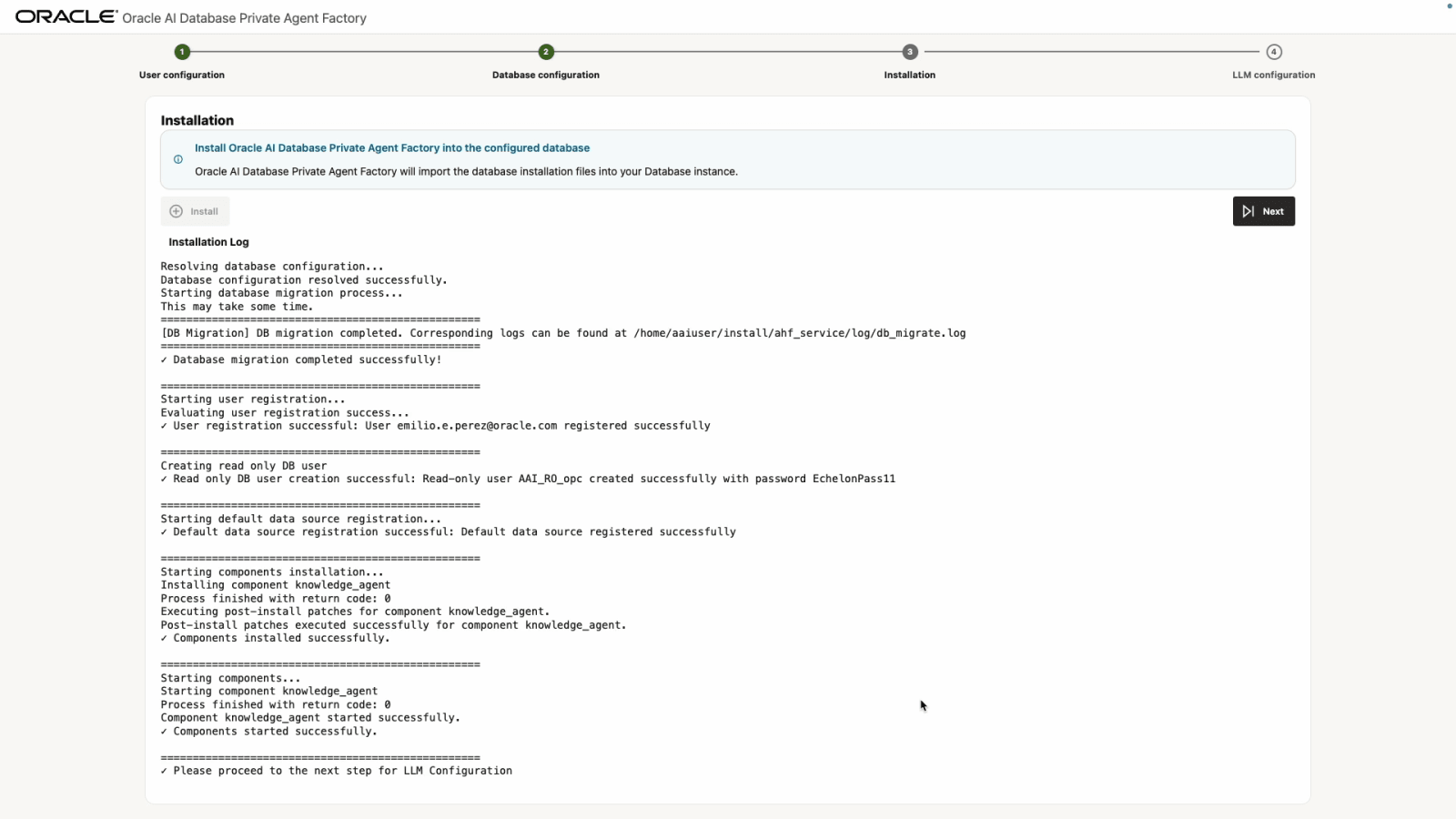
Click Install and wait a few minutes for the setup to complete.
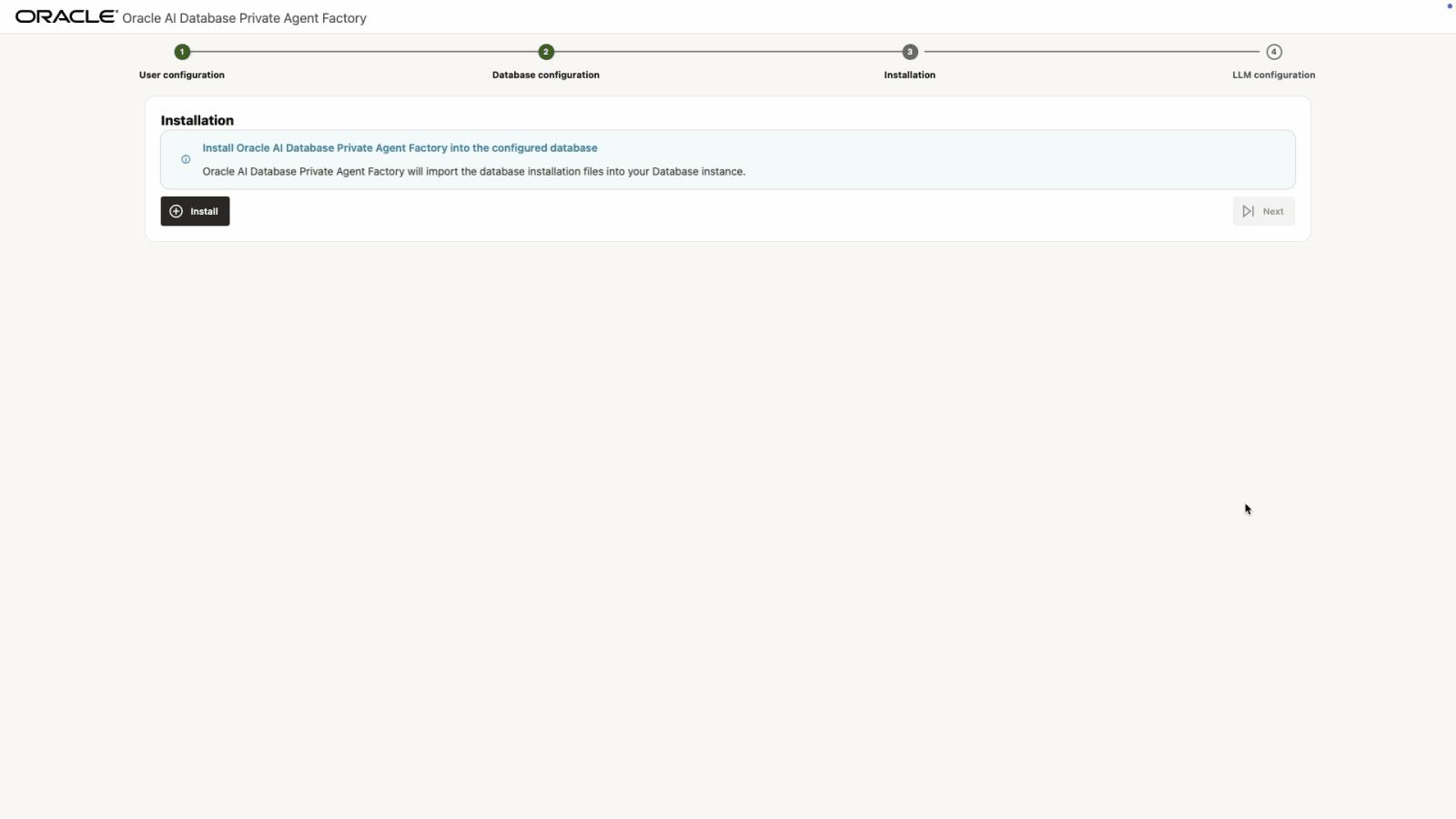
-
When finished, you will see the message ✓ Please proceed to the next step for LLM Configuration. Click Next.
Configure LLM
Before you continue, see Manage LLM to review the supported models and LLM providers, and how to set them up.
-
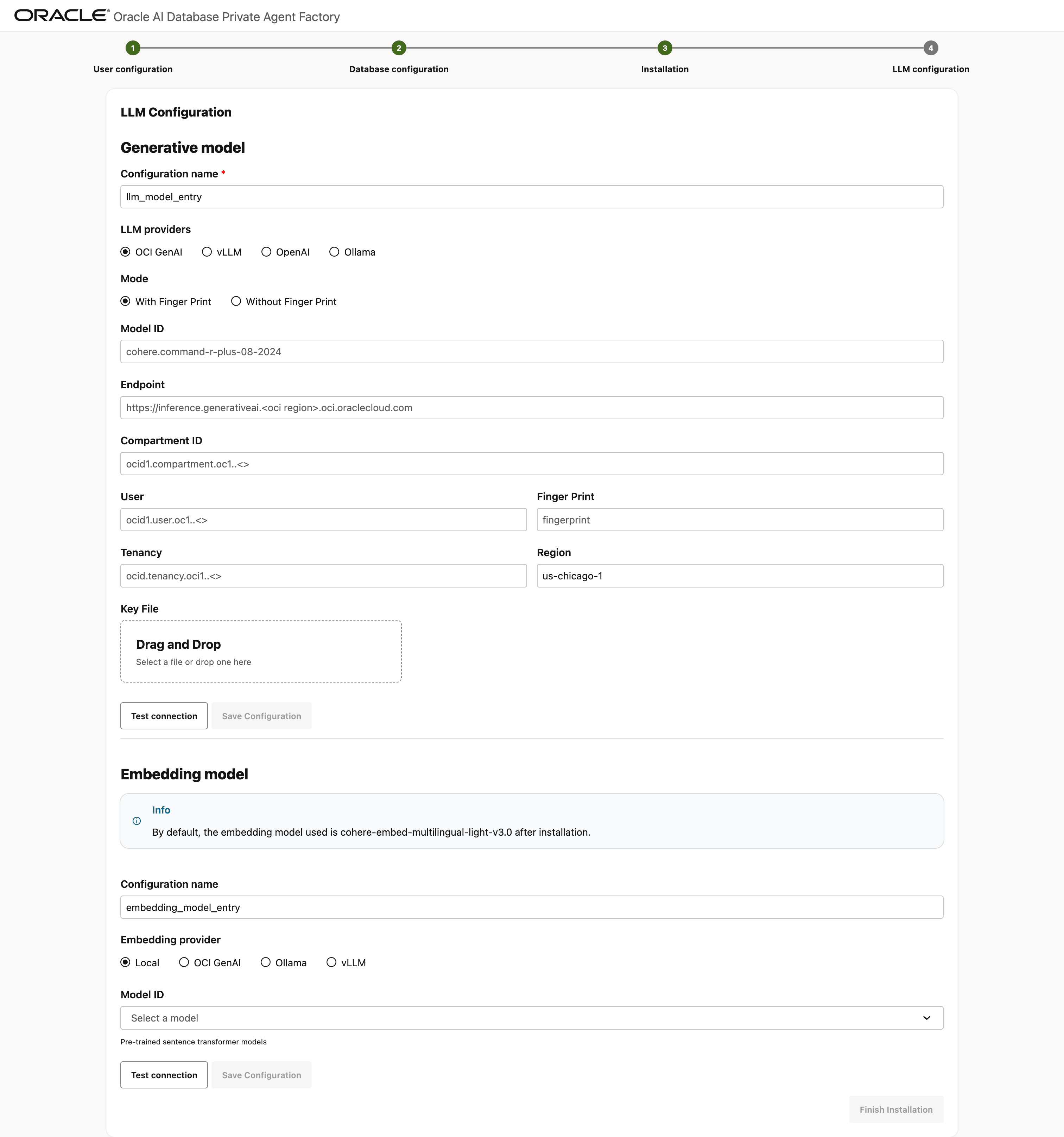
Select an LLM configuration based on your LLM provider. The application supports integration with Ollama, vLLM, OpenAI, and the full suite of OCI GenAI offerings. Depending on your selected provider, the required connection credentials may differ.
-
Enter the required details in the selected LLM configuration and select Test Connection. Once you see the Connection successful message, select Save Configuration.
Optionally, configure an embedding model to use for data ingestion and retrieval. By default,
multilingual-e5-basemodel is used to generate embeddings and is also the local embedding model included with the service. If you choose OCI GenAI as the embedding provider, note that the following embedding models are supported for Knowledge Agents.- cohere.embed-v4.0
- cohere.embed-english-v3.0
- cohere.embed-multilingual-v3.0
- cohere.embed-multilingual-light-v3.0
-
Finally, select Finish Installation to complete the setup and be redirected to the login page.
Log In to the Application
Log in with the email and password created previously. After logging in, you will be greeted by the Get Started screen.