Data Analysis Agents
What is a Data Analysis Agent?
A Data Analysis Agent is an AI-powered agent designed to work directly with your enterprise databases. It understands your schema, analyzes structured data, and automatically generates insights, explanations, and visualizations using LLM capabilities.
In simple terms, you can ask questions about your data so you get answers, charts, and explanations without writing SQL.
How it works?
Data Analysis Agents automatically turn questions into insights by working directly with your database.
The agent understands your database schema, translates questions into SQL, runs the query safely, and presents insights with charts, tables, and explanations.
- Semantic & data-relevant question generation: Expands and refines your questions by using variation analysis.
- LLM-powered explanations: Summarizes what the data shows and why the results are relevant.
- Automatic visualization generation: Creates charts and tables when applicable.
- Integration ready: Connects directly to Oracle Database 19c and later.
Data Analysis Agents generate and run SQL against the selected database objects. The agent can only use objects that are visible to the configured database data source user and selected during agent creation.
Use these practices for production data:
- Expose curated views instead of broad base tables.
- Grant read access only to required schemas, tables, views, or views over joins.
- Avoid exposing columns that should not appear in generated SQL or responses.
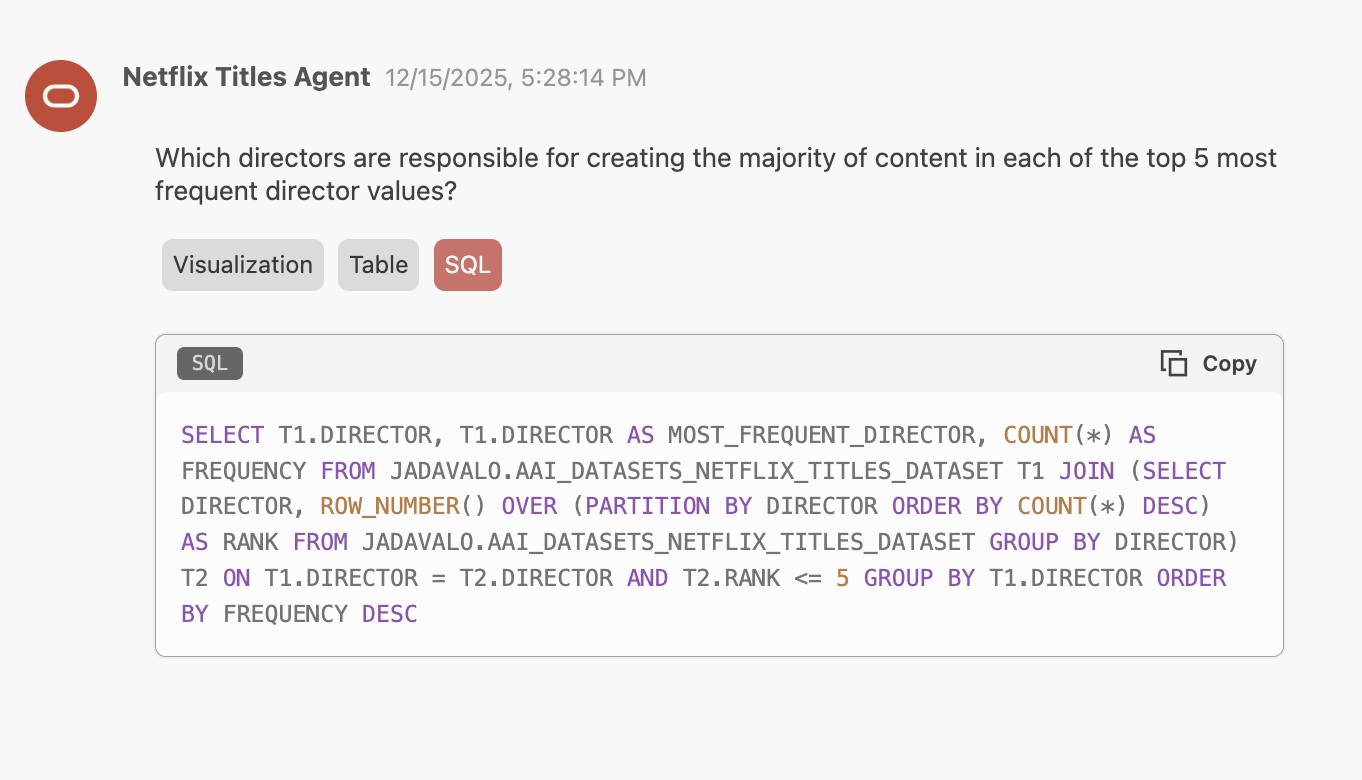
- Validate generated SQL in the SQL tab before relying on the answer.
- Use sample datasets for demonstrations instead of production data.
Create a Data Analysis Agent
Before creating a Data Analysis Agent, configure at least one database data source and confirm that the database user can query the tables or views you plan to expose. Prefer views when you need to restrict rows, columns, joins, or sensitive fields.
-
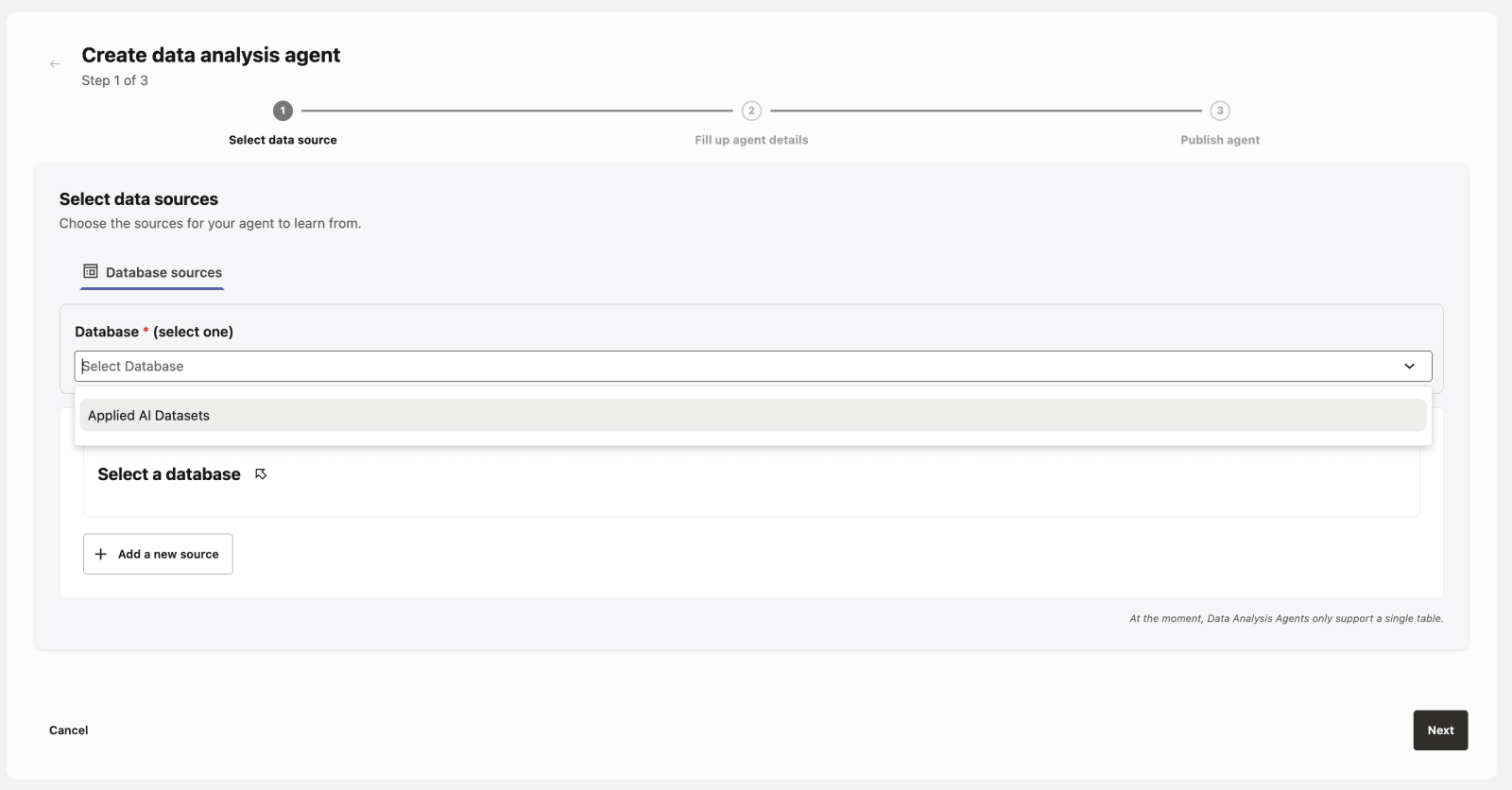
Select Data Sources
-
Supports structured data sources such as Oracle Database 19c or later and database views.
-
See Database Data Source for more details.
-
Or use Sample Datasets that you can easily import to explore and experiment right away.
-
-
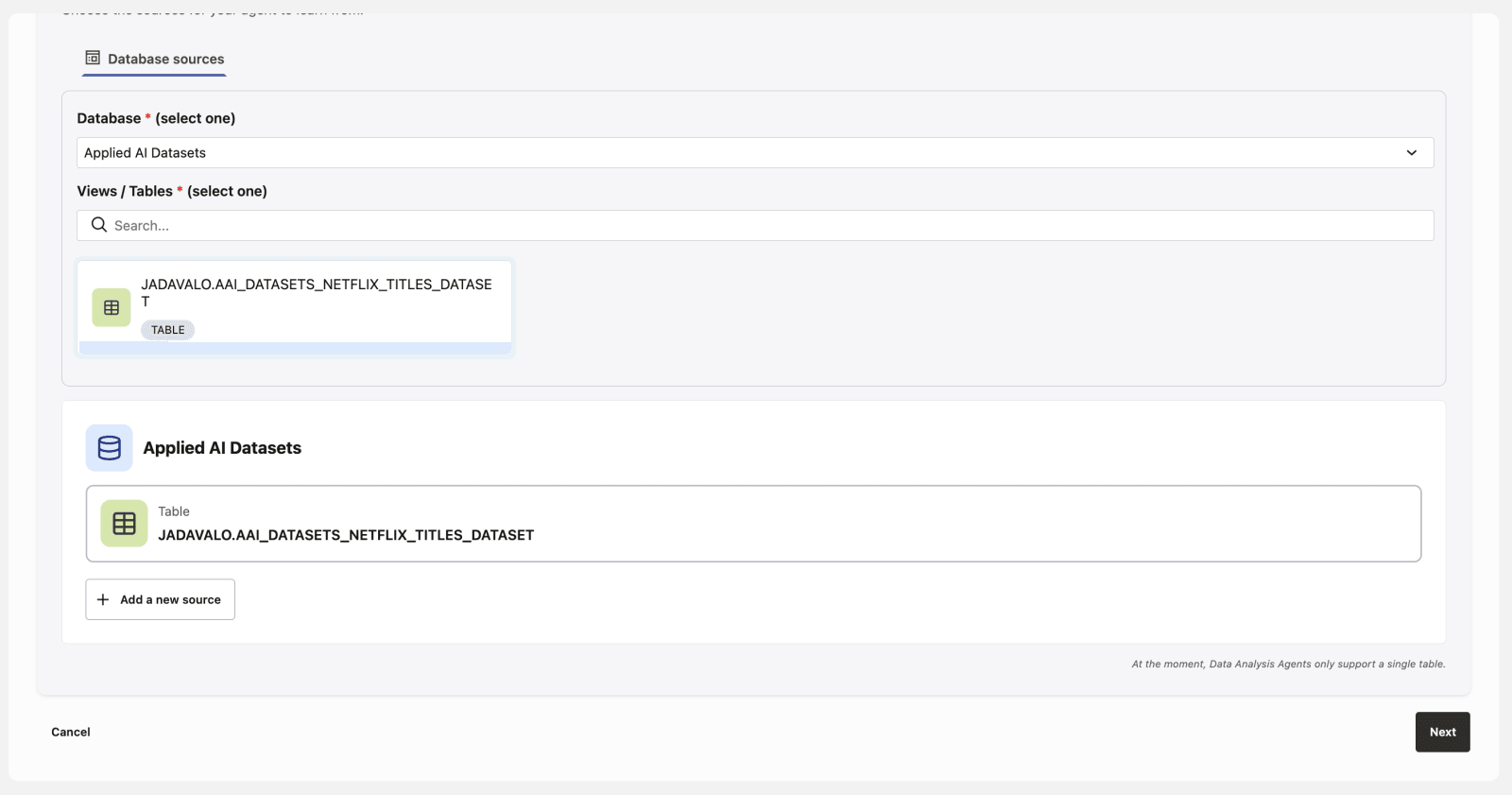
Select View/Table
-
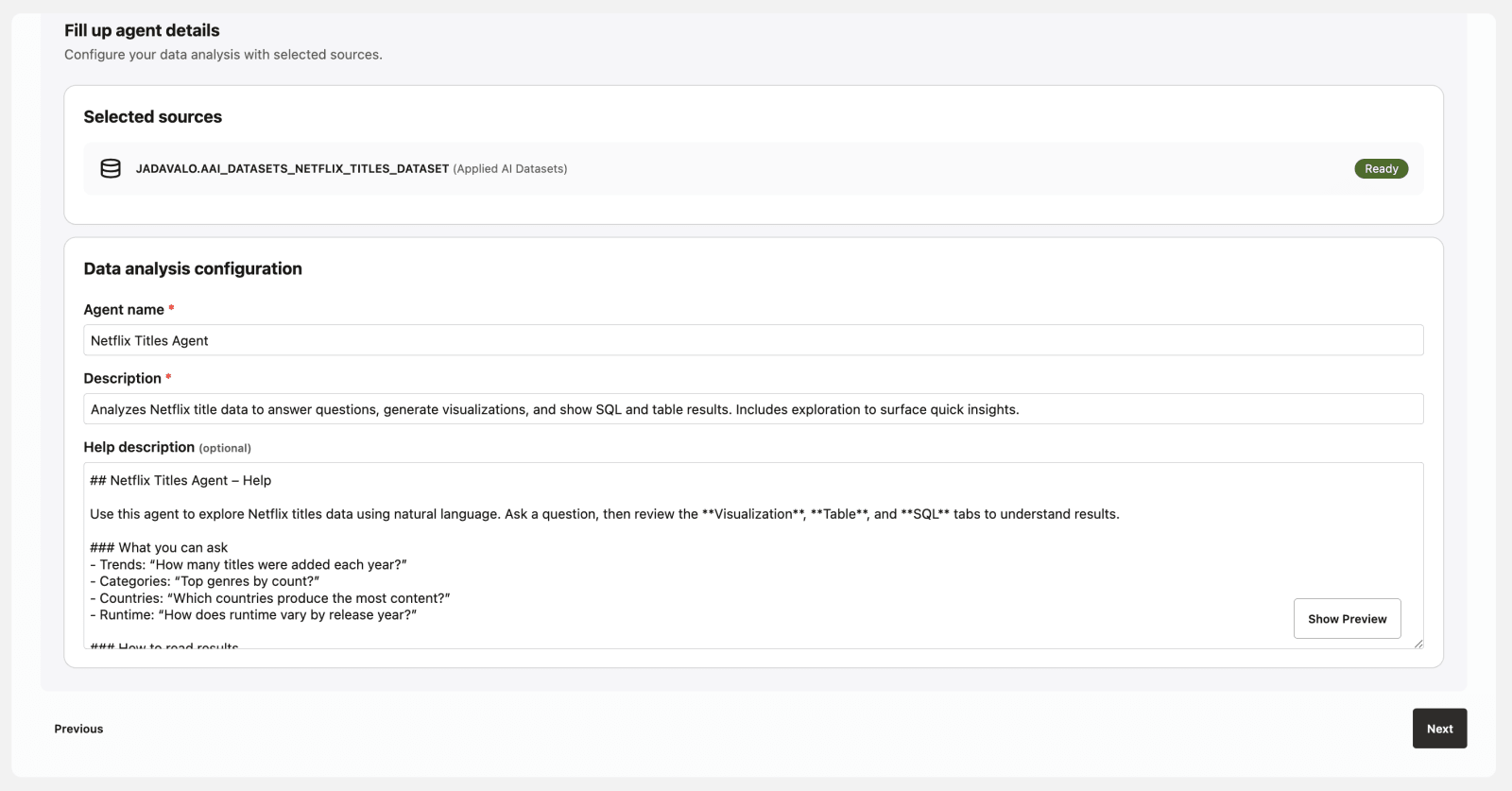
Define Agent Details
- Assign a name and description to the data analysis agent.
-
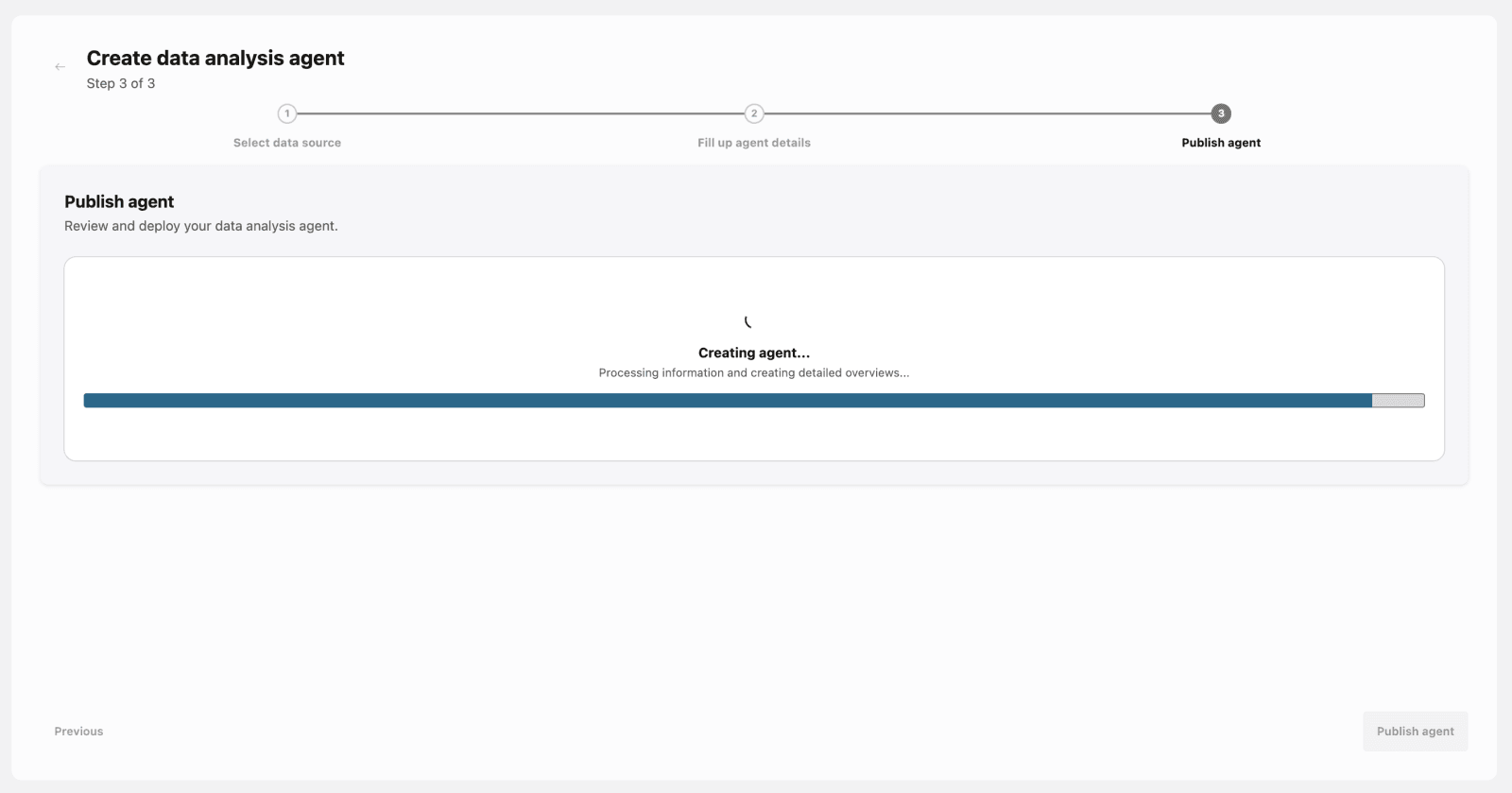
Publish the Agent
- After configuration, publish the agent to make it available.
-
Start Conversations
- Interact with the agent and get answers based on the source data.
NoteAn initial exploration is made when opening the chat for the first time.
-
Review Agent Results
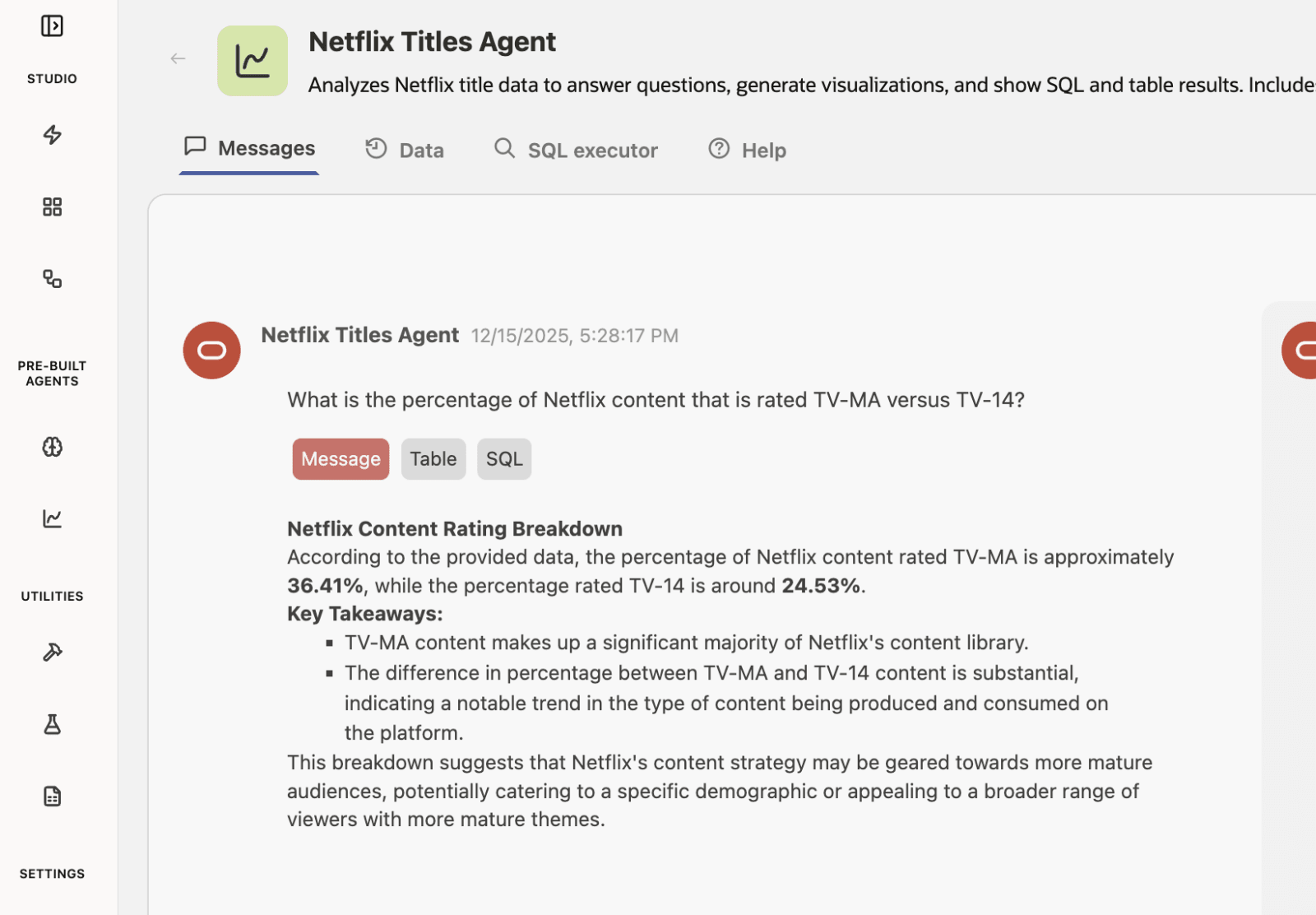
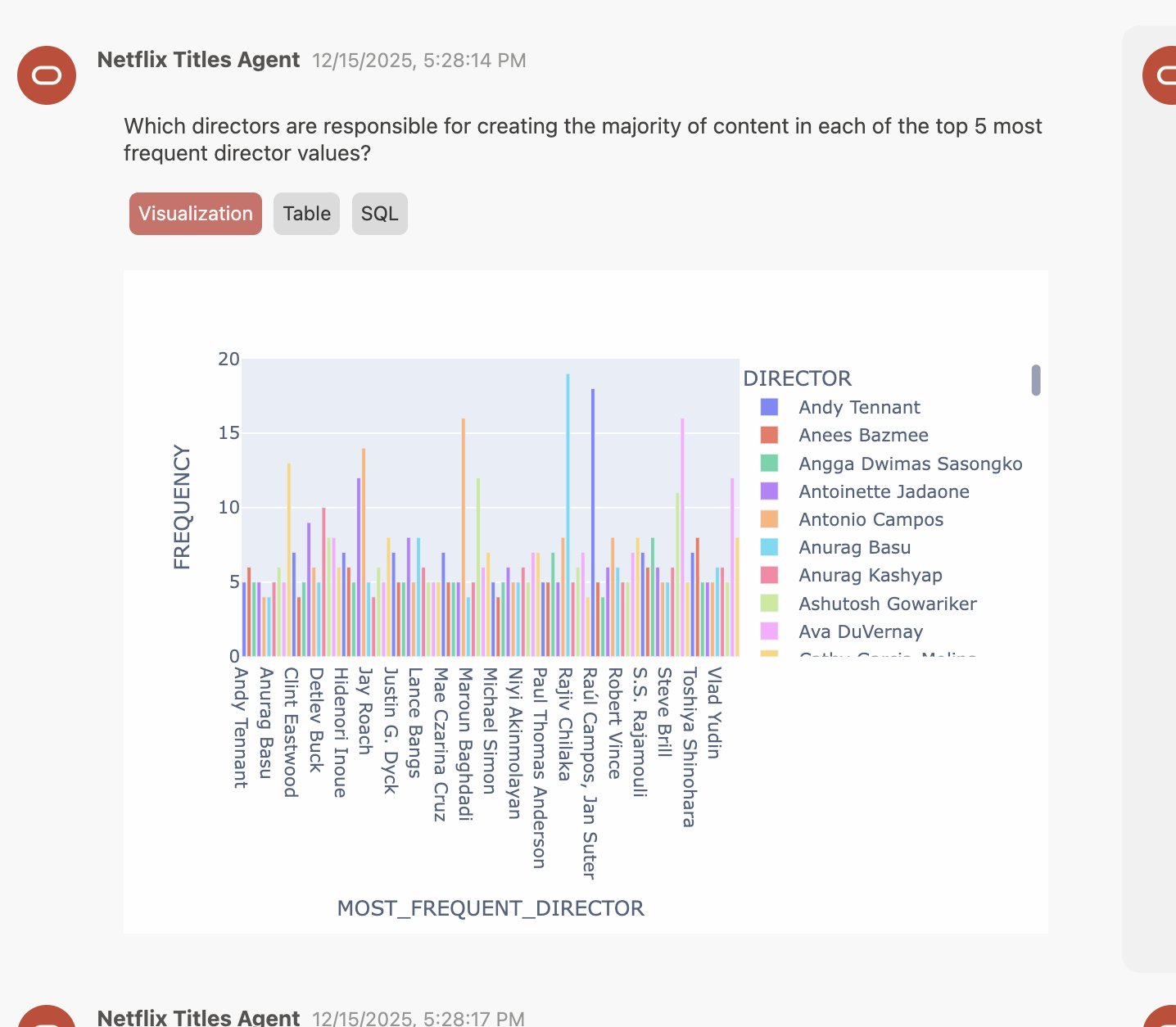
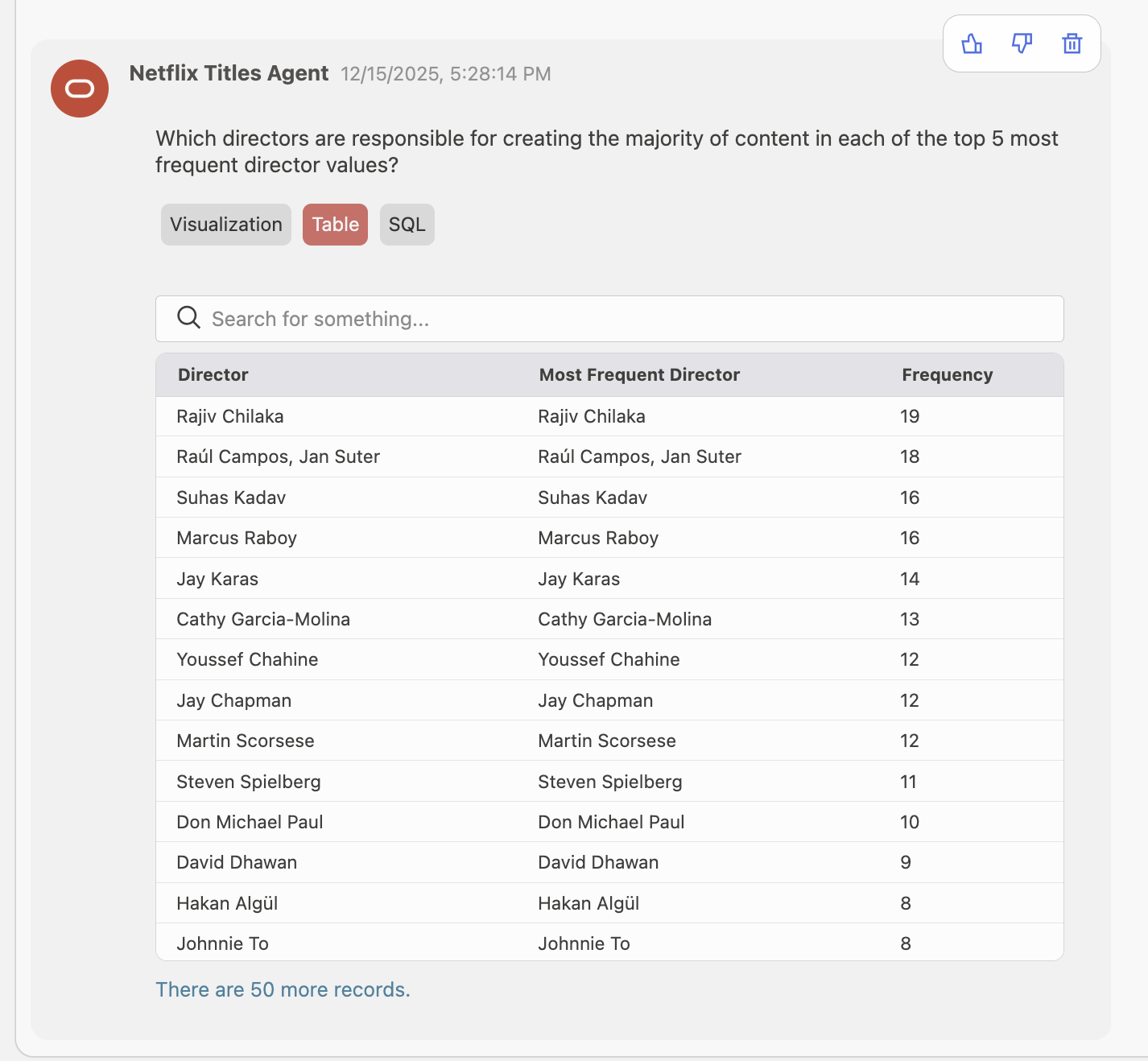
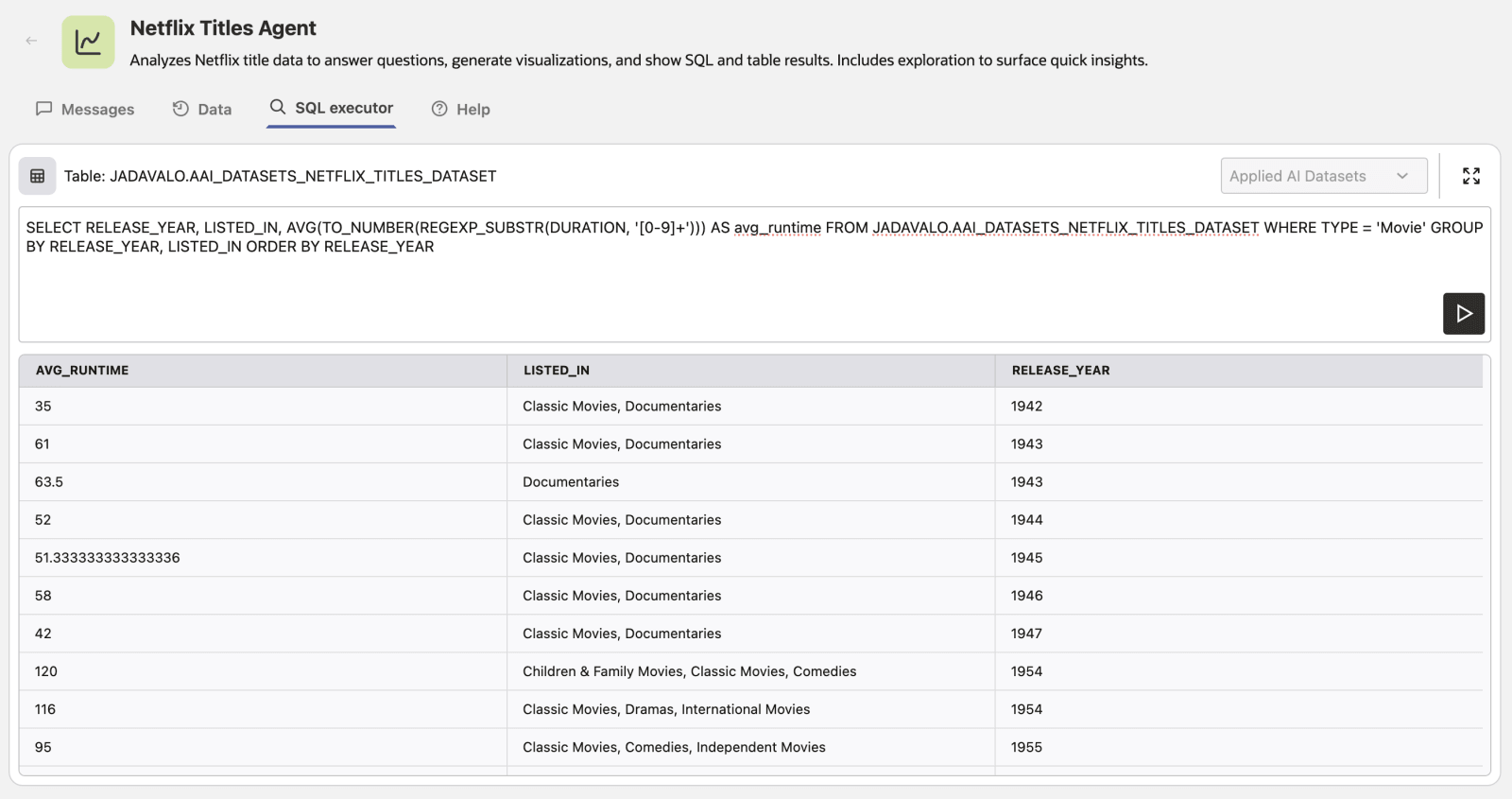
- Review LLM-powered explanations, self-generated visualizations, structured data tables, and SQL queries from results.
NoteSome responses might not have Messages tab explicitly, that is because there is no other visualization to represent the answer.
- LLM powered explanation
- Self generated visualization
- Structured data
- SQL Query
-
Filter Structured Data

-
Run SQL statements
Troubleshoot Data Analysis Agents
| Symptom | Check |
|---|---|
| A database source is not available | Verify the source is a database data source and connection testing succeeds. |
| Tables or views are missing | Verify grants for the database source user and select the expected objects during agent setup. |
| Joins fail or produce poor results | Provide curated views with meaningful names and descriptions, or simplify the object list. |
| The generated SQL fails | Inspect the SQL tab, verify object names and grants, and update the source objects or view definitions. |
| Initial exploration fails | Check model configuration, database source permissions, and diagnostics logs. |