3.6.13 Saving an Interactive Report
Save a private or public interactive report. Only the user who creates a private report can view, save, rename, or delete that private report.
- About the Report List
You can view different versions of an interactive report by selecting reports from a Reports list of default or primary reports and private reports. - About Configuration Dependencies
The ability to save an interactive report is configurable by the application developer who creates the interactive report. - Saving a Public or Private Interactive Report
End users can save an interactive report and classify it as Public or Private. - Renaming a Public or Private Interactive Report
Rename a public or private report that you have created by clicking its report name. - Deleting a Public or Private Interactive Report
Remove a public or private report that you have created by clicking its Remove Report icon.
Parent topic: Customizing an Interactive Report Using the Actions Menu
3.6.13.1 About the Report List
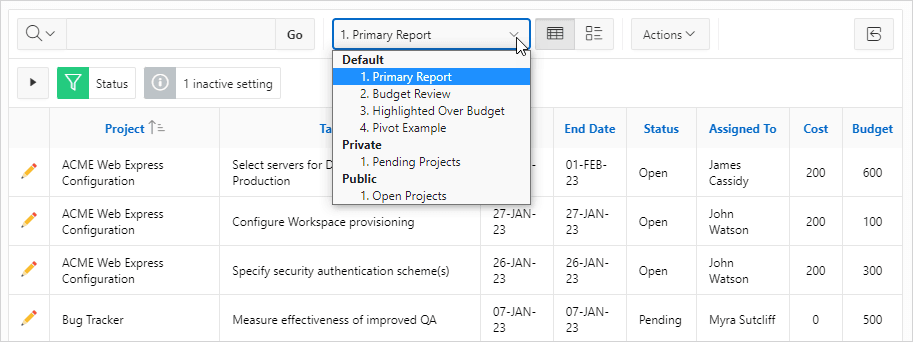
You can view different versions of an interactive report by selecting reports from a Reports list of default or primary reports and private reports.
The following illustration shows the Reports list on the Search bar of an interactive report.
-
Default - Primary Report
This are the initial reports created by the application developer. Default, Primary reports cannot be renamed or deleted.
-
Private - 1. Pending Projects
This is a Private report. Only the user who creates a private report can view, save, rename, or delete it.
-
Public - 1. Open Projects
This is a Public report. Only the user who creates a public report can save, rename, or delete it. Other users can view and save the layout as another report.
Parent topic: Saving an Interactive Report
3.6.13.2 About Configuration Dependencies
The ability to save an interactive report is configurable by the application developer who creates the interactive report.
See Also:
- Customizing the Interactive Report Search Bar in Oracle APEX App Builder User’s Guide
- Saving Interactive Reports in Oracle APEX App Builder User’s Guide
Parent topic: Saving an Interactive Report
3.6.13.3 Saving a Public or Private Interactive Report
End users can save an interactive report and classify it as Public or Private.
A Public report can be saved, renamed, or deleted by the end user who created it. Other users can view and save the layout as another report. Only the user who creates a Private report can view, save, rename, or delete it.
To save a public or private interactive report:
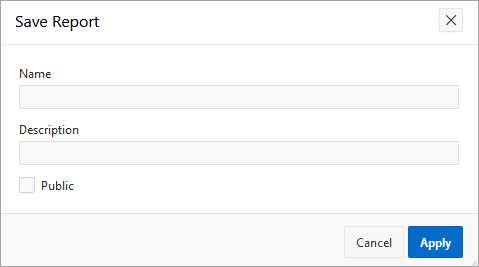
- Click the Actions menu and select Report then Save Report.
The Save Report dialog appears.
3.6.13.4 Renaming a Public or Private Interactive Report
Rename a public or private report that you have created by clicking its report name.
To rename a public or private interactive report:
- Select a public or private interactive report to rename.
- Click the Saved Report filter which displays in the Report Settings area above the report.
- In the Rename Report dialog, edit the attributes (for example, enter a new name).
- Click Apply.
Parent topic: Saving an Interactive Report
3.6.13.5 Deleting a Public or Private Interactive Report
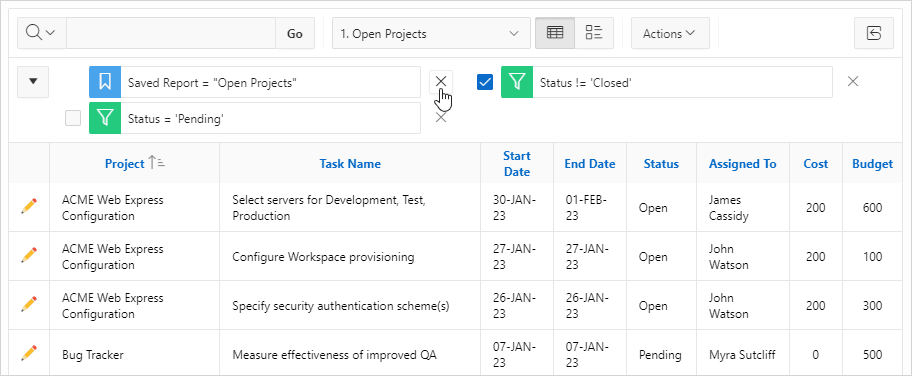
Remove a public or private report that you have created by clicking its Remove Report icon.
To delete a public or private interactive report:
- Click the Remove Report icon (X) next to the report name.
Parent topic: Saving an Interactive Report