25.4.6 Activating an In Development Workflow
Activate a workflow version before running it outside Development Mode.
- Workflow your_static_id has no Active version
Caution:
To use a workflow outside of a Development Mode session, you must activate a workflow version first.
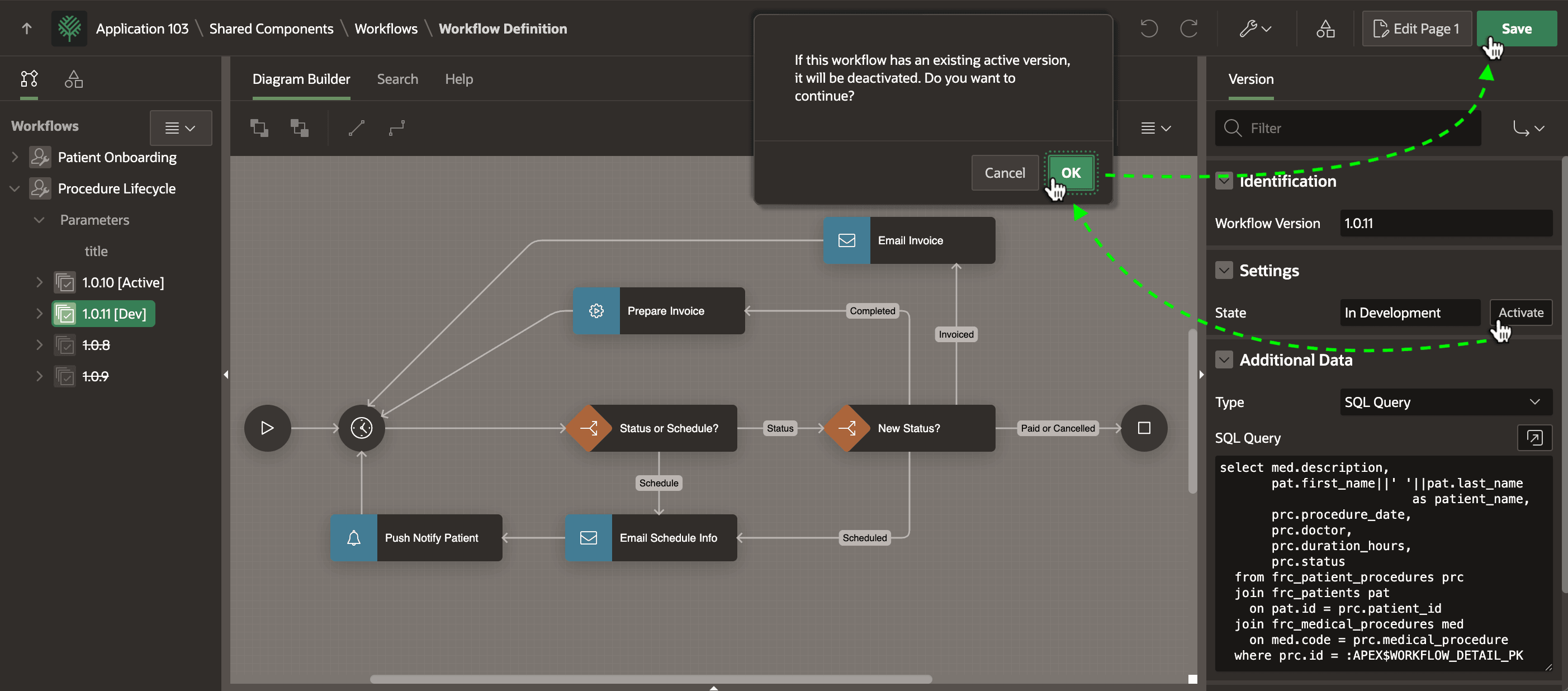
To activate a version, select it in the Workflows tree. First, ensure it has a Workflow Owner participant configured. It's recommended to configure a Workflow Administrator, too. Then, use the Activate option on the context menu. Alternatively, as shown below, click the (Activate) button next to the State setting in the Property Editor. A confirmation dialog appears informing you any currently active version will be deactivated. This means the state of the existing Active workflow changes to Inactive.
Workflow versions in the Inactive state display with a strikethrough font in the Workflows tree like 1.0.8 and 1.0.9 below. Make any activations and deactivations permanent by clicking (Save) in the Diagram Builder.
Figure 25-161 Activating an In Development Workflow
Parent topic: Maintaining Workflow Processes