25.1.3.6 Adding a Connection Between Activities
Connect activities by dragging a plus sign from the source activity to the target activity.
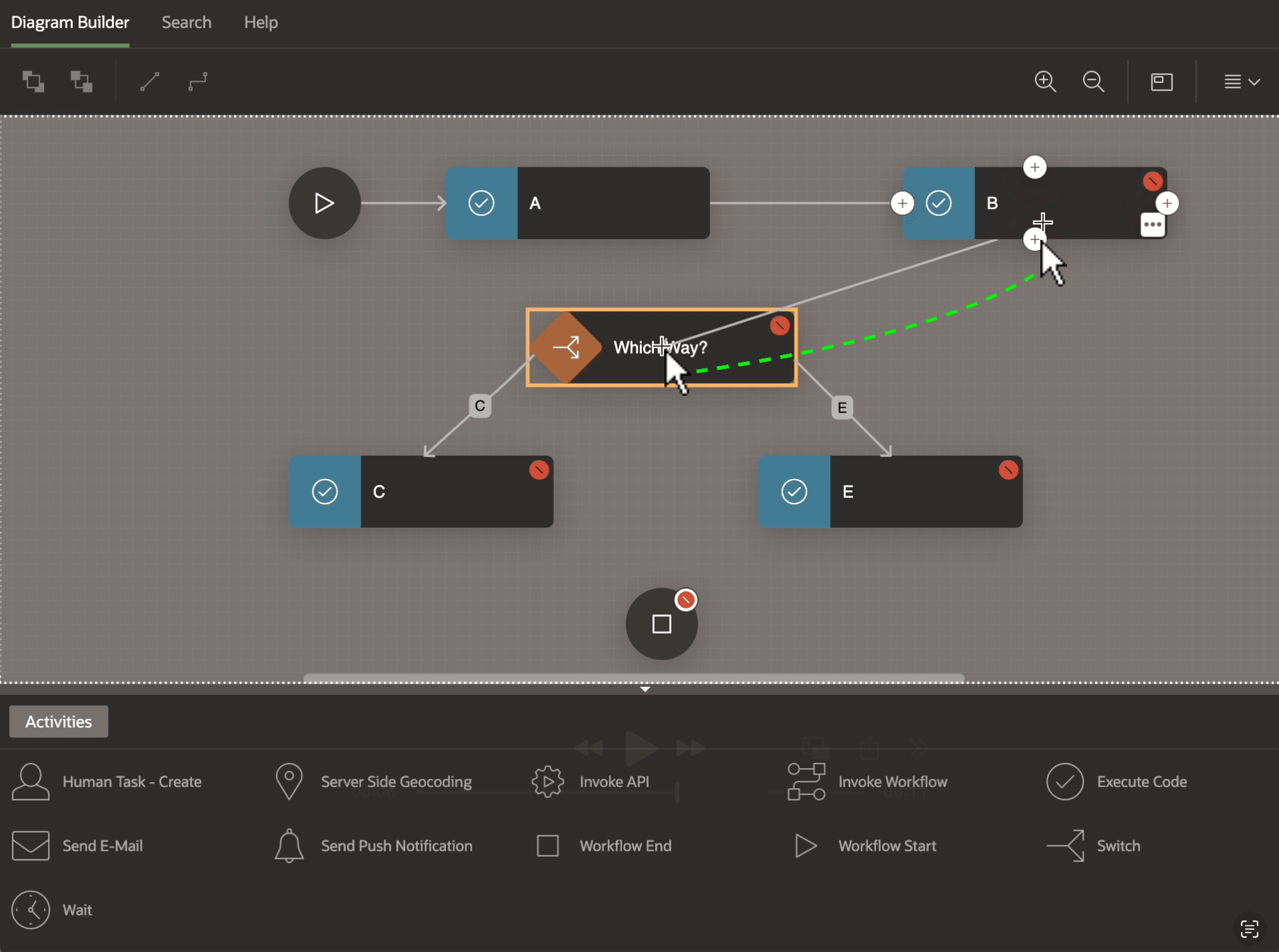
To connect two activities, hover over the source activity until the four plus signs appear. Then, as shown below, drag one of these plus signs and drop it into target activity rectangle. The orange highlight confirms the target activity. Your pointer position within the target activity shape when you release the mouse button is meaningful. It determines the initial placement of the target's anchor dot. You can then adjust the position of a selected connection's anchor dots anytime.
Figure 25-8 Adding a New Connection Between Activities
Parent topic: Connecting and Routing Activities