25.1.3.7 Bending a Connection with Elbow Dots
Bend a connection by adding, moving, or removing elbow dots.
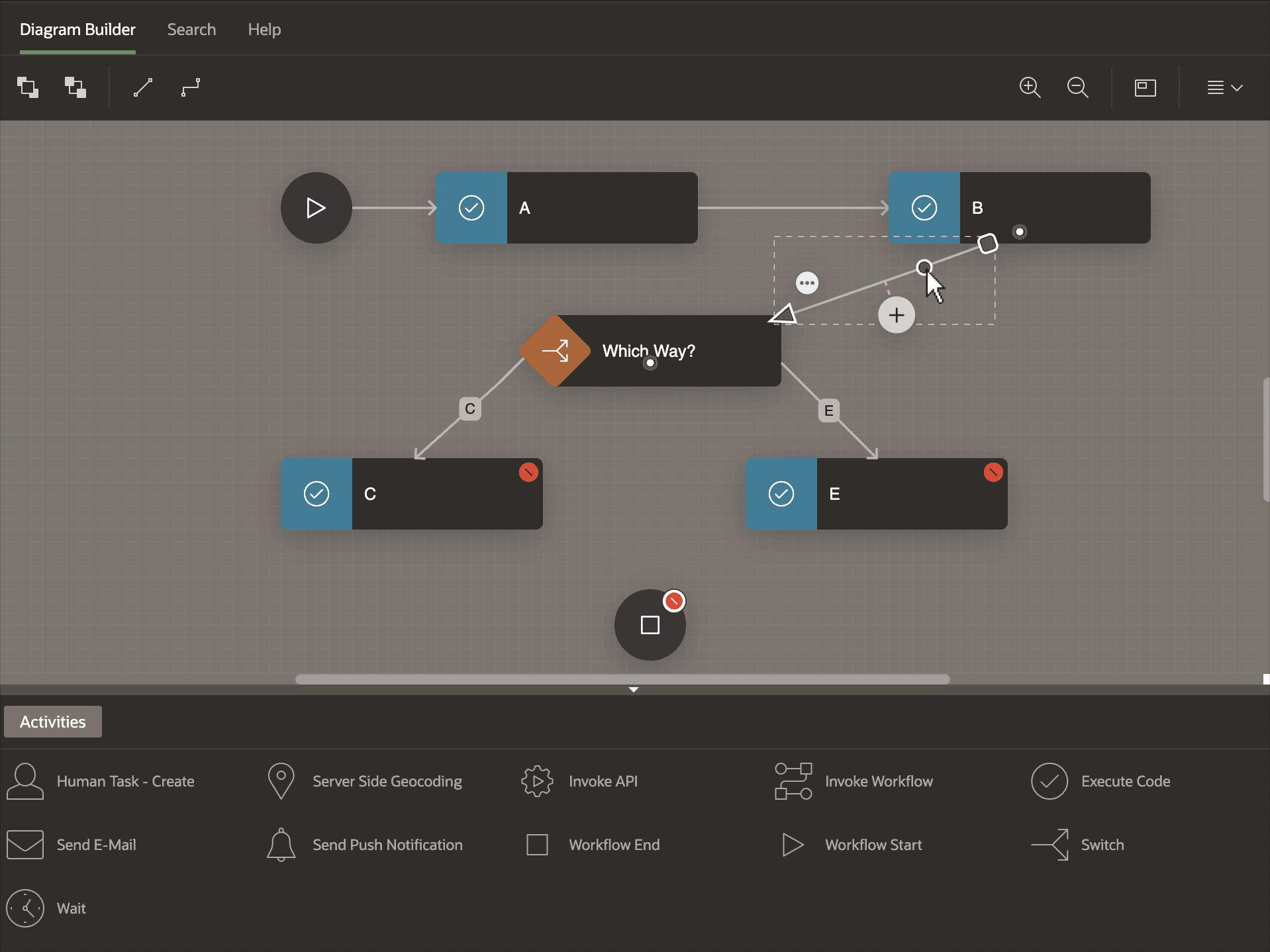
To bend a line, start by selecting it. Then, as shown below, single-click on the line where you want to place the elbow dot.
Figure 25-9 Select a Line Then Single Click to Add an Elbow Dot
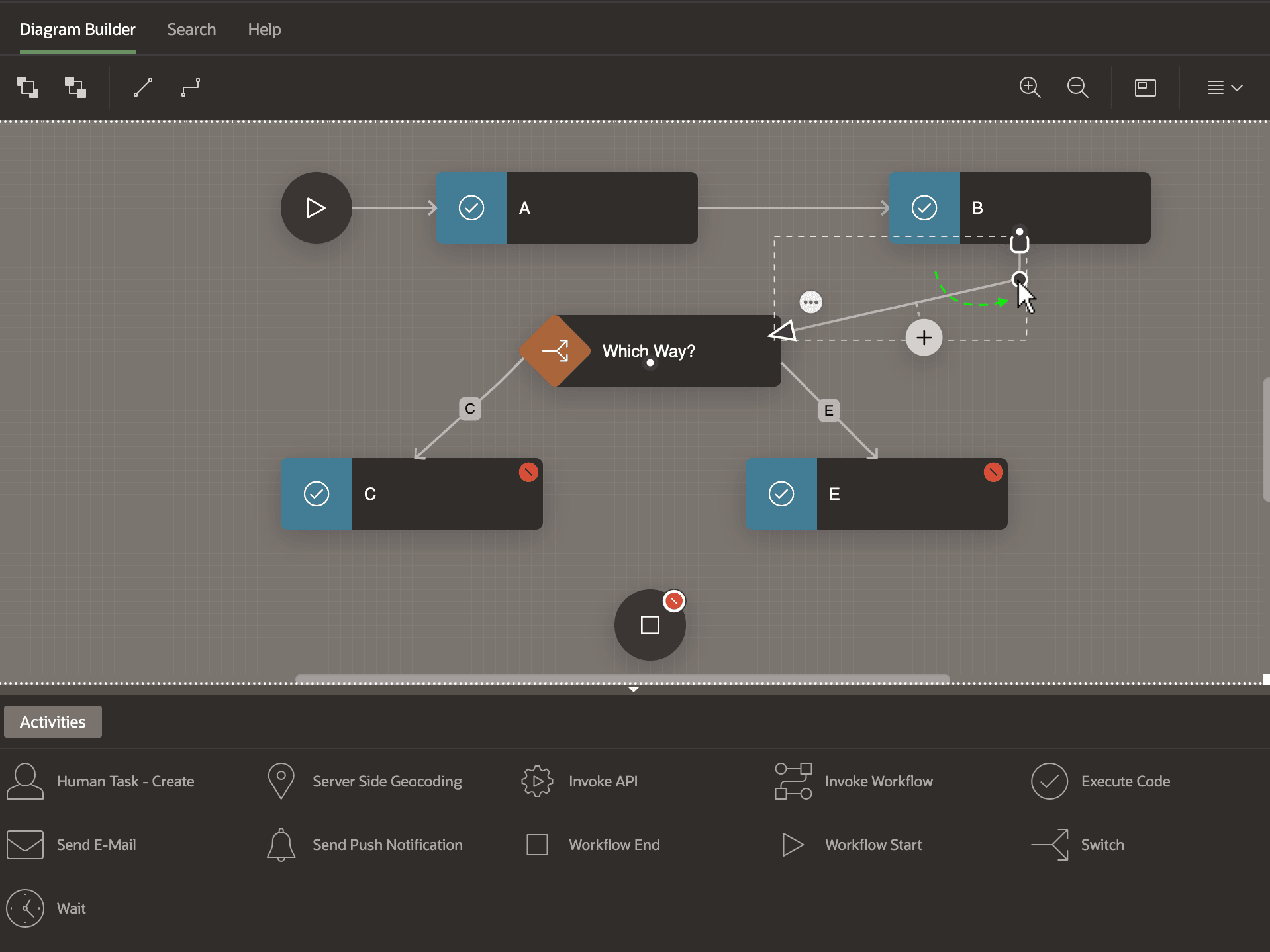
After you've added an elbow dot, drag it into a new position as shown below.
Figure 25-10 Repositioning an Elbow Dot with Drag and Drop
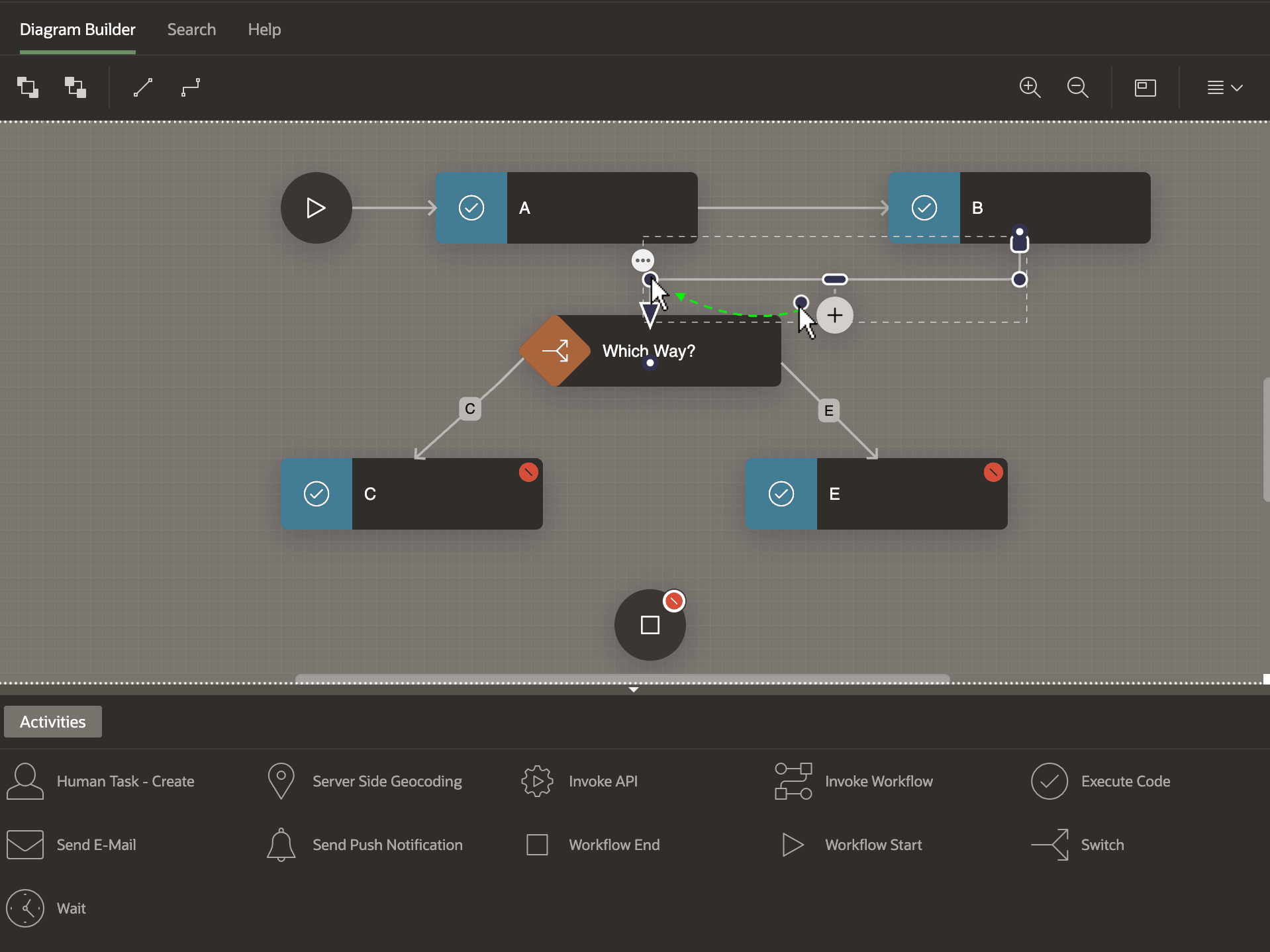
As shown below, you can repeat the process of adding an elbow dot and dragging it to a new position to achieve whatever clean line routing feels right. If necessary, you can reposition the source or target anchor dots to fine-tune the slope of the initial or terminal connection line segments. Notice when your connection contains horizontal or vertical segments, grab handles appear that you can use to adjust each one separately in a single movement. To remove an elbow dot, select the connection line and then double-click on the dot.
Figure 25-11 Add Additional Elbow Dots and Reposition Them to Create Any Routing
Parent topic: Connecting and Routing Activities