3.3.4 Adding Items in Page Designer
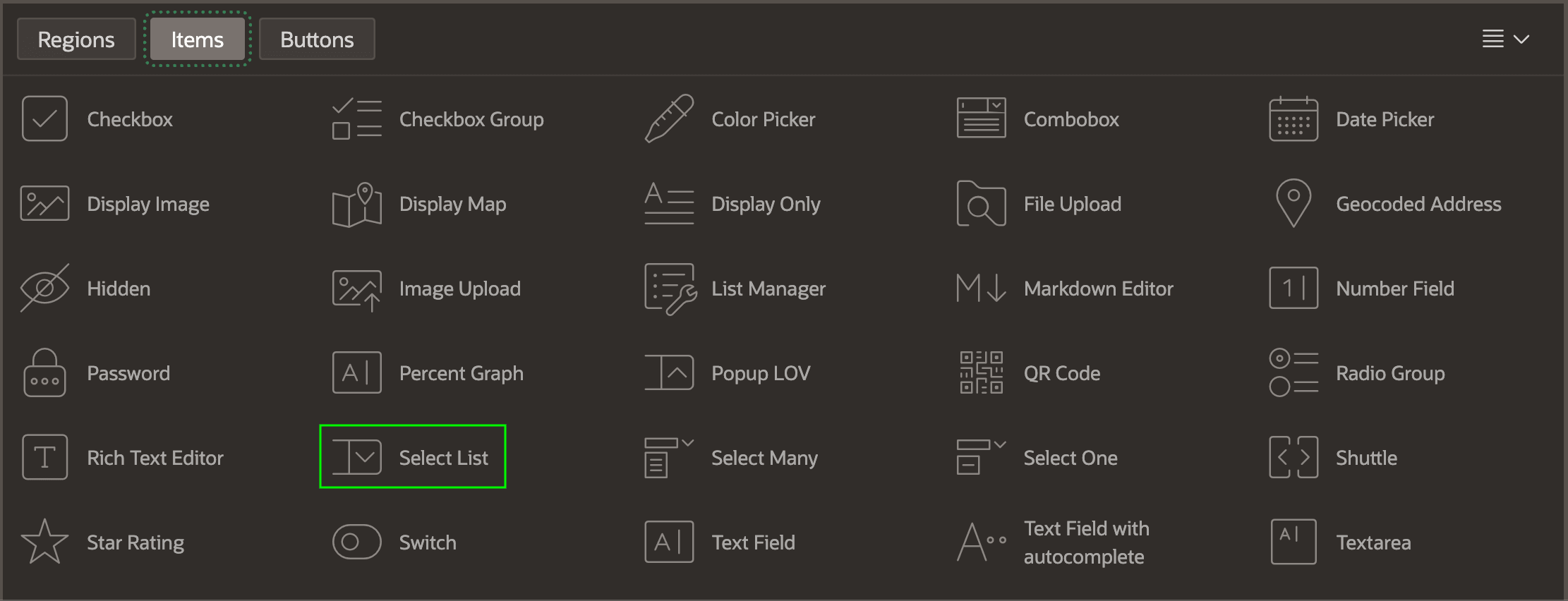
You can use the Page Items palette in Page Designer to add UI controls to the page.
Suppose we continue with the patients search page example from the previous section. After adding regions to the page, you might fine-tune the Search Results cards region to let the user choose a sorting order. A Select List item is a popular control to use for that purpose. As shown below, the page items palette in Page Designer contains all available UI controls, including a Select List. For more details on each page item type, see About Item Types in Oracle APEX App Builder User’s Guide.
Figure 3-21 Page Items Palette in Page Designer
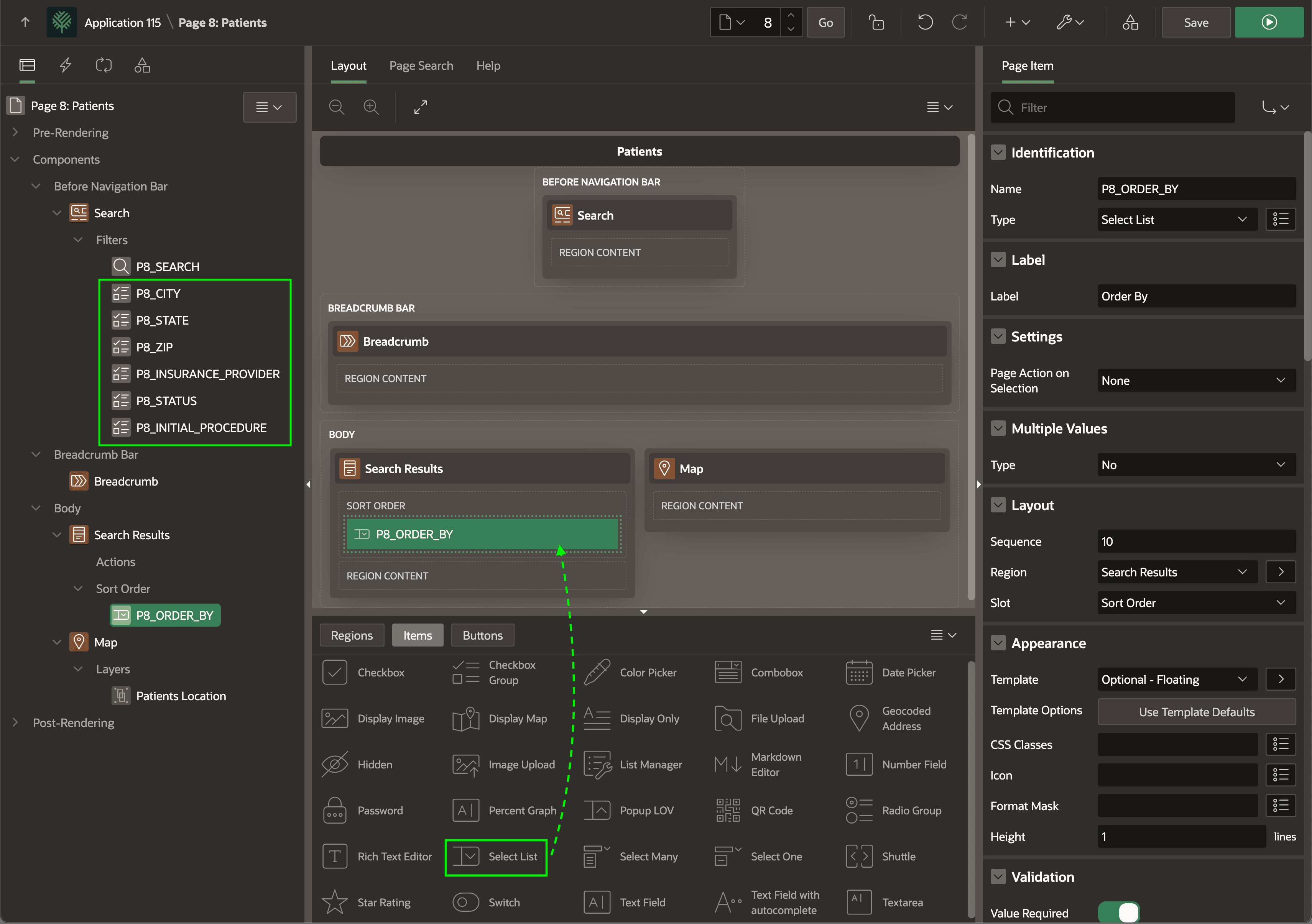
To add a Select List to the Search Results region's SORT
ORDER slot, you would drag and drop it as shown below, then use the
Property Editor to name it P8_ORDER_BY, and configure its list of
choices as static values. Then, you would select the Search Results region and configure
the new Select List as its Order By item to specify the corresponding ORDER
BY clauses. To learn more about user-driven sorting, see Managing Sorting with Order By Item in Oracle APEX App Builder
User’s Guide.
When added in Page Designer, the Smart Filters region starts with a single text search filter, but you can add other filters using the components tree. You do this by selecting the Filters node and choosing Create Filter from the context menu. Each additional filter defines a category of distinct values that users can select to interactively narrow results and find the patients they need. Notice below that filters have been added for City, State, Postal (Zip) Code, Insurance Provider, Status, and Initial Procedure. To learn more about search filters, see Search Filter Types in Oracle APEX App Builder User’s Guide.
Figure 3-22 Adding a Sort By Item and Search Facets in APEX Page Designer
Parent topic: Working in Page Designer