3.3.3 Adding Regions in Page Designer
The APEX Page Designer's region palette includes all the region types you can drag and drop onto a slot in your page.
After dropping a region type into a slot, use the Property Editor to assign it a meaningful name and to set other properties that influence its look and behavior. If the region defaults to showing built-in sample data, change its Location property to another option like Local Database to use your own application data. For more information on each type of region, see Supported Region Types in Oracle APEX App Builder User’s Guide.
Figure 3-18 Region Palette in Page Designer
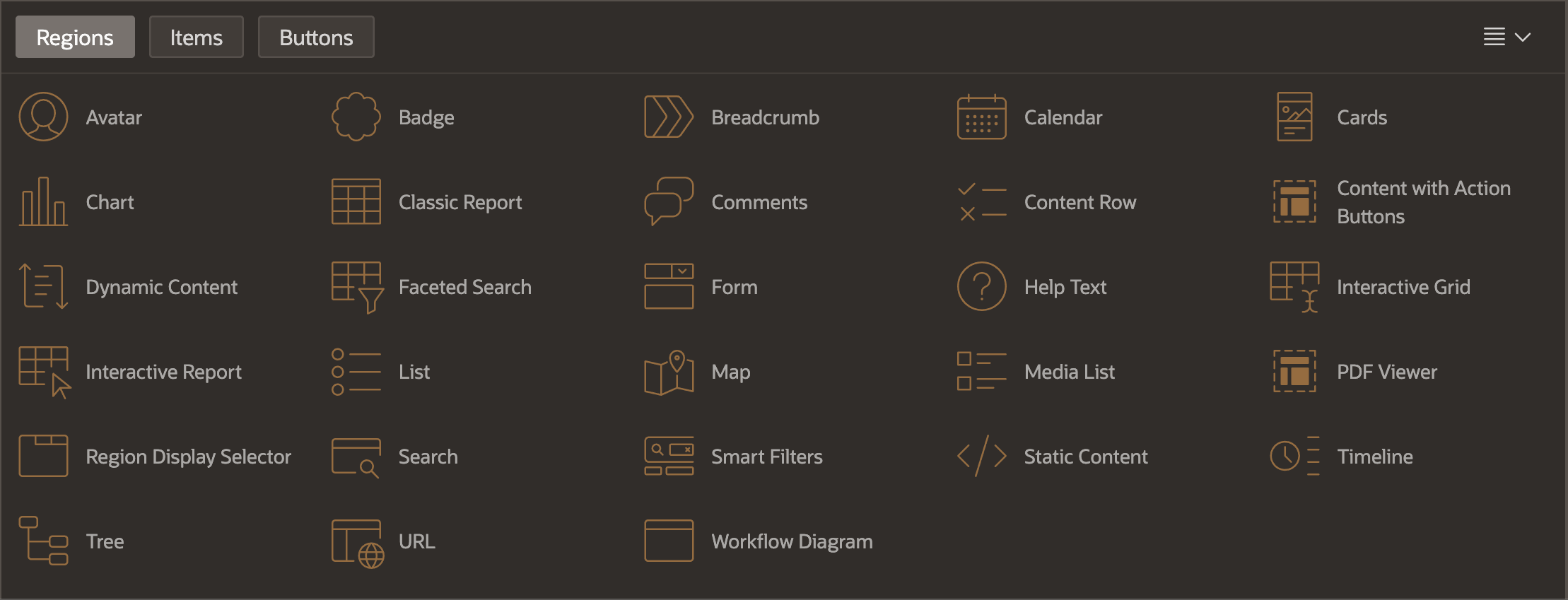
Whether you jump start the process with the Create Page wizard or begin with a blank page, you add new regions to your page in the same way. Just drag one from the region palette and drop into a slot on the page.
Alternatively, you can create a region using the Create Region option on the context menu in the Rendering tree, then set the region type and the desired slot name in the Property Editor.
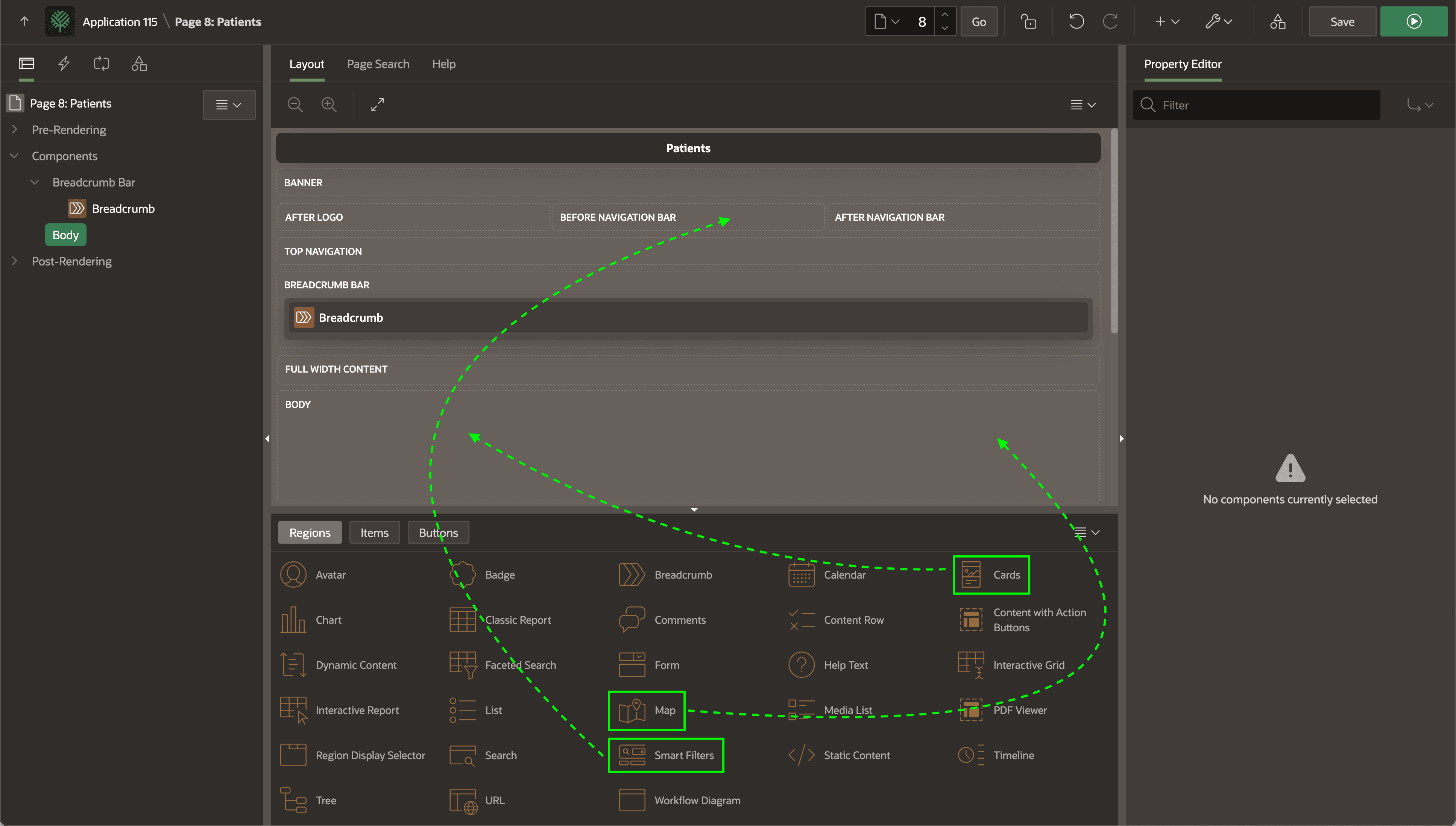
For example, suppose you need to create a page to let staff of a medical clinic search for patients. If you start with a blank page, you could begin by dragging a Cards region to the BODY slot of the page, naming it Search Results, configuring its data source to be the patients table, and using the Property Editor to select the patient table's columns to show on each card.
Next, you might drag a Smart Filters search region, drop it into the BEFORE NAVIGATION BAR slot at the top of the page, name it Search, and set it to filter the cards region. Finally, to also show the filtered patient results on a map, you could drop a Map region into the BODY slot to the right of the cards region, name it Map, and configure its data source to use the filtered results of the cards region. For more details on this technique, see Showing Search Results in Other Regions.
Figure 3-19 Dragging and Dropping Regions from the Palette into Page Slots
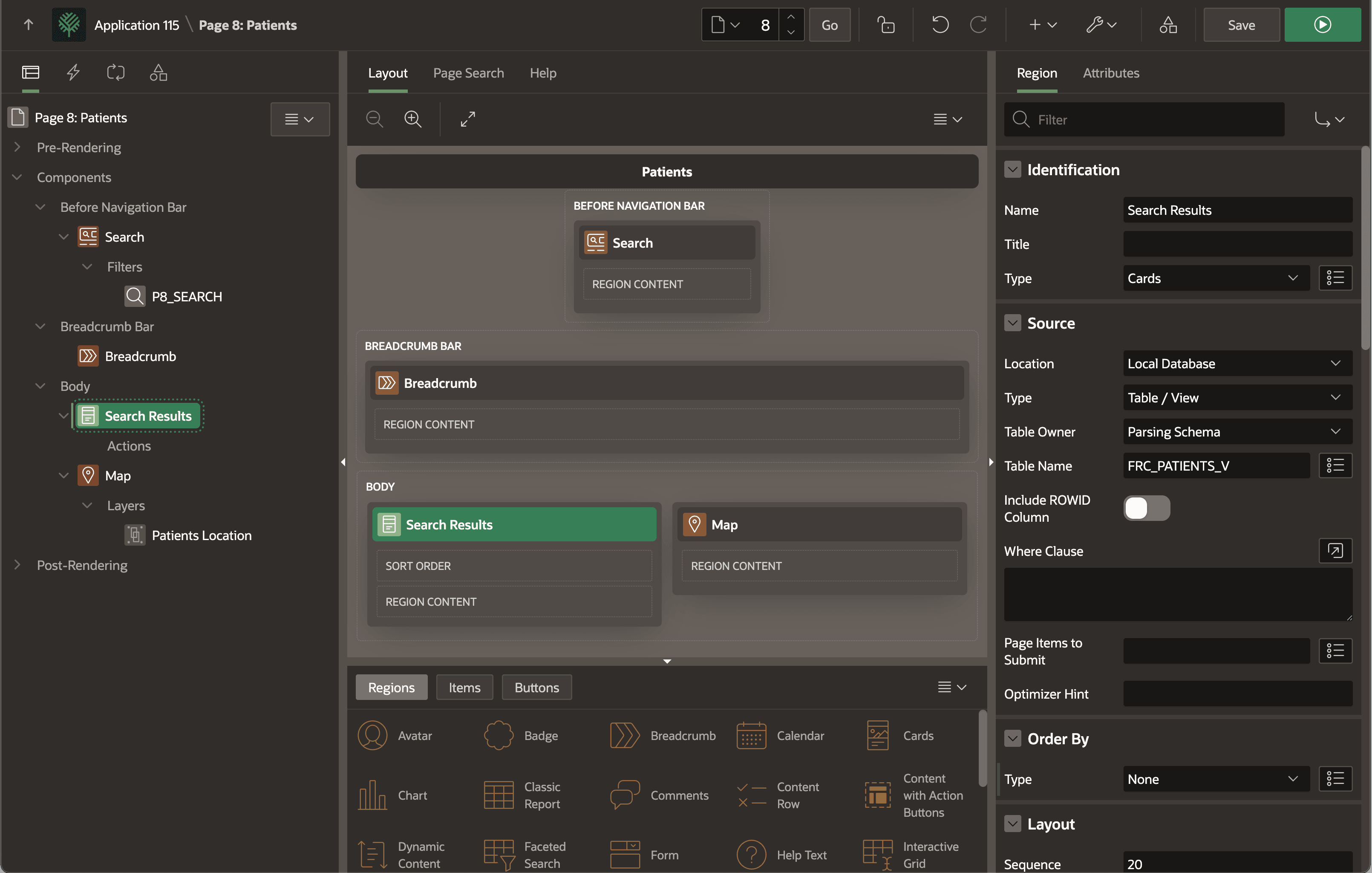
After performing these steps and choosing Hide Empty Slots from the layout context menu, your patients search page looks like the figure below.
The Page Designer panel on the left shows your page's components in a tree. The layout panel in the center is a visual representation of how regions and items are positioned relative to each other on the page. The Search region is at the top in the navigation bar, the breadcrumb in its appropriate bar, and the Search Results Cards and Map regions are side by side below that in the body of the page.
Figure 3-20 Search Page for Patients in APEX Page Designer
Parent topic: Working in Page Designer