25.1.9.1.8.2 Adding a Task Details Page
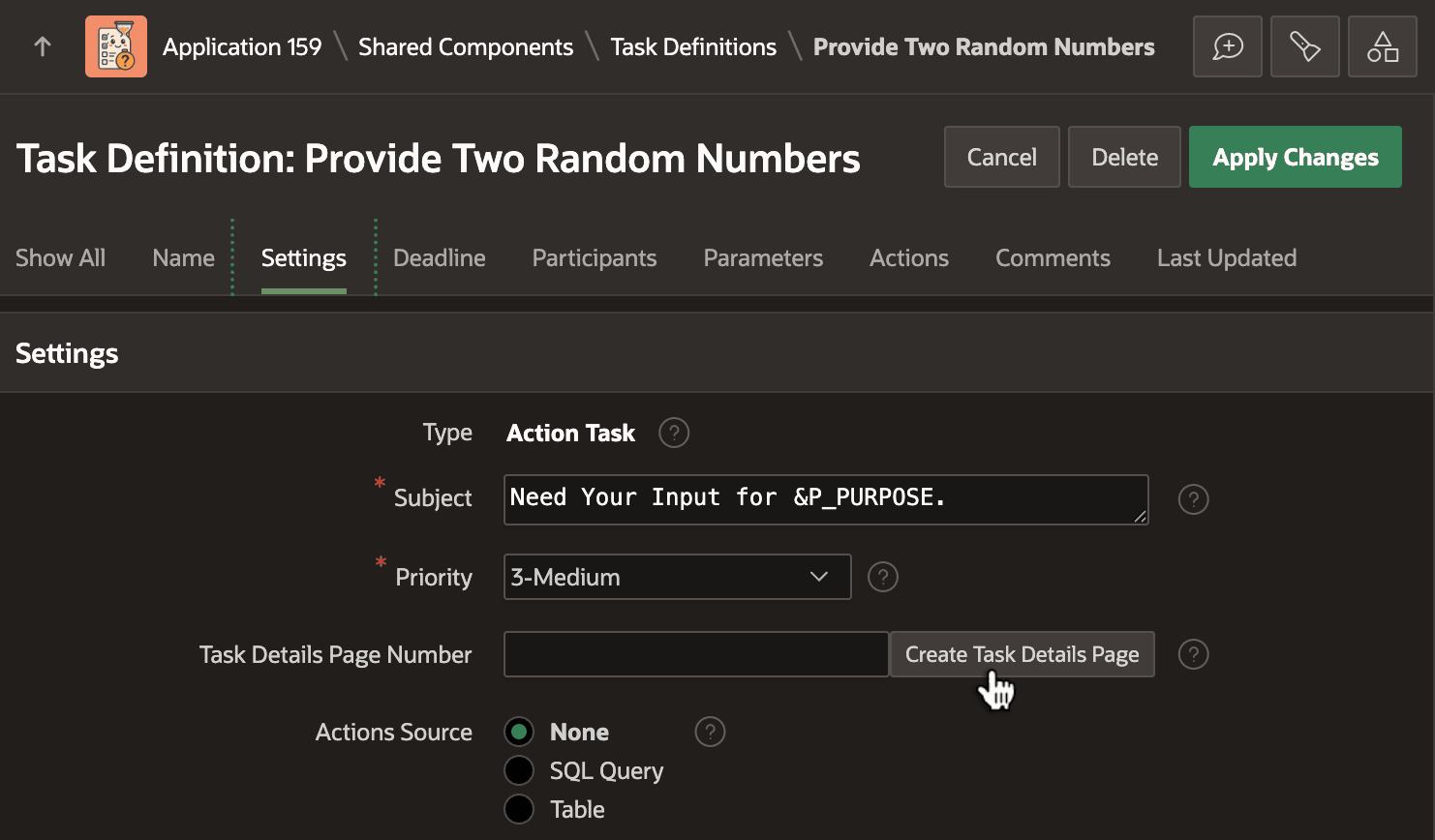
Add or assign a Task Details page so users can open a task from its subject link.
- Leave Task Details Page Number blank,
- Enter the number of an existing page, or
- Type the number of your desired new page.
If you leave the field blank, APEX asks your confirmation to proceed using the next available page number.
Figure 25-35 Creating a Task Details Page for a Task
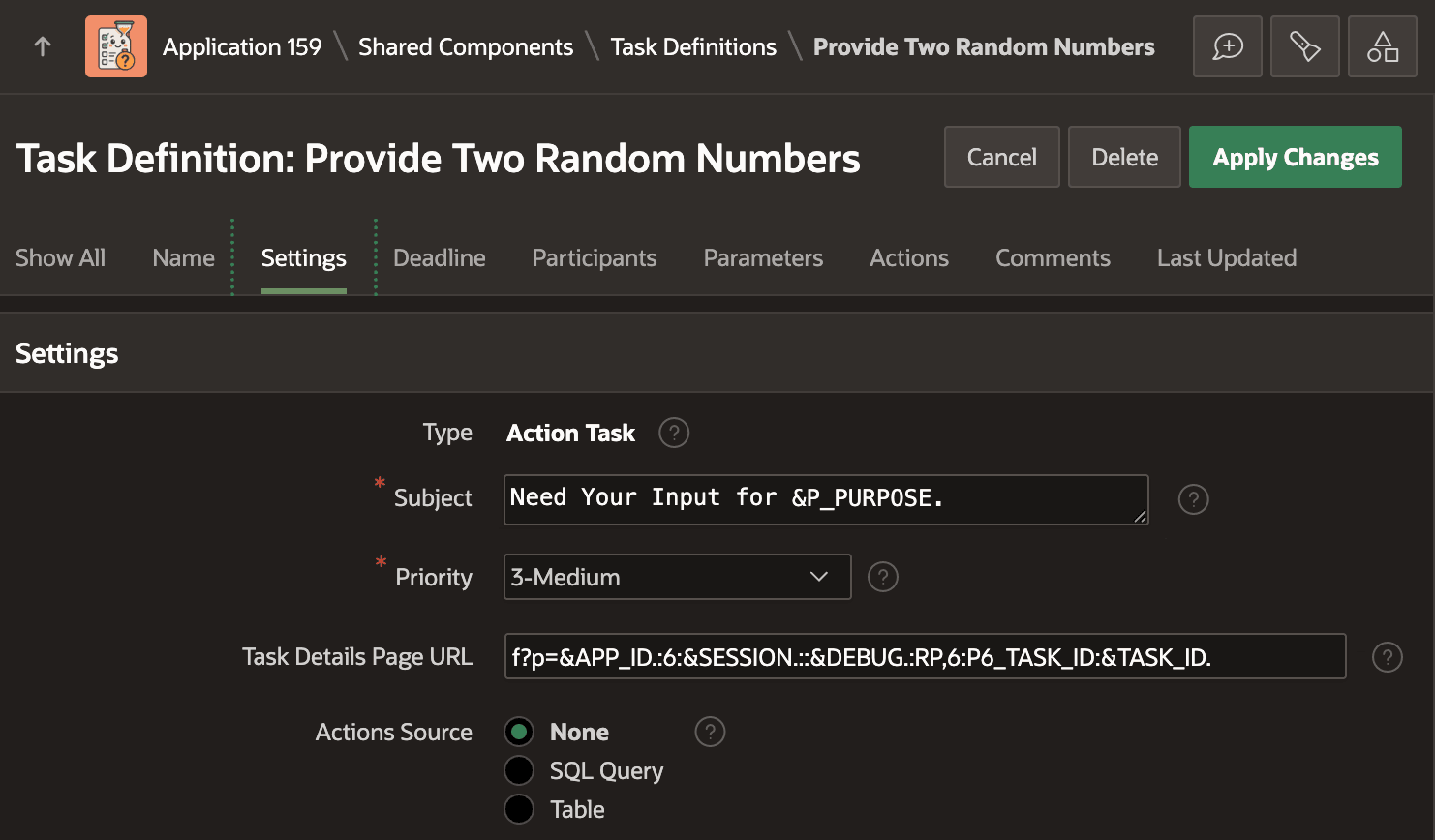
6. After you associate a Task Details Page to a task definition, it displays thereafter as a Task Details Page URL. It uses the classic format of an APEX page URL:f?p=App:Page:Session:Request:Debug:ClearCache:itemNames:itemValuesf?p=&APP_ID.:6:&SESSION.::&DEBUG.:RP,6:P6_TASK_ID:&TASK_ID.It leaves the Request segment empty and uses substitution values for &APP_ID., &SESSION., &DEBUG., and &TASK_ID. in the respective segments of the p query string parameter value. In short, the URL navigates to page 6 in the current application, using the current session, and the current debug mode, passing the value of the current task instance's unique ID as the value of the P6_TASK_ID parameter in that page.
Figure 25-36 Task Details Page URL Appears After You Create or Assign a Page
Tip:
In addition to the substitutions mentioned above, your Task Details Page URL can also reference the substitution string &DETAIL_PK. to pass the value of the Details Primary Key of the business entity row associated with the task instance. This can be useful if your task details page needs to display and possibly modify data in that associated business entity row using a Form region you add to the generated page as a fine-tuning step.
Parent topic: Using and Tuning the Task Details Page