25.1.9.1 Assigning Work to a User's Task Inbox
Assign work to users so APEX manages the task lifecycle and continues the workflow when completed.
Use a Task Definition shared component to track a work item to assign to one or more people. The task Subject line you configure appears in the task list "inbox" of all assignees. They are all potential owners of the task. The first available user claims the task and becomes its actual owner. Once claimed, it no longer appears in other potential owners' task lists.
By configuring a Task Details Page, users can click a task's subject in this "inbox" to review its details. You can generate it in the task definition editor and adjust it in Page Designer as needed. Your enhancements to the page can include saving additional data to updatable task parameters or to application tables.
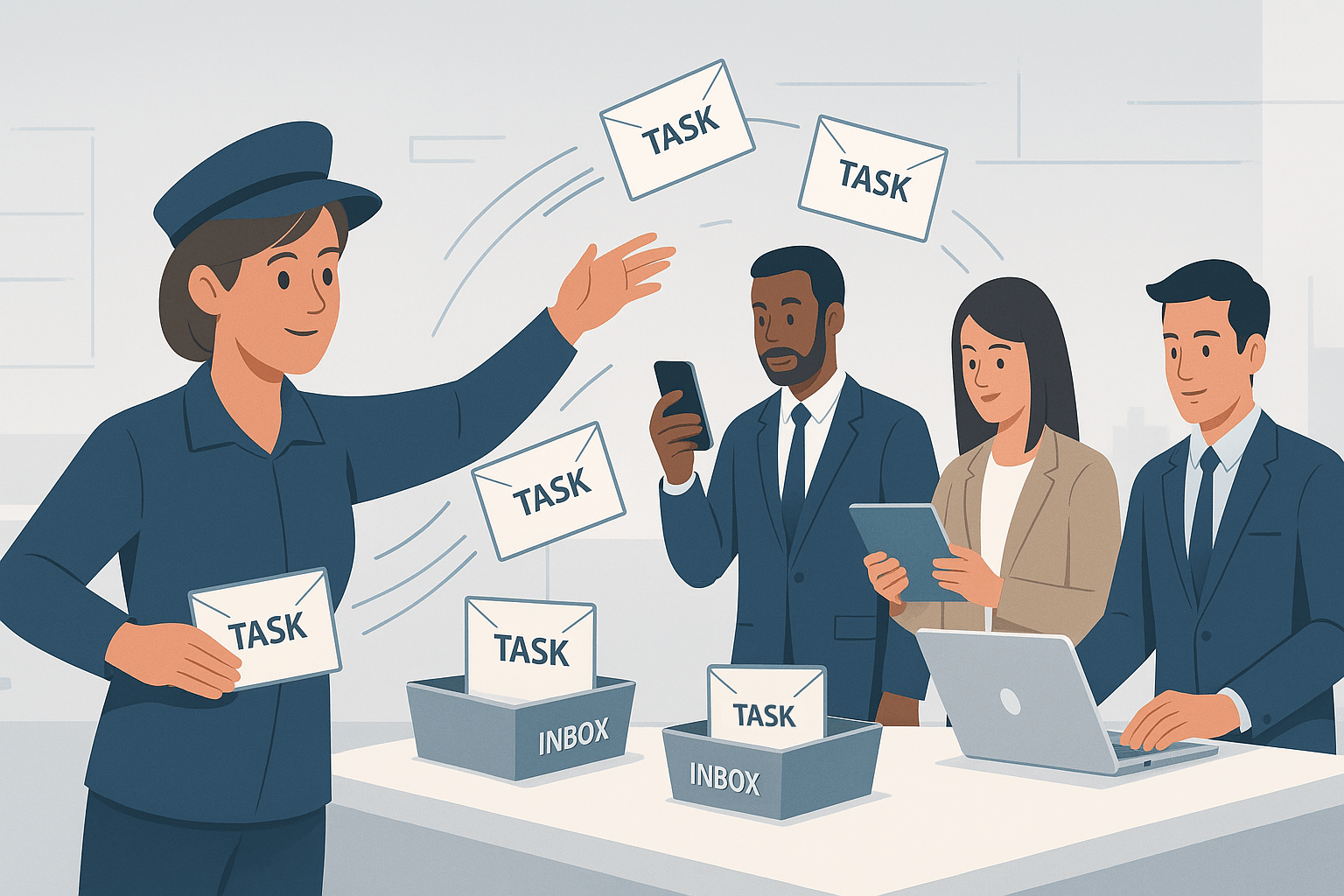
Some tasks require only that the owner confirm they've completed the action it represents. Others seek an outcome indicating the owner's approval or rejection. A task can be open-ended, or made time-sensitive by configuring a due date and expiration behavior. Your workflow uses Human Task - Create activities to coordinate which work items need to be done in what order. The APEX engine automatically waits for a potential owner to complete a task before proceeding to the next activity in the workflow. The figure illustrates the workflow as a postal employee delivering tasks to three different users task inboxes. One reviews tasks from a smartphone. Another sees tasks on a tablet. A third person works on tasks from a laptop.
Figure 25-22 Workflow Delivers Tasks to Potential Owners' Task List "Inbox"
Using this approach, you get many built-in features that enterprise applications often require. APEX manages the "lifecycle" of a task from creation to completion. Task definitions support more than just a priority and deadlines. Your dynamic task assignment can account for end-user vacations. Users can request and receive more info about a task, delegate it to a colleague, or participate in a threaded discussion about it with teammates when collaboration is required. You can relate each task instance to a particular row in a database table, and your task definition can react to changes in the state by notifying users or executing custom business logic. In fact, by defining an action on the task Create event, you can notify a user a new work item has been added to their to-do list, encouraging them to check their task "inbox".
- Deciding if Task Needs an Outcome
Choose an action task to track completion or an approval task to capture an outcome. - Associating a Table with a Task
Associate a task with a table or query so task logic can reference related row data. - Accepting Input Values in Parameters
Use task parameters for values the task cannot get from its Actions Source row. - Determining Task Participants
Assign potential owners and business administrators using case-sensitive usernames. - Understanding Task States
Understand task states and the actions that move a task through its lifecycle. - Creating Task "Inbox" Page for Users
Create a Unified Task List page that shows users the tasks they need to act on. - Collecting Data Using a Human Task
Create a human task from a workflow to collect user input before the flow continues. - Using and Tuning the Task Details Page
Explore how users work with a Task Details page and how developers can tune it. - Letting an Initiator Approve a Task
Enable initiators to approve their own tasks when the business process requires it. - Handling Time-Sensitive Tasks
Configure due dates and expiration behavior for time-sensitive tasks. - Reacting to Task Change Events
Use task actions to react to lifecycle events while a workflow waits.
Parent topic: Getting Approval or User Input in a Workflow