17.3 Augmenting Data Load Profile Columns
Add data profile columns to a Data Load Definition using SQL expressions or queries.
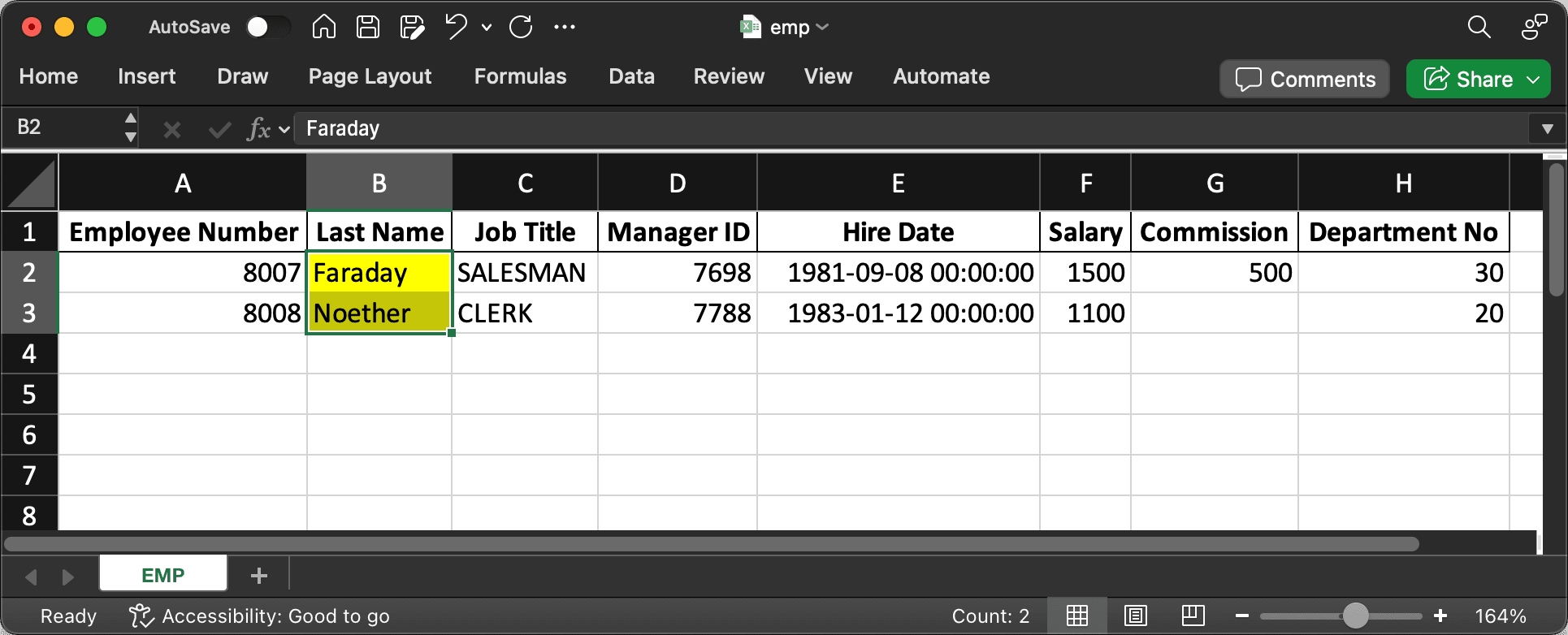
For example, as shown below, the Last Name column in the Excel spreadsheet contains names in mixed case like Faraday and Noether.
Figure 17-5 Excel Spreadsheet Has Employee Names in Mixed Case
The Woods HR app expects the ENAME column data to be
uppercase, so adjust the Load Employees from Excel data load definition to
convert each employee name before loading it. Edit the data load definition and open its
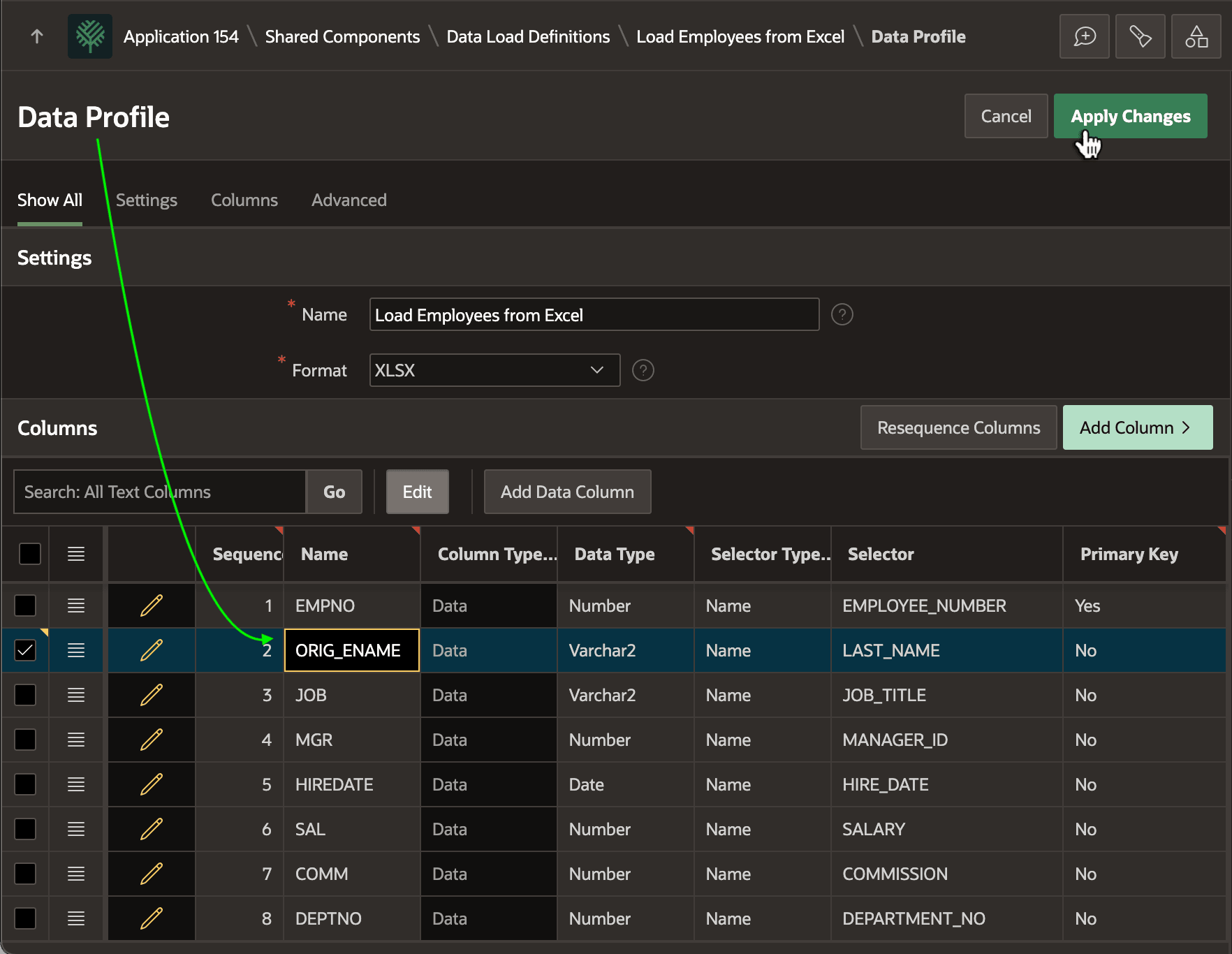
Data Profile. As shown below, start by using the grid to edit the existing
ENAME column to change its name to ORIG_ENAME,
then click (Apply Changes).
Tip:
To stay on the same page when clicking (Apply Changes), tick the Stay on Page checkbox in the margin prior to clicking. App Builder remembers your preference.
Figure 17-6 Renaming ENAME to ORIG_ENAME Data Profile Column
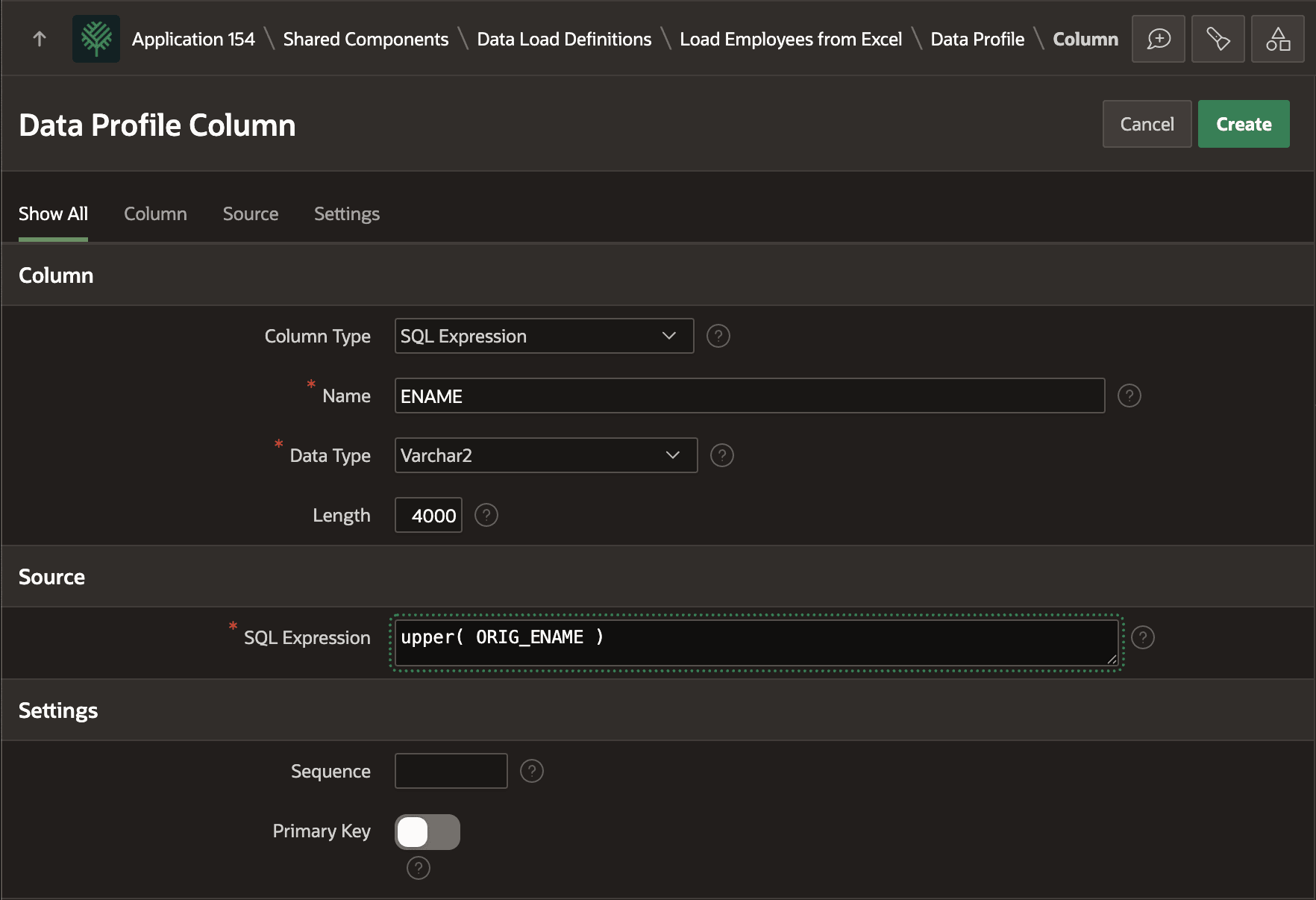
Next, click the (Add Column > ) button in the Data Profile to add a new ENAME column, of type SQL Expression with Data Type VARCHAR2. Use the expression below, referencing other data profile columns names as necessary. The new ENAME column derives its value by uppercasing the value in the ORIG_ENAME column loaded from the spreadsheet.
upper( ORIG_NAME )Tip:
The SQL Expression or SQL Query you enter can also be a constant value or reference the value of a global application item by name using the built-in V function (e.g. V('G_APP_USER_EMPNO')). Use this technique in a SQL Expression column named YOUR_NAME to load a custom value into the target table's YOUR_NAME column.
Figure 17-7 Adding a SQL Expression Data Profile Column for ENAME
Parent topic: Loading External Data