25.2.6.6 Awaiting Completion of a Human Task
Create an approval task and wait for its outcome before the workflow continues.
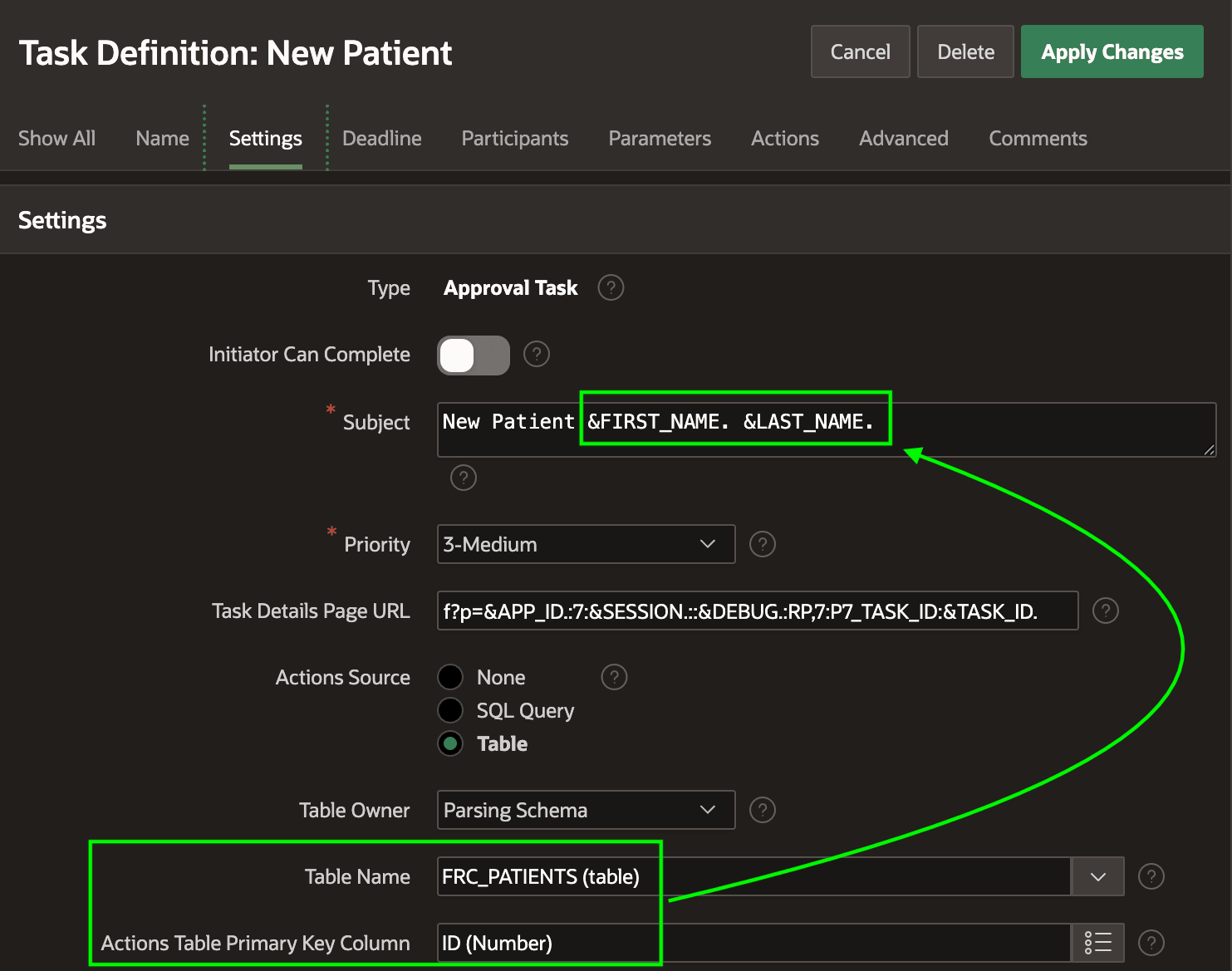
Your Woods Clinic app uses the approval task definition shown below to track
the work item for manual approval of a new patient. Its Actions Source table is
FRC_PATIENTS so its Subject can reference patient details
using substitutions referencing columns like &FIRST_NAME. and
&LAST_NAME. in that table.
Figure 25-91 Task Definition Subject Uses Column Values from the Actions Source Table
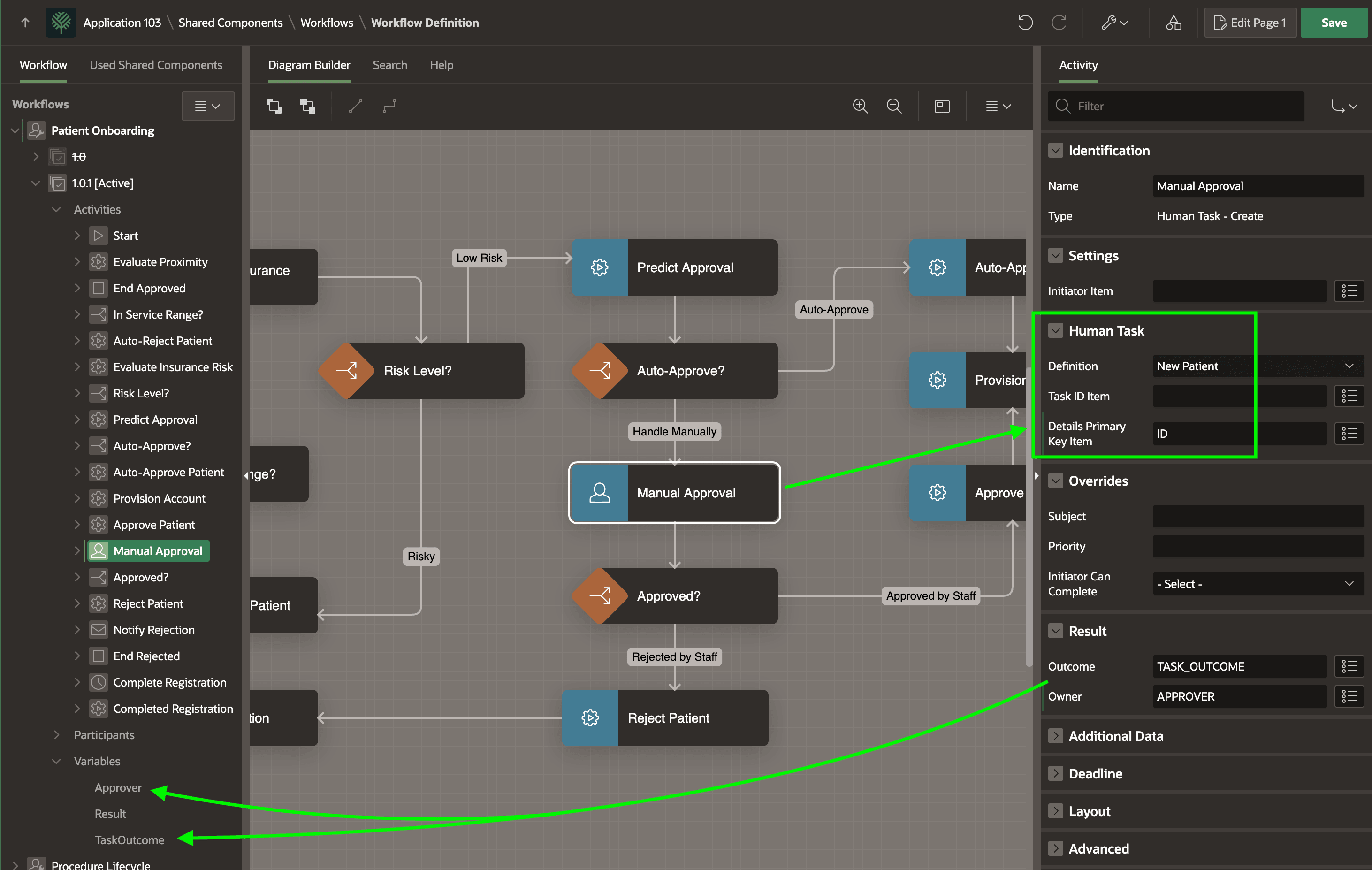
As shown below, the Patient Onboarding workflow uses a Human Task - Create activity configured to use this task definition. It passes in the patient ID as the Details Primary Key value when creating the task using the workflow's Additional Data table ID column. In its Result section, the approval Outcome and actual Owner are returned into the workflow variables named TASK_OUTCOME and APPROVER. Since capturing these two values from an approval task is very common, the Workflow Builder creates these two variables automatically when you first add a Human Task - Create activity to the diagram. You can rename them, or configure different variables to receive these values as well.
Figure 25-92 Using Human Task Create Activity to Wait for Approval
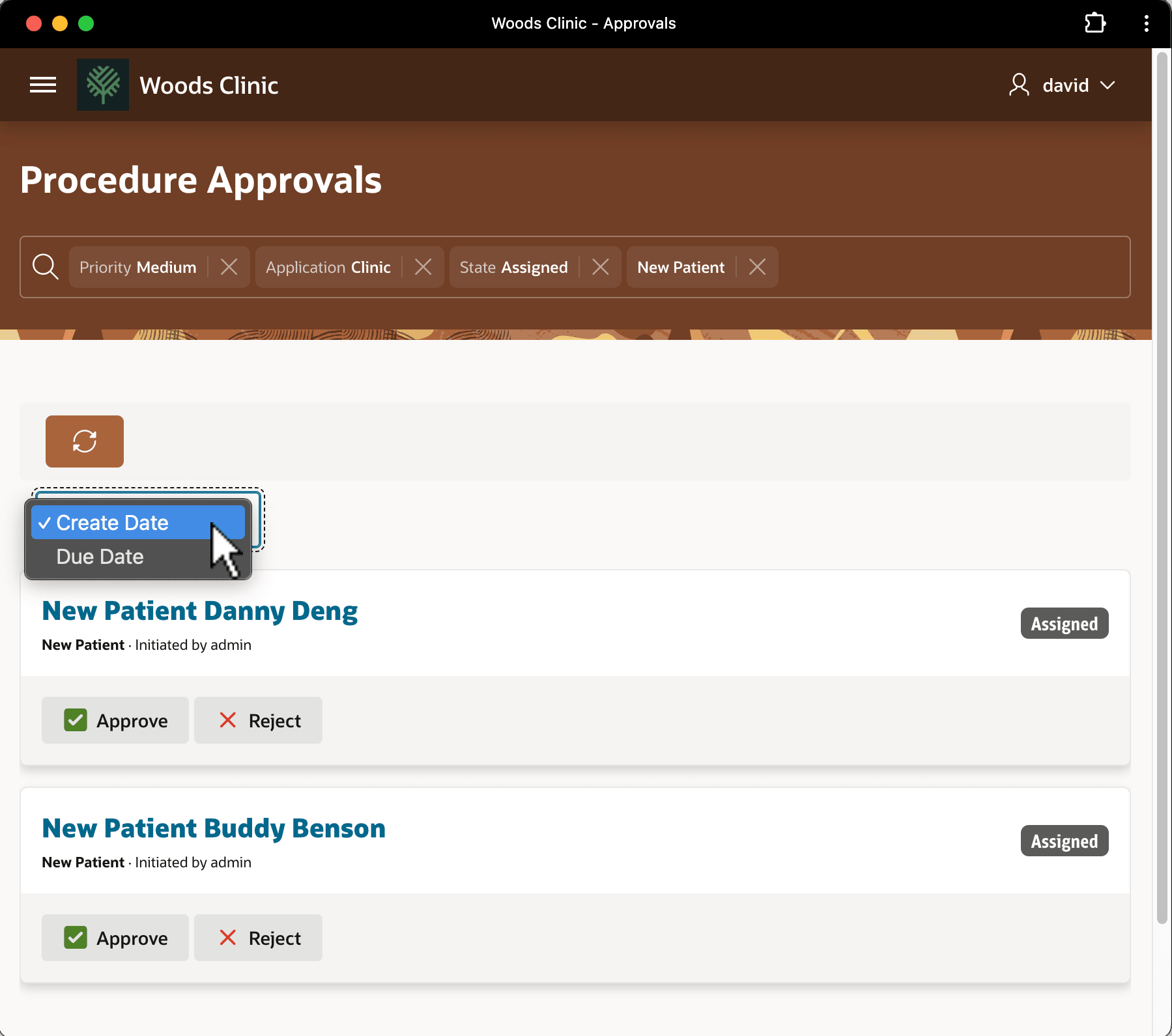
Your Patient Onboarding workflow guides Danny Deng's request to manual approval, so, as shown below, back office user David sees Danny's pending approval in his Procedure Approvals task "inbox". You can create this page by picking a Universal Task List in the Create Page Wizard, and using the My Tasks report context. Notice David has used several Smart Filters to narrow the list by Priority, Application, and State. He also typed in a text search of "New Patient" to further filter the list. He's currently sorting the list by Create Date.
Figure 25-93 Unified Task List Showing Patient Onboarding Approval Tasks for DAVID
Parent topic: Building Patient Onboarding Visually