25.1.3.3 Changing a Connection's Target Activity
Reattach a connection by dragging its arrowhead or starting dot to another activity.
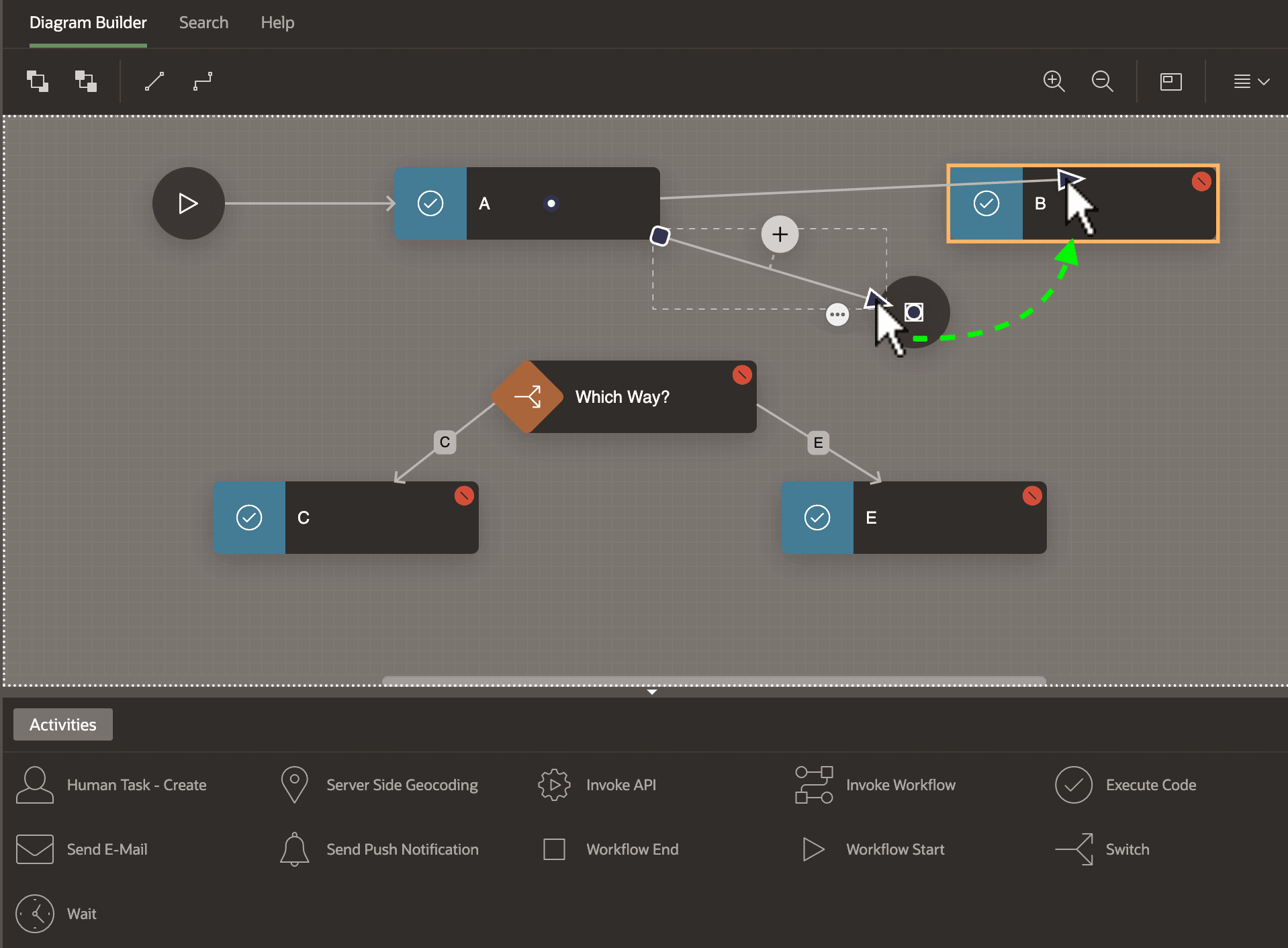
To reattach an existing connection line, as shown below, drag its arrowhead onto the new activity it should connect to. An orange outline helps you see when you are within the visual boundary of a new target activity. Release the mouse button to complete the operation. Now activity A continues to B.
The figure below shows a diagram with a start activity connected to an activity named A. A then connects to the End activity. A B activity is in the upper right corner, initially with no inbound or outbound connections. A Which Way? switch activity lies in the center with one connection to C and another connection to E.
You can change a connection's origin as well by dragging its starting dot onto a new source activity. In the figure, the mouse drags the arrowhead previously connecting A to the End activity to drop it onto B. The result is that A then connects to B instead.
Figure 25-4 Reattach a Connection by Dragging its Arrowhead or Starting Dot
Parent topic: Connecting and Routing Activities