5.7.1 Configuring a Basic Calendar
After adding a calendar, configure its key settings to identifying the events it will display. After choosing a data source, set properties like the event Title, Start Date, and End Date.
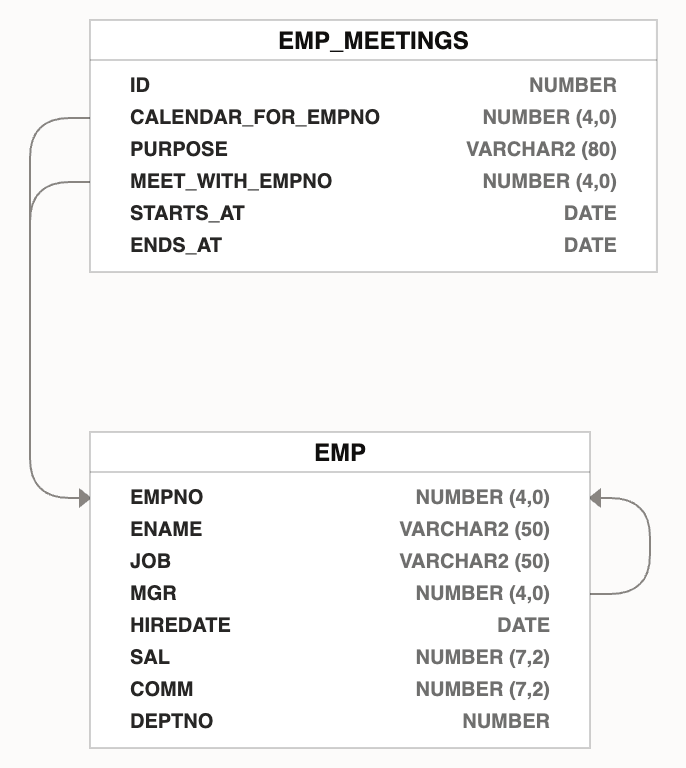
Imagine an EMP_MEETINGS table that stores scheduled events between
one employee and another. The diagram in the figure below shows how the
EMP table and EMP_MEETINGS relate. This new table
contains a CALENDAR_FOR_EMPNO column for the inviting employee
and a MEET_WITH_EMPNO column for the invitee.
Figure 5-15 EMP_MEETINGS Table Records for EMP to EMP Scheduled Events
The figure below shows the week view of a calendar region based on the EMP_MEETINGS table after configuring the PURPOSE column as the event title, STARTS_AT as the start date, and ENDS_AT as end date. You can configure the calendar to not show weekends, to allow month, week, and day views, and to show the navigation buttons to let users change the current month, week, or day.
Figure 5-16 Four Meetings in Employee KING's Schedule with Dynamic Action on Select List
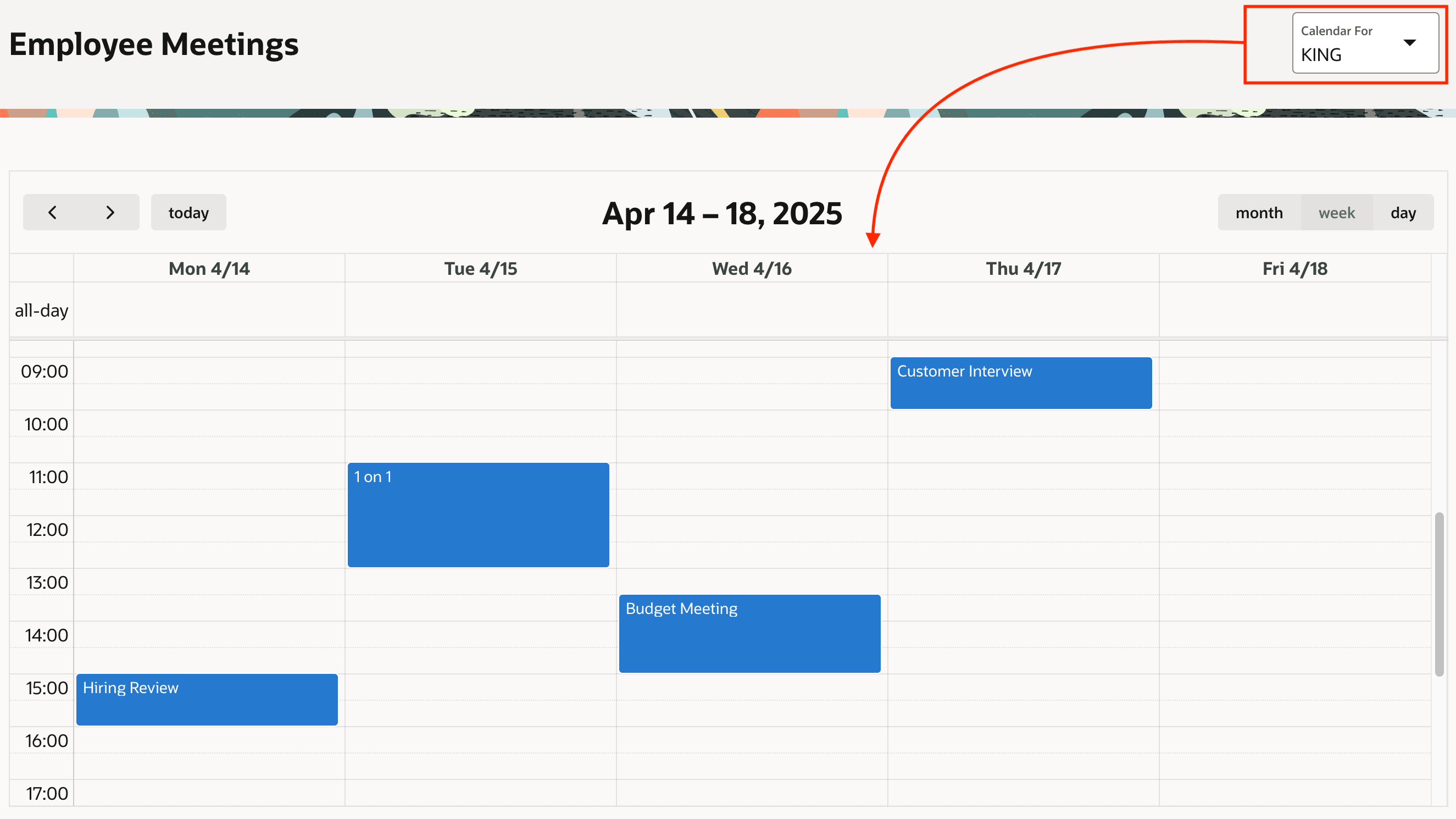
P19_CALENDAR_FOR) in the
upper right. It determines which employee's events the calendar displays by referencing
its value as a bind variable in the region's WHERE clause. When set to
employee like KING, you aim to display events where she invited someone
as well as those where she is invited to attend. You can accomplish that with a filter
like this:
   CALENDAR_FOR_EMPNO = :P19_CALENDAR_FOR
OR MEET_WITH_EMPNO = :P19_CALENDAR_FORP19_CALENDAR_FOR in the Page Items to
Submit region property so any data refresh uses the latest value of this
page item from the browser.
Parent topic: Placing Events on a Calendar