7.2.3 Configuring the Kanban Plug-in
Once you install the plug-in, it shows in the list of region types you can create in Page Designer.
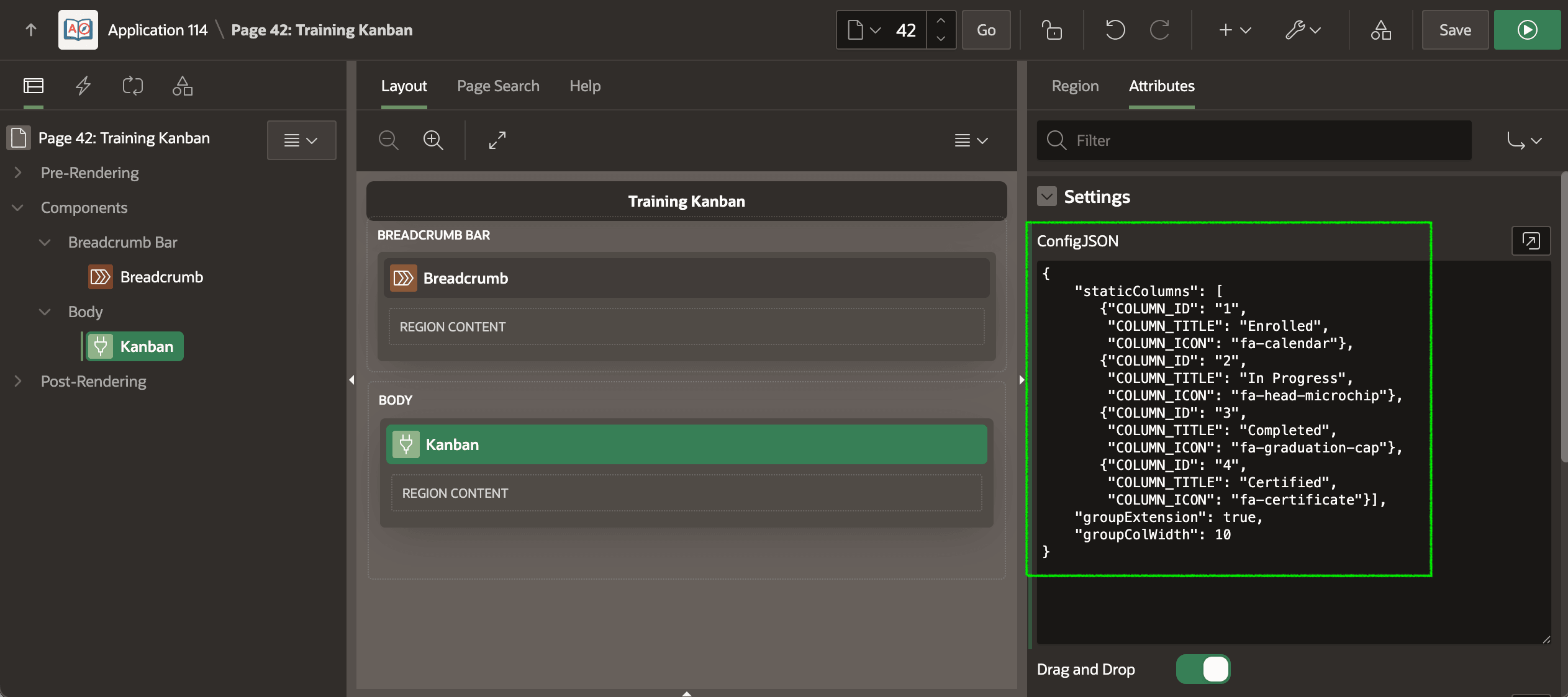
The figure below shows the new Material Kanban Board region on the page and
the plug-in's ConfigJSON settings. Following the directions in the plug-in's
documentation, you define four columns with appropriate status title and icon using the
JSON format. They reflect the Enrolled, In Progress, Completed, and
Certified statuses your application needs. Since you plan to use the grouping
feature, you also set groupExtension to true.
{
    "staticColumns": [
       {"COLUMN_ID": "1",
        "COLUMN_TITLE": "Enrolled",
        "COLUMN_ICON": "fa-calendar"},
       {"COLUMN_ID": "2",
        "COLUMN_TITLE": "In Progress",
        "COLUMN_ICON": "fa-head-microchip"},
       {"COLUMN_ID": "3",
        "COLUMN_TITLE": "Completed",
        "COLUMN_ICON": "fa-graduation-cap"},
       {"COLUMN_ID": "4",
        "COLUMN_TITLE": "Certified",
        "COLUMN_ICON": "fa-certificate"}],
    "groupExtension": true,
    "groupColWidth": 10
}
The figure highlights the ConfigJSON setting of the Material Kanban Board region selected in the component tree in Page Designer.
Figure 7-23 Defining Kanban Board Status Columns and Icons
Then as shown below, you write a SQL Query that defines the information the Kanban board will display. The SQL query joins the EMP_TRAINING, EMP_COURSE, and EMP tables to retrieve key details about the courses and employees in training.
Figure 7-24 Configuring the Kanban Region's SQL Query
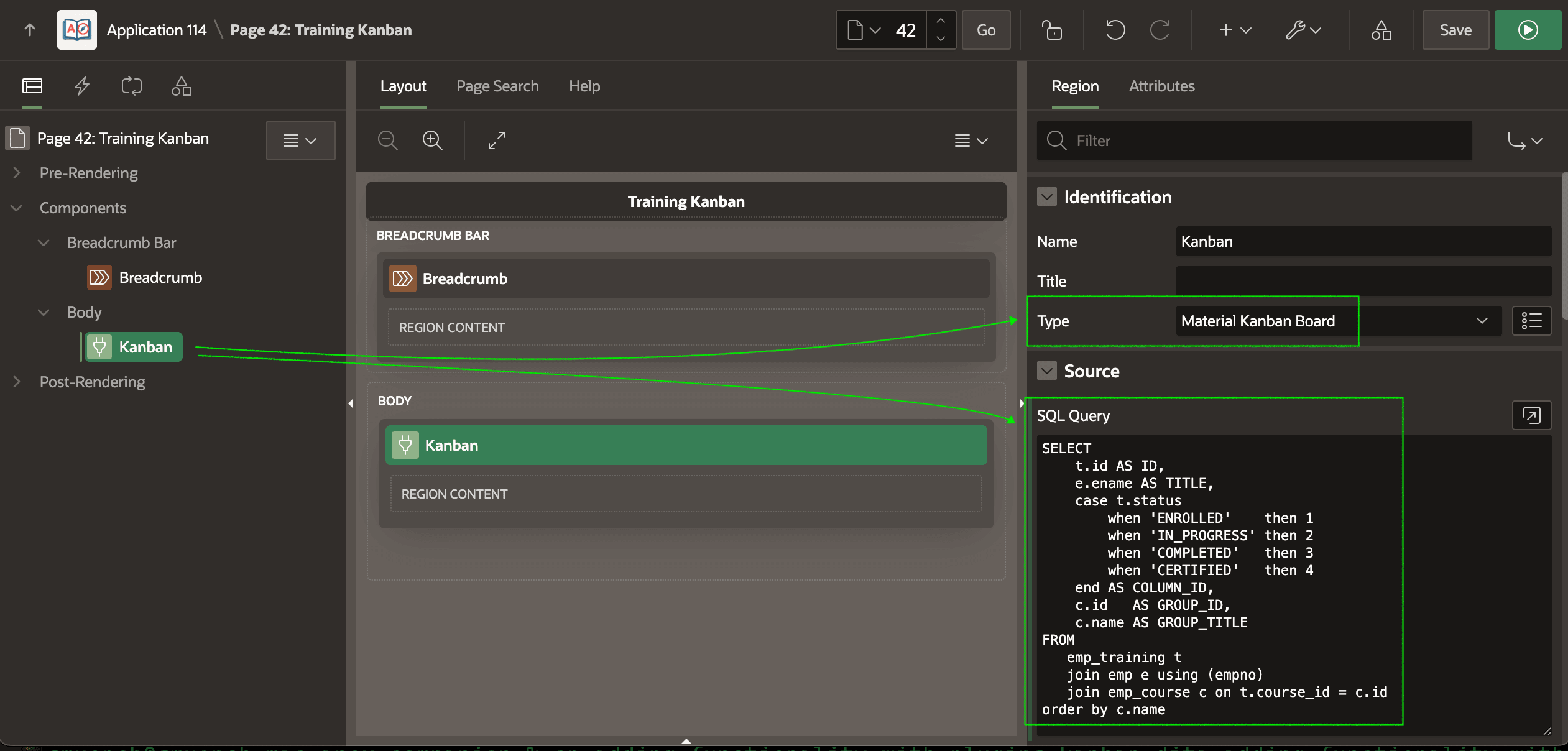
This particular plug-in uses the column names in the SQL Query you configure to
identify the role each column plays in the Kanban board display. The query appears
below. Notice the column aliases for the TITLE of the elements to
display and the GROUP_TITLE that defines different "swim lanes" of
related elements. Here, the items being displayed are ENAME values of
each employee taking a course, and the course name provides the group title. Finally,
COLUMN_ID in the SELECT list is the sequential
column number you defined in the JSON configuration above corresponding to the different
status values an employee training can have.
SELECT
    t.id AS ID,
    e.ename AS TITLE,
    case t.status
        when 'ENROLLED'    then 1
        when 'IN_PROGRESS' then 2
        when 'COMPLETED'   then 3
        when 'CERTIFIED'   then 4
    end AS COLUMN_ID,
    c.id   AS GROUP_ID,
    c.name AS GROUP_TITLE
FROM
   emp_training t
   join emp e using (empno)
   join emp_course c on t.course_id = c.id
order by c.name
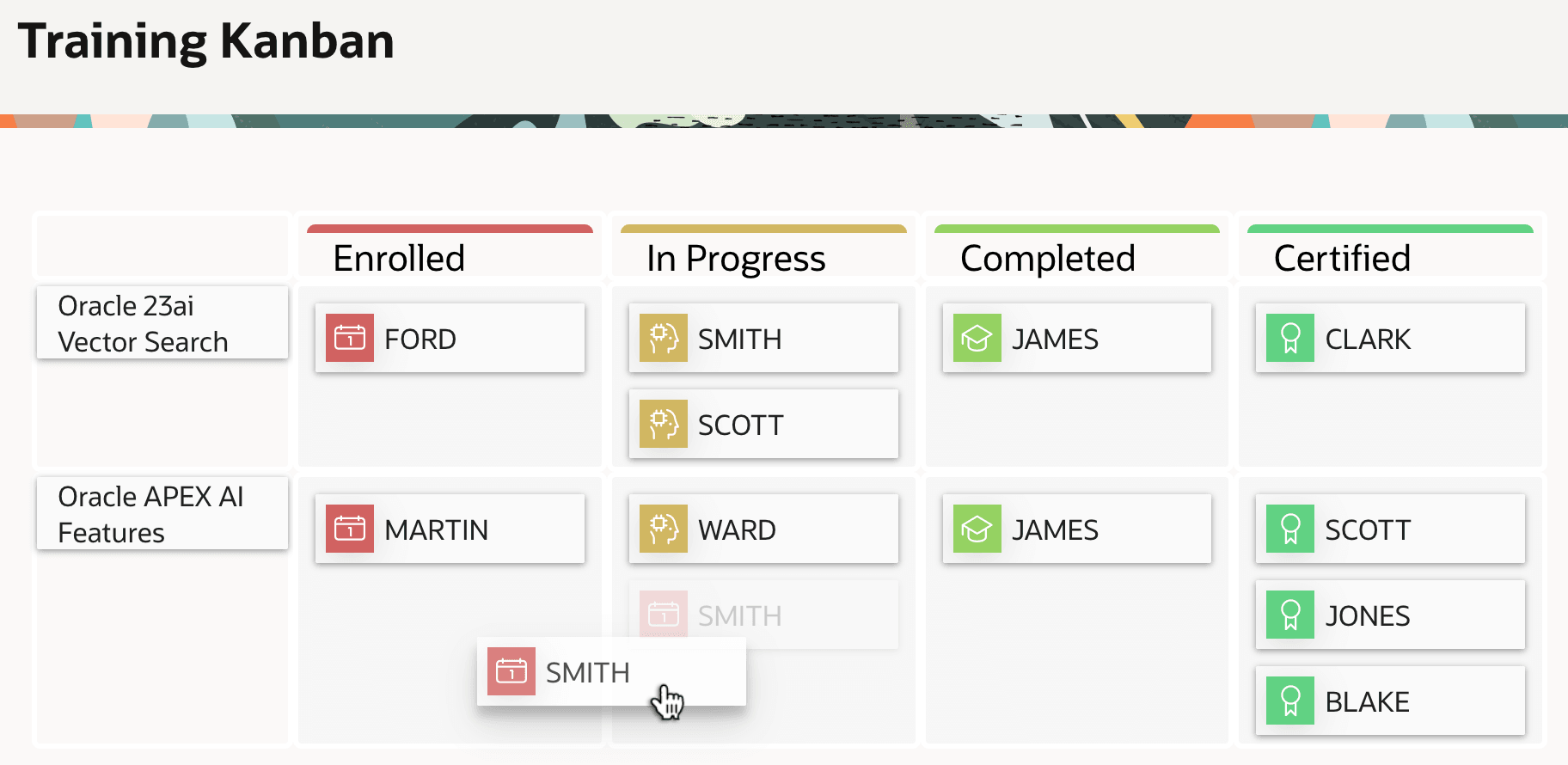
With these two configurations done, you can run the page to see the employee training status at a glance in your new Kanban board. With a small amount of additional PL/SQL code, you can enable end users to change the status of an employee's training with drag and drop. The figure shows the employees in various stages of their assigned trainings, split into a different "lane" for each distinct course.
Figure 7-25 Kanban Board Region Plug-in Shows Employee Training Status
Parent topic: Using a Plug-in from apex.world