20.1.1 Configuring Success and Error Messages
Configure page process messages with inline text, substitution syntax, or translatable text messages.
Your order number is &P113_ORDER_ID. and will ship &P113_SHIP_DATE.ORDER_CONFIRMATION and optional placeholders like
ordnum and ships using the
syntax:&{ORDER_CONFIRMATION ordnum="&P113_ORDER_ID." ships="&P113_SHIP_DATE."}.!RAW modifier to avoid escaping the text for
display:&{ORDER_CONFIRMATION ordnum="&P113_ORDER_ID." ships="&P113_SHIP_DATE."}!RAW.If multiple page process include a success message, they get concatenated as shown below. The figure shows a success notification with a green check mark icon and concatenated messages from two page processes: "Success Message 1 and Success Message 2".
Figure 20-1 Multiple Success Messages Get Concatenated

<br> tags or other formatting like the
following:<br>Success <strong>Message</strong> 2This produces the result shown below. The figure shows a success notification with a green check mark icon. "Success Message 1" appears on the first line, and "Success Message 2" appears on the second line with Message in bold.
Figure 20-2 Messages Can Include HTML Markup

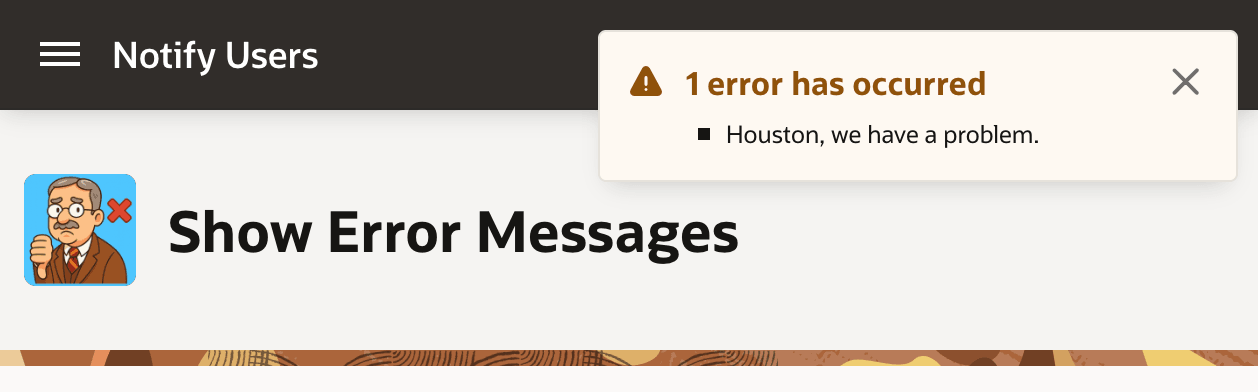
In contrast, multiple page process' Error Messages do not accumulate. The first error halts processing to display the error message as shown below. The figure shows an error notification with an exclamation point inside an orange warning triangle. The first line reads "1 error has occurred", and the second line contains a single bullet: "Houston, we have a problem".
Figure 20-3 First Page Process Error Halts Processing and Displays Message
Tip:
To prepare a declarative success or error message that is more
dynamic than text substitutions allow, use a preceding page process to
assign the value of a P113_COMPUTED_MESSAGE hidden page item, then
reference it as the Error Message in that same process or a following one
using &P113_COMPUTED_MESSAGE..
Parent topic: Displaying Success and Error Messages