6.3.1 Defining a Search Configuration
Define a Search Configuration shared component for each kind of source data users need to search. Each one identifies a local or remote data source and its searchable columns. You also choose which columns play standard roles like primary key, title, description, and icon.
To let users drill-down on a result from a particular search configuration, configure a link target on it. Users will navigate to the indicated page when they click a search result that comes from that source.
Depending on the search configuration type, APEX performs:
- Standard
LIKEfiltering over local tables, queries, APEX list entries, or REST Data Sources - Full text searching using Oracle Text or Oracle AI Database 26ai Ubiquitous Search, or
- Semantic similarity searching using Oracle AI Database 26ai Vector Search.
For example, the Employees search configuration shown in the editor below uses the following SQL query as its Source and identifies searchable columns: ENAME, JOB, DNAME, EMPNO, and WORKS_FOR_ENAME.
select  e.empno,
        e.ename,
        m.ename as works_for_ename,
        d.dname,
        e.job,
        case e.job
           when 'PRESIDENT' then 'fa-badgerine'
           when 'ANALYST'   then 'fa-line-chart'
           when 'CLERK'     then 'fa-user-headset'
           when 'SALESMAN'  then 'fa-badge-dollar'
           when 'MANAGER'   then 'fa-user'
        end as icon
  from  emp e
  join  dept d
    on  e.deptno = d.deptno
  left join emp m
         on m.empno = e.mgr
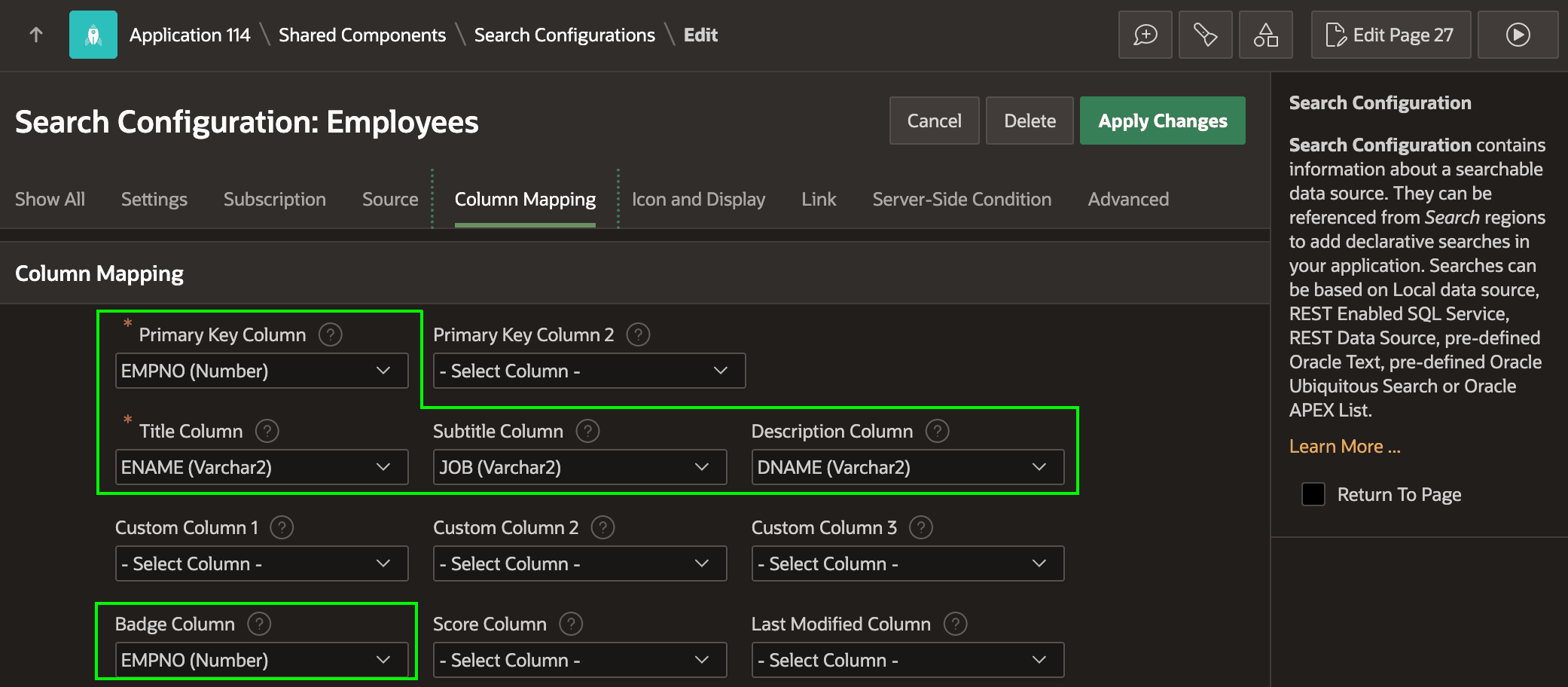
As shown below, it maps EMPNO as primary key, ENAME as the title, JOB as subtitle, DNAME as description, and shows a badge using the EMPNO column value.
Figure 6-18 Mapping Search Configuration Columns to Standard Slots
After configuring that the search result icon name comes from the
ICON column on the Icon and Display tab, you define the link
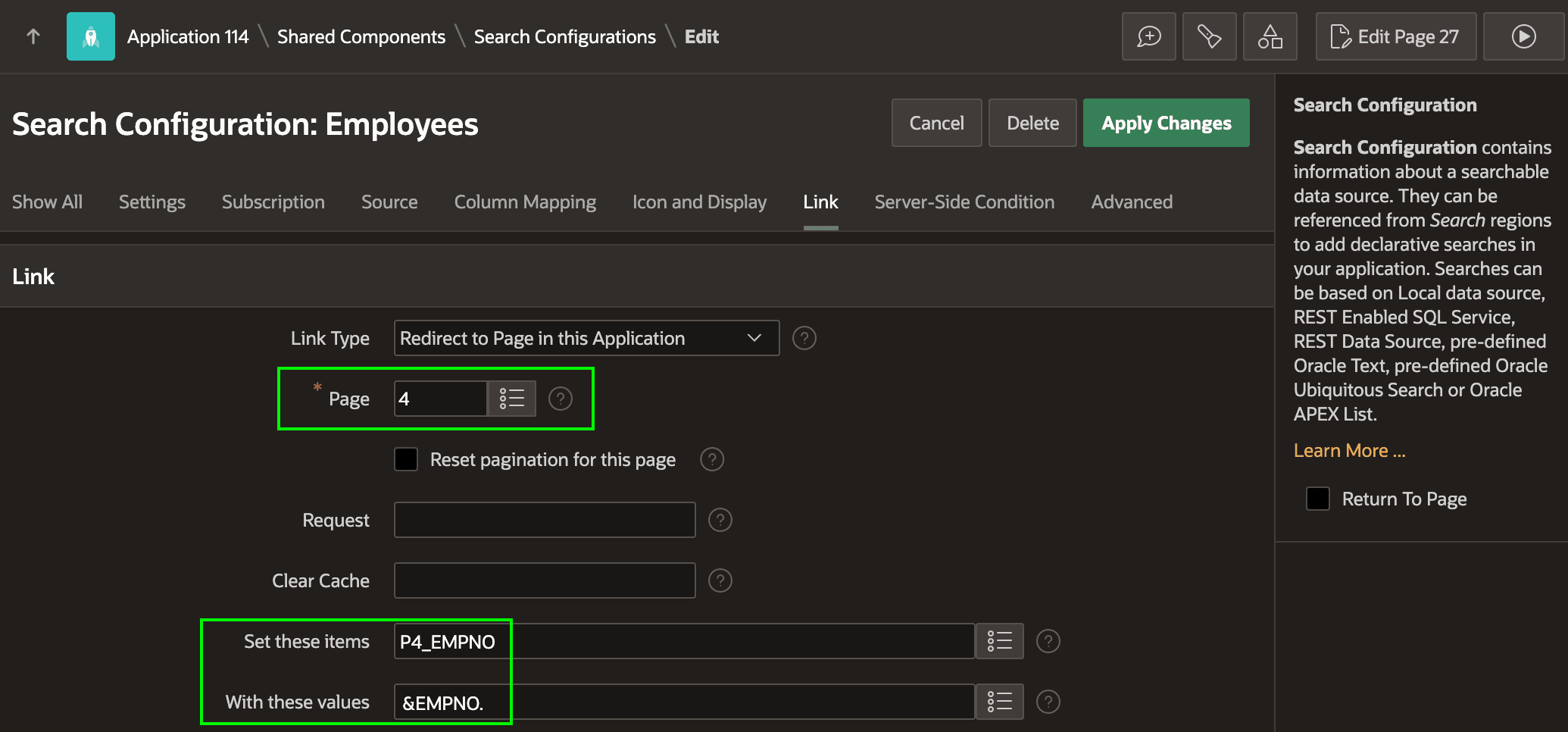
information. As shown below, when the user clicks on a search result from this
Employees search source, they should navigate to a modal Employee edit page
number 4, passing the value of the result's EMPNO column as the
P4_EMPNO parameter. The figure shows the Link section of the
Search Configuration edit page where your set up these options.
Figure 6-19 Defining a Search Configuration's Link Target Page
In a similar way, you could define a Departments search configuration based directly on the DEPT table using the fa-building-o icon for every row, mapping columns appropriately, and setting the link information to open a Department edit page.
Parent topic: Unified Search Results Across Sources