6.3.2 Using Search Configurations
After adding a Search region to a page, reference one or more search configurations as search sources.
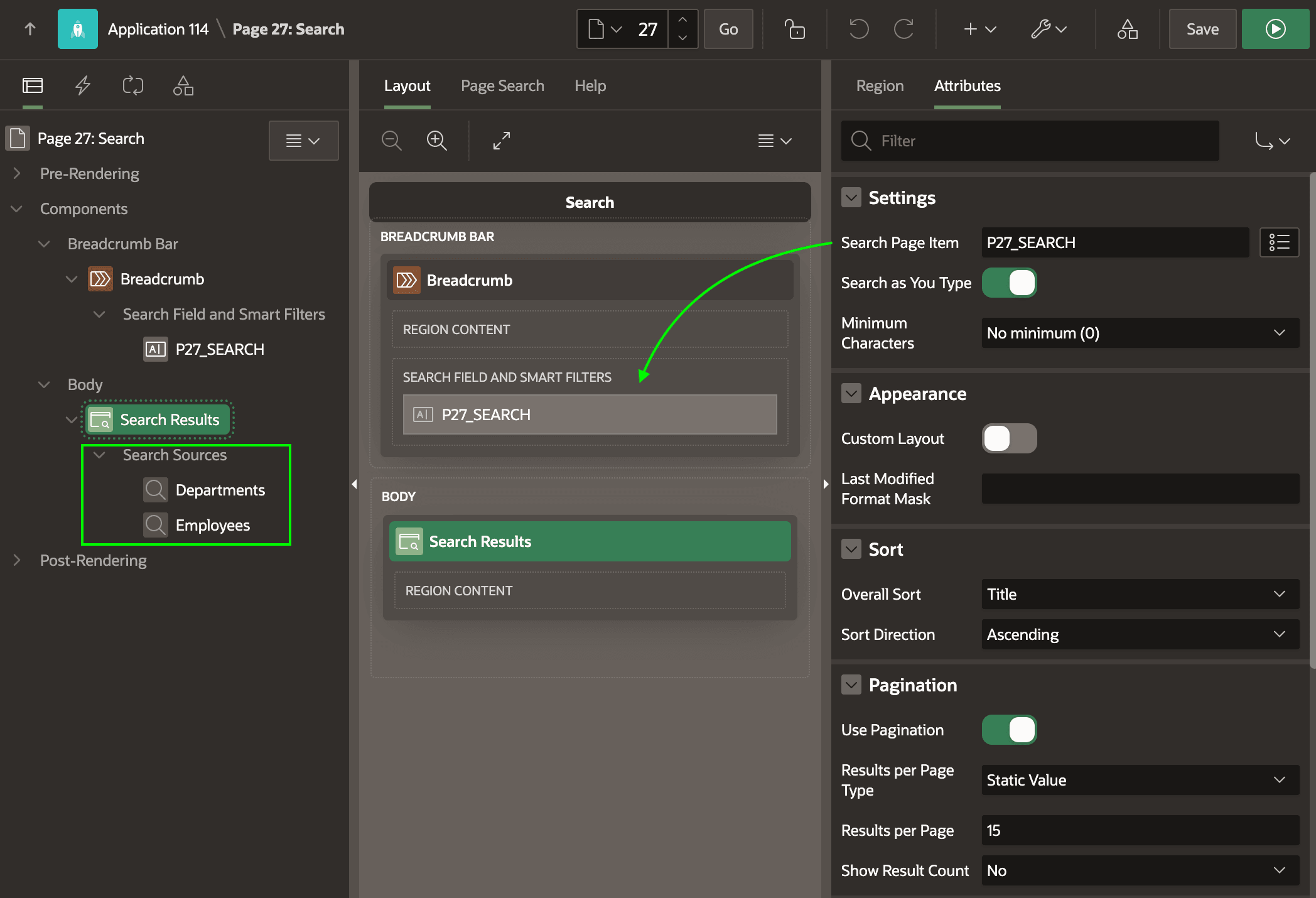
For example, the figure below shows a Search region in Page Designer, with
Employees and Departments search configurations added as sources. By
default a search region shows an integrated search field above the results area. For
more layout flexibility, as shown below you can add your own P27_SEARCH
page item that you position where you want and reference it in the region's Search
Page Item property. Using other settings, you control how sorting and pagination
of search results behave. If needed, you can configure a Custom Layout in the
Appearance section to format results from all sources in a consistent, custom
way. When doing so, your HTML can reference template directives for conditional output
as well as use substitutions with names like TITLE,
SUBTITLE, DESCRIPTION, ICON,
LINK, and more. See the Help tab in Page
Designer for the Result Row Template property for the complete list.
Figure 6-20 Configuring a Search Region with Search Configurations
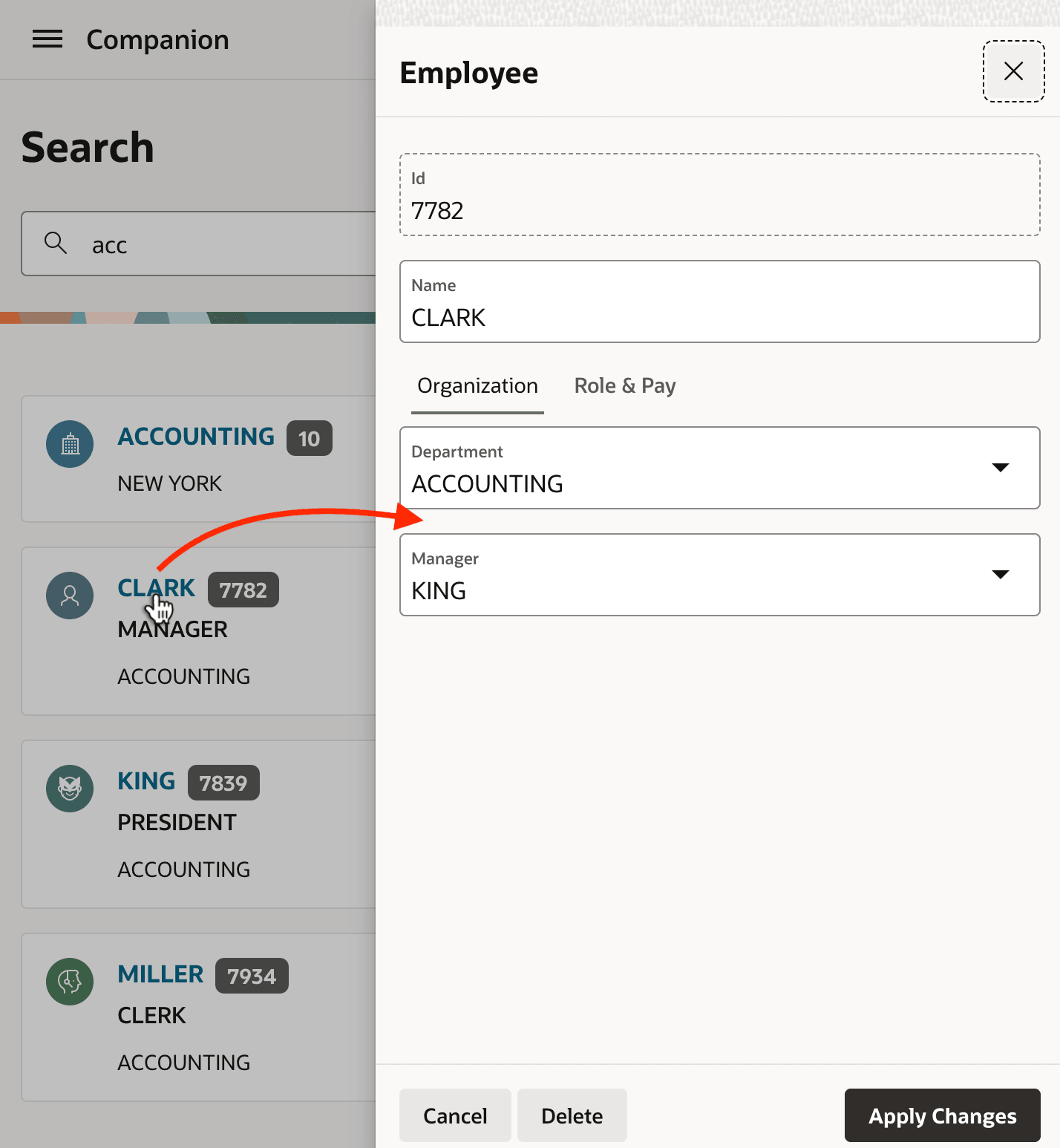
At runtime, as shown below, when the user types a term into the search field like acc matching results from both the Departments and Employees sources appear in the unified list of results. Clicking on a result like CLARK who works in ACCOUNTING, the appropriate employee-related target page opens to show the details.
Figure 6-21 Finding and Drilling Down on Search Results
Parent topic: Unified Search Results Across Sources