6.2.1 Defining Your Filters
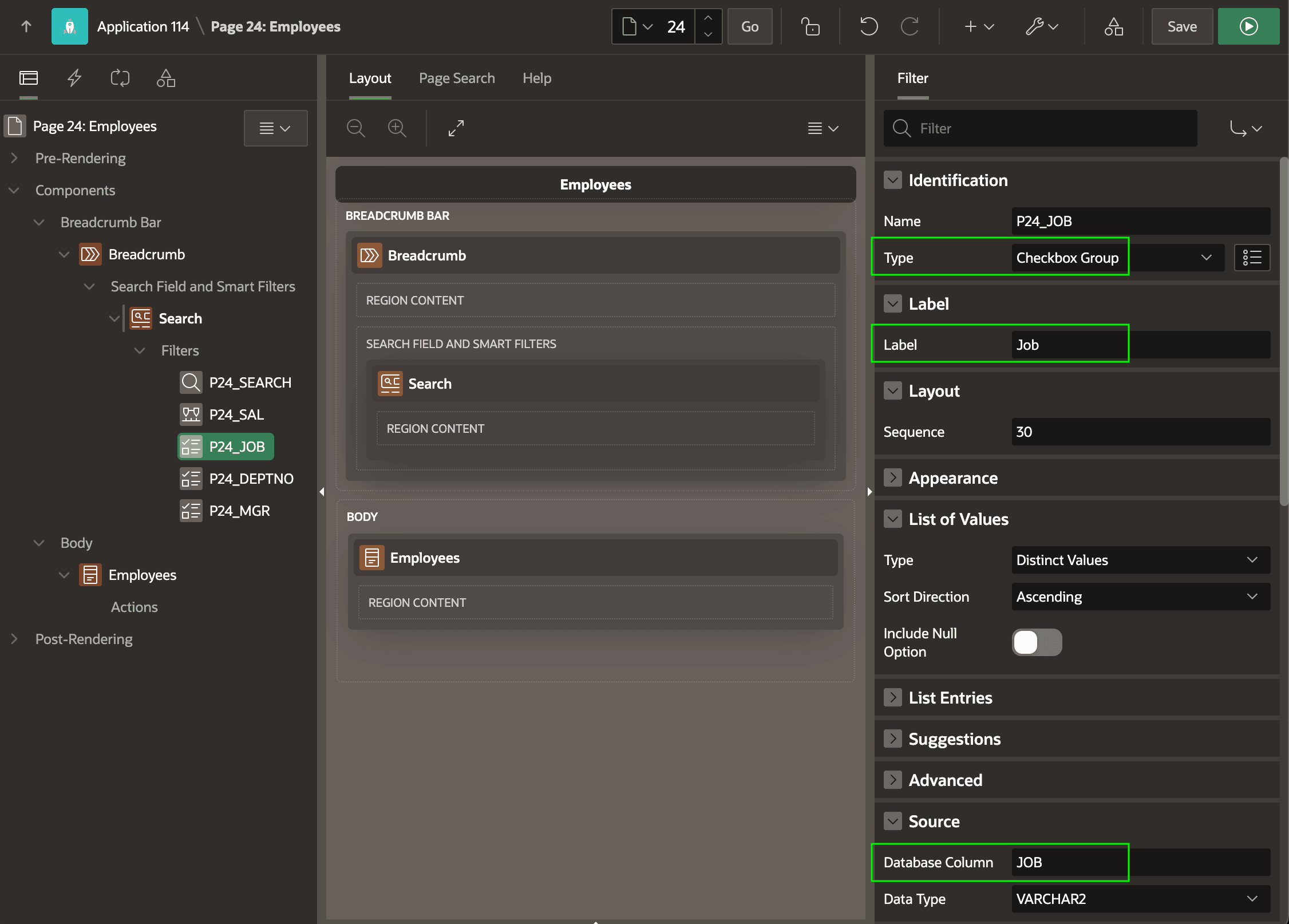
For each filter, you configure a Type, a Label, and a Database Column to filter on.
As shown below, the Smart Filters region in the breadcrumb's Search Field
and Smart Filters slot has five filters defined, with the
P24_JOB filter selected in the component tree. Filter names look
like page item names since they behave the same. At runtime, their values reflect the
choices the end user makes in each filter.
For filters of type Checkbox Group and Radio Group you define a list of values to provide the choices the user sees. You configure the list in the same ways as for a list-valued page item, with one extra option: Distinct Values. When selected, APEX shows filter options using the distinct values of the underlying column in rows matching the currently applied filters.
Configuring range facets, counts, dependency, and multi-valued columns works the same way as for the Faceted Search region's facets described in the previous section. When computing counts, you can show the filter options in descending order by top counts for Checkbox Group and Radio Group filters.
Figure 6-10 Defining Multiple Filters in Page Designer
Parent topic: More Space for Results with Smart Filters