6.2.2 Smart Filters User Experience
Learn about the user experience for Smart Filters.
When a user navigates to the Smart Filters search field, as shown below, they see the display name and icon of each filter you've defined.
Figure 6-11 Filter Display Names and Icons Appear in Search Dropdown
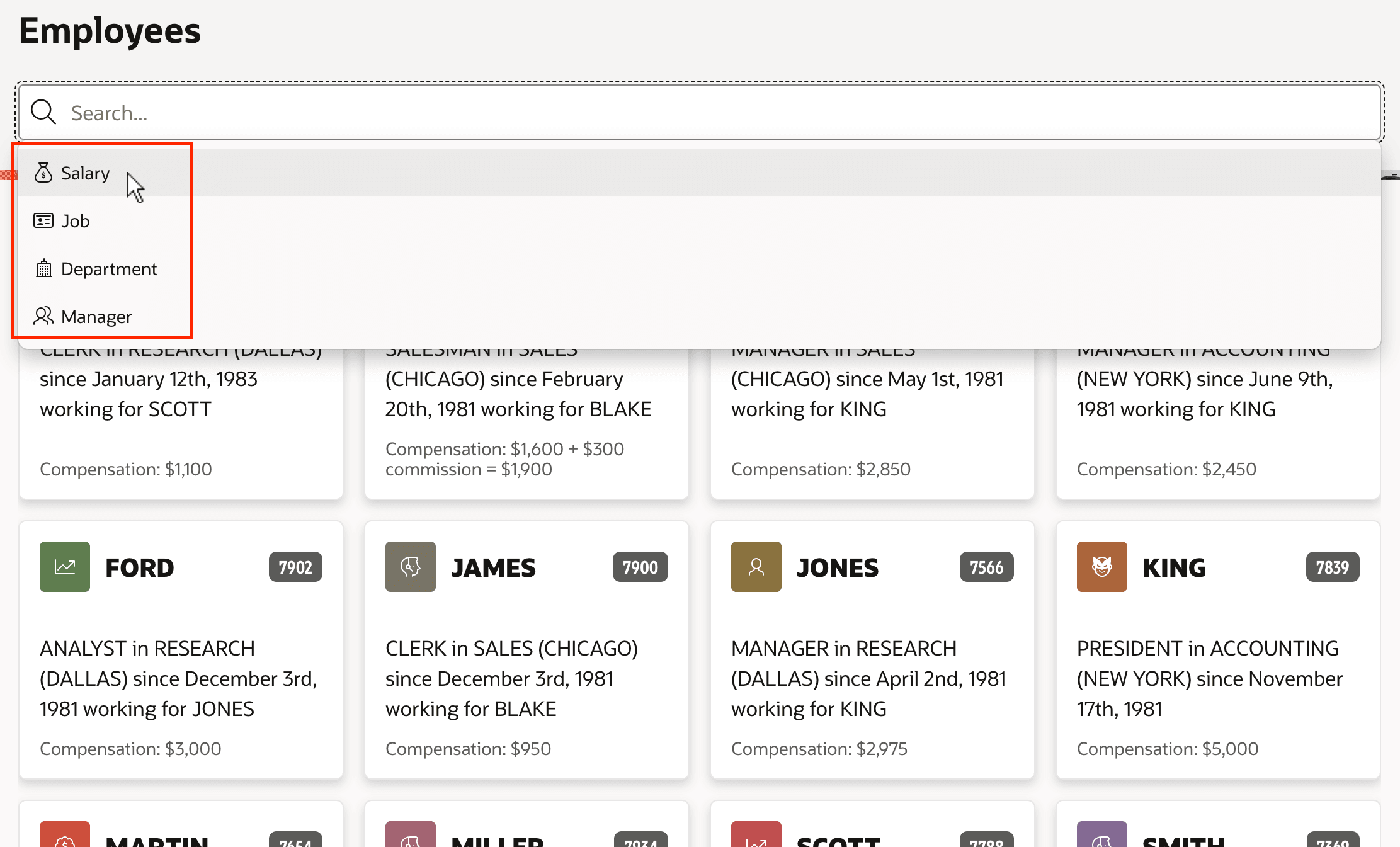
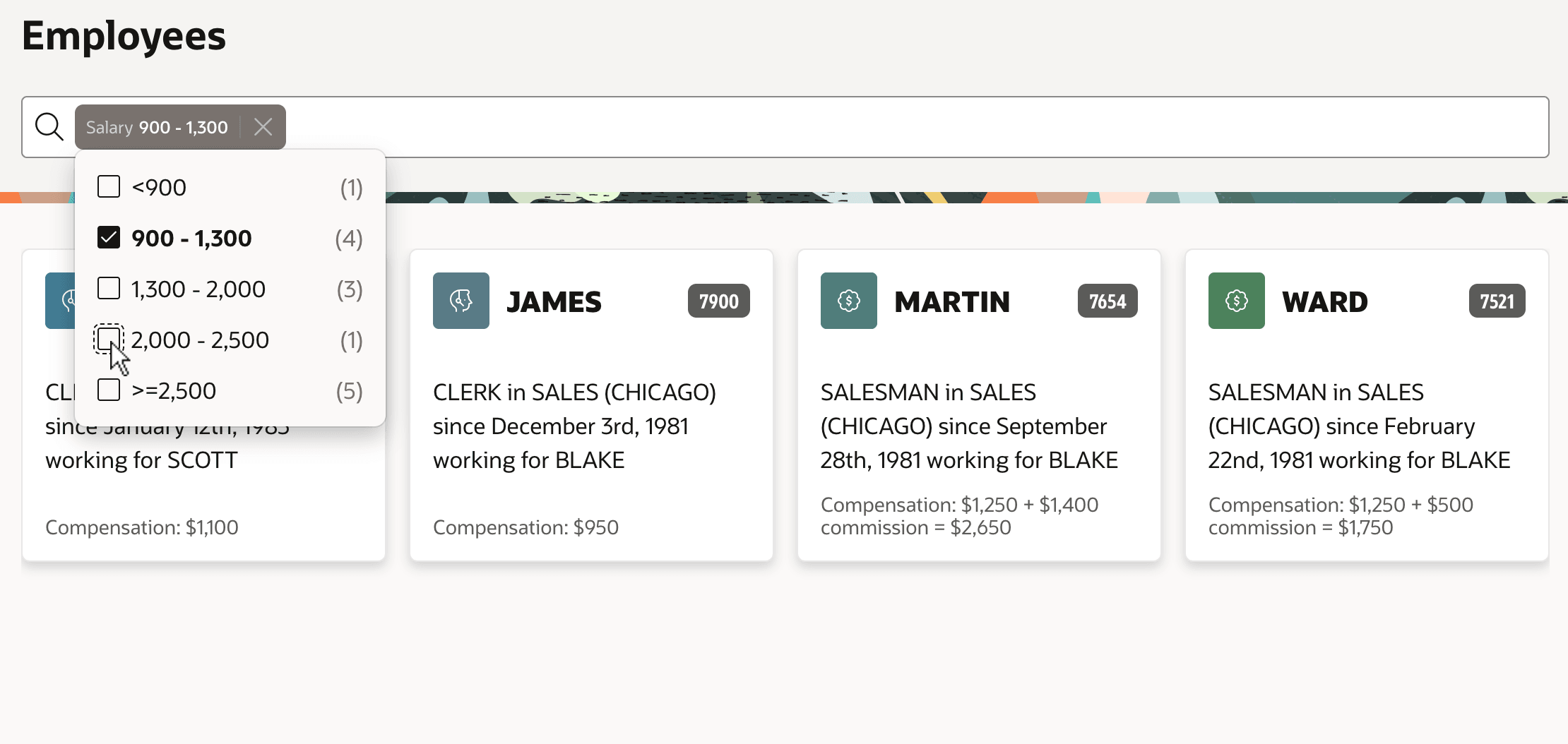
When they select a particular filter like Salary, as shown below, a corresponding "chip" appears in the search field with the filter display name and the filter options show in a dropdown. If configured to allow multiple selections, the user can do so. As the user selects filter options, the filtered region immediately updates to reflect the narrowed results.
Figure 6-12 Selecting One or More Options from a Filter
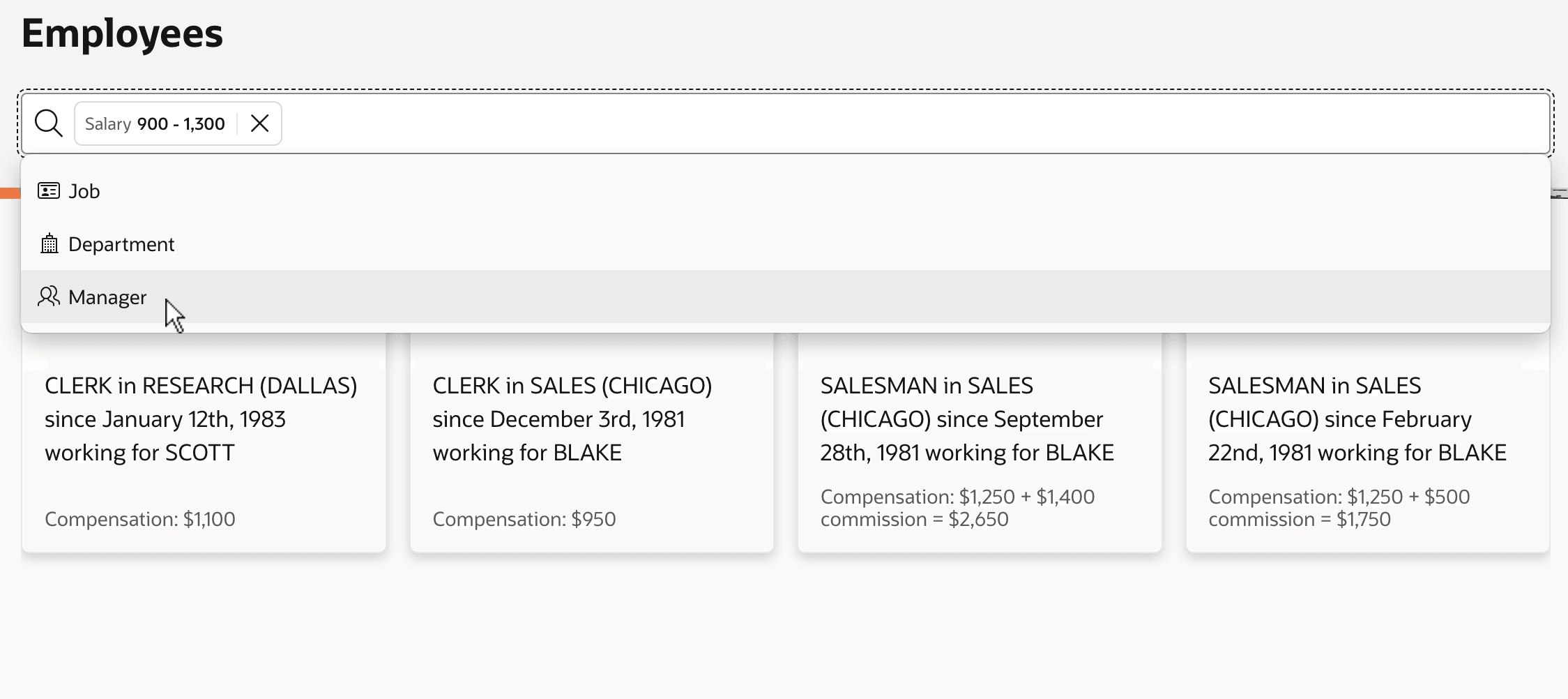
Once a filter is in use, as shown below, its chip stays visible in the search field to represent applied filters and the dropdown list shows remaining filters. A user can navigate to the Salary filter chip to revise their choices or click its "x" icon to remove it.
Figure 6-13 One Filter Used, Other Filters Remain Available
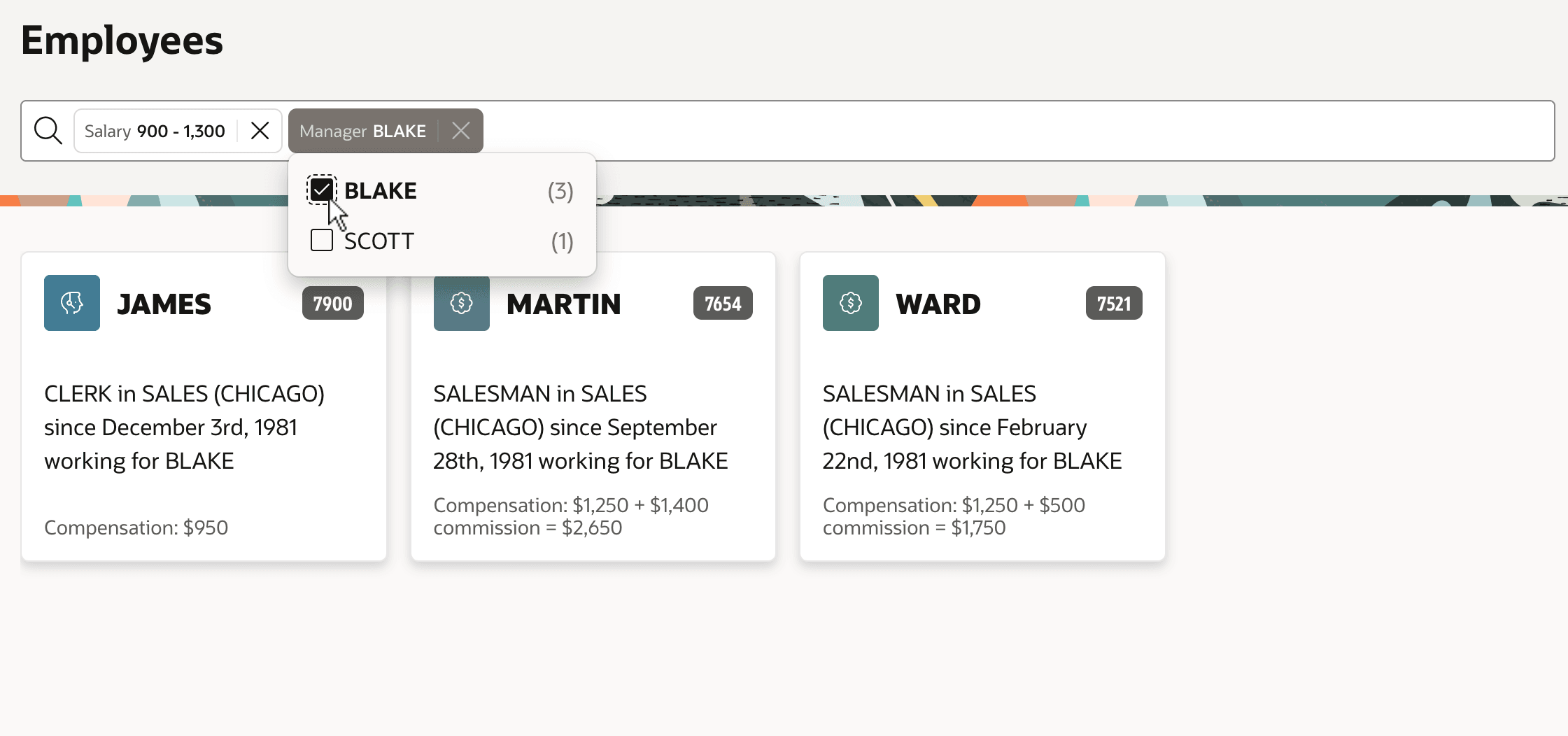
If the user picks the Manager filter and selects BLAKE an additional chip appears and results refresh to show employees BLAKE manages whose salary is between 900 and 1300.
Figure 6-14 Applying Multiple Filters Using a Smart Filters Region
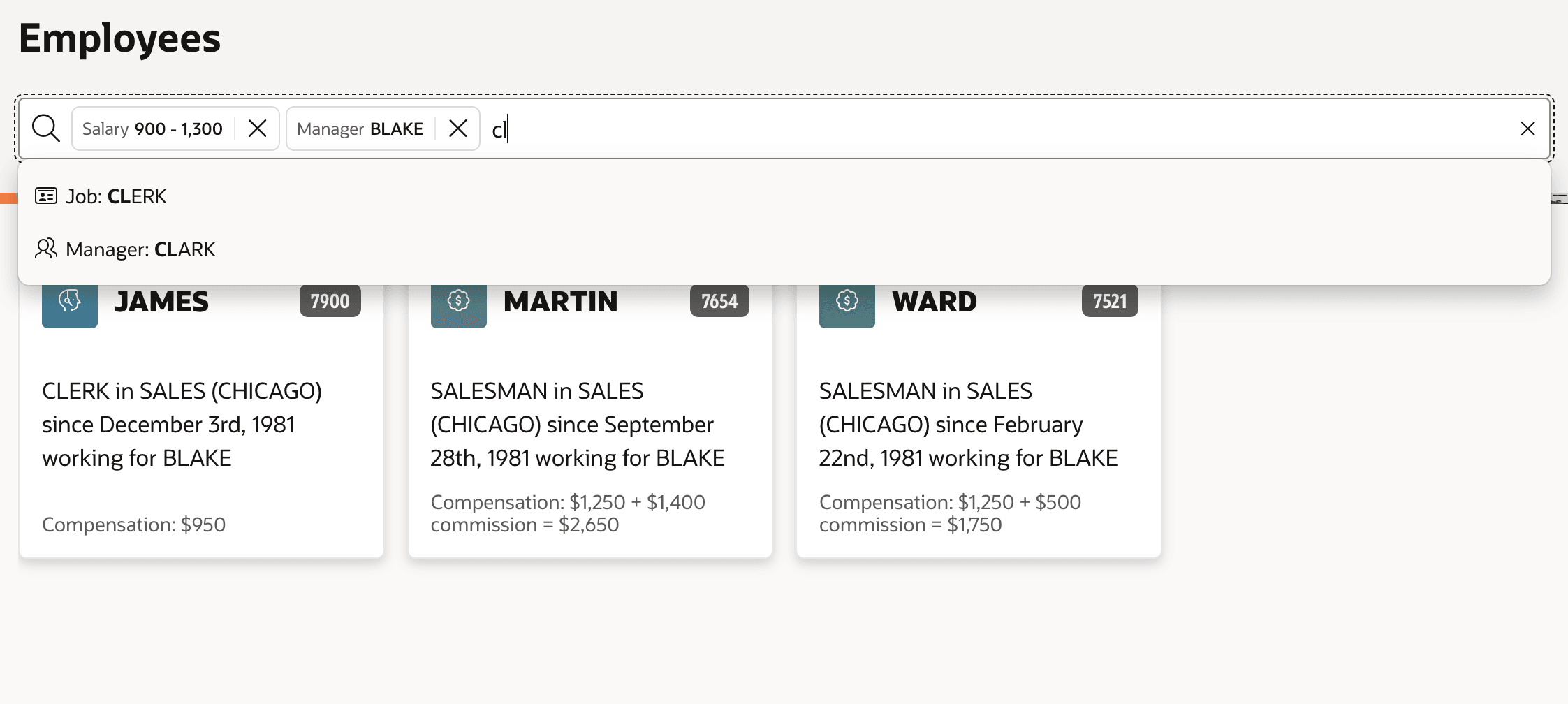
At any time the user can type into the search field to enter one or more terms to find across columns. You configure which columns APEX searches using the Database Columns property of the Search filter. As shown below, as the user types into the search field any matching filter options appear in the dropdown as well. For example, after typing cl, suggestions show for Job: CLERK and Manager: CLARK. The user can keep typing to complete their search term and press [Enter] to see the results. Alternatively, they can pick one of the suggested filter options.
Figure 6-15 Typing Text to Search Across Columns or Find Filters
Parent topic: More Space for Results with Smart Filters