25.3.5.4 Discharging Patient After Procedure
Complete a patient procedure and generate draft discharge instructions with AI.
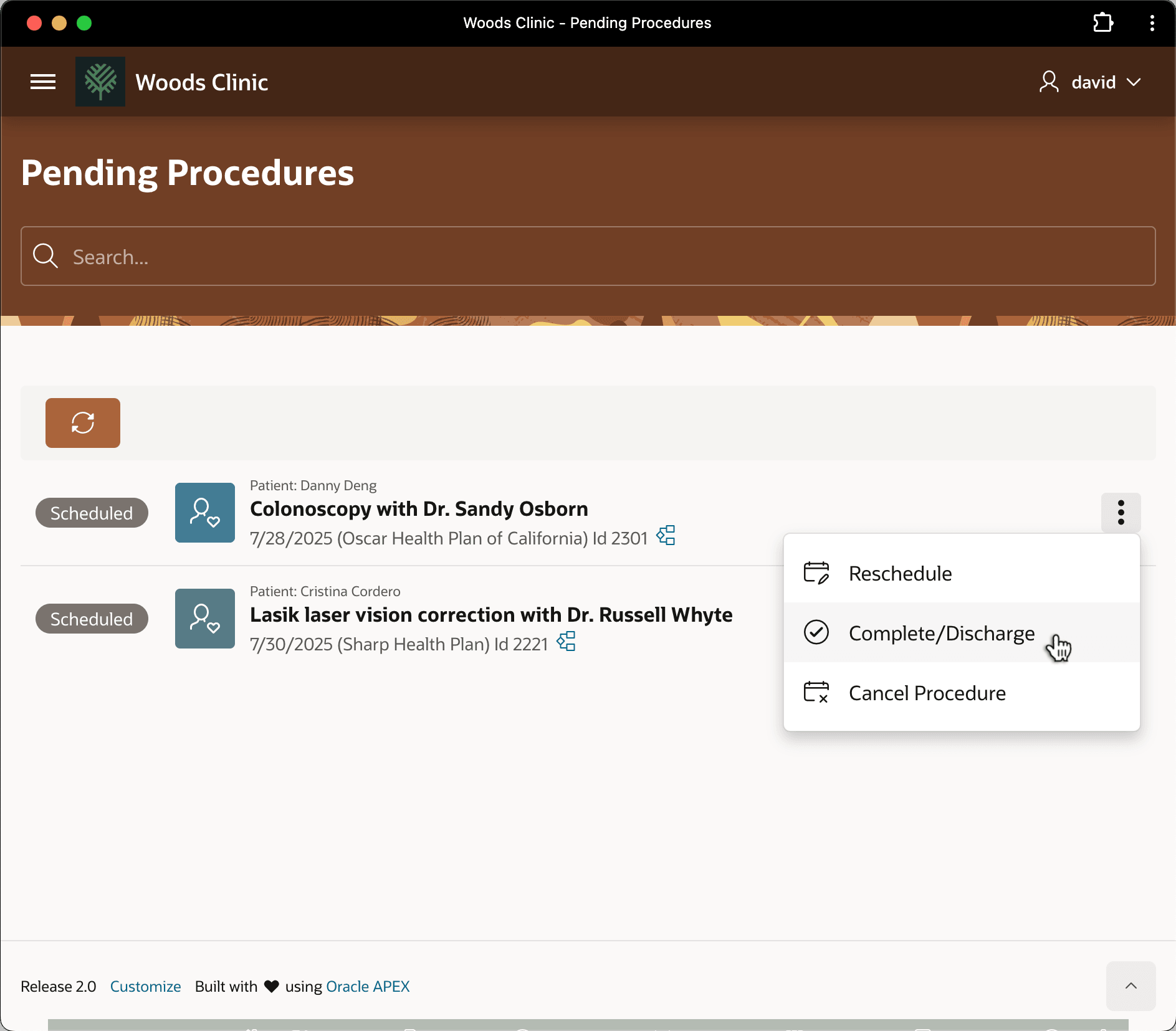
On the day of the appointment, when the procedure is over, Danny stops at the front desk before leaving. As shown below, David uses the three-vertical-dots dropdown menu on Danny's procedure record to open the Discharge page.
Figure 25-124 Discharging the Patient and Completing the Procedure
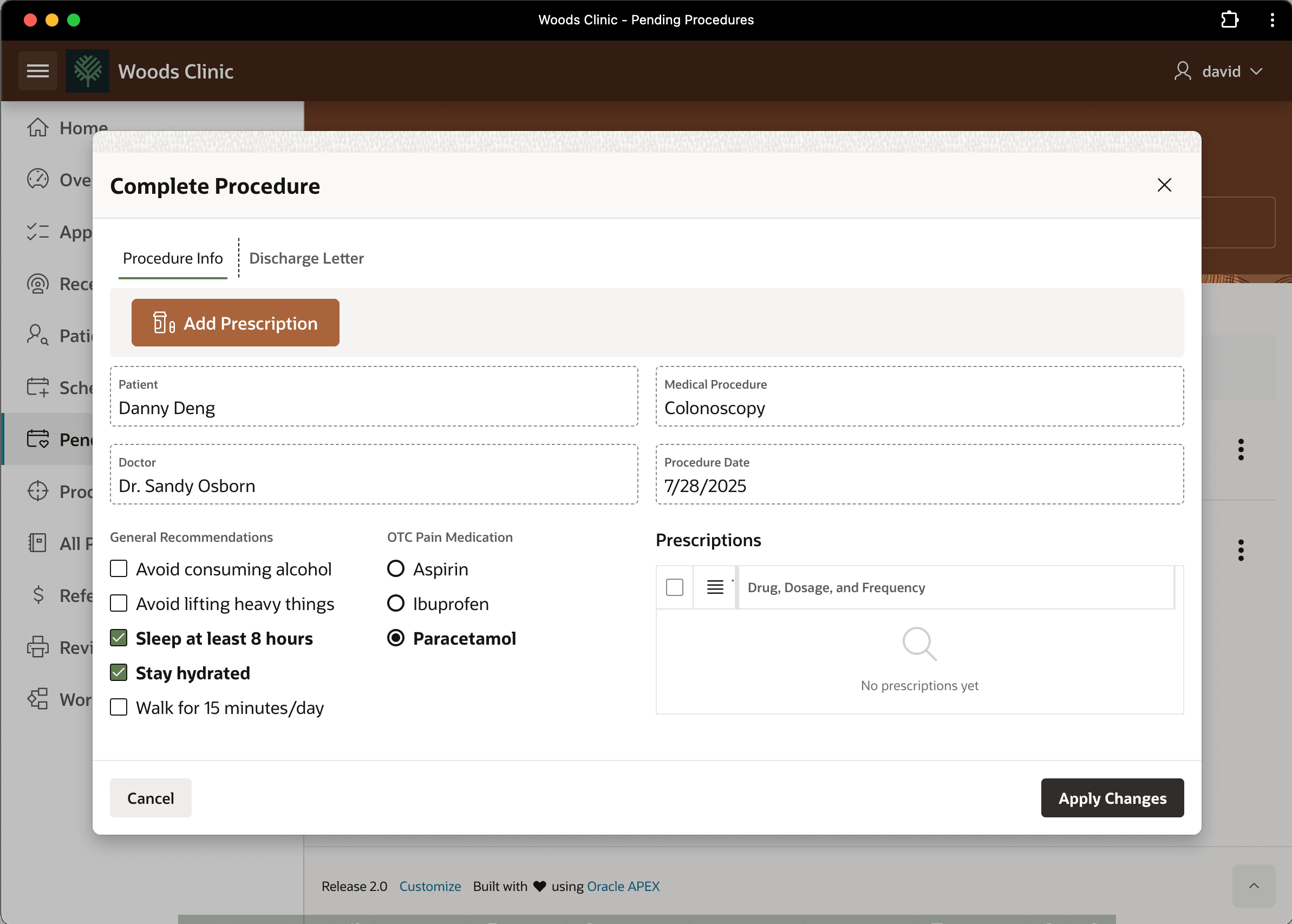
To send Danny on his way with some advice, on the Procedure Info tab, David ticks some common recommendations like sleeping at least 8 hours and to stay hydrated. He recommends Paracetamol if Danny experiences any discomfort.
Figure 25-125 Entering Patient Discharge Instructions
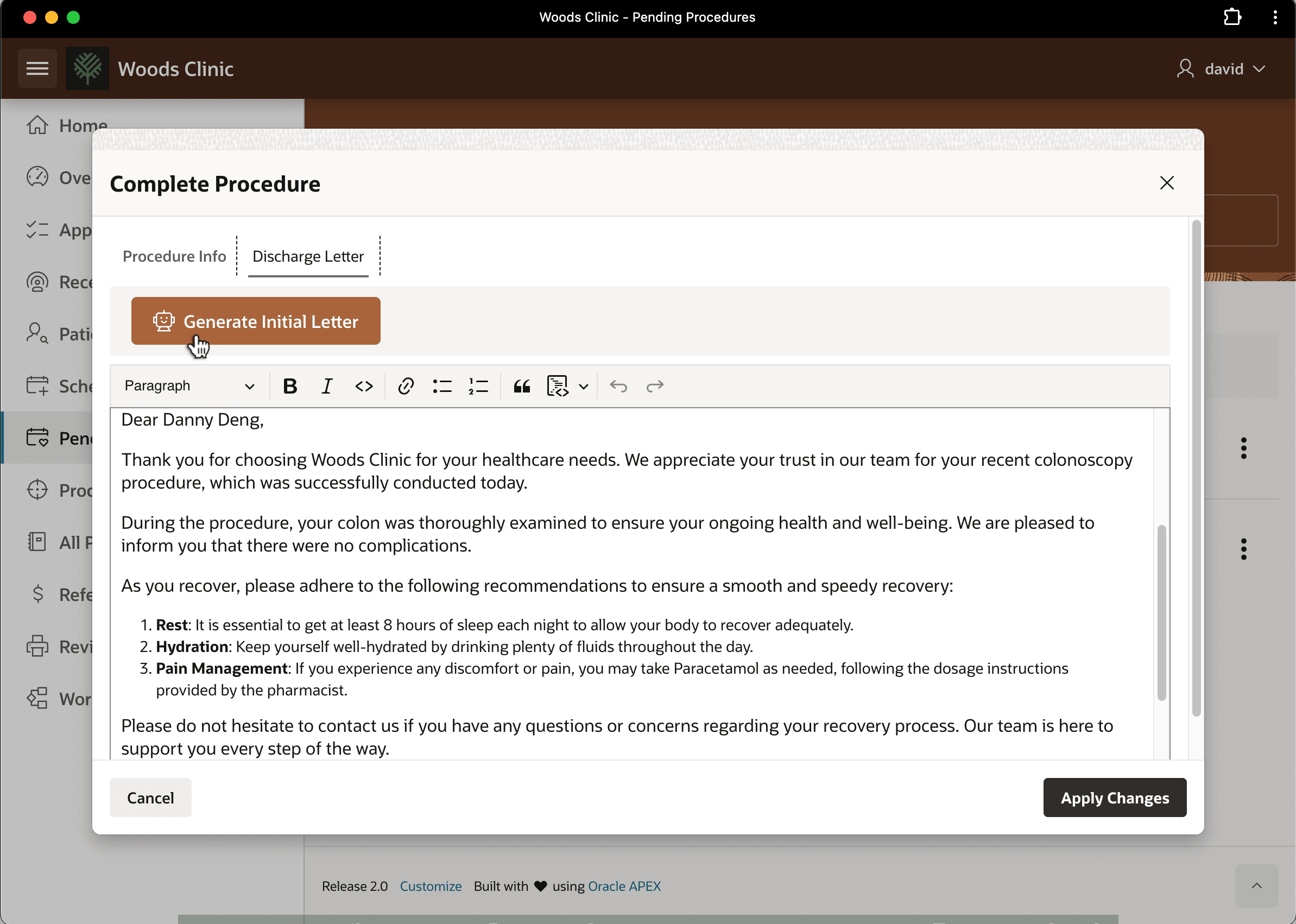
On the Discharge Letter tab, David clicks the (Generate Initial Letter) button to get a head start on writing Danny's discharge letter. David adjusts the initial letter as needed, prints out a copy for Danny, and clicks (Apply Changes) to complete the discharge step.
Tip:
Your page's (Generate Initial Letter) button uses a dynamic action event handler on the button click to run a native Generate Text with AI dynamic action step. Its related AI Configuration contains the system prompt and RAG source to use a Generative AI Service to prepare a draft of the discharge letter with Danny's procedure information and David's discharge recommendations included. This productivity idea has proven to be a big time saver and is a real hit with staff.
Figure 25-126 Preparing Discharge Letter Using Generative AI
Parent topic: Following a Medical Procedure Lifecycle