11.4.7 Experiencing Authorization in Action
Once you configure authorization for your application, every user's experience adapts automatically based on their role.
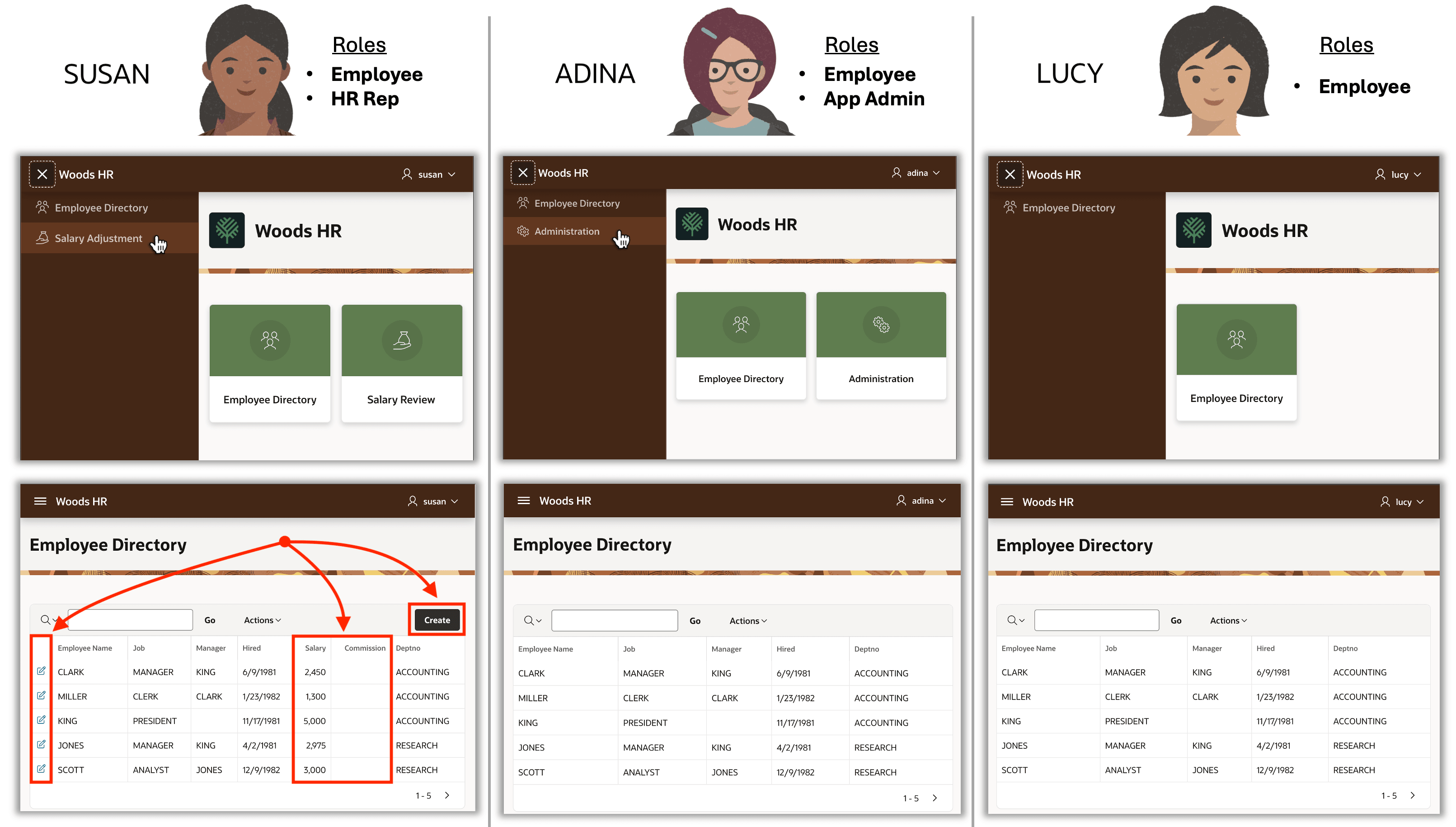
The figure below shows the outcome of applying authorization scheme rules to menu
entries, pages, columns, buttons, and edit links. When SUSAN the HR
Representative logs in, she sees the Employee Directory and Salary Review
pages in the menu and on the home page that displays the navigation menu entries in a
card list. When she accesses the Employee Directory page, the Salary and
Commission columns appear in the interactive report, as do as the
(Create) button and the edit link.
When App Admin ADINA logs in, she can access the Employee Directory and the Administration page. When she navigates to the Employee Directory page, she sees no pay information in the report, and she isn't even aware that creating or editing employees is possible.
When employee LUCY accesses the app, after logging in she see just the Employee Directory in the same simplified way that ADINA sees it.
Figure 11-15 End Users Experience and Features Adjust Automatically to their Role
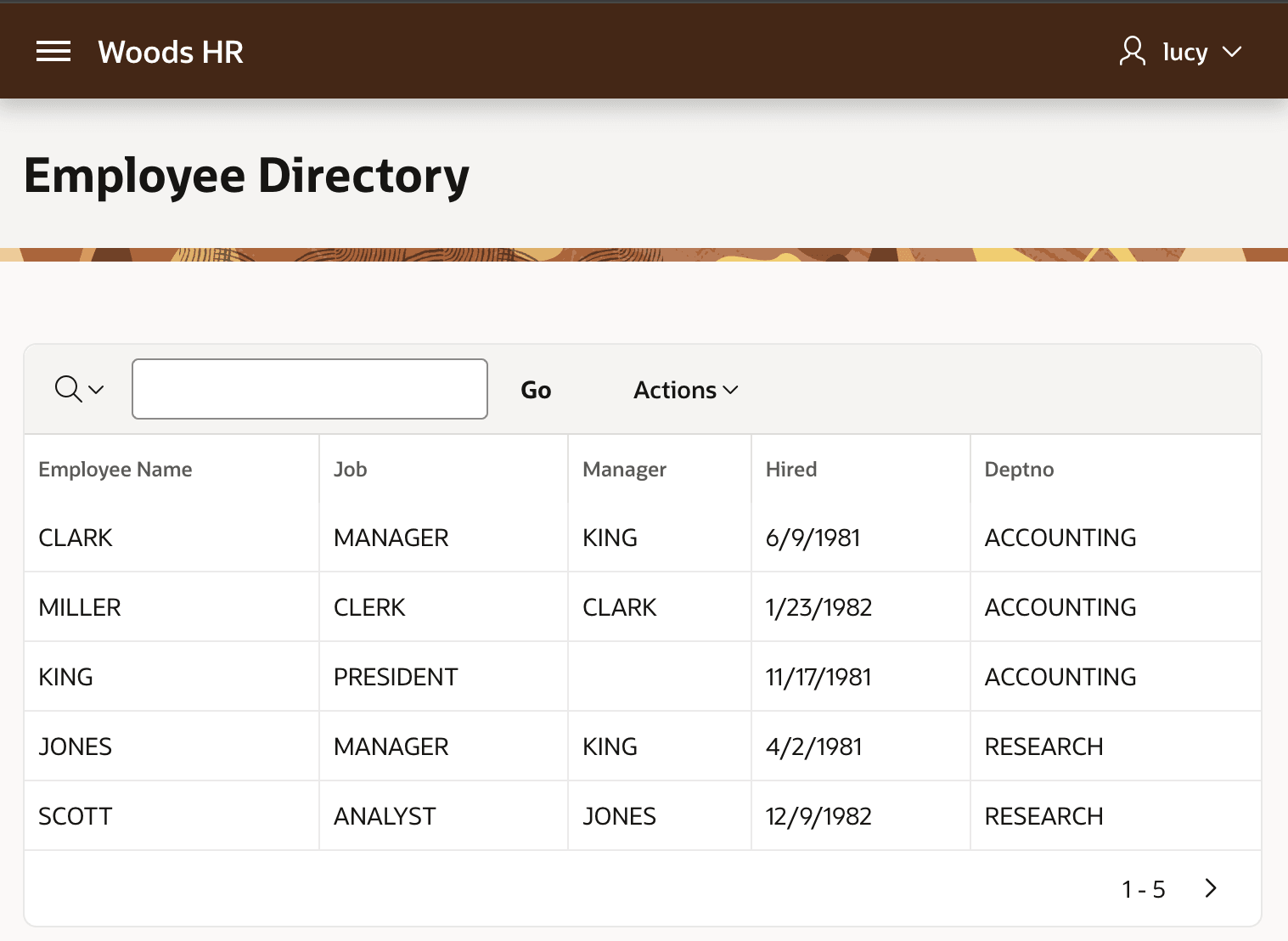
As shown below, LUCY's Employee Directory page experience is a read-only report with no salary or commission information available.
Figure 11-16 Regular Employees Don't See Certain Columns, Create Button, or Edit Link
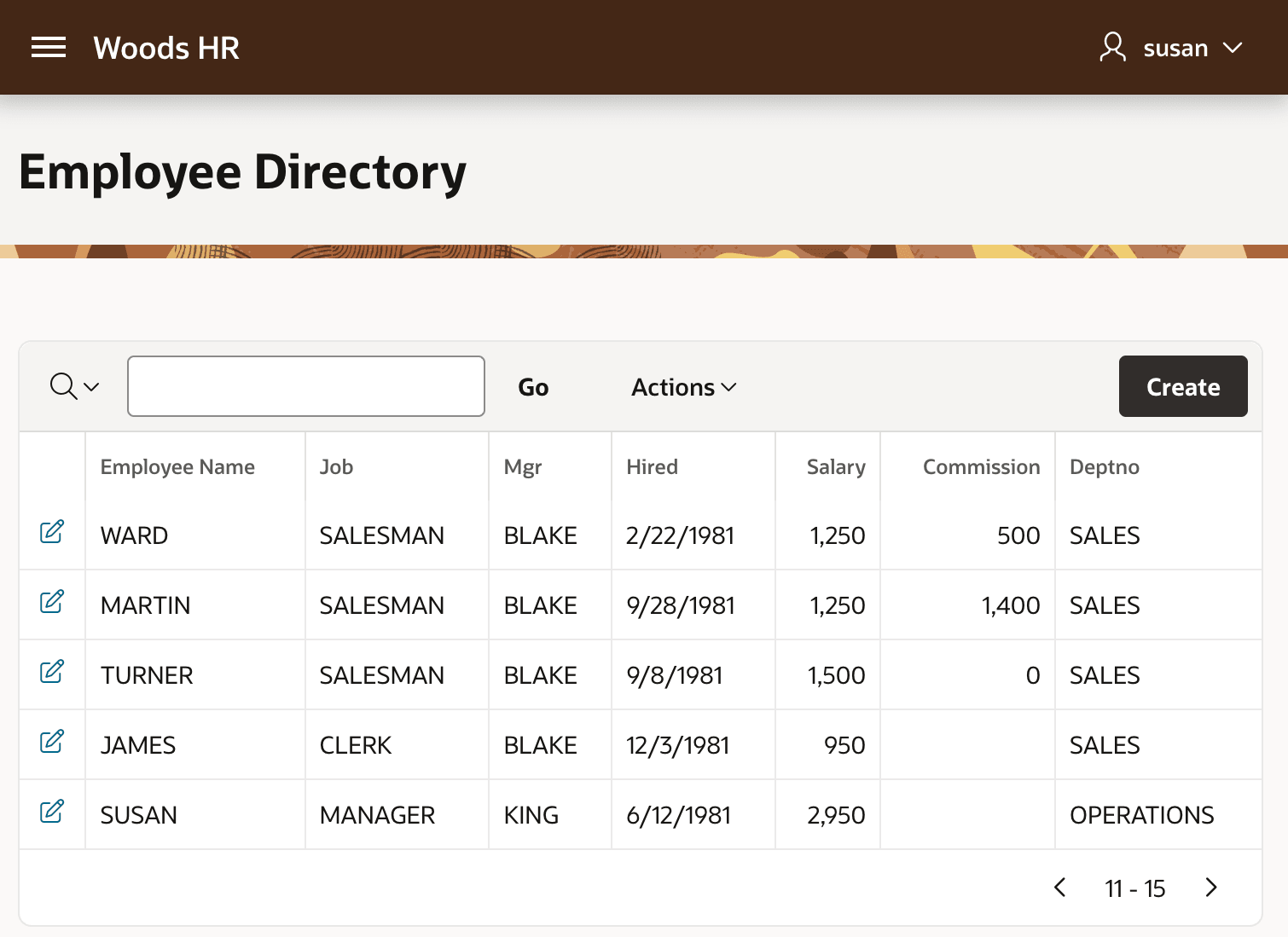
However, when SUSAN visits the same page, she can see pay information, and both create and edit employees since she's an HR Representative.
Figure 11-17 HR Representatives See Pay Columns, Create Button, and Edit Link
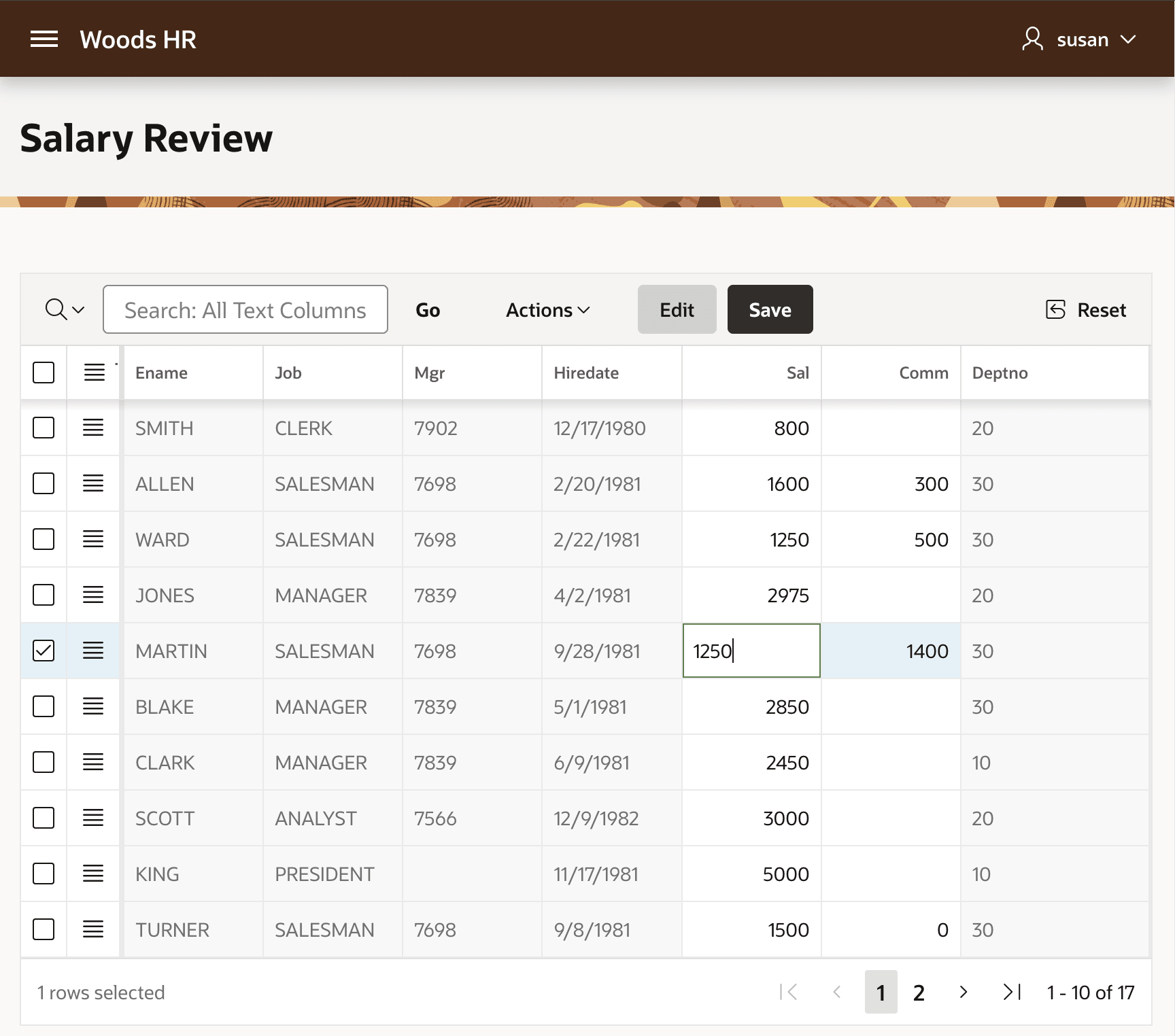
Only SUSAN can navigate to the Salary Review page shown below,
featuring an Interactive Grid. You configured most of its columns to be Display
Only, with only Sal and Comm columns as editable. So she can edit
any employee's salary and commission from here.
Figure 11-18 Only HR Representatives Can Use Salary Review Page
Parent topic: Shaping Experience with Rules and Roles