22.4 Exporting and Importing Translations
Export and import XLIFF files to translate Text Messages in bulk.
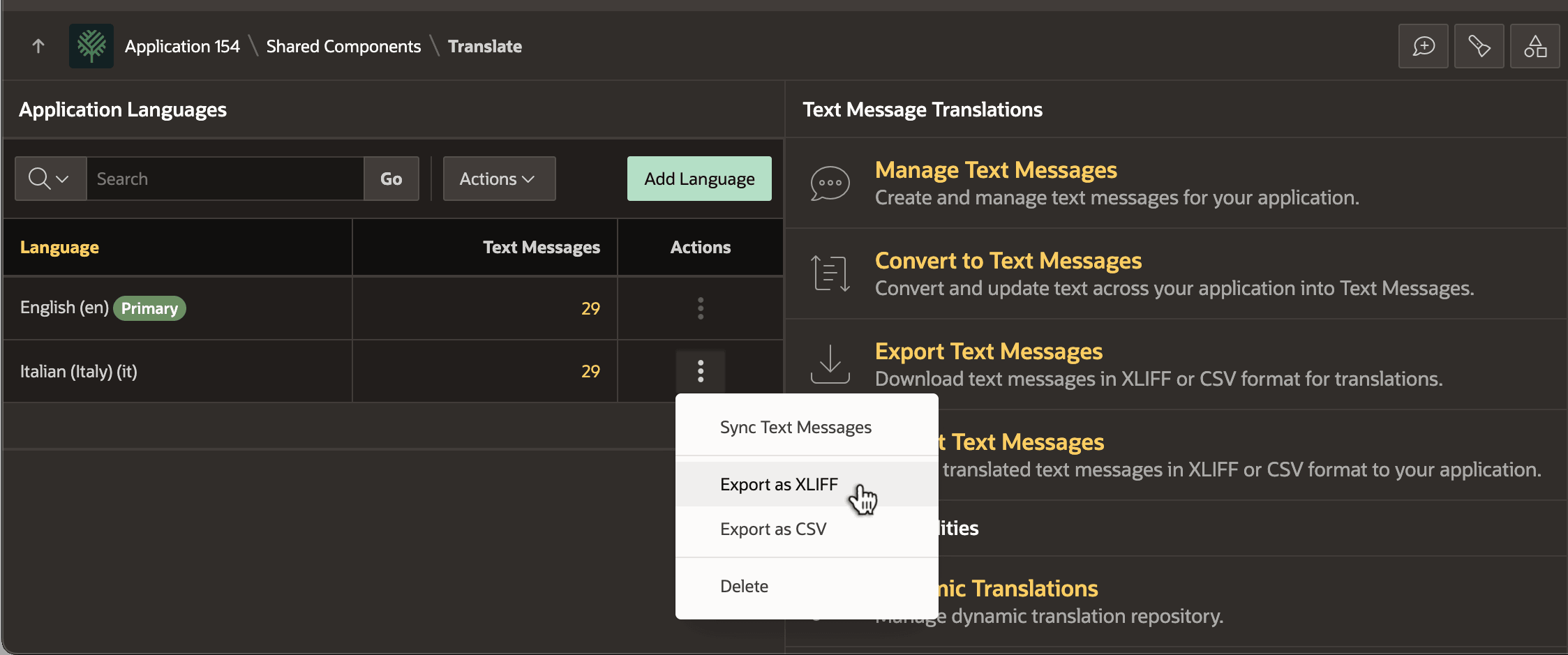
You could edit the Italian version of each message one by one to translate it. However, usually translation happens in bulk using industry-standard XML Localization Interchange Format (XLIFF) files. To export the Italian messages for translation in XLIFF format, use the Export as XLIFF option on the three vertical dots menu for that application language on the Application Translations page.
Figure 22-9 Exporting all Text Messages for a Language to an XLIFF File
The name of the XLIFF file contains the application id, the source language and the target language. For example, for the Woods HR app with ID 154, the file for the English source and Italian target languages is named f154_en_it.xlf. It contains an XML format like the following with source and target strings. Before translation, each target language string has the same value as its corresponding source.
<?xml version="1.0"?>
<xliff version="1.0">
  <file original="f154_en_it.xlf"
        source-language="en"
        target-language="it"
        datatype="html">
    <trans-unit id="EMPLOYEE_DIRECTORY">
      <source>Employee Directory</source>
      <target>Employee Directory</target>
    </trans-unit>
    <trans-unit id="DATE_OF_HIRE">
      <source>Date of Hire</source>
      <target>Date of Hire</target>
    </trans-unit>
     ⋮
  </file>
</xliff>
You would typically provide this file to a translation service. They return a file with the <target> element text updated with Italian language translations like this:
<?xml version="1.0"?>
<xliff version="1.0">
  <file original="f154_en_it.xlf"
        source-language="en"
        target-language="it"
        datatype="html">
    <trans-unit id="EMPLOYEE_DIRECTORY">
      <source>Employee Directory</source>
      <target>Elenco dipendenti</target>
    </trans-unit>
    <trans-unit id="DATE_OF_HIRE">
      <source>Date of Hire</source>
      <target>Data di assunzione</target>
    </trans-unit>
     ⋮
  </file>
</xliff>
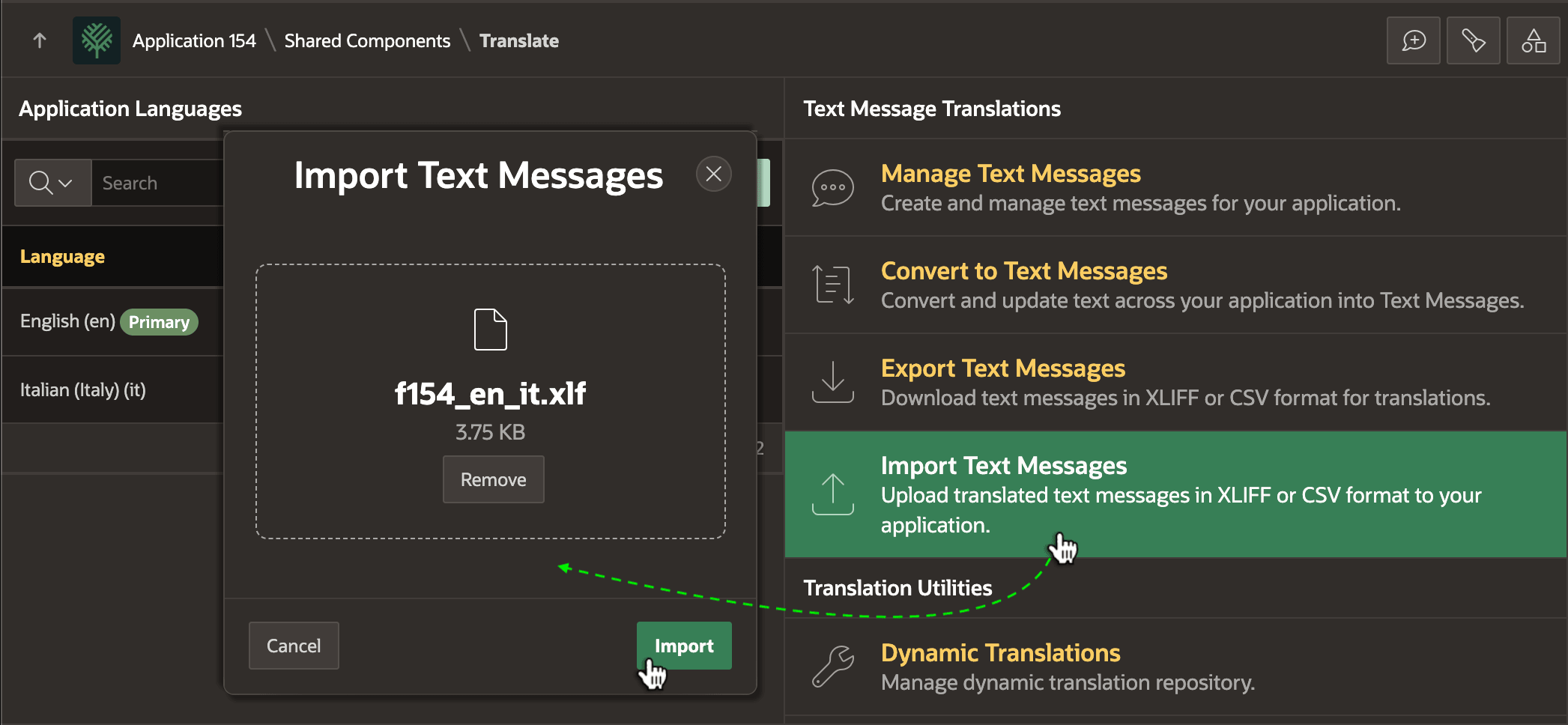
To apply the Italian language translation to your app, go to the Application Translations page. As shown below, click Import Text Messages and supply the XLIFF file name to import.
Figure 22-10 Importing Translated Strings from XLIFF File
Parent topic: Translating Your Application