15.1.7.7.2 Including Helper Functions in All Pages
Once you add JavaScript file to Static Application Files, cite the script's reference URL in application settings to load it on all pages.
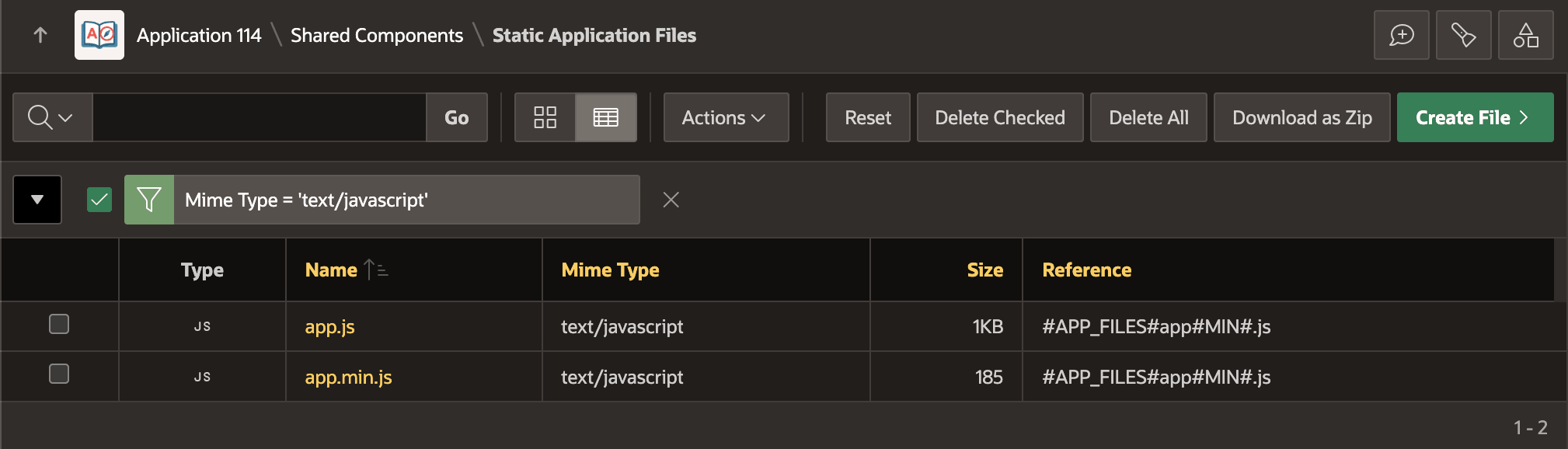
In the Shared Components > Static Application Files list page, as
shown below, you can find the Reference URL for any file. When useful, since the
list is an Interactive Report, use its filtering features to show only JavaScript files.
Notice the Reference column value for JavaScript files includes both the
#APP_FILES# and #MIN# substitutions. Copy the
Reference value for the app.js file to the clipboard to use
in the next step.
Figure 15-24 List Page Shows Reference Path for a Static Application Files
Tip:
When running with debug tracing, the original JavaScript source file is used instead.When you save a JavaScript file like app.js, App Builder automatically creates a minified version named app.min.js. Minification removes whitespace and shortens names without changing the code’s logic, making the file smaller. APEX uses the minified file at runtime to improve page load performance, except when Debug tracing is enabled. With Debug tracing, APEX uses the original JavaScript source file.
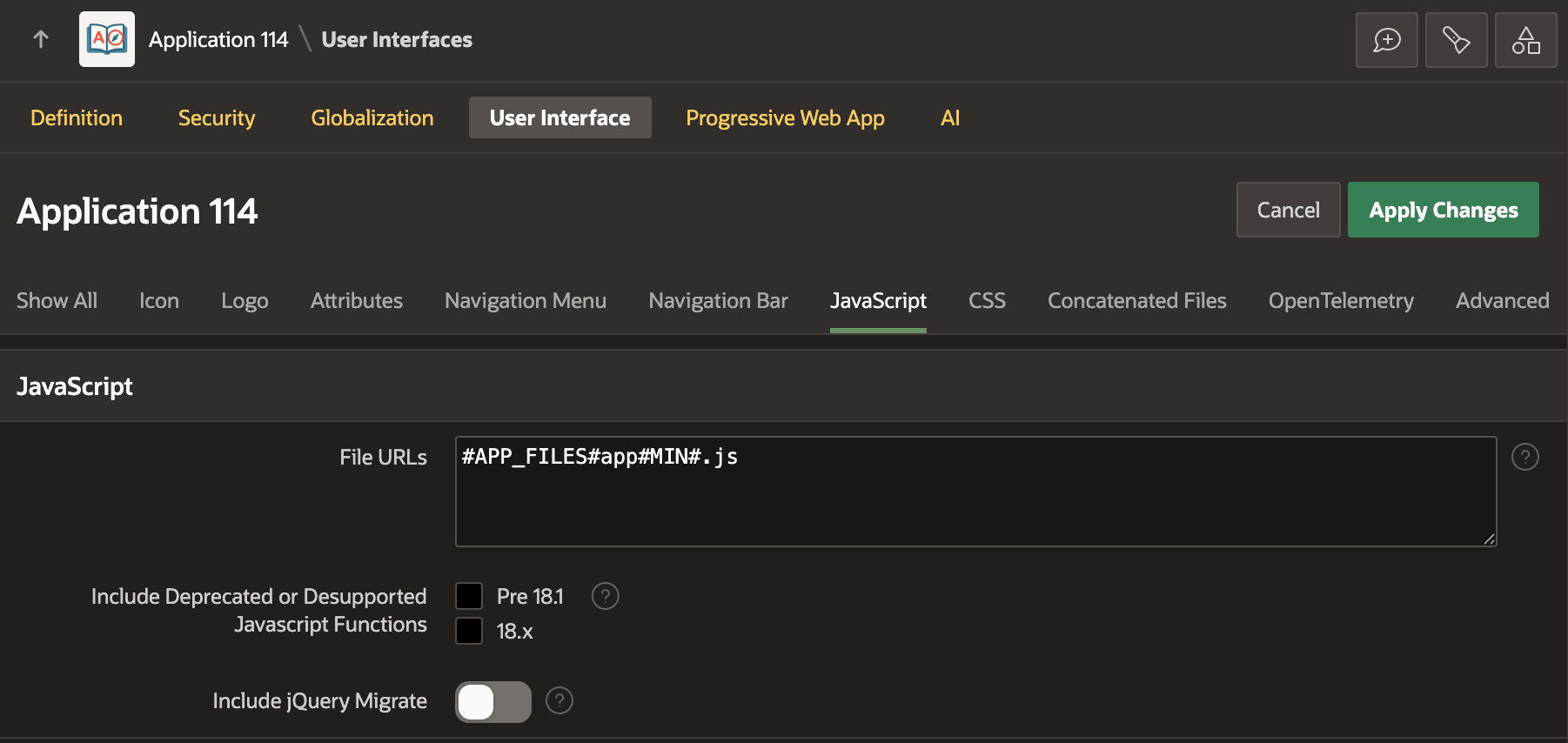
To include a static application JavaScript file in every page, start by copying its Reference path from the page above. Then, as shown below, paste that value into the File URLs list field on the JavaScript tab of the Shared Component > User Interface Attributes page. If you include multiple files, list one per line.
Figure 15-25 Including Static App File Reference in Application JavaScript File URLs
Parent topic: Providing App-Wide Helper Functions