5.5.3 Including Related Data on a Chart
Include related data on charts by using SQL.
Showing the name of the department instead of the department number requires
using a SQL Query to join the EMP and DEPT tables. You can
switch the Salaries series to use a SQL Query like the following that joins the two
tables on their related key value, and computes the SUM of the
SAL values, grouping by department number:
SELECT E.DEPTNO,
       D.DNAME,
       SUM(E.SAL) AS TOTAL_SALARIES
  FROM EMP E
  JOIN DEPT D
    ON D.DEPTNO = E.DEPTNO
GROUP BY E.DEPTNO, D.DNAME
The Commissions series requires a similar query, but since COMM can be null, you need the NVL()function to provide a default value of zero (0) when the commission is null. Notice the SQL language is case-insensitive, so you can use a query in all lowercase if you find that easier to read:
select e.deptno,
       d.dname,
       sum(nvl(e.comm,0)) as total_commissions
  from emp e
  join dept d
    on d.deptno = e.deptno
group by e.deptno, d.dname
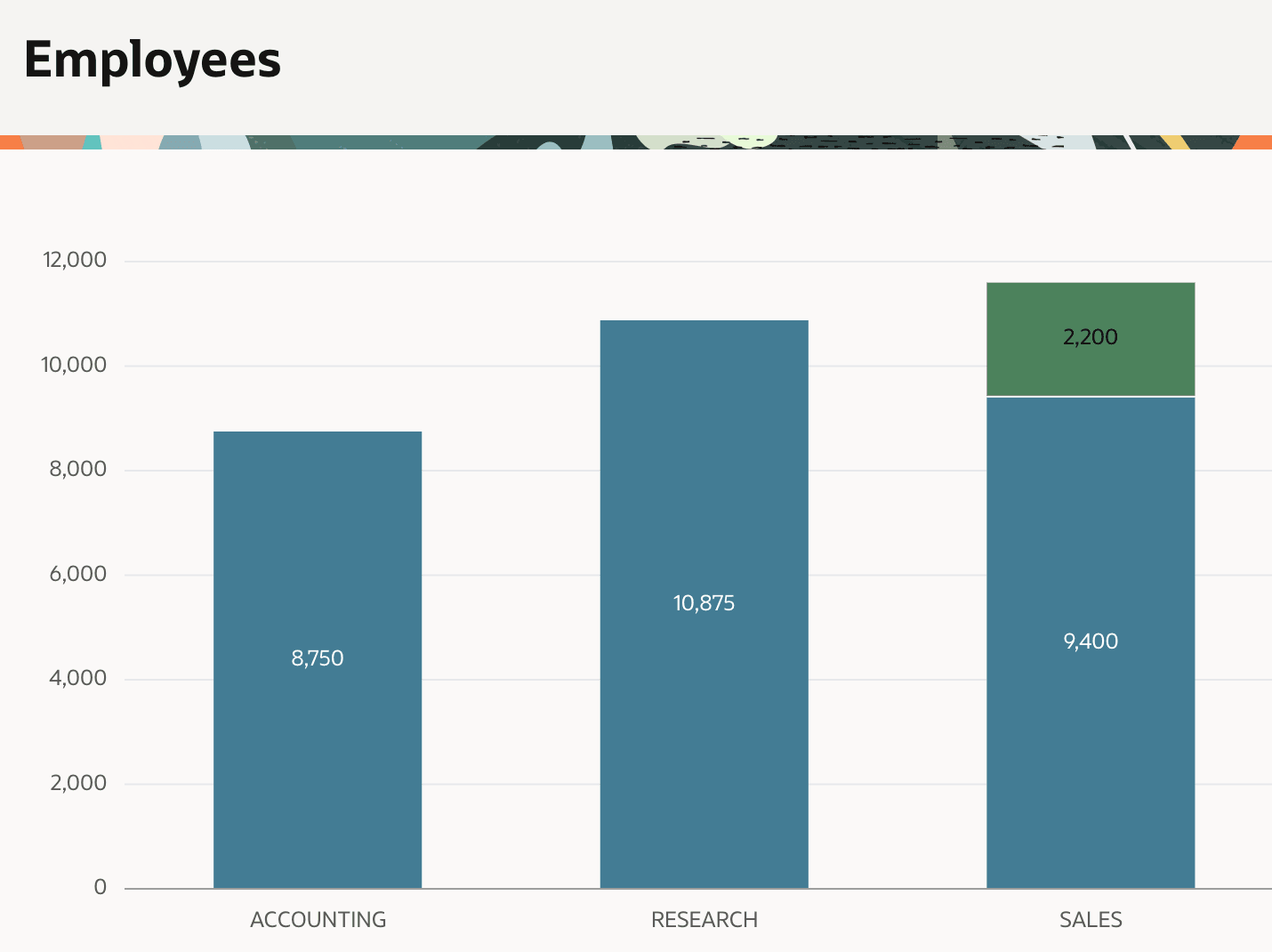
After adjusting the Salaries and Commissions series' Column Mapping sections to pick DNAME for the label and the TOTAL_SALARIES and TOTAL_COMMISSIONS for the respective value column, you can configure the series to order by the DEPTNO column. These changes produce the chart shown below with the department name now showing along the x-axis.
Figure 5-10 Stacked Bar Chart Now Showing Joined Department Names
For more information, see Creating Charts in Oracle APEX App Builder User’s Guide. Consider installing the Sample Charts app from the Gallery to study additional useful chart examples.
Parent topic: Info at a Glance with Charts & Dashboards