3.10 Launching Like Native Apps
With a single click, you can let any user install and launch your APEX app like a native app.
By enabling the Installable switch in your application's Progressive Web App settings, you give users a simple installation experience on their smartphone or desktop. Your app icon appears in the device's Home Screen, in the Dock of their Mac, or in their Windows Taskbar. Tapping or clicking the icon launches a full-screen experience that looks and feels like other native apps on the platform. A key difference with progressive web apps is that your APEX app is always up to date, and you are always certain all users have your latest fix or feature.
You can try this experience yourself on your smartphone or desktop by visiting the
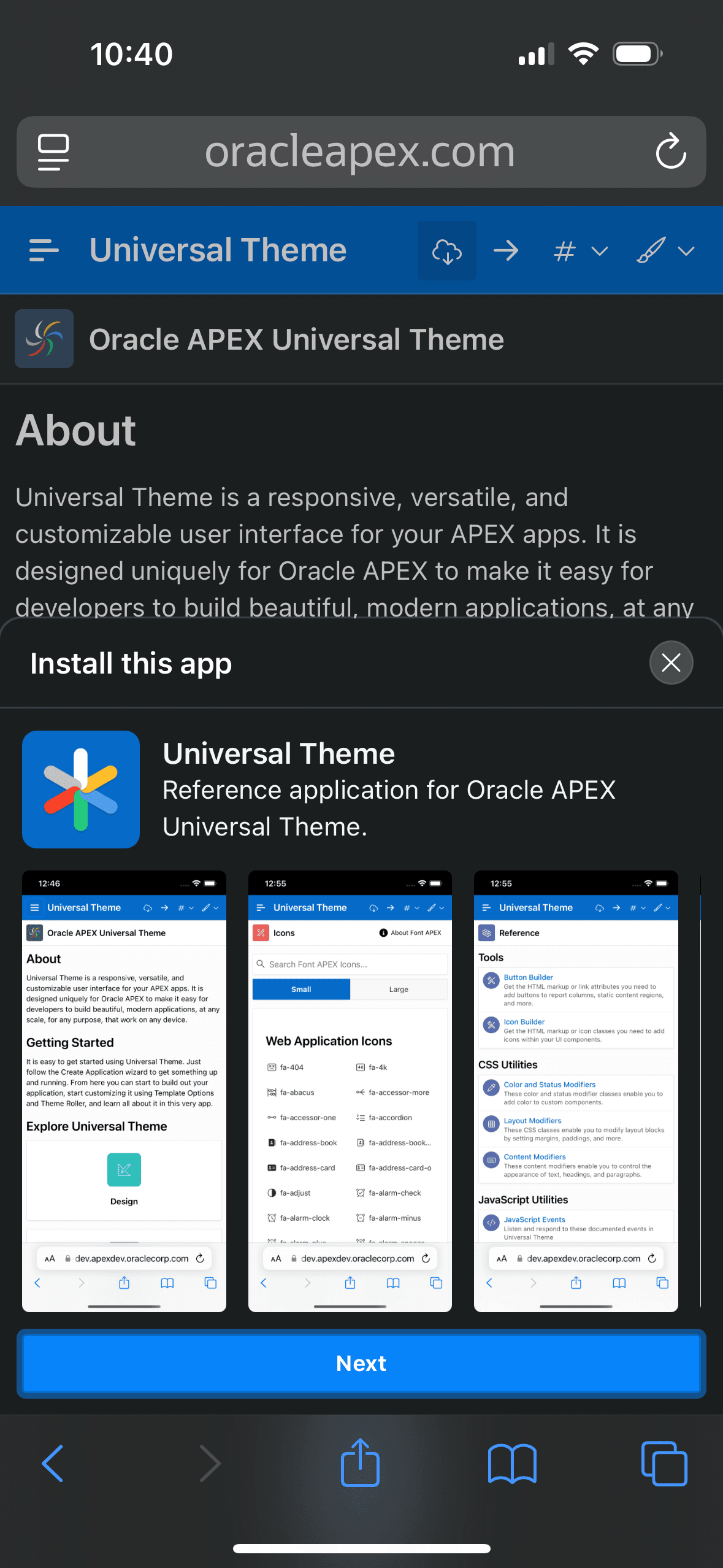
Universal Theme Reference App at https://oracleapex.com/ut. As shown below, clicking the "cloud with
download arrow" icon in the navigation bar opens the simple installation experience to
guide you.
Figure 3-64 Tapping to Install an APEX as a Native App on iPhone
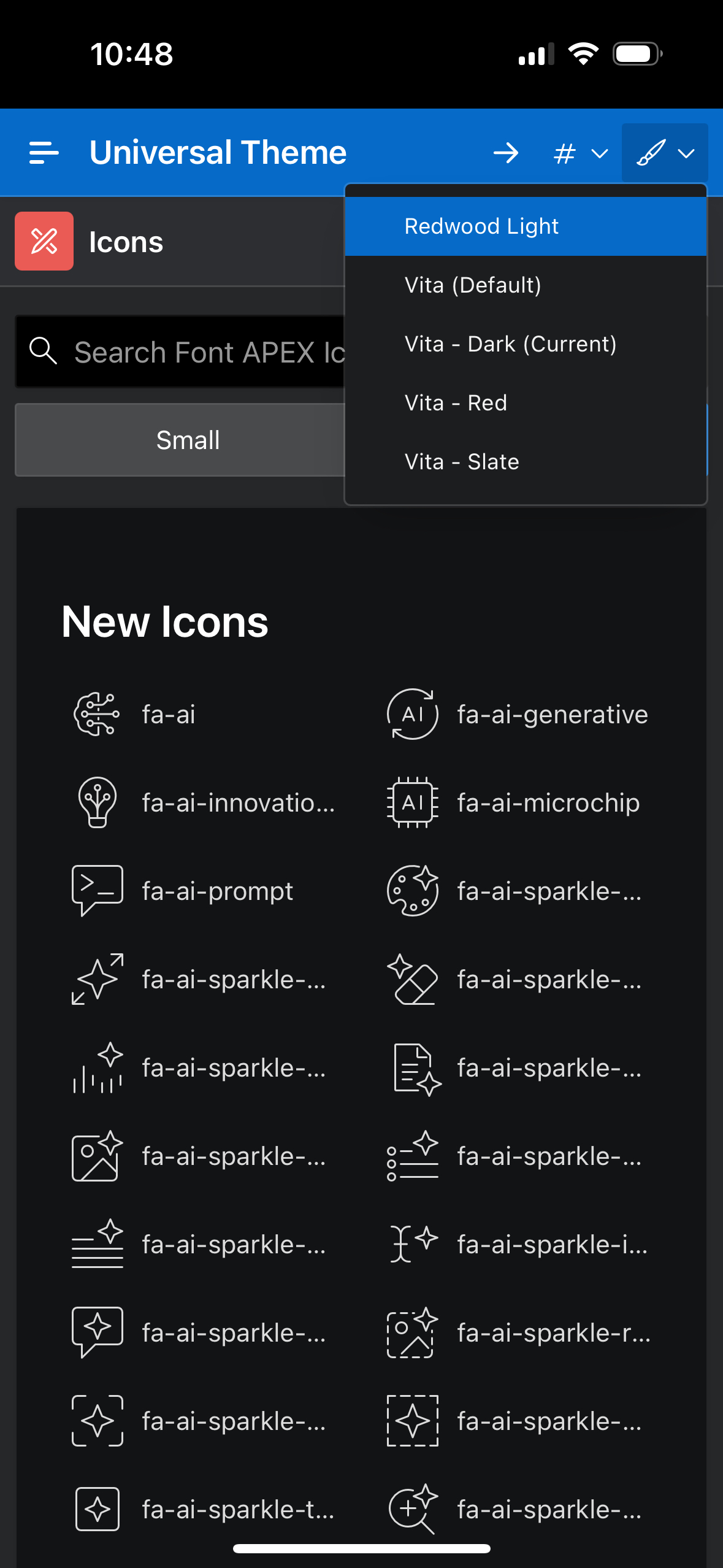
After the quick installation process, tapping the Universal
Theme app icon on your Home Screen opens the app in full screen where it
works and behaves like any other native iPhone app. The figure below shows one of the
pages in the reference app used for finding icons. You can install the APEX Progressive Web App reference app at https://oracleapex.com/pwa in an identical way.
Figure 3-65 Full Screen iPhone App Experience with APEX Progressive Web App
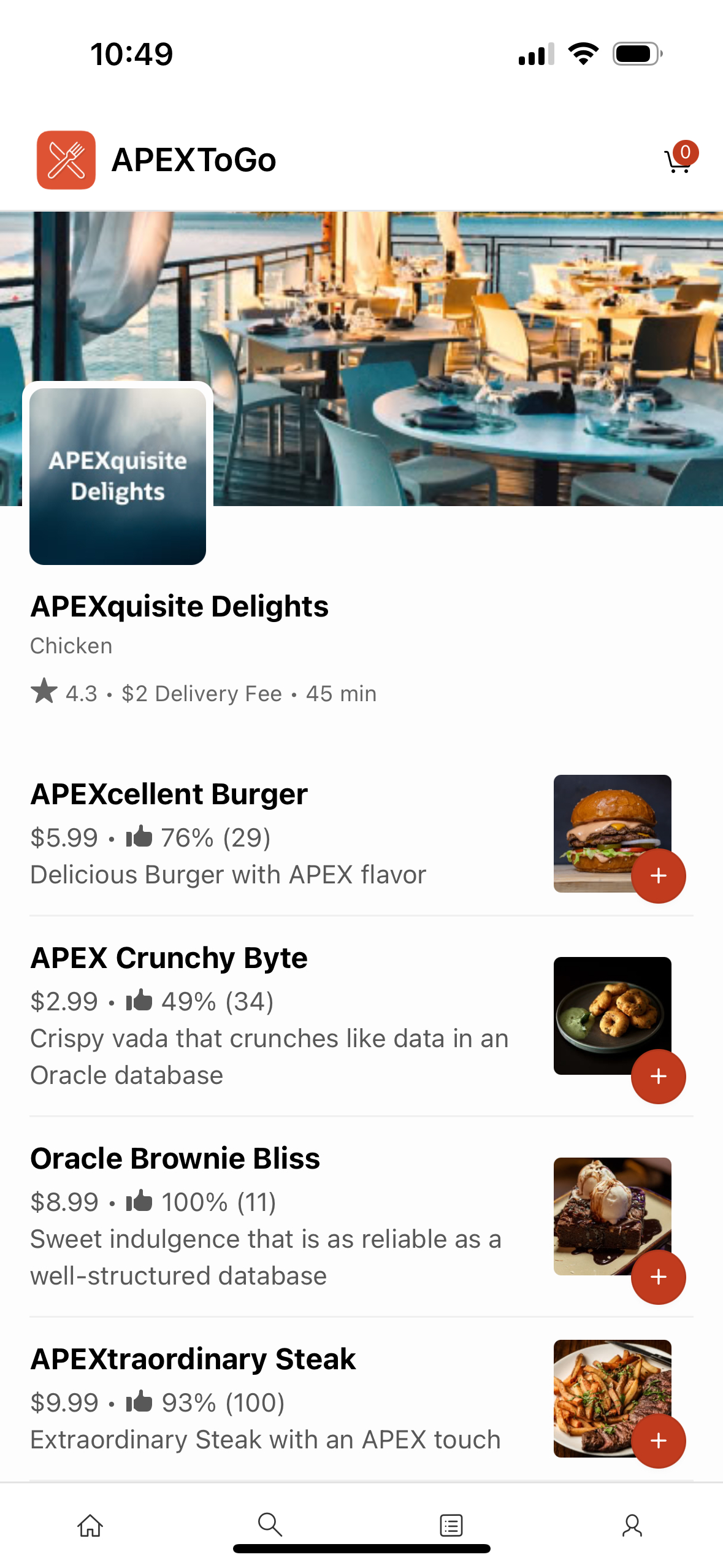
Your APEX app can use mobile device features like front-facing (selfie) cameras and mobile
location, and take advantage of optimized mobile keyboards for searching and entering
numbers, email addresses, phone numbers, and URLs. Check out the APEX
To Go mobile sample app shown below at https://apex.oracle.com/go/apextogo to learn more
about creating APEX apps that are optimized for the mobile experience.
Figure 3-66 APEX To Go Mobile Sample App on iPhone
Parent topic: Simplifying User Experience Design