8.4.3 Modal Dialogs and Drawers
A modal dialog appears centered above the page that opens it. By default, it sizes to its content, but you can set its width and height or make it fill the available space. Configured as a drawer, it slides in from the start or end edge.
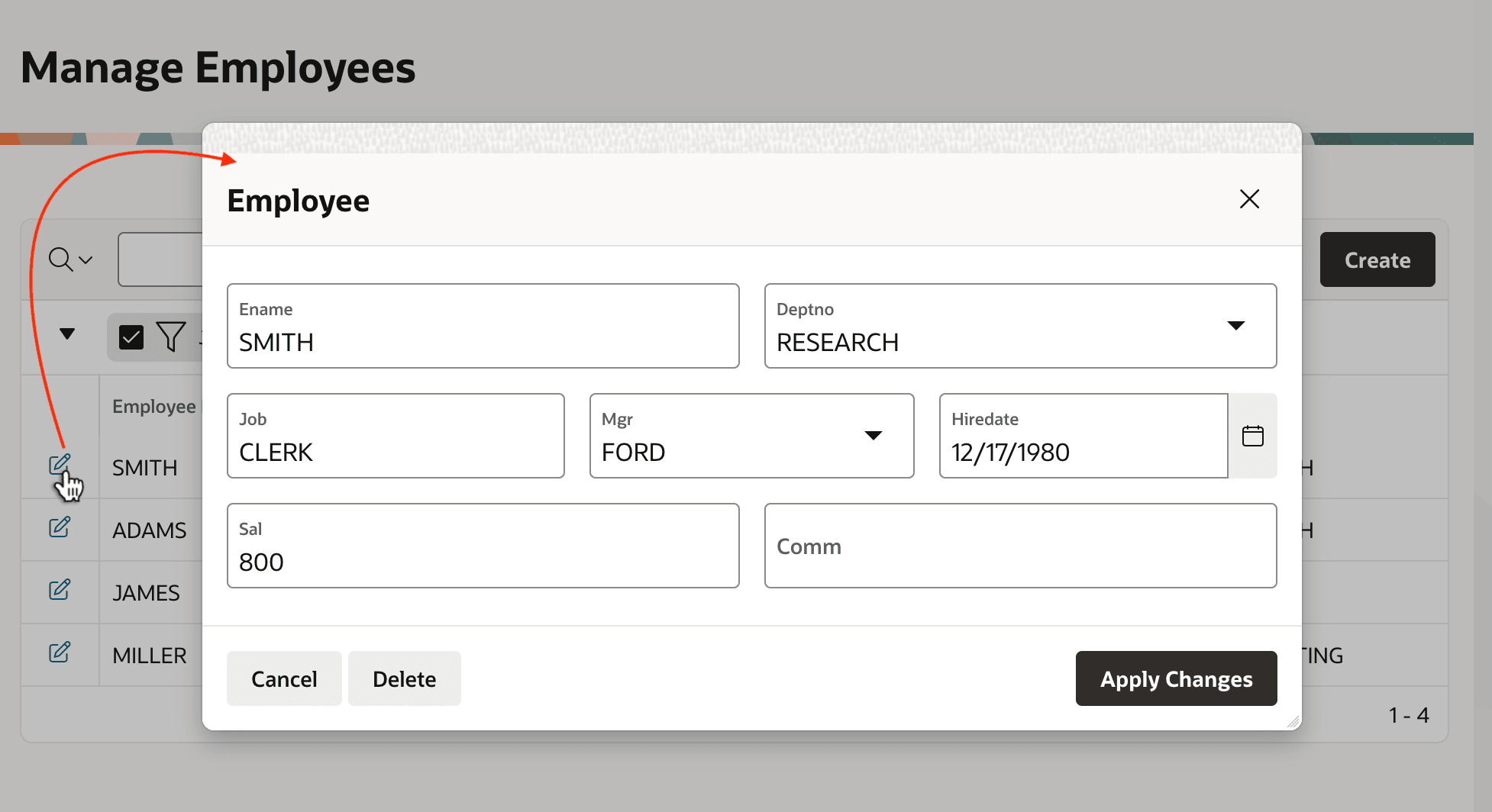
You create a modal dialog page by setting its Page Mode property to Modal Dialog. While it displays, the user can't interact with the calling page below. When the user cancels or closes the dialog, it disappears and the calling page becomes active again. The figure below shows an Employee edit page as a modal dialog above an Employees interactive report page.
Figure 8-21 Modal Dialog Form Page Called from a List Page
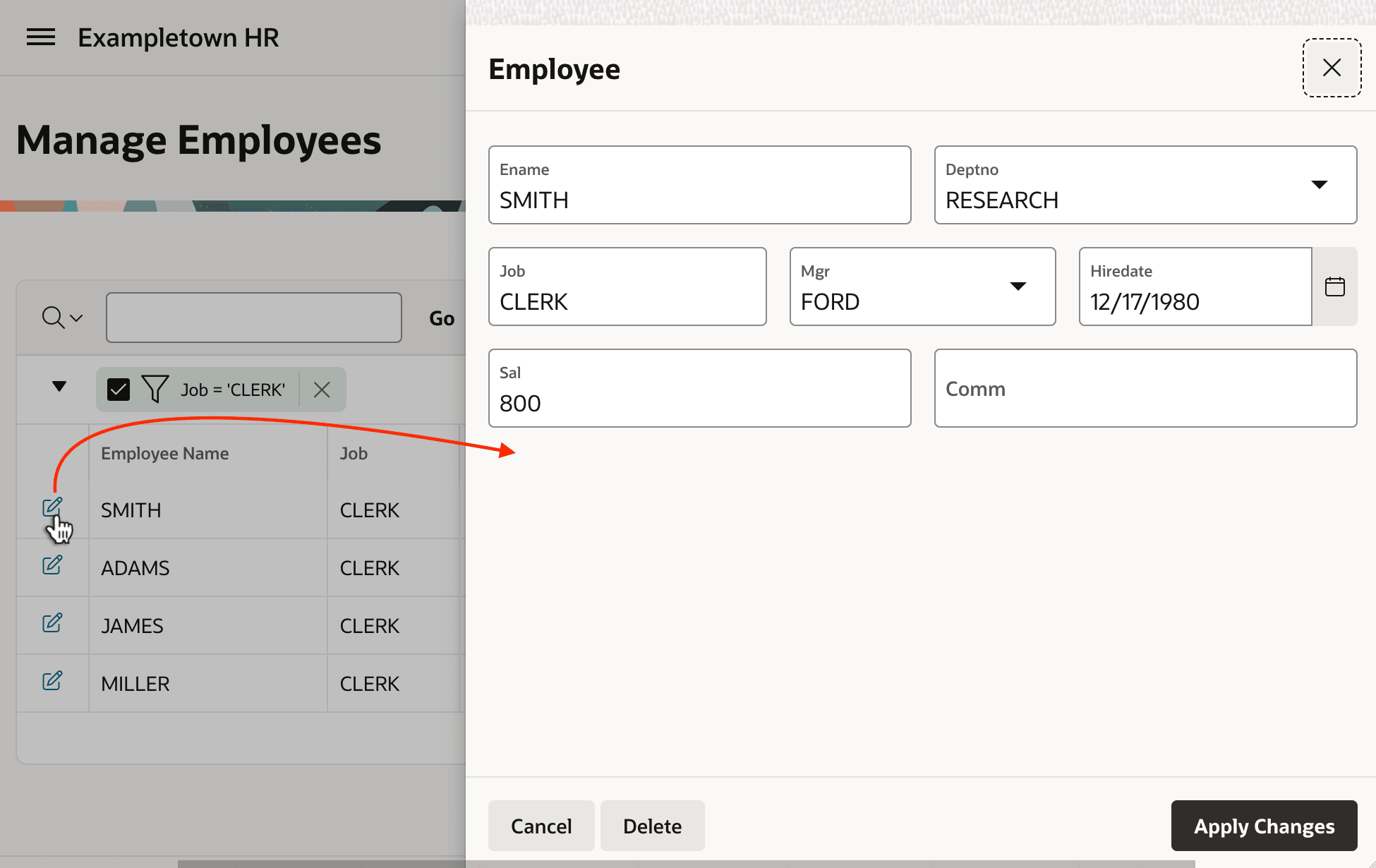
If you set the page's Dialog Template property to Drawer, you opt for a different behavior. The drawer shown below is an alternative way to present a modal page. It occupies the full height of the window and slides out from either the start or end edge of the window.
Figure 8-22 Modal Drawer Slides Out from the Start or End of the Window
In either case, you can close the dialog page using the Close Dialog dynamic action or the Close Dialog page process. These close dialog methods can optionally return one or more page item values to the calling page. A Dialog Closed dynamic action event handler can reference these Dialog Return Items back in the calling page. You can cancel the dialog using the Cancel dynamic action.
If your modal dialog branches or redirects to another modal dialog of the same kind, set the Chained property to On to have the called page reuse the current modal dialog's window. Setting this property to Off causes the called page to open in another modal dialog window on top of the current modal dialog.
Parent topic: Additional Page Flow Features