24.5 Reading APEXlang Syntax
APEXlang's clean, modern syntax makes it easy for developers and AI coding assistants to read and write.
Studying APEXlang Syntax of a Page
When you open an app folder with APEXlang files in your favorite editor, you can browse, search, and edit them like any project. For example, page 3 is an Employee form page with alias employee. Its filename incorporates both the page number and the alias. Opening p00003‑employee.apx, you see the wizard created a modalDialog page using the drawer template.
page 3 (
    name: Employee
    alias: EMPLOYEE
    title: Employee
    appearance {
        pageMode: modalDialog
        dialogTemplate: @/drawer
        templateOptions: [
            #DEFAULT#
            js-dialog-class-t-Drawer--pullOutEnd
        ]
    }
    dialog {
        chained: false
    }
  ⋮
)
In the example above, it’s easy to see this page component’s
pageMode property – in the appearance group – has the
value modalDialog. For brevity, you can say
appearance.pageMode is modalDialog.
APEXlang avoids unnecessary delimiters. Every component (e.g. page) contains its properties, grouped by function, as name : value pairs. Properties like name, alias, and title in the identification group can optionally appear with no group as shown below. Required properties must have a value, but files stay concise since any property with its default value can be omitted. Leave optional properties out until you need to assign them a value.
Values don’t require quotes in most cases, and a new line separates properties and array elements. For example, the value of appearance.templateOptions is an array with two entries. In this case, they are CSS class names the template defines with the special #DEFAULT# placeholder for “any default classes” the template specifies.
page 3 (
    name: Employee
      ⋮
    appearance {
      ⋮
        templateOptions: [
            #DEFAULT#
            js-dialog-class-t-Drawer--pullOutEnd
        ]
    }
  ⋮
)>
Component Identifiers and References
Each component type’s metadata nominates an identifier property. Most of the time, staticId plays this role, but sometimes it’s the name or alias. All components have a mandatory human-readable static ID so APEXlang files never need to reference internal ID numbers. APEX automatically assigns sensible static IDs to any components missing one on import or upgrade.
- an app can have only one page
3 - page
2and3can both have aregionwith identifieremployees - page
3can haveemployeesanddepartmentsregions each with aDEPTNOcolumn - the
departmentsregion on page3cannot have twoDEPTNOcolumns.
A component’s identifier value follows its type, just before the opening parenthesis of its property list. In the example below, 3 is the page component’s identifier, and employee identifies the region.
page 3 (
 ⋮
   region employee (
     ⋮
    )
 ⋮
)
Component References in APEXlang
Each @-prefixed value is a reference to the identifier property value of another component. Later in p00003‑employee.apx you find the page contains a Form region named Employee identified by employee. Notice its appearance.template property references the blank-with-attributes template.
page 3 (
 ⋮
   region employee (
        name: Employee
        type: form
        source {
            location: localDatabase
            tableName: EMP
        }
        layout {
            sequence: 10
            slot: contentBody
        }
        appearance {
            template: @/blank-with-attributes
            templateOptions: #DEFAULT#
        }
        edit {
            enabled: true
            allowedOperations: [
                add
                update
                delete
            ]
        }
    )
 ⋮
)
Each page item appears in the page’s .apx file as well. Notice the
hidden, primary key P3_EMPNO item based on the EMPNO
column. It references the employee region as the value of both its
layout.region and source.formRegion properties.
When a pageItem references an employee region on the same
page, it uses @employee.
page 3 (
 ⋮
    pageItem P3_EMPNO (
        type: hidden
        layout {
            sequence: 10
            region: @employee
            slot: regionBody
        }
        source {
            formRegion: @employee
            column: EMPNO
            dataType: number
            queryOnly: true
            primaryKey: true
        }
        security {
            sessionStateProtection: checksumRequiredSessionLevel
        }
    )
 ⋮
)
Similarly, when a pageItem references a shared component like an LOV in the same app, it
uses @. Notice the P3_DEPTNO item below is a
selectList referencing the sharedComponent LOV using
@dept-dname.
page 3 (
 ⋮
    pageItem P3_DEPTNO (
        type: selectList
        label {
            label: Deptno
            alignment: left
        }
        lov {
            type: sharedComponent
            lov: @dept-dname
        }
        layout {
            sequence: 80
            region: @employee
            slot: regionBody
            alignment: left
        }
        appearance {
            template: @/optional-floating
            templateOptions: #DEFAULT#
        }
        source {
            formRegion: @employee
            column: DEPTNO
            dataType: number
        }
    )
 ⋮
)@-prefix rule use an @/-prefix instead. They are the components that are either:
- on the global page, or
- part of the standard Universal Theme.
For example, in a regular page, reference the my-global-page-header region
from the global page using @/my-global-page-header.
When a template comes from the standard Universal Theme set, use references like
@/drawer or @/blank‑with‑attributes or
@/optional‑floating. In contrast, when a theme template is defined
locally within the app, use @my‑slideshow.
Adding Additional Features to Example App in App Builder
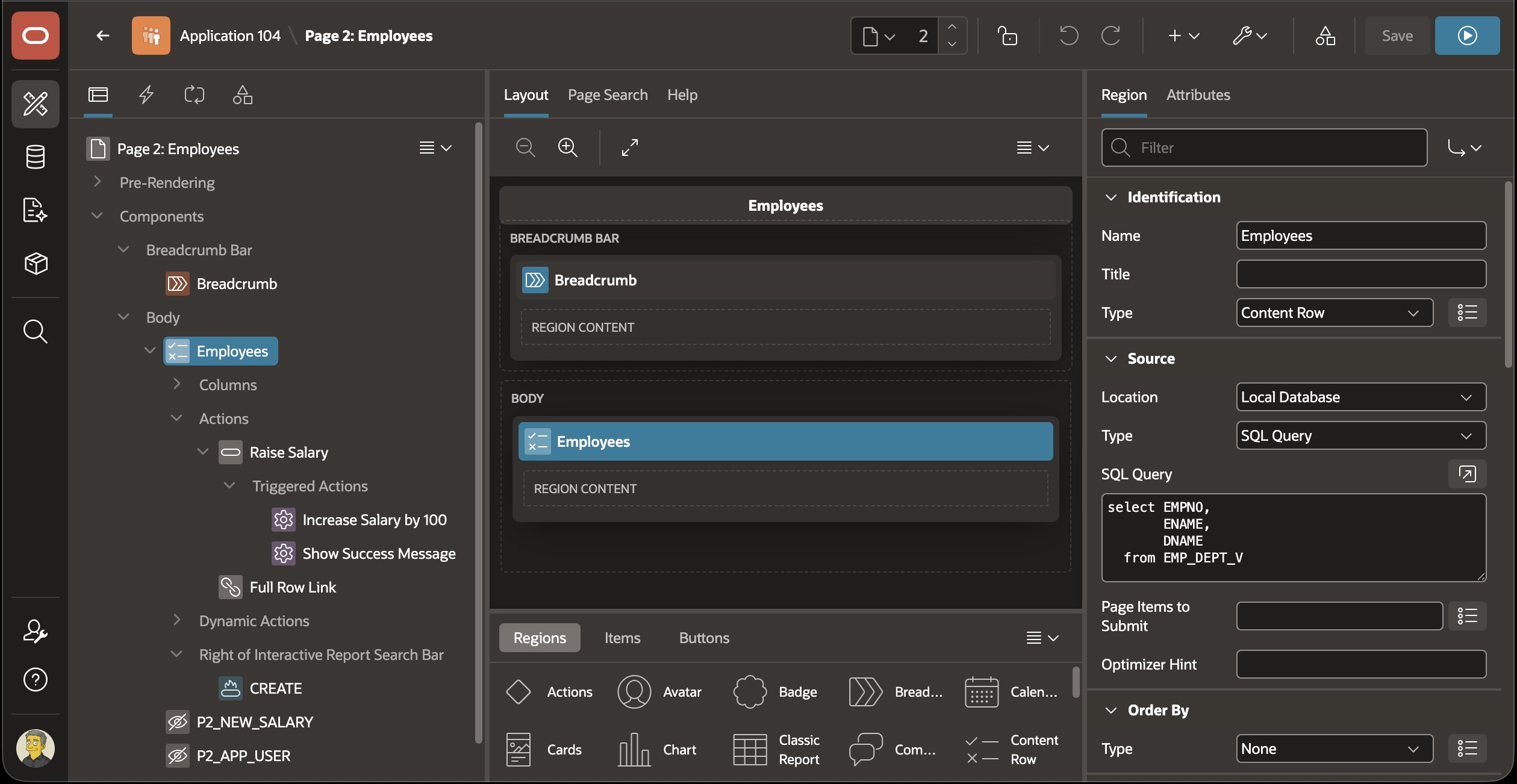
- switch the Interactive Report region to be a Content Row
- change it to be based on a SQL query,
- update the page help text with some HTML markup,
- define an inline CSS rule to increase the font size by 20%
- add a Raise Salary action button to run PL/SQL business logic, and
- use JavaScript on the Page Load event to welcome the user back to your app.
The figure below shows your page after these modifications. You could export the modified application again from App Builder to study how these new features look in the .apx files. However, since you haven’t made changes yet in VS Code, you can simply export the app to APEXlang directly in VS Code to reflect the latest App Builder changes in the project files.
Figure 24-6 Modified Employees Page in Page Designer
SQL, PL/SQL, JavaScript, HTML, and CSS in APEXlang
APEXlang represents multi-line code using fenced code blocks with a language indicator. The following example shows a SQL query in the source of the Employees region.
page 2 (
    name: Employees
 ⋮
    region employees (
        name: Employees
        type: themeTemplateComponent/contentRow
        source {
            location: localDatabase
            type: sqlQuery
            sqlQuery:
                ```sql
                select EMPNO,
                       ENAME,
                       DNAME
                  from EMP_DEPT_V
                ```
        }
      ⋮
    )
 ⋮
)
PL/SQL in the application appears in a block with the plsql language
indicator. In this example, the logic is a single update statement that
returns the adjusted salary into a hidden page item.
page 2 (
    name: Employees
 ⋮
    region employees (
        name: Employees
      ⋮
       action raise-salary (
            position: primaryActions
            template: button
            label: Raise Salary
            layout {
                sequence: 10
            }
            behavior {
                type: triggerAction
            }
            triggerAction increase-salary-by-100 (
                name: Increase Salary by 100
                action: executeServerSideCode
                settings {
                    plsqlCode:
                        ```plsql
                        update emp
                           set sal = nvl(sal,0) + 100
                         where empno = :EMPNO
                         returning sal into :P2_NEW_SALARY;
                        ```
                    itemsToSubmit: EMPNO
                    itemsToReturn: P2_NEW_SALARY
                }
                execution {
                    sequence: 10
                }
            )
          ⋮
        )
    )
 ⋮
)
Page-load JavaScript runs in the browser, so it has a javascript-browser
language indicator. Any server-side JavaScript would use javascript-mle
instead.
page 2 (
    name: Employees
    ⋮
    dynamicAction on-page-load (
        name: On Page Load
        execution {
            sequence: 20
        }
        when {
            event: ready
        }
        action native-javascript-code (
            action: executeJsCode
            settings {
                jsCode:
                    ```javascript-browser
                    if ( !sessionStorage.getItem( "p2Welcomed" ) ) {
                        const username = apex.item( "P2_APP_USER" ).getValue();
                        apex.message.showPageSuccess( `Welcome back, ${username}!` );
                        sessionStorage.setItem( "p2Welcomed", "true" );
                    }
                    ```
            }
            execution {
                sequence: 10
            }
        )
    )
 ⋮
)
HTML and CSS use the same fenced block pattern with html and
css language indicators.
page 2 (
    name: Employees
 ⋮
    css {
        inline:
            ```css
            body {
                font-size: 1.2rem;
            }
            ```
    }
 ⋮
)
And page help HTML markup looks similar.
page 2 (
    name: Employees
 ⋮
    help {
        helpText:
            ```html
            <p>
              Select an employee to edit it,
              or click (Raise Salary) to increase
              an employee's salary by 100.
            </p>
            ```
    }
 ⋮
)
Tip:
For more information, see the.APEXlang Language Reference and the APEXlang Atlas interactive learning tool.
Parent topic: Working with APEXlang