3.3.1.1 Rendering, Layout, and Property Editor
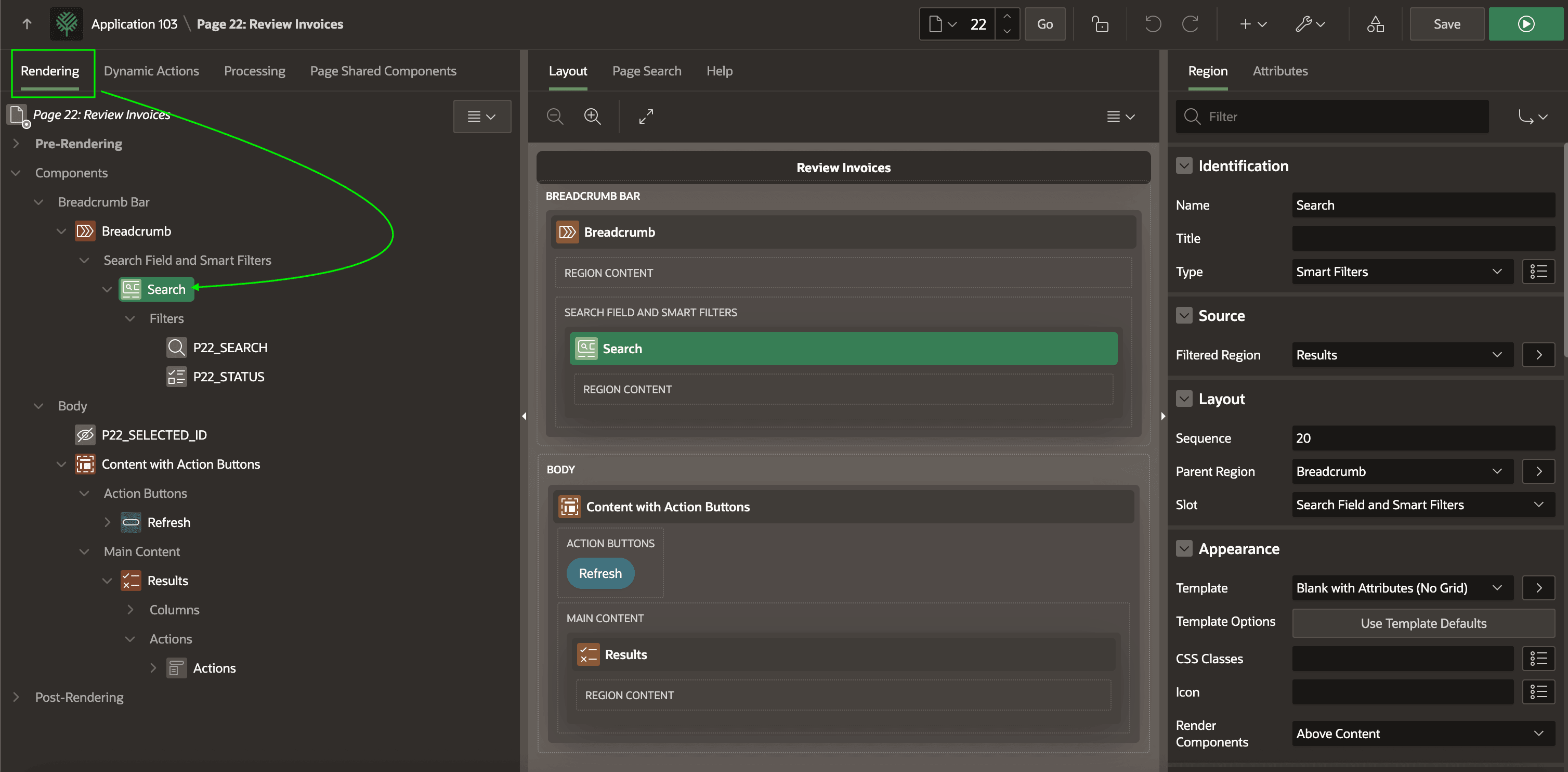
In the default arrangement of Page Designer tabs, the Rendering tab is grouped together with the Dynamic Actions, Processing, and Page Shared Components tabs, and all present a tree of their respective contents.
As shown below, their tab names show when there is enough horizontal space. The Rendering tab displays the hierarchy of regions, page items, and buttons on the page. Tree headings reflect the different page template and region slots where components can appear.
Figure 3-7 Rendering, Dynamic Actions, Processing, and Page Shared Components Tabs
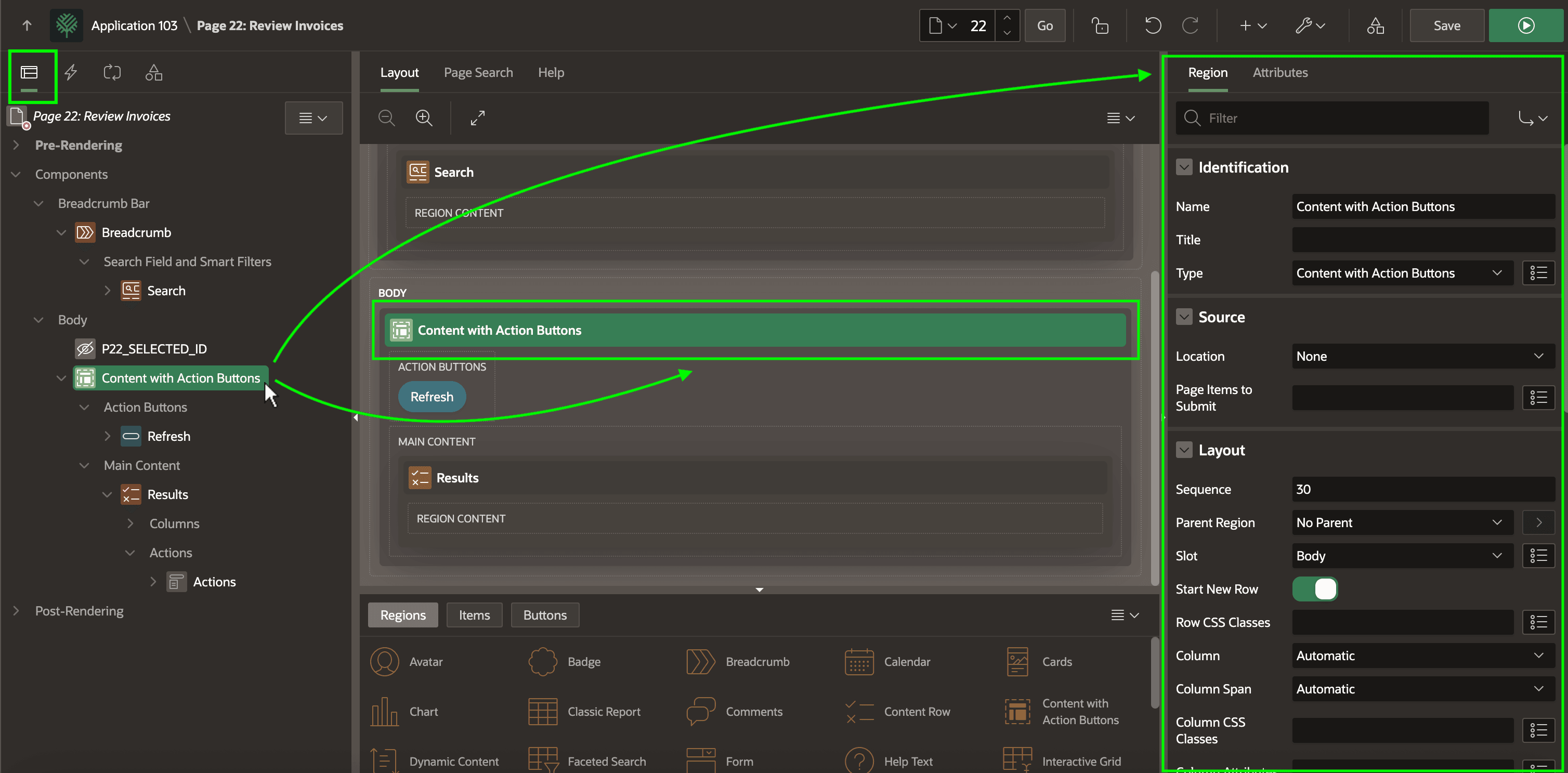
Selecting a component in the Rendering tab highlights it in the Layout tab, and updates the Property Editor to reflect the component's settings. The figure below shows how these same four tabs display only an appropriate icon when the panel width is narrower. You can use the vertical splitters between panels to adjust their widths. By clicking the small arrow in the splitter, you can collapse or expand the side columns as needed.
If useful, you can drag any tab to another position in its current panel, or into any position in a different panel. To reset the tab arrangement, choose Reset Layout from the Utilities dropdown menu. Its icon is a wrench with a down-pointing chevron.
Figure 3-8 Using Property Editor with Rendering and Layout Tabs
Parent topic: Key Page Designer Areas