3.3.1.2 Configuring Settings with Property Editor
You use the Property Editor to review and change the settings of components on the page.
The Property Editor displays all settings for the selected component. Some components have settings that appear across multiple tabs. The property editor supports multiple selection, searching for a selected property, and pinning a search to examine the same setting across multiple components.
Configuring Settings for Multiple Components
- select one component then Shift-select another to select a range, or
- Control- or Command-select any set of components.
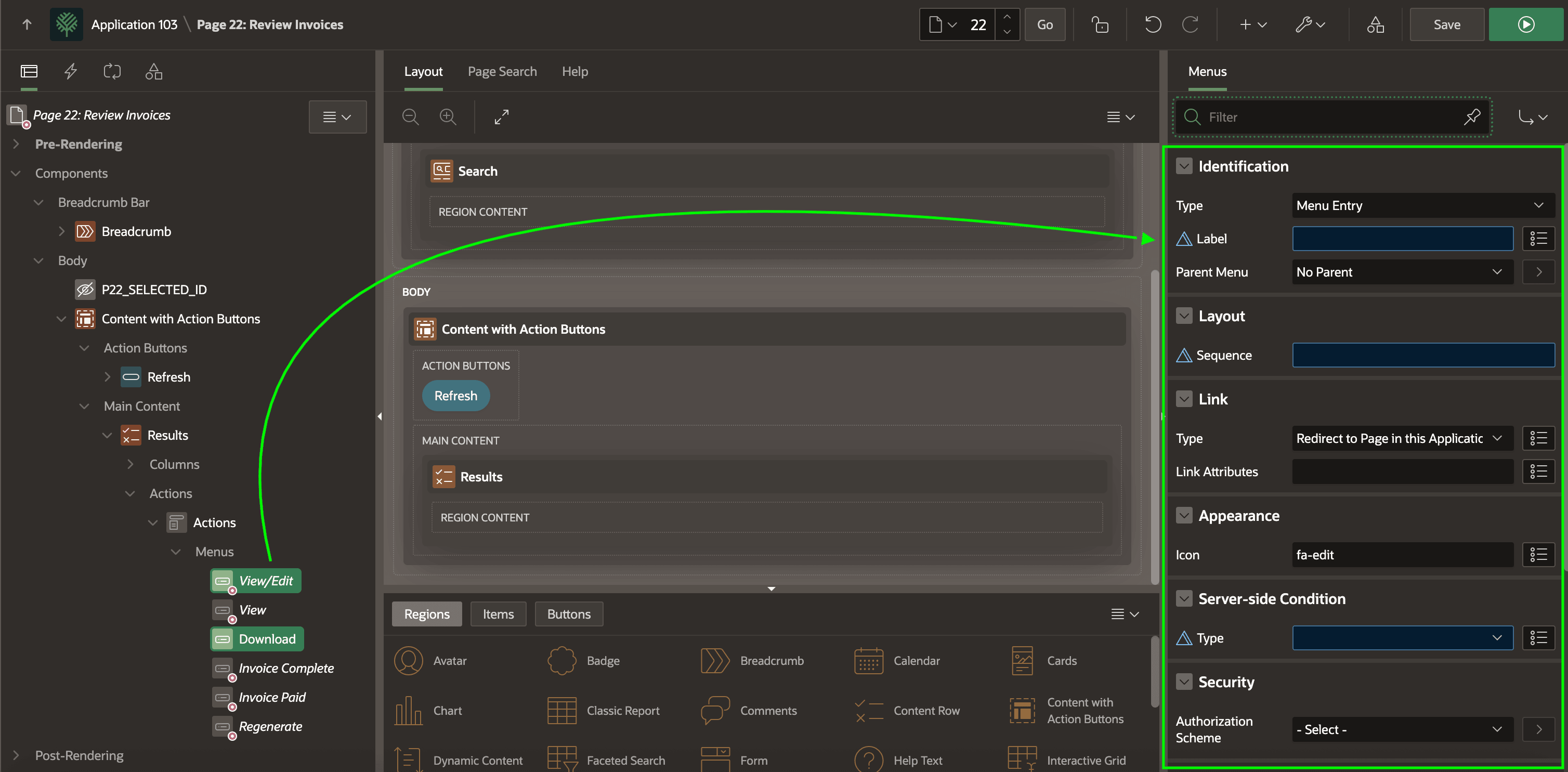
As shown below, when the selected components have the same value for a common setting, like Icon, the property value displays. When their values for a property differ, a delta symbol appears and the property shows empty.
Setting any property value while multiple components are selected sets that same value on all selected components.
Figure 3-9 Working with Properties of Multiple Selected Components
Searching for a Particular Setting
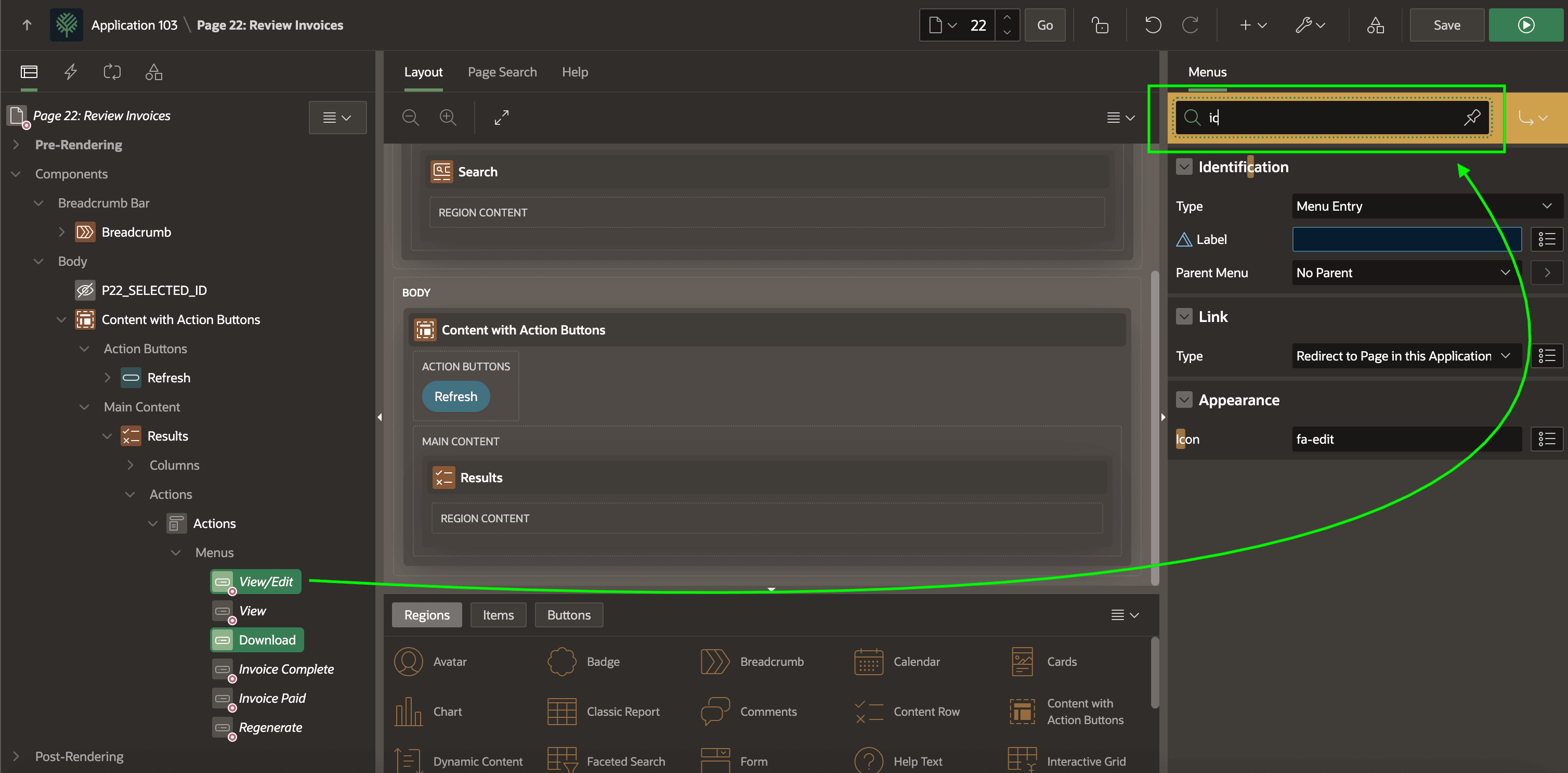
Use the Filter search field at the top of the Property Editor to find a particular setting by name. As shown below, after typing ic into the field, the editor displays a filtered view of properties whose section title or property name contains the search term. Search results include the Identification group and the Icon setting, both of which contain ic in their name. This property search helps you quickly narrow the focus to just the property you need to change. Press the Escape key while the search field has focus to clear the search and see all settings again.
Figure 3-10 Searching the Property Editor to Find a Setting
Pinning a Property Editor Search
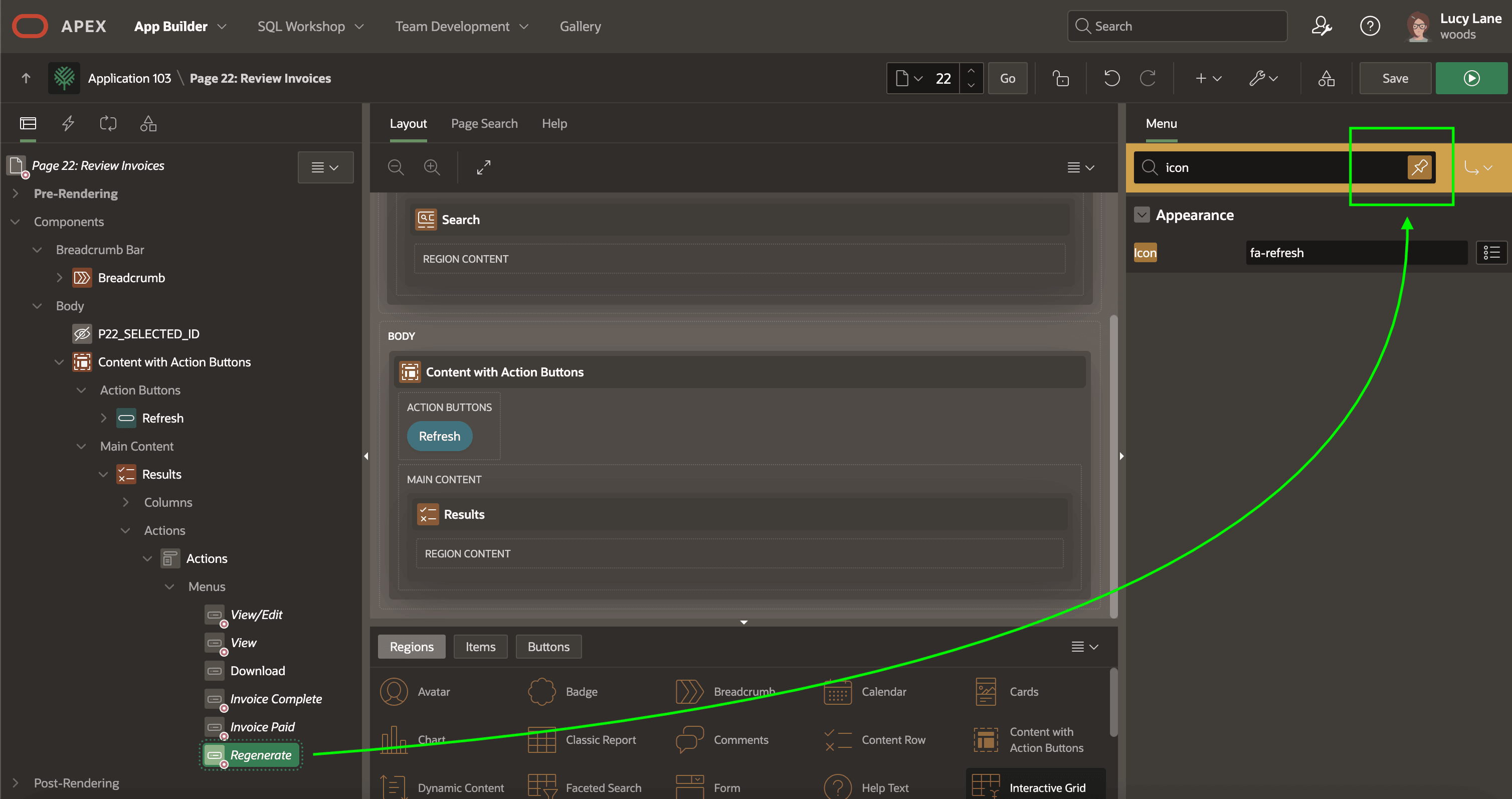
If you plan to inspect or change a particular property across multiple components, select them all, search in the Property Editor to find the setting, and then set their common property in one go. As shown below, you can also search the Property Editor first to find the setting and then click Pin in the search field. This "freezes" the search until you click Pin again to unpin the search. With the search pinned, you can visit any number of components in the page and see or change only the properties in the filtered Property Editor.
Figure 3-11 Pinning a Property Editor Search to Work on Multiple Components
Parent topic: Key Page Designer Areas