7.1.3 Slots Enable Component Composition
It's easy to define a component that can compose other regions, page items,
and buttons. Just define a named slot and include its contents in your template using the
#SLOTNAME# syntax.
Page Designer helps developers add the buttons, page items, or regions you allow into these slots and enforces any constraints on the slot contents that you configure. In short, if you say a particular slot can only contain buttons, then Page Designer makes sure teammates follow your rules.
For example, consider a template component named Content with Action Buttons
with two slots named MAIN_CONTENT and ACTION_BUTTONS. Its
simple partial template can use {if/} directives to conditionally format the
contents of these two slots as follows. Notice the formatting of the
MAIN_CONTENT slot changes depending on whether the developer has provided a
value for the HEIGHT custom attribute.
{if ACTION_BUTTONS/}
  <div class="action-buttons">
    #ACTION_BUTTONS#
  </div>
{endif/}
{if HEIGHT/}
  <div style="height:#HEIGHT#">
    #MAIN_CONTENT#
  </div>
{else/}
  #MAIN_CONTENT#
{endif/}
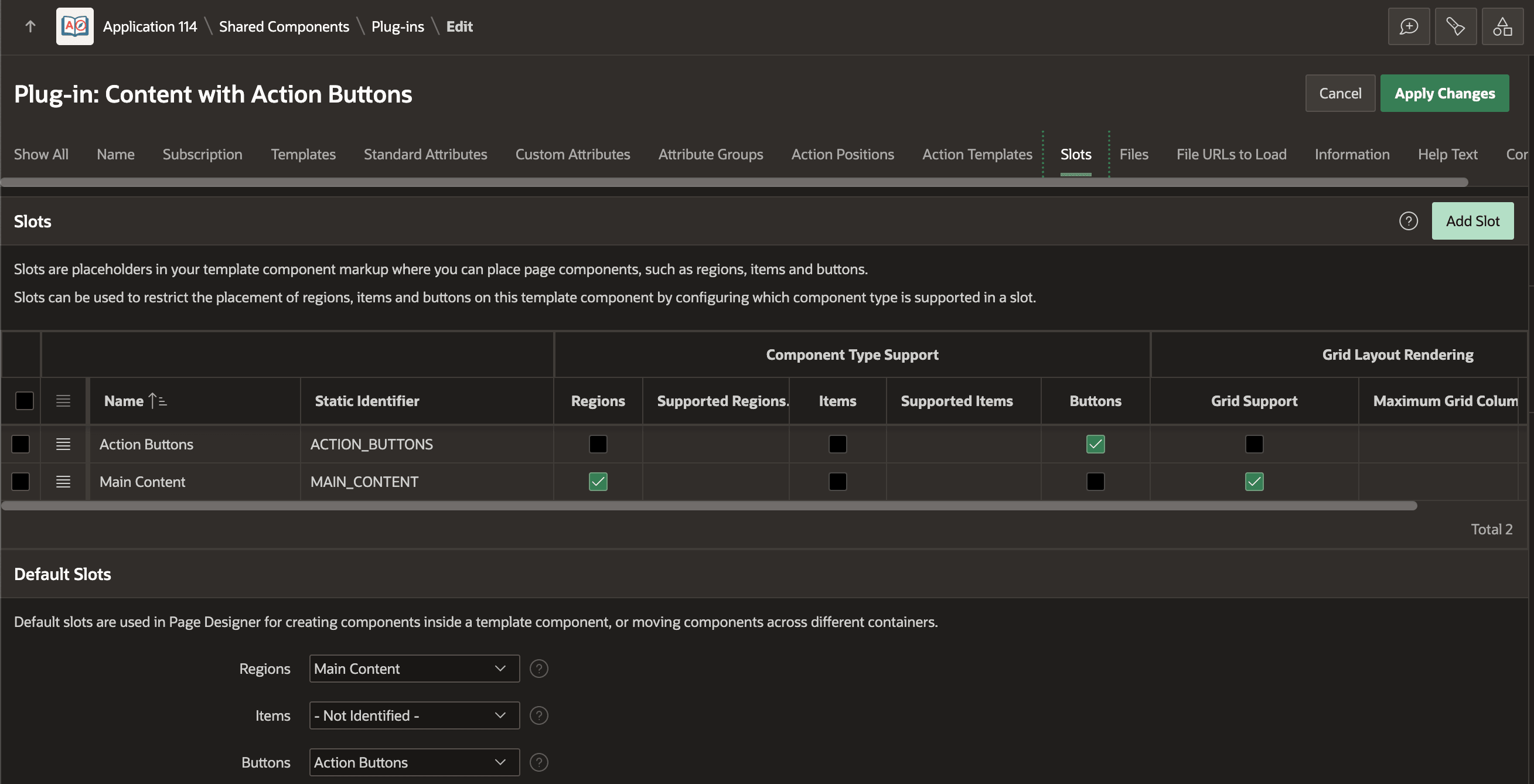
When defining the slots, you can indicate, as shown below, that the ACTION_BUTTONS slot should only allow buttons and that the MAIN_CONTENT slot should only allow regions and support the 12-column grid layout. In the Default Slots section below, notice that you can indicate that the Main Content slot is the default slot for subregions and that Action Buttons is the default slot for buttons. These additional details further simplify the Page Designer experience for developers using the component.
Figure 7-3 Configuring Slot Behavior in a Template Component
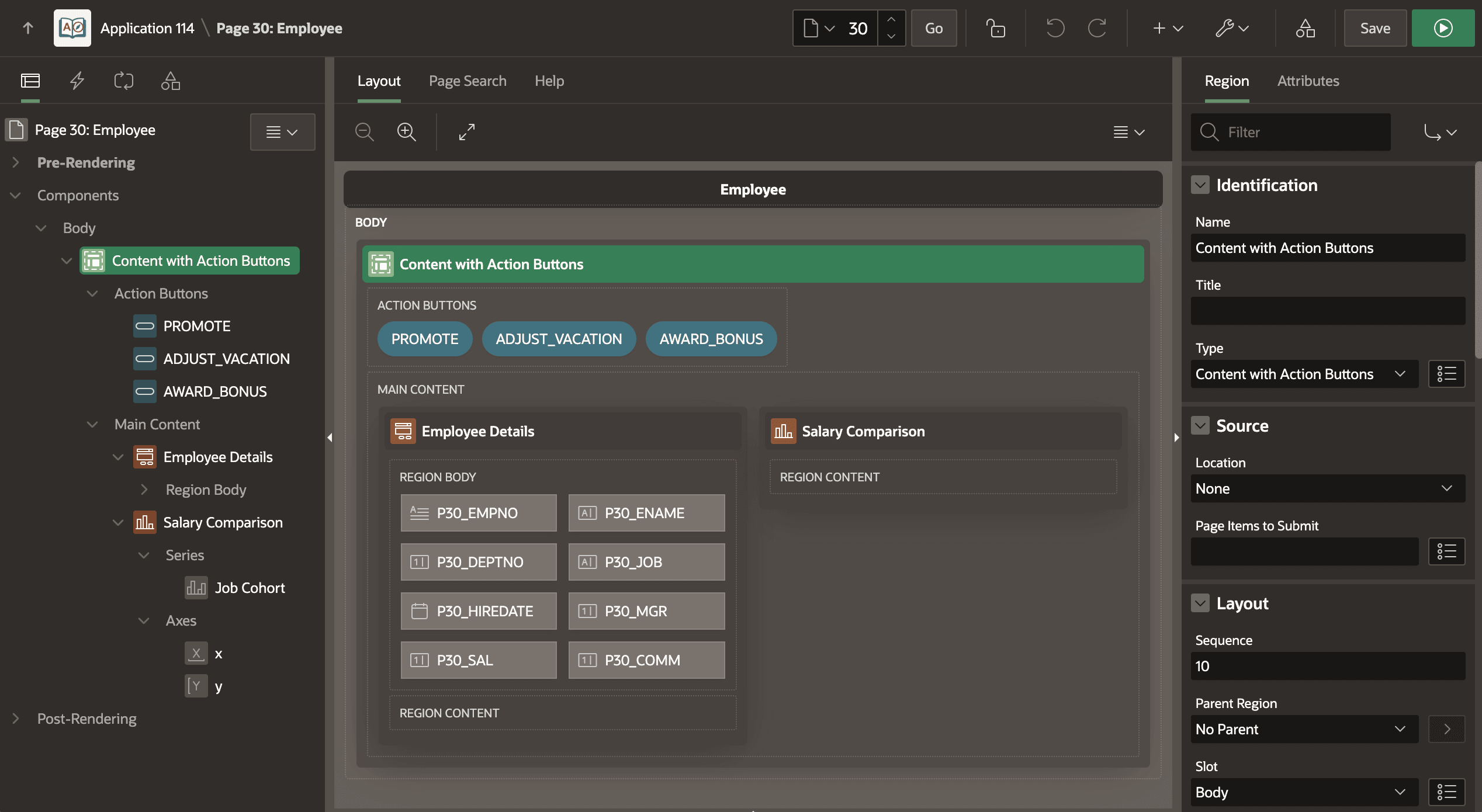
When a developer uses the Content with Action Buttons component on a page, as shown below, Page Designer displays the Action Buttons slot and ensures they can only add buttons into it. Similarly, the developer can only add regions into the Main Content slot.
Figure 7-4 Using a Template Component's Slots in Page Designer
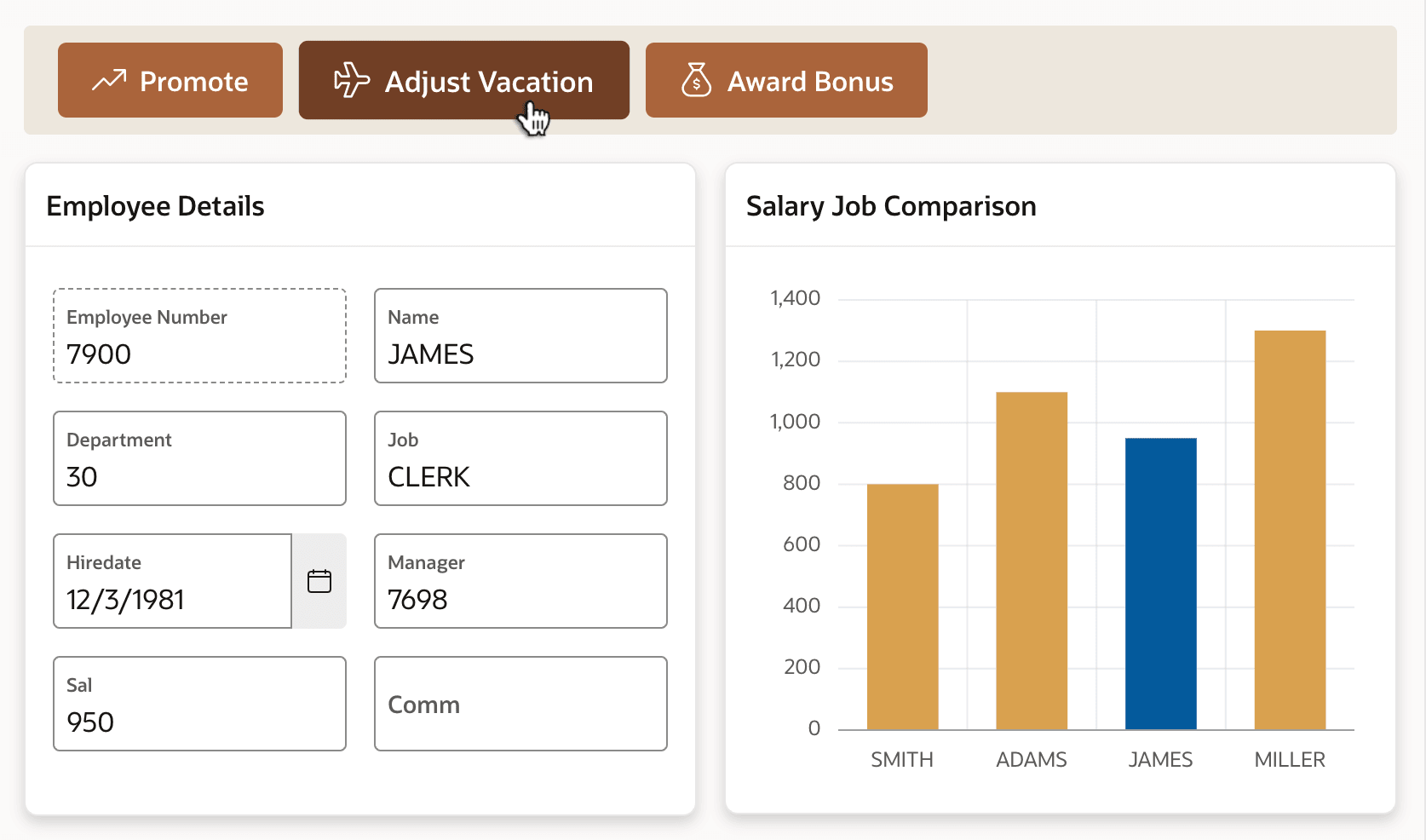
Running the page, you see below how the Content with Action Buttons component styles the buttons contained in the ACTION_BUTTONS slot and contains two regions each using 6 columns of the 12-column grid row in the MAIN_CONTENT slot.
Figure 7-5 Template Component Positions and Styles Composed Buttons and Regions
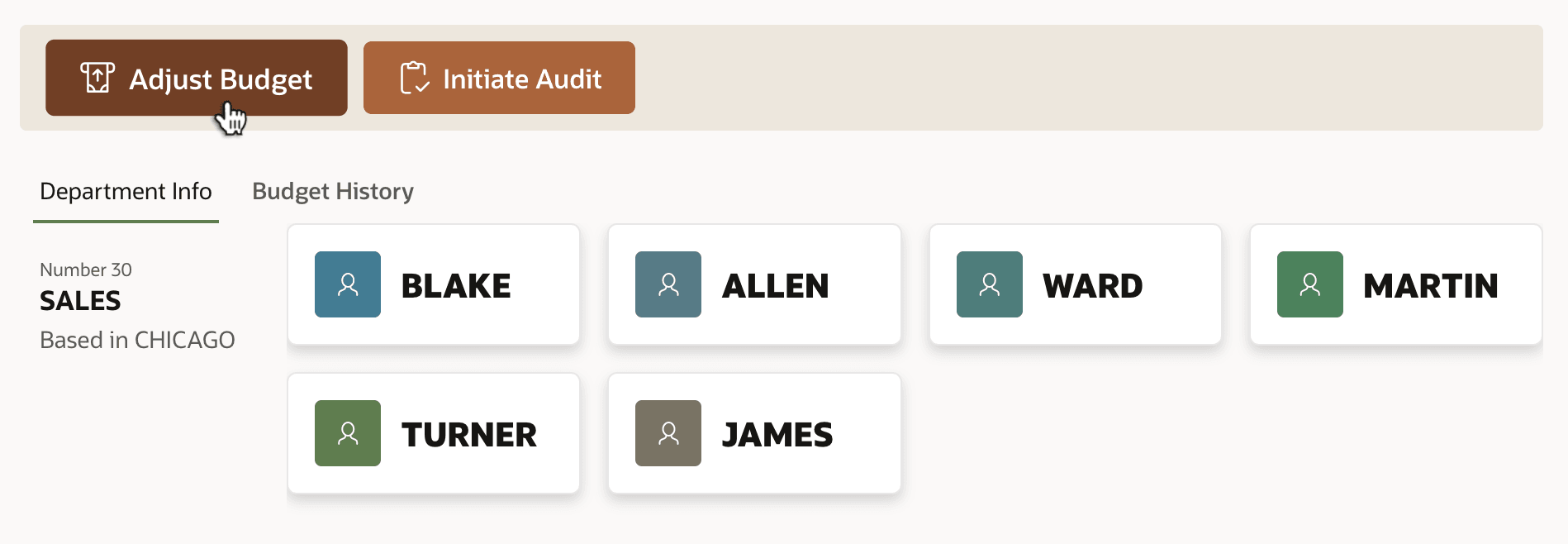
In another page, you can use the Content with Action Buttons component with different buttons and regions to create a tabbed display of department information. The figure below shows Adjust Budget and Initiate Audit buttons in the Action Buttons component slot, and in the Main Content slot, Department Info and Budget History tabs appear with their respective contents.
Figure 7-6 Different Usage of Content with Action Buttons Template Component
Parent topic: Reusable Components Using HTML Skills